


Runtime Archive
The Runtime Archive option in the navigation pane of the Project Manager lets you find and download JSON files containing the runtime logs of all finished pipeline executions (Completed, Failed, or Stopped).
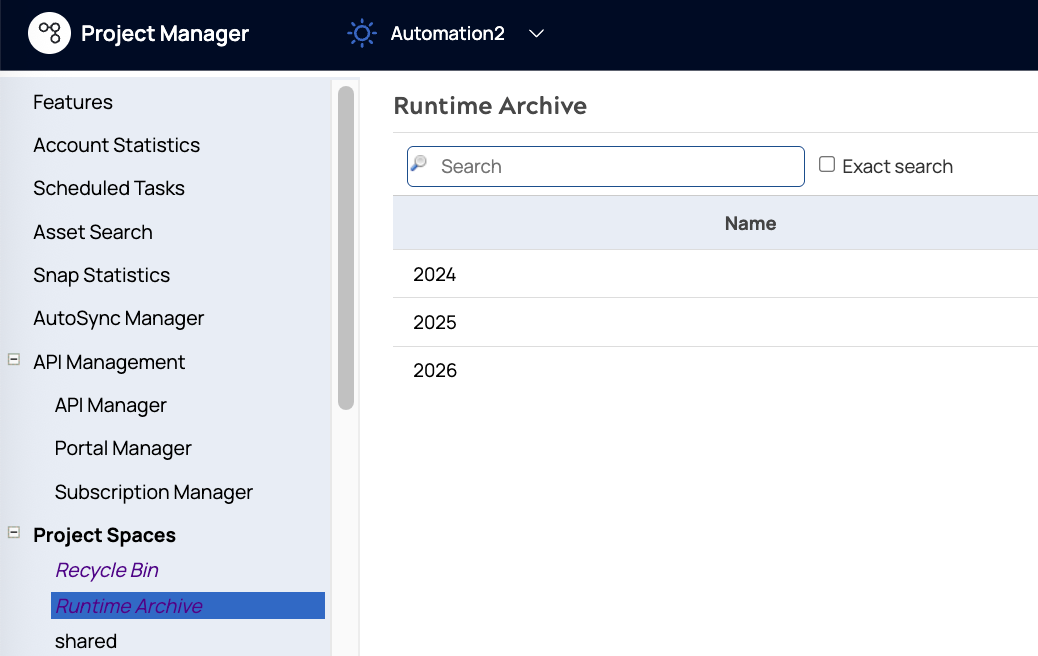
Download a Runtime Archive File describes how to find and download a file. The following sections describe file contents.
File Generation and Availability
The SnapLogic platform generates one log file per Environment per hour, based on UTC, and writes it approximately 15 minutes past the top of each hour. A background process then makes the file available in the Runtime Archive screen. This process runs hourly but introduces a delay of approximately 2–3 hours, so newly generated files might not appear in the archive immediately.
Day Boundary
The archive organizes files by UTC date. A new day begins at midnight UTC, regardless of the local time zone of the Environment or its users.
File Naming Convention
Log files follow the naming convention
YYYY-MM-DD-HH-<shard-id>-runtime.json, where YYYY-MM-DD is
the UTC date, HH is the UTC hour (00–23), and <shard-id> is
an internal system identifier that the SnapLogic platform assigns to your Environment.
Log file format
Each log file is in newline-delimited JSON (NDJSON) format. Each line is a separate JSON object representing one pipeline execution, and contains two top-level keys:
resumeToken- An internal MongoDB change-stream token. Ignore this field when parsing the file.
document- The pipeline execution record. All useful data is in this object.
Timestamps in the document object use one of two formats: most fields
use {"$date": "ISO-8601"}; Task schedule fields
(platform_globals.task.start and .end) use
{"_snaptype_datetime": "ISO-8601"}. Timestamps in
state_log entries are Unix epoch milliseconds.
Log record fields
The following fields appear in the document object of each log
record.
| Field | Description |
|---|---|
ruuid |
Unique identifier for this pipeline execution. |
label |
Pipeline name. |
path_id |
Full path to the pipeline, for example
/org/ProjectSpace/Project/PipelineName. |
state |
Final execution state: Completed, Failed,
or Stopped. |
create_time |
Timestamp when the pipeline execution started. |
time_stamp |
Timestamp of the last update to this record. |
duration_ms |
Total execution time in milliseconds. |
state_log |
Array of execution state transitions. Each entry contains
timestamp (Unix epoch in milliseconds) and
new_state. |
user_id |
Email address of the user who initiated the execution. |
invoker |
Identity of the entity that triggered the pipeline, typically a user email address or Task path. |
invoker_name |
Display name of the triggering entity. |
invoker_path_id |
Path to the triggering entity. |
job_trigger |
Trigger source: cloud = triggered via a Cloudplex REST
endpoint; local = triggered on-demand via a Groundplex;
null = triggered by a Task (scheduled, always-on, or
instant). |
platform_globals |
If the pipeline was triggered by a Task, contains a task
object with the Task name, scheduled start, and
scheduled end times. |
snaplex_label |
Name of the Snaplex that ran the pipeline. |
plex_path |
Path to the Snaplex. |
slot_count |
Number of execution slots consumed by this pipeline run. |
documents_count |
Total number of documents processed. |
error_documents_count |
Number of documents routed to error views. |
has_errors |
true if the pipeline encountered errors. |
has_warnings |
true if the pipeline encountered warnings. |
statistics |
Document counts for input and output views. |
error_list |
Array of error details for the pipeline execution. |
failure |
Brief description of the failure reason. Present only when
state is Failed. |
reason |
Detailed failure message. When an Account or File fails to load, this field
contains the error details; the asset does not appear in
references. |
resolution |
Suggested resolution for the failure. |
references |
Array of assets successfully loaded for this pipeline execution. Each entry
contains asset_type (Pipeline,
Account, or File), path, and
snode_id. Assets that failed to load do not appear here; their
errors surface in the failure and reason
fields. |
nested_pipeline |
true if this pipeline was invoked as a child pipeline from
another pipeline. |
root_ruuid |
Execution ID of the top-level pipeline in a parent-child execution chain.
Present only when nested_pipeline is
true. |
parent_pipeline_fqid |
Fully qualified identifier of the parent pipeline. Present only when
nested_pipeline is true. |
snap_map |
Per-Snap execution data. In the NDJSON file, this field appears as a MongoDB
Extended JSON binary object: {"$binary": {"base64": "...", "subType":
"00"}}. To read it: extract the base64 string, decode it to bytes, then
gzip-decompress the bytes to get the JSON object. See Snap execution data (snap_map) below. |
Snap execution data (snap_map)
After decompressing the snap_map binary, the result is a JSON object
in which each key is a Snap instance ID and each value is a Snap execution record
containing the following fields.
| Field | Description |
|---|---|
label |
Snap name as configured in the pipeline. |
state |
Execution state of this Snap. |
snap_class_fqid |
Fully qualified identifier of the Snap class. |
statistics |
Document counts for the Snap's input, output, and error views, along with performance metrics. |
has_errors |
true if this Snap encountered errors. |
has_warnings |
true if this Snap encountered warnings. |
failure |
Brief description of the Snap failure, if any. |
reason |
Detailed Snap failure message. |
resolution |
Suggested resolution for the Snap failure. |