


Create objects and relate them
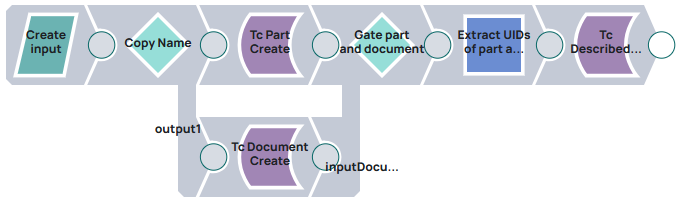
This example pipeline demonstrates how to create two objects and then relate them to each other.
Steps
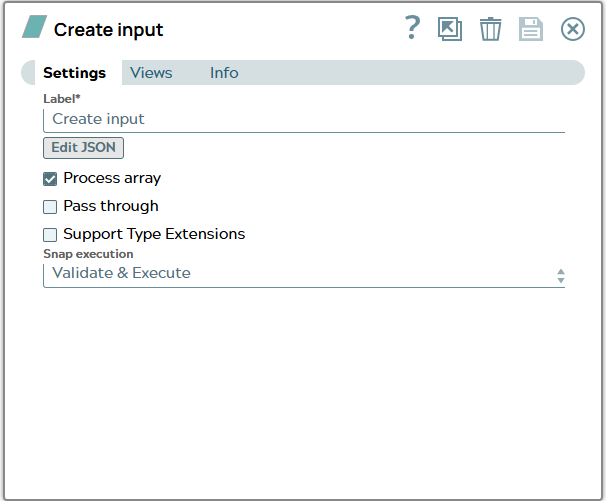
1: First Snap is a JSON Generator Snap “Create input” which stores the following JSON file. The content of the JSON is one property “name” and a list property “expandAttributes”. Both will be used in Tc Create Snaps.
Snap configuration | Snap output |
|---|---|
 | |
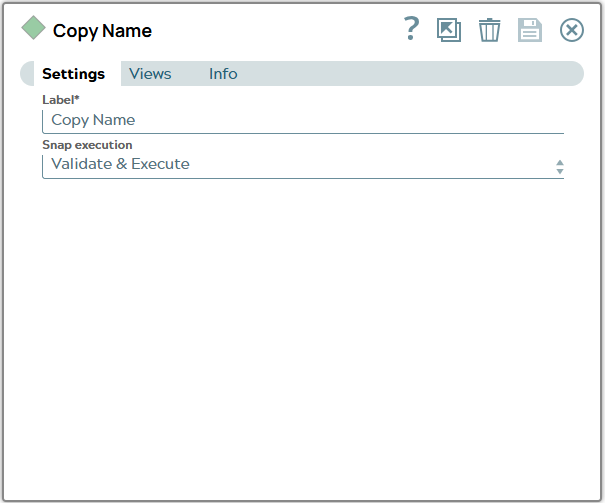
2: Next Snap is the Copy Snap “Copy Name” since two objects shall be created.
Snap configuration | Snap output |
|---|---|
 |
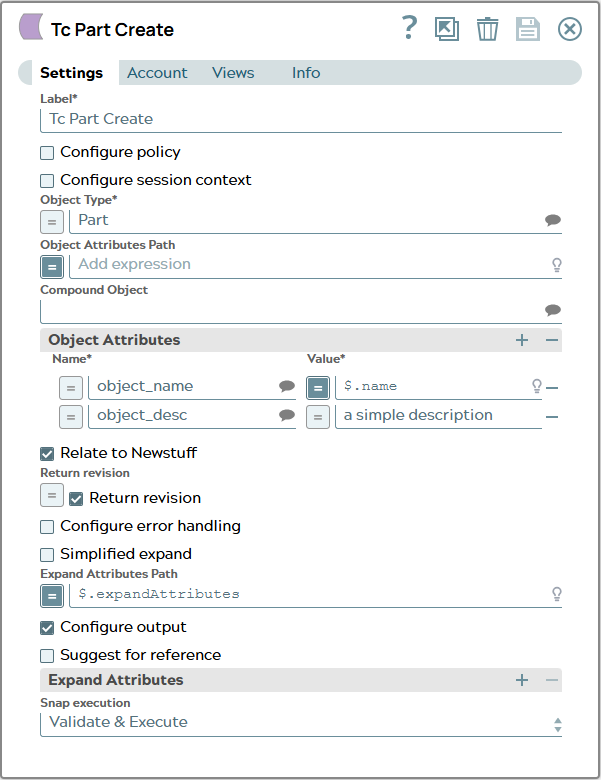
3: One JSON document goes to Tc Create Snap “Tc Part Create” that is configured to create a Part. Object Type is hard coded to Part and the JSON property “name” is value of attribute “object_name”.
Snap configuration | Snap output |
|---|---|
 |
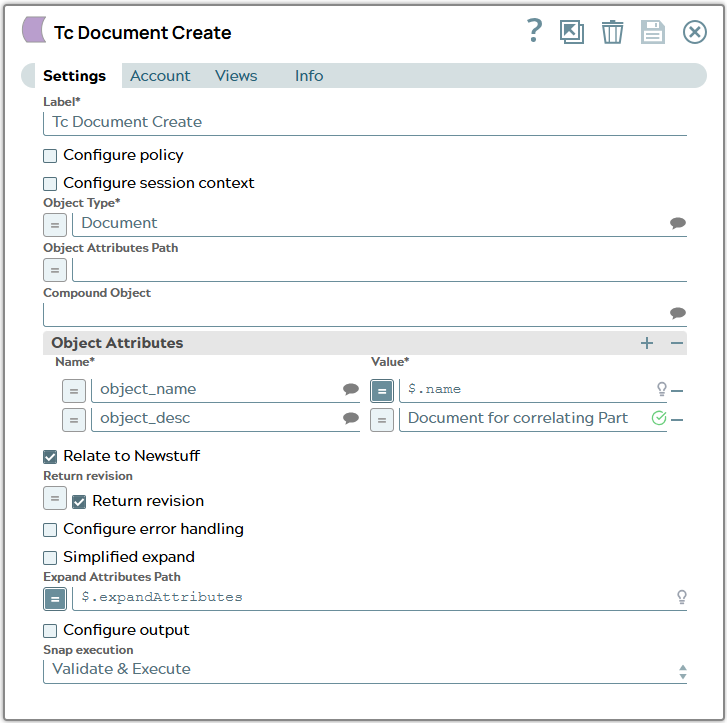
4: The other JSON document copy is input for Tc Create Snap “Tc Document Create” which is configured to create a document. Object Type is hard coded to Document and the JSON property “name” is Value of attribute “object_name”.
Snap configuration | Snap output |
|---|---|
 |
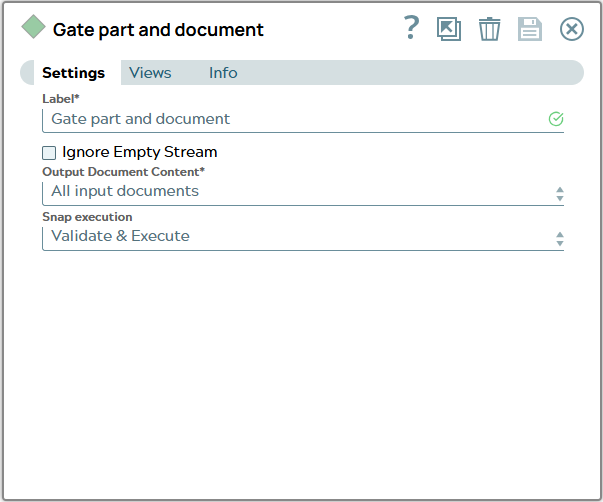
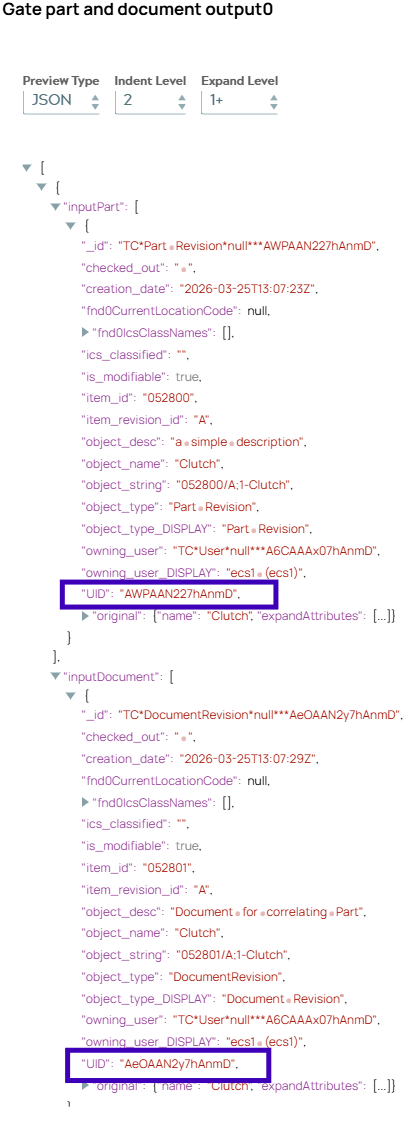
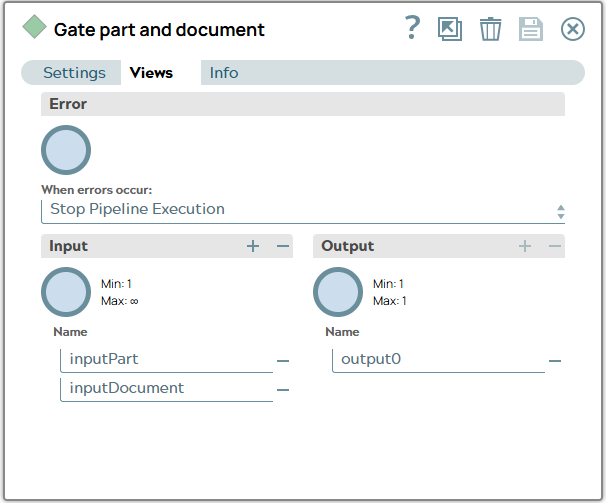
5: Outputs of both creations are collected by a Gate Snap “Gate part and document”. Views tab shows naming input views which lead to naming of JSON list objects in output document of the Gate Snap.
Snap configuration | Snap output |
|---|---|
 |  |
 |
The output JSON contains now information of part and document.
6: Next the Mapper Snap “Extract UIDs of part and document” selects and maps data necessary for further steps. UID of created document and part object is mapped to DocumentRevisionUID respectivly partRevisionUID.
Snap configuration | Snap output |
|---|---|
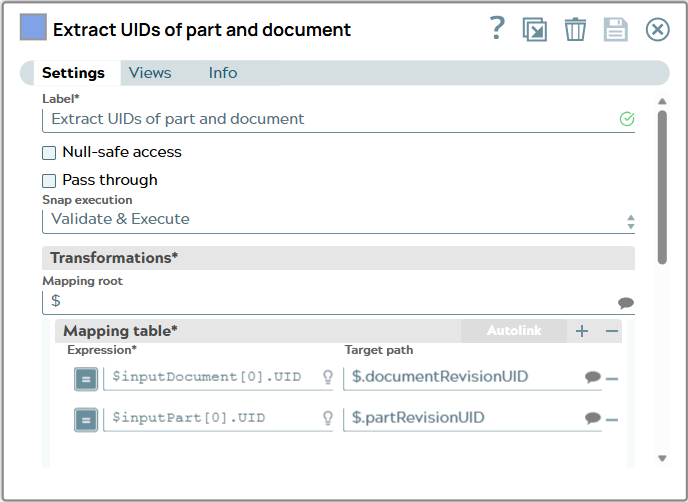 | 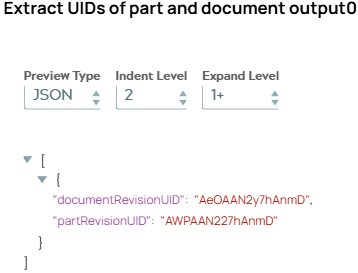 |
Output JSON document contains now only id information.
UIDs in Teamcenter are as the name says UNIQUE. The UIDs in the example only exist in our Teamcenter system as expected for our example. Same is valid for Adapter ID "_id" since its base is the UID.
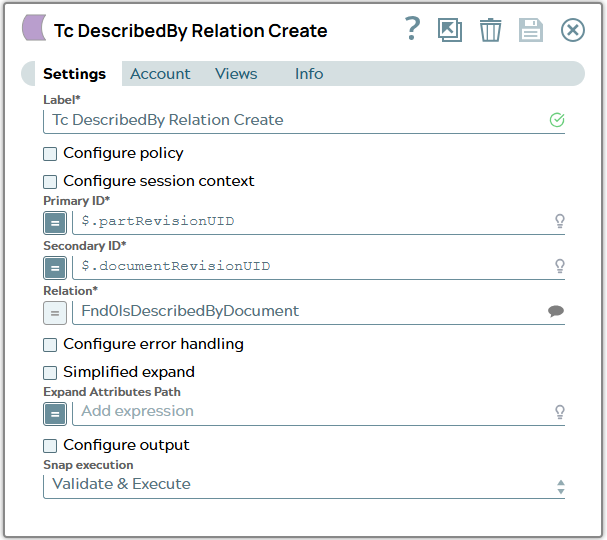
7: Teamcenter relations are created between two objects using their UID to identify them. The Tc Relation Create Snap “Tc DescribedBy Relation Create” has a field called “Primary ID” to fill in the UID of one object which shall be the primary object of the relation. And the field “Secondary ID” contains then the UID of the other object. Technical name of the relation is stored in field “Relation”. To relate part and document the relation DescribedBy is choosen.
Snap configuration | Snap output |
|---|---|
 | 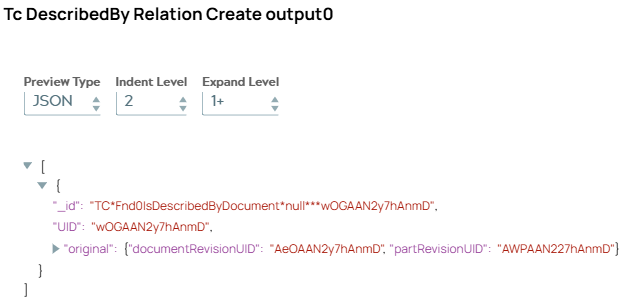 The output in case no “Expand Attributes” are configured consists only of ID information for the created relation object. |
Result is visible in Teamcenter then by searching part and check attachments.