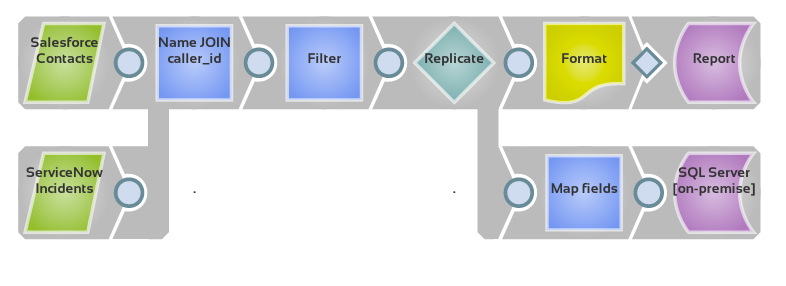
Pipeline: Data from Salesforce.com and ServiceNow
Scenario
I want to take some information from Salesforce.com and combine it with the caller incident information from ServiceNow, then write it to a file and a database. This example assumes that data is stored under different column names in the different sources and resulting database, so column mapping will be needed.
Requirements
Snaps Used
For this scenario, the following Snaps are used:
Salesforce SOQLServiceNow QueryStructureJoinCopyCSV FormatFile WriterSQL Server InsertOther Requirements
Credentials to read data from Salesforce.com and an account configured in SnapLogic Manager. See Accounts for more information on configuring an account.Credentials to read data from ServiceNowand an account configured in SnapLogic Manager.Credentials to write to SQL Serverand an account configured in SnapLogic Manager.
Configuration
Add and configure a Salesforce SOQL Snap to query Salesforce.com for contact data.- You will need to supply the Salesforce.com Username, Password, and Security token.
- For the SOQL query field, supply a query to gather the name and phone number from your contacts, such as:
SELECT Name, Phone FROM Contact WHERE Level__c = 'Primary'
Add and configure a ServiceNow Query Snap to query for incident information tracked in ServiceNow.- You will need to supply the ServiceNow Instance, Username, Password, and Table name.
- Set Action to getRecords.
- Set the Get records Query field to a query to find the appropriate records.
- Leave Join type to Inner.
- Set Left path to a value from the Salesforce.com data, such as $Name.
- Set Right path to an appropriate from the ServiceNow data, such as $caller_id.
- Leave Sorted streams as Unsorted.
Set Pass through to [None] - new map.
Set up the following mapping table :
- Source path: $number | Operation: move | Target Path: $IncidentID
- Source path: $urgency | Operation: move | Target Path: $Urgency
- Source path: $Name | Operation: move | Target Path: $Name
- Source path: $Phone | Operation: move | Target Path: $Phone
- On the Views page, add a second output view.
- Set the File name to a CSV file to be saved to the SnapLogic database.
Set Pass through to [None] - new map.
Set up the following mapping table :
- Source path: $Name | Operation: move | Target Path: $Name
- Source path: $Phone | Operation: move | Target Path: $Phone
- Source path: $IncidentID | Operation: move | Target Path: $Incident
- Source path: $Urgency | Operation: move | Target Path: $Urgency
- You will need to supply the SQL Server Hostname, Port Number, Database name, Username, Password and Table name.
- Leave all remaining default values.
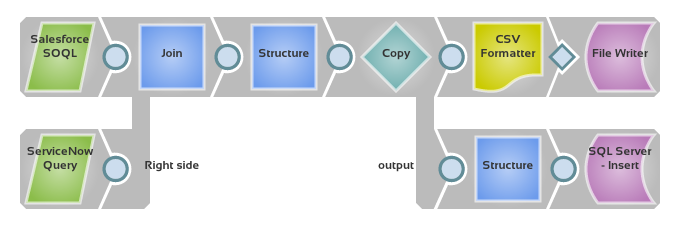
You can modify the Label field on the Settings tab of a Snap's info box to convey more information on the pipeline itself as to what each Snap does.