Add and remove a collaborator in Box
The examples assume that you have configured and authorized a valid Box account (see Configuring Box Accounts) to be used with this Snap. The following examples show how to add a collaborator to and then delete the same collaborator from a Box folder.
-
Add a collaborator
The following Box Permissions Snap adds a collaborator with the email ID
[email protected]to a box folder with the folder ID2793596227. The collaborator is assigned aneditorrole.Figure 1. Box Permissions Snap configuration for adding collaborator 
After a successful validation of the Snap, you will see a data preview that shows details of the new collaborator:
Note: After adding a collaborator, the Box user account that is added as a collaborator must accept the collaboration to start using the Box folder.Figure 2. Data preview after adding collaborator 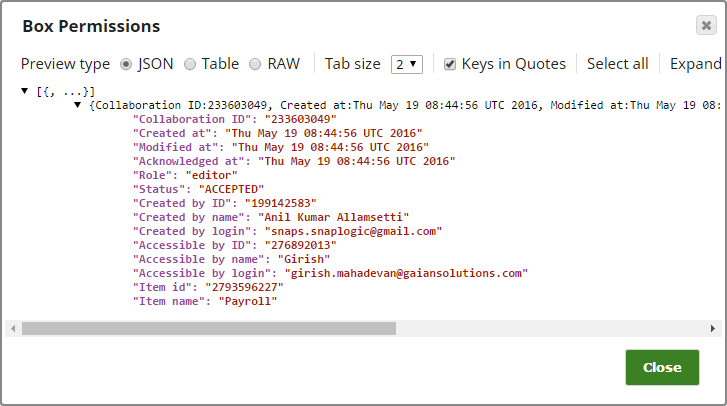
-
Remove a collaborator
Similarly, you can use the Box Permissions Snap to remove a collaborator. To remove the
[email protected]collaborator, you must specify the correct collaborator account ID and role else the remove collaboration process gives an error "No collaboration found":Figure 3. Box Permissions Snap configuration for removing collaborator 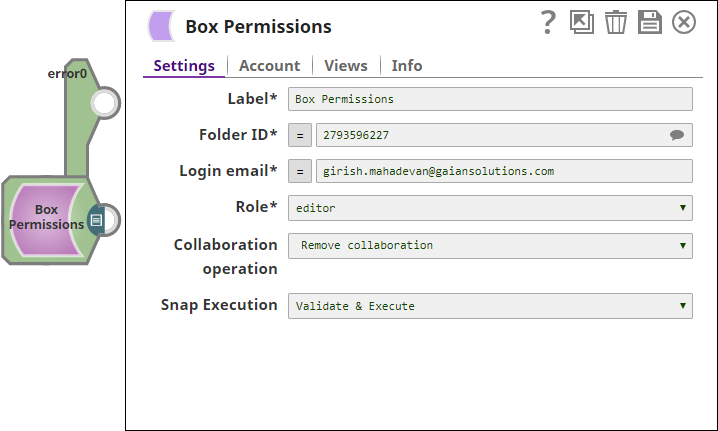
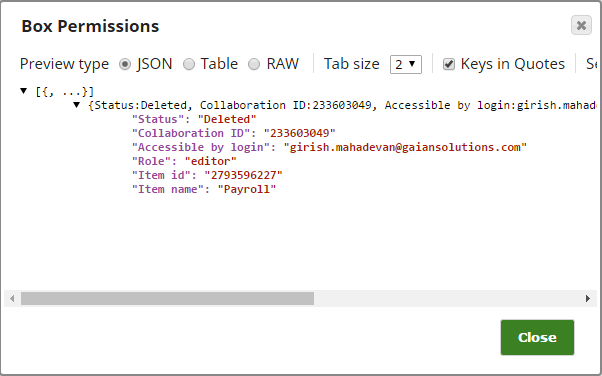
After a successful validation of the Snap, you will see a data preview that shows details of the deleted collaborator:
Figure 4. Data preview after removing collaborator