


Read Email
Overview
The Read Email Snap reads Exchange Online user emails from a specified folder.
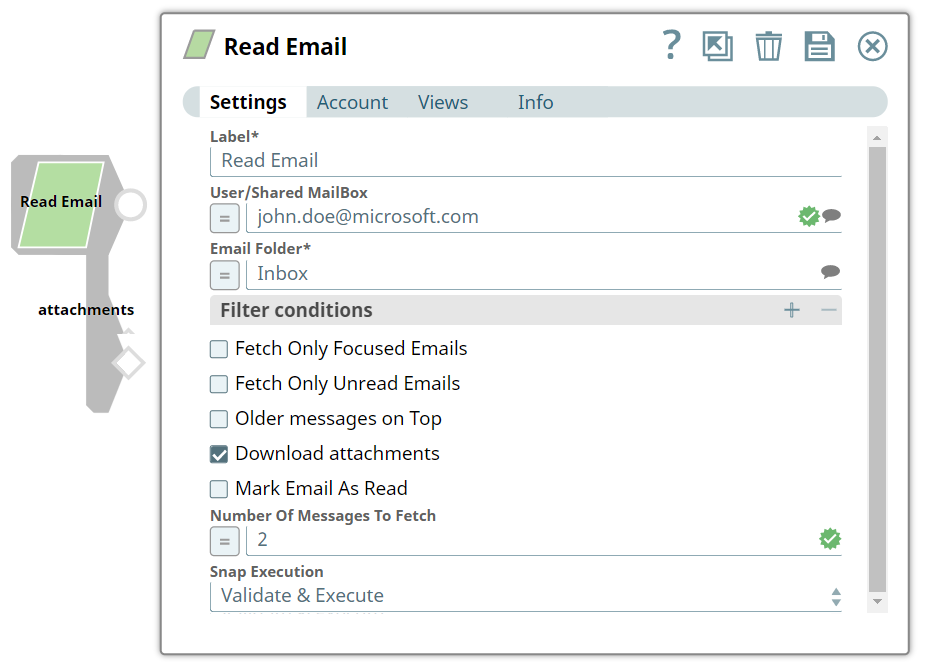
This Snap ignores empty email attachments if any and continues to read the emails.
- This is a Read-type Snap.
 Works in Ultra Tasks
Supported Accounts
Prerequisites
- Valid Exchange Online tenant.
- Valid OAuth2 application in Azure Active Directory with all the required Application Configuration in Azure Portal for OAuth2 Account to use in Exchange.
Limitations
- For empty attachments, the Read Email Snap ignores the attachments, and the Snap continues to read the email.
Snap views
| Type | Description | Examples of upstream and downstream Snaps |
|---|---|---|
| Input |
This Snap has at most one document input view. A document containing the email folder from which you want to retrieve the emails. |
|
| Output |
This Snap has exactly two output views: one document output view and one binary output view. A document containing a list of emails from the target mailbox, and binary data for attachments if configured. |
|
| Learn more about Error handling. | ||
Snap settings
| Field/Field set | Description |
|---|---|
Label*
String |
Specify a unique name for the Snap. Modify this to be more appropriate, especially if more than one of the same Snaps is in the pipeline. Default value: |
User/Shared MailBox
String/Expression |
Specify the mailbox from which you want to retrieve the list of emails. Alternatively, click the Suggestion icon to select the email folder in the mailbox. If you do not provide a user/shared mailbox, the mailbox associated with the user account of the OAuth2 User account (signed in user) is considered. However, if you use an OAuth2 Application account, you must select a User/Shared Mailbox to retrieve the mailboxes associated with the user. Example: [email protected] |
Email Folder*
String/Expression |
Enter the name of the email folder. Default value: Example: Sent Items |
| Filter Conditions |
Use this fieldset to specify the email filter conditions you want to include. Click + to add a row. |
Email Field
String/Expression |
Select the email field on which to filter. Example: From |
Operator
String/Expression |
Select the operator to use for the filter condition. Example: eq |
Email Field Value
String/Expression |
Enter the value for the filter condition. Example: Subject |
Fetch only focused emails
Checkbox |
Select to retrieve only the emails that are marked as Focused. This is applicable only in the inbox folder. Default value: Deselected |
Fetch only unread emails
Checkbox |
Select to retrieve only unread emails. Default value: Deselected |
Older messages on top
Checkbox |
Select to sort the messages with older messages on top by date. Default value: Deselected |
Download attachments
Checkbox |
Select to download attachments into the binary output view. If not selected, attachments will not be downloaded. Default value: Deselected |
Mark email as read
Checkbox |
Select to mark the email as read. Default value: Deselected |
Number of Messages to Fetch
Integer/Expression |
Enter the maximum number of messages to be retrieved. If left blank, then it fetches all messages. Example: 1 |
Snap execution
Dropdown list |
Choose one of the three modes in
which the Snap executes. Available options are:
|
Troubleshooting
| Error | Cause | Resolution |
|---|---|---|
| Select valid MailBox Email ID | The email ID you have provided is invalid. | Verify and enter the correct email ID. |
| Select valid Email Folder Name | The name of the Email Folder you have provided is invalid. | Verify and enter the correct name of the email folder. |