


Create a part, upload and download a file
This example pipeline demonstrates how to create a part, upload a file to it, and download that file again.

Steps
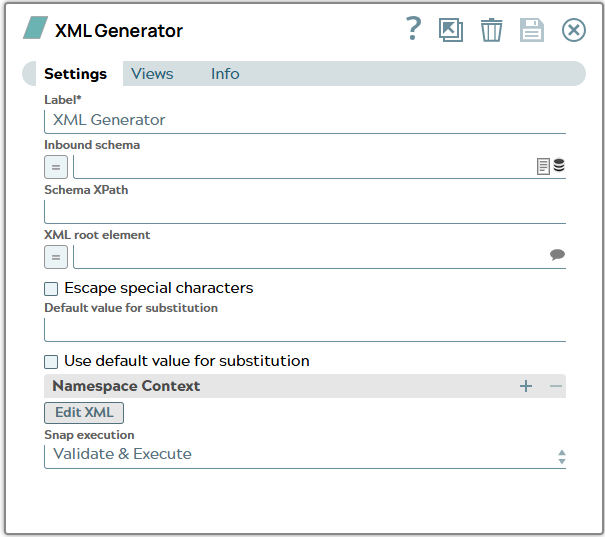
1: Create a xml document. The XML Generator (and XML Formatter) Snaps are a placeholder for external system which could send a file to Snaplogic.
Snap configuration | Content of XML |
|---|---|
 | |
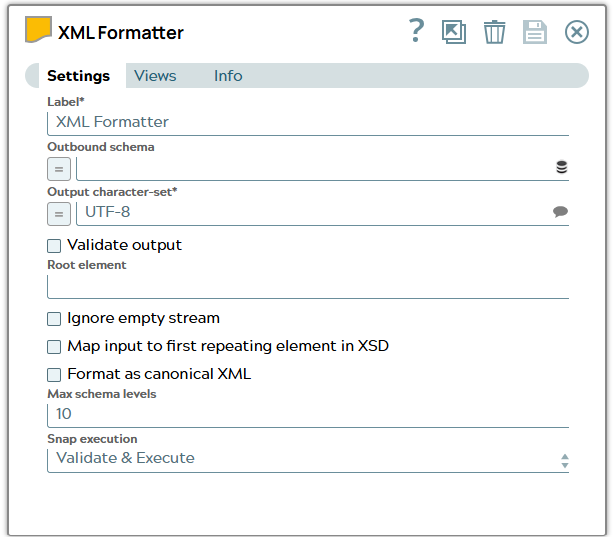
2: Configure the XML Formatter Snap to format data to binary.
Snap configuration | Snap output |
|---|---|
 |
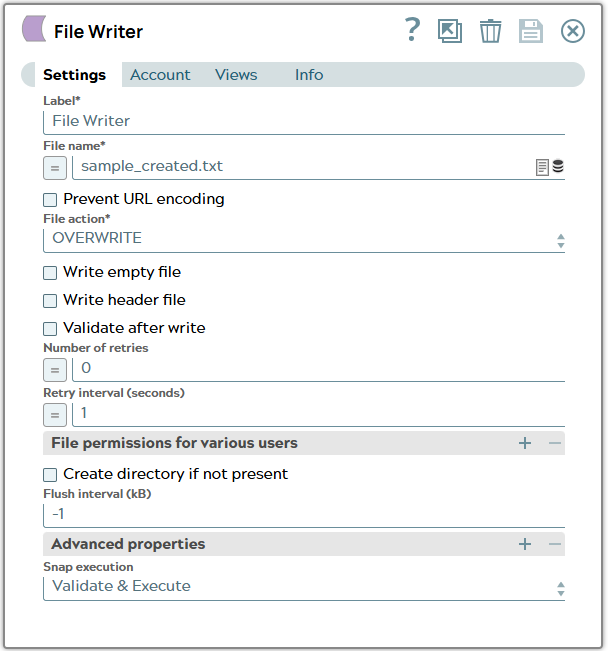
3: Configure the File Writer Snap to store file on filesystem.
Snap configuration | Snap output |
|---|---|
 |
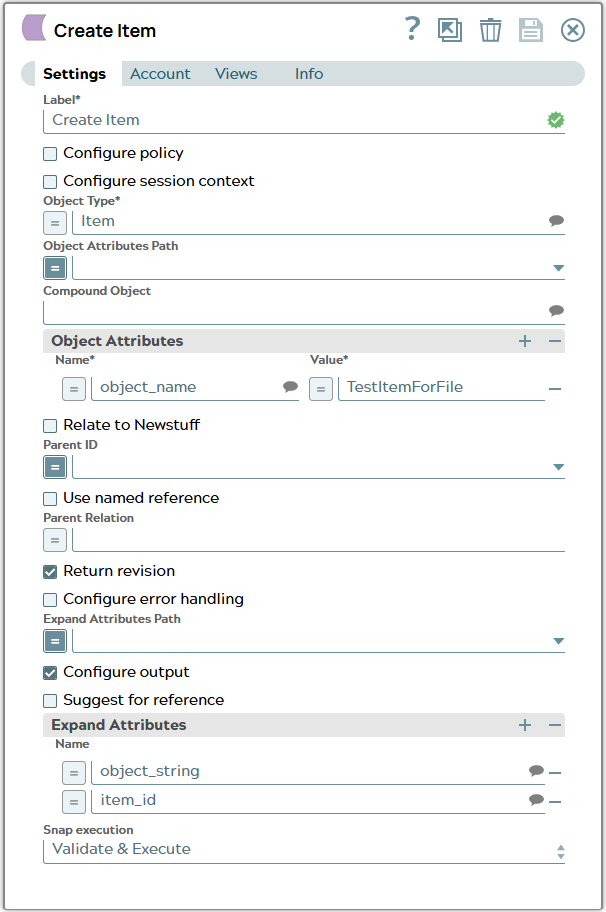
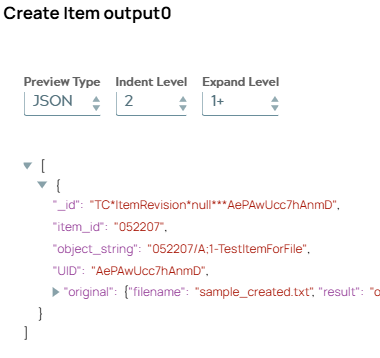
4: Configure the Tc Create Snap with minimal mandatory data to create an object of type Item in Teamcenter. On validation, the Snap displays the part revision created for the input.
Snap configuration | Snap output |
|---|---|
 |  |
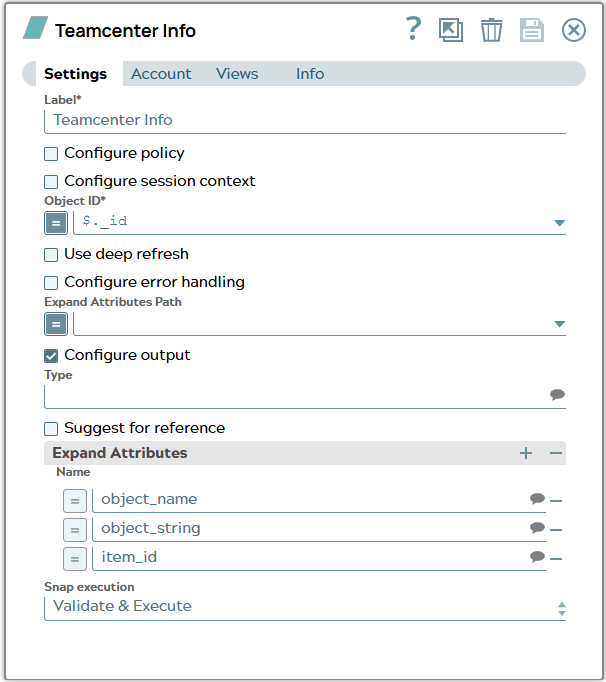
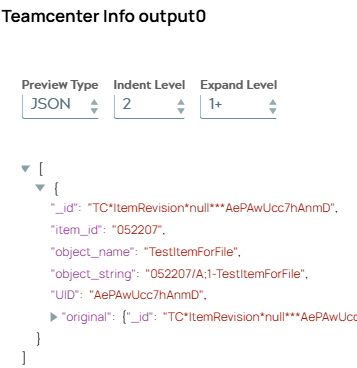
5: Configure the Tc Info Snap to refresh the data. On validation, the Snap displays the part revision.
Snap configuration | Snap output |
|---|---|
 |  |
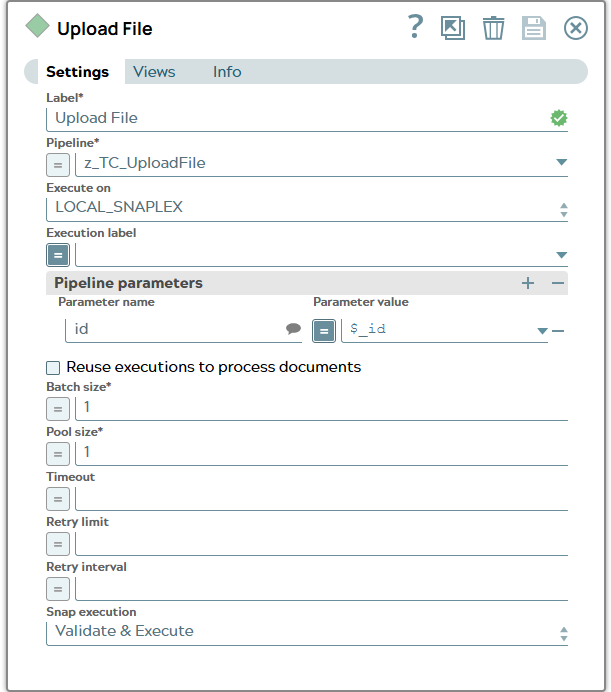
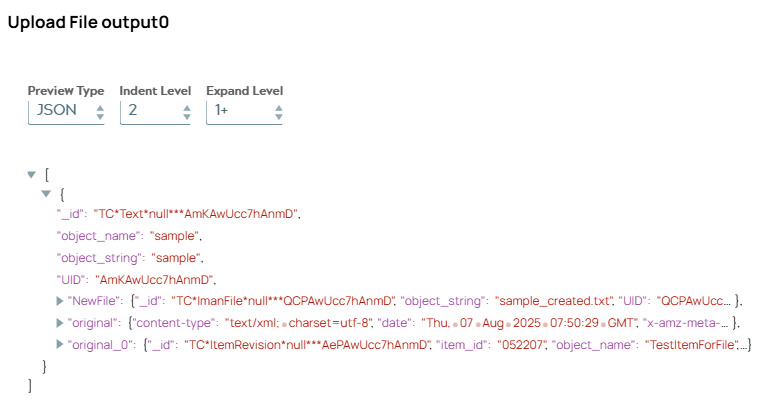
6: Configure the Pipeline execute Snap to start child pipeline for uploading of stored file to object in Teamcenter identified by id. ID is parameter for child pipeline. On validation, the Snap displays the result of the child pipeline execution. The child pipeline is described in Delete referenced file .
Snap configuration | Snap output |
|---|---|
 |  |
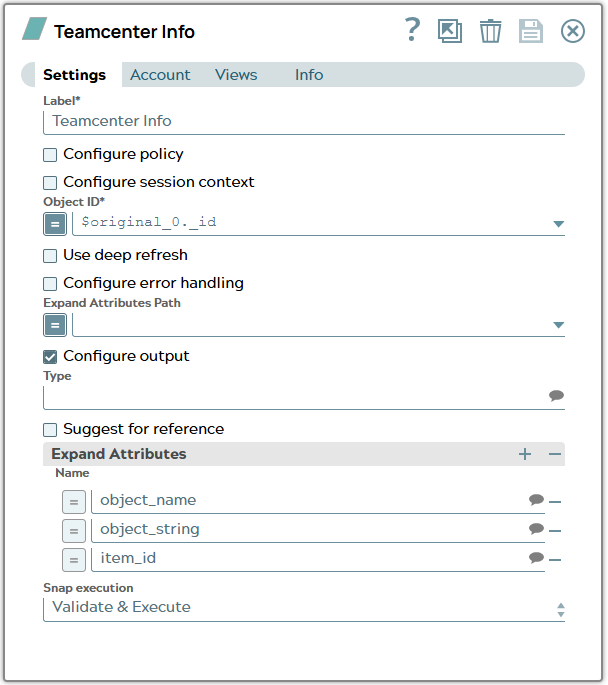
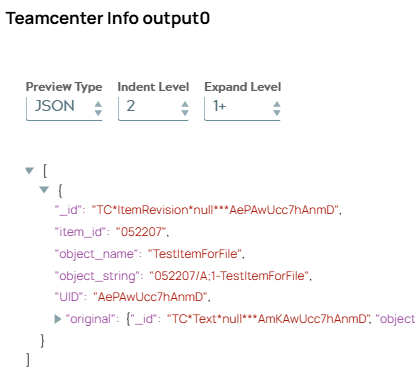
7: Configure the Tc Info Snap to get configured data for Item Revision. On validation, the Snap displays the part revision information.
Snap configuration | Snap output |
|---|---|
 |  |
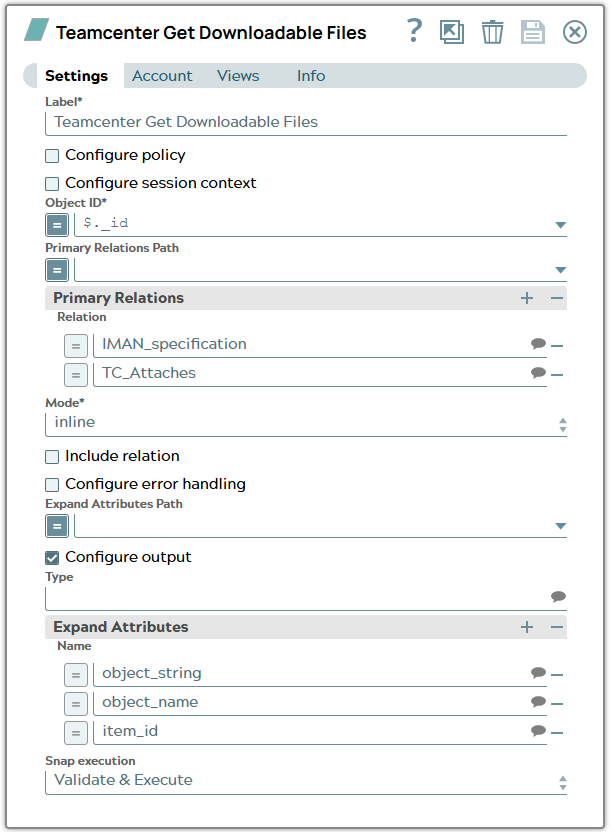
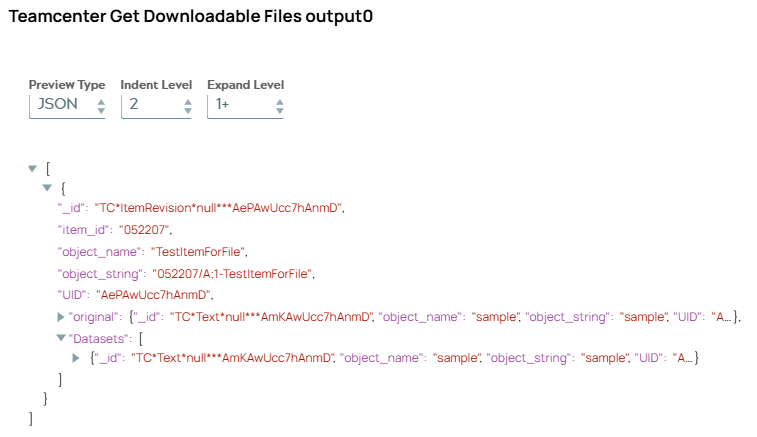
8: Configure the Tc Get Downloadable Files Snap to get information about files related to Item Revision. On validation, the Snap displays the related datasets.
Snap configuration | Snap output |
|---|---|
 |  |
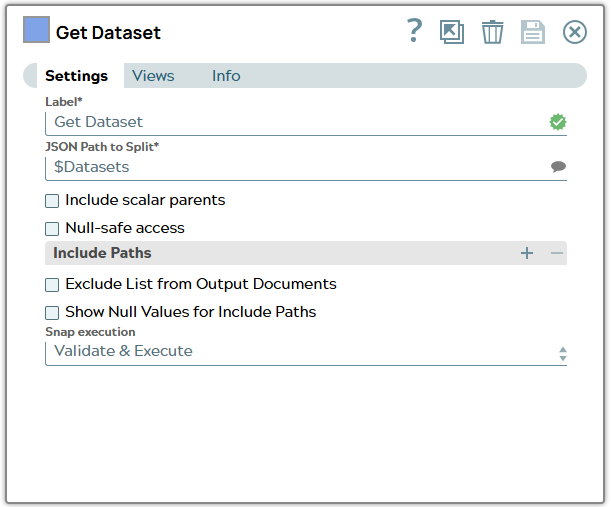
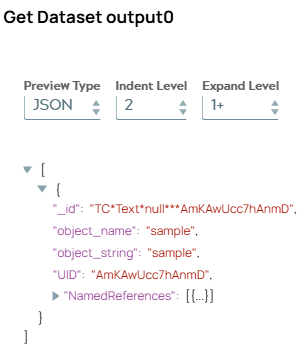
9: Configure a Splitter Snap to extract all Datasets objects. On validation, the Snap displays the related object.
Snap configuration | Snap output |
|---|---|
 |  |
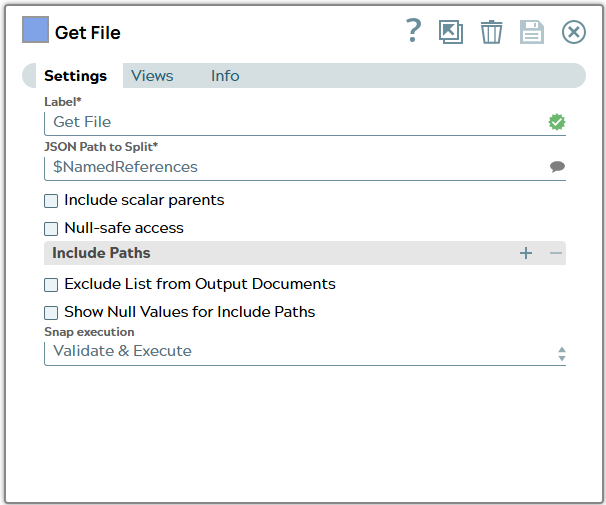
10: Configure again a Splitter Snap to extract all NamedReferences of dataset. On validation, the Snap displays the object from NamedReferences list.
Snap configuration | Snap output |
|---|---|
 | 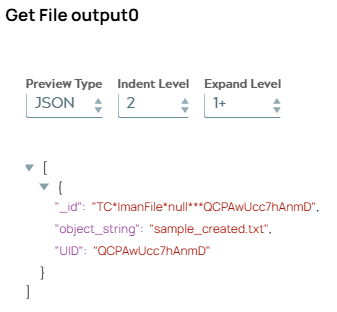 |
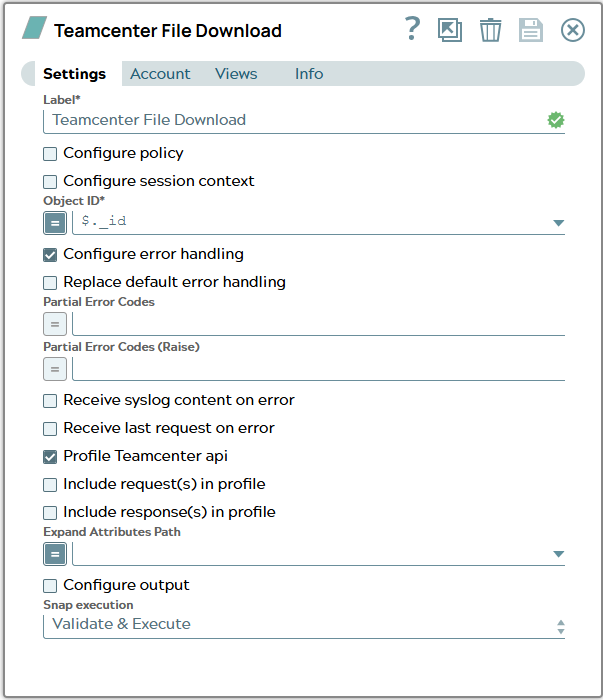
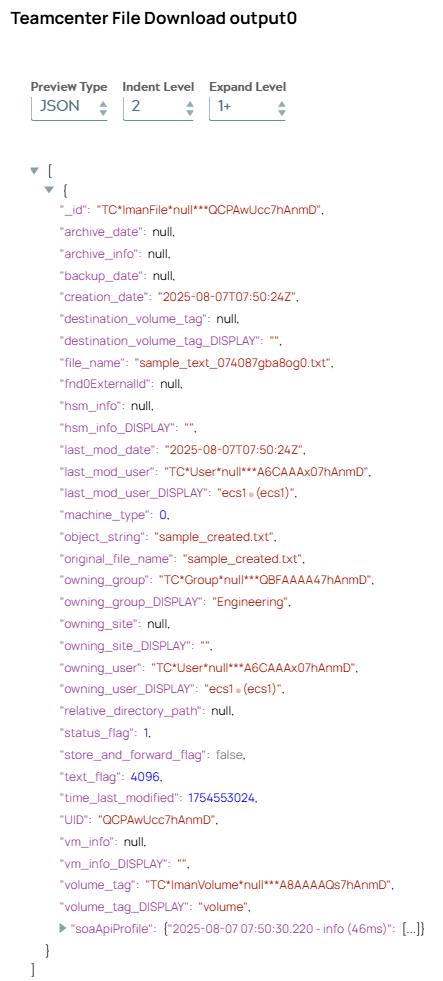
11: Configure a Tc File Download Snap to download file data to pipeline. 1Therefore id of ImanFile which was found in NamedReferences is used. On validation, the Snap displays the ImanFile metadata information.
Snap configuration | Snap output |
|---|---|
 |  |
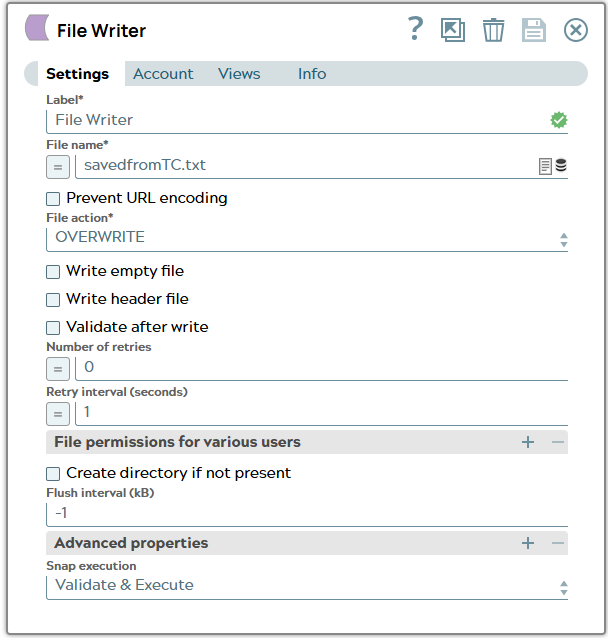
12: Configure a File Writer Snap to store file.
Snap configuration | |
|---|---|
 |
Child pipeline to upload a file
This example pipeline demonstrates how to upload a file Teamcenter.
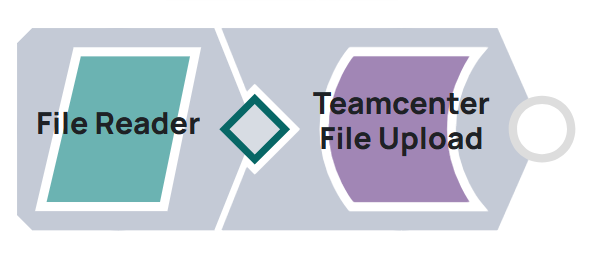
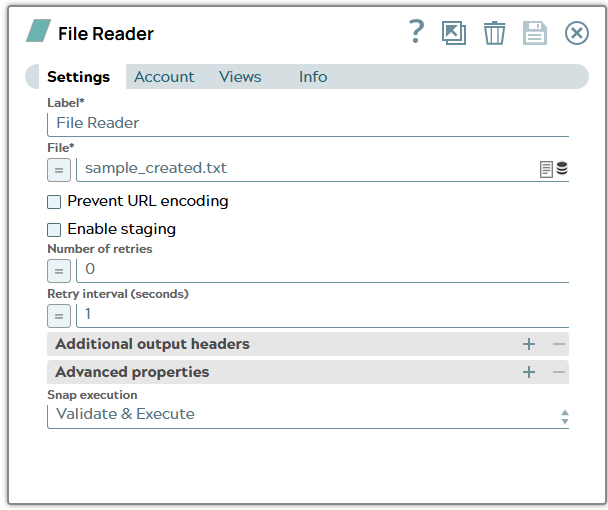
1: Configure the File Reader Snap to read file which was stored by prior pipeline.
Snap configuration | |
|---|---|
 |
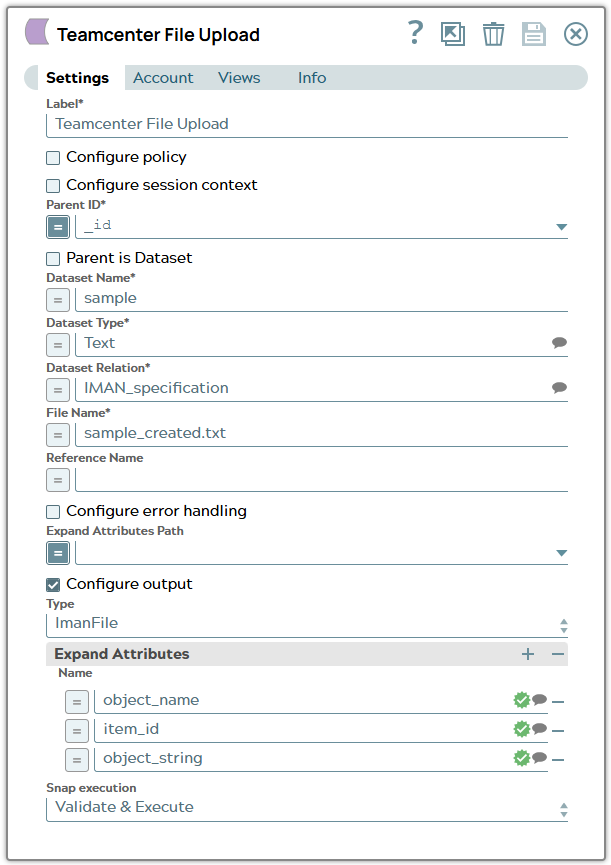
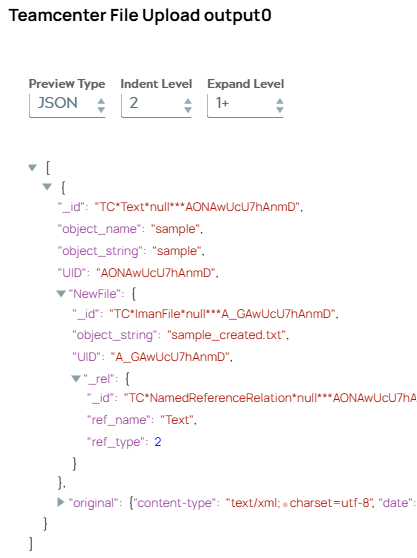
2: Configure a Tc File Upload Snap to upload file to Teamcenter object. On validation, the Snap displays the dataset and file information.
Snap configuration | Snap output |
|---|---|
 |  |