


Validating XML Data Using the Schema XPath and Validate XML Settings
This example demonstrates how to use the Schema XPath field to successfully validate XML data.
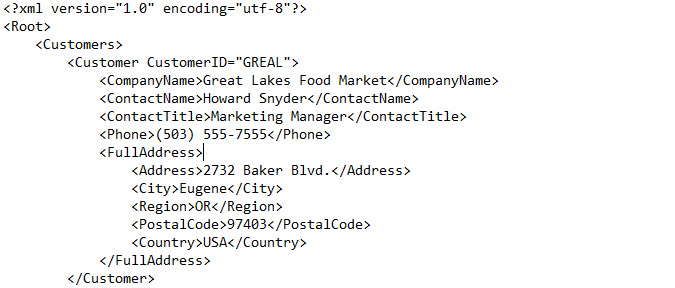
In this Pipeline, custom XML data is provided using the Edit XML field in the
XML Generator
Snap, a snapshot of which is
provided here.
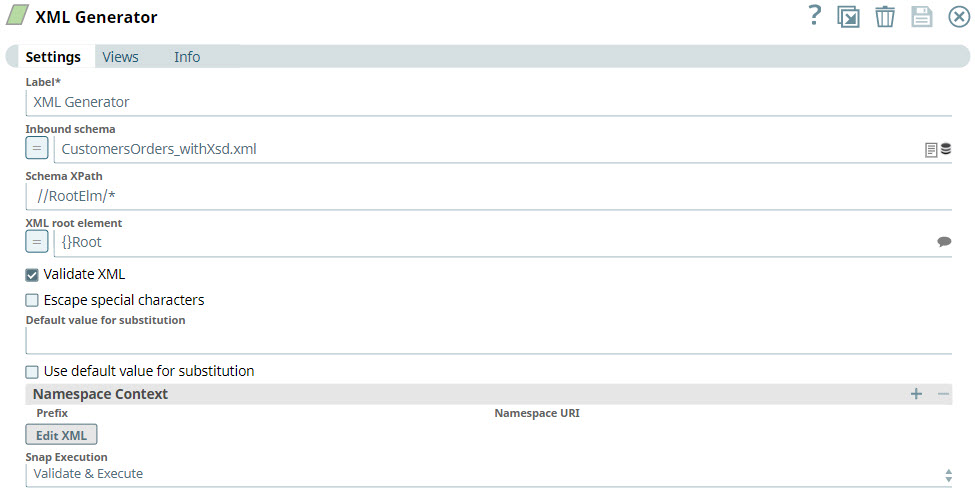
The Inbound schema, Schema XPath, and the schema Root element, are specified
in the Snap settings. See the screenshot below. In addition, the Validate XML check
box is selected to indicate that the XML data must be validated against the schema.
The file specified as the inbound schema,
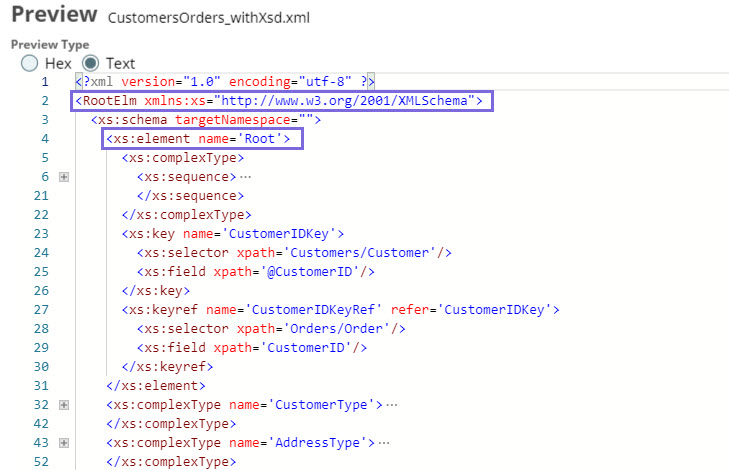
CustomersOrders_withXSD.xml, is
not a regular schema file (.xsd) but an XML file being used as a schema file. The contents
of this file appear as follows:In the above file, the root element of the schema is nested within the
RootElm object. Therefore, the Schema XPath field value is
specified as //RootElm/* to direct the
XML Generator
Snap to the schema object.
On validating the Pipeline, the Snap output appears as follows. Note the
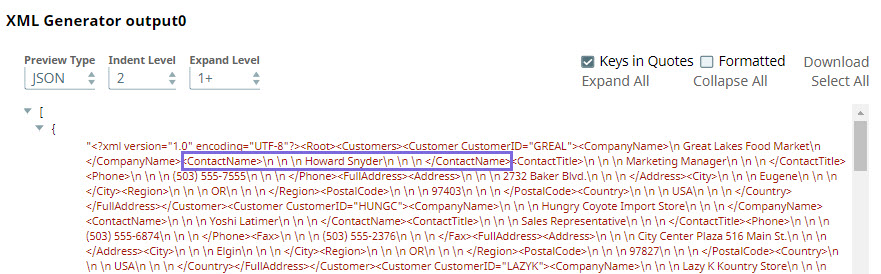
ContactName field. If the

ContactName field is removed from the custom XML specified in the
XML editor and the Pipeline is re-validated, the Snap fails with the following error:Note that if the Validate XML check box is deselected, the Snap does not validate
the data against the schema, and an output with the missing field is generated without
errors:
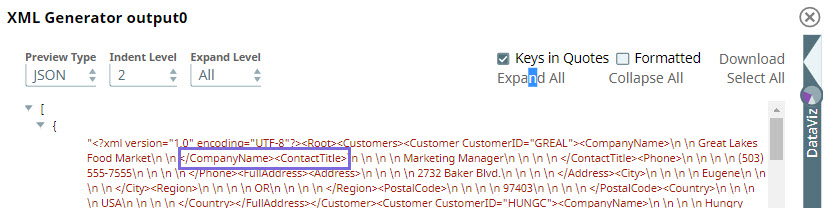
Similarly, if the Schema XPath value is not provided, the Snap is unable to locate
the root element and fails with the following error:
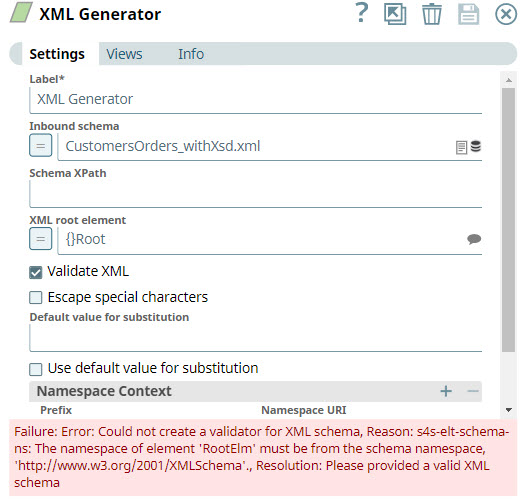
This explains the scenarios in which you need to provide the schema XPath and how you can validate XML data using schema from within any XML or XSD file with the help of the Schema XPath and Validate XML properties.
- Download and import the SLP file into your Environment.
- Configure Snap accounts.
- Provide Pipeline parameters, if any.