


Parse a PowerPoint presentation using PPTX Parser
This example demonstrates how to read a PowerPoint (.pptx) file from the file system and parse its slide contents—including text and images—using the File Reader and PPTX Parser Snaps.
Overview
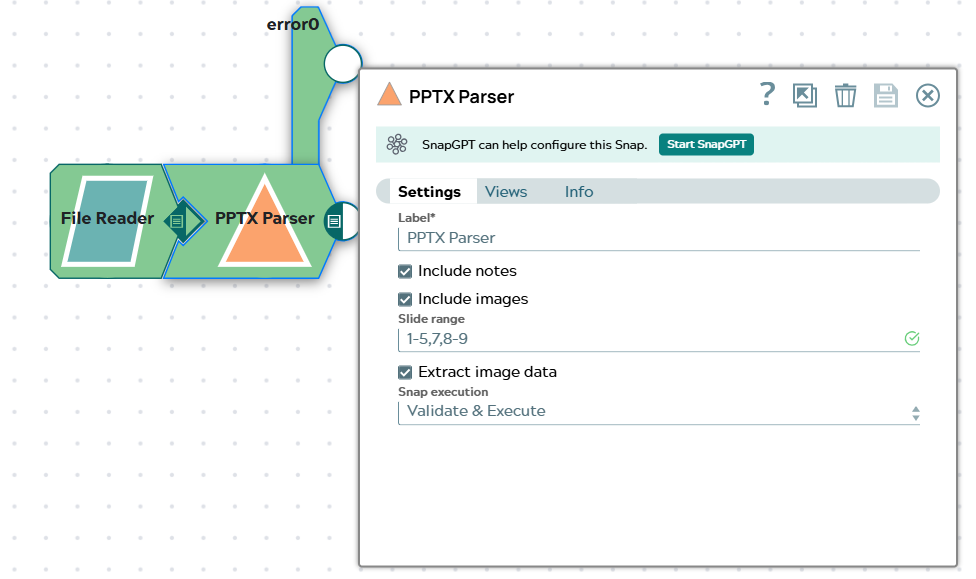
This pipeline reads a PowerPoint file named Simple Performance Review Slides.pptx and parses its contents using the PPTX Parser Snap. The pipeline extracts slide data from slides 1 through 5, slide 7, and slides 8 through 9, and outputs the parsed content as structured JSON documents for further downstream use.
The following image shows the pipeline used in this example:

Before you begin, ensure the following:
- You have access to a SnapLogic pipeline environment.
- The file Simple Performance Review Slides.pptx is available in your SnapLogic project file system or a connected file store.
-
Add a PPTX Parser Snap to the pipeline canvas and connect the
output of the File Reader Snap to its input. Configure the PPTX Parser as follows:
Field Value Label PPTX Parser Include notes Selected Include images Selected Slide range 1-5,7,8-9 Extract image data Selected Snap execution Validate & Execute The following image shows the configured PPTX Parser Snap settings:
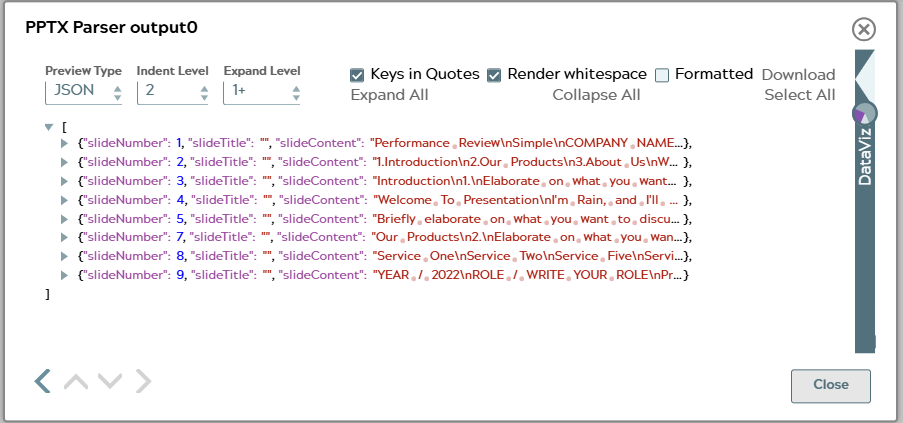
The pipeline successfully reads the PowerPoint file and outputs one JSON document per parsed slide. Each output document contains the slide number, title, text content, speaker notes, and image metadata.
The following image shows the output preview of the PPTX Parser Snap, displaying the parsed slide data as a JSON array:
When expanded, the first document in the output (slide 1) has the following structure:
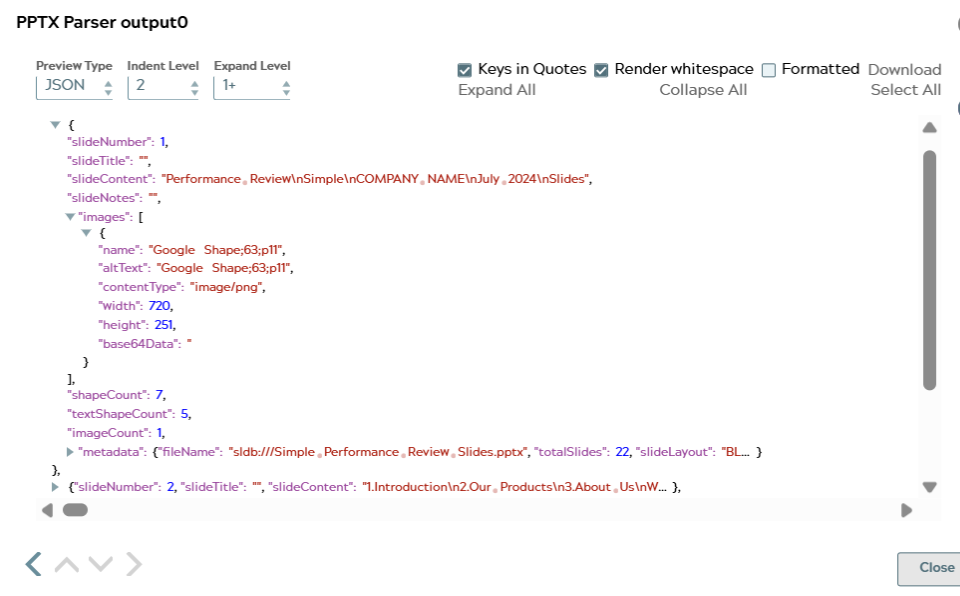
The output document for each slide includes the following fields:
slideNumber— the 1-based index of the slide. For example,1.slideTitle— the text of the slide title placeholder, or an empty string if no title is present.slideContent— concatenated plain-text content of all text boxes on the slide. For example, slide 1 contains"Performance Review\nSimple\nCOMPANY NAME\nJuly 2024\nSlides".slideNotes— speaker notes for the slide, or an empty string if none are present.images— a list of image objects embedded in the slide. Each object includes:name— the internal file name of the image. For example,"Google Shape;63;p11".altText— the alternative text assigned to the image.contentType— the MIME type of the image. For example,"image/png".width— the display width of the image in the slide.
shapeCount— the total number of shapes on the slide. For example,7.textShapeCount— the number of shapes containing text. For example,5.imageCount— the number of embedded images. For example,1.metadata— presentation-level metadata, present on the first slide document only, including:fileName— the source file path. For example,"sldb:///Simple Performance Review Slides.pptx".totalSlides— the total number of slides in the presentation. For example,22.slideLayout— the layout type of the slide. For example,"BLANK".