


Redshift Cross-Account IAM Role SSL Account
Overview
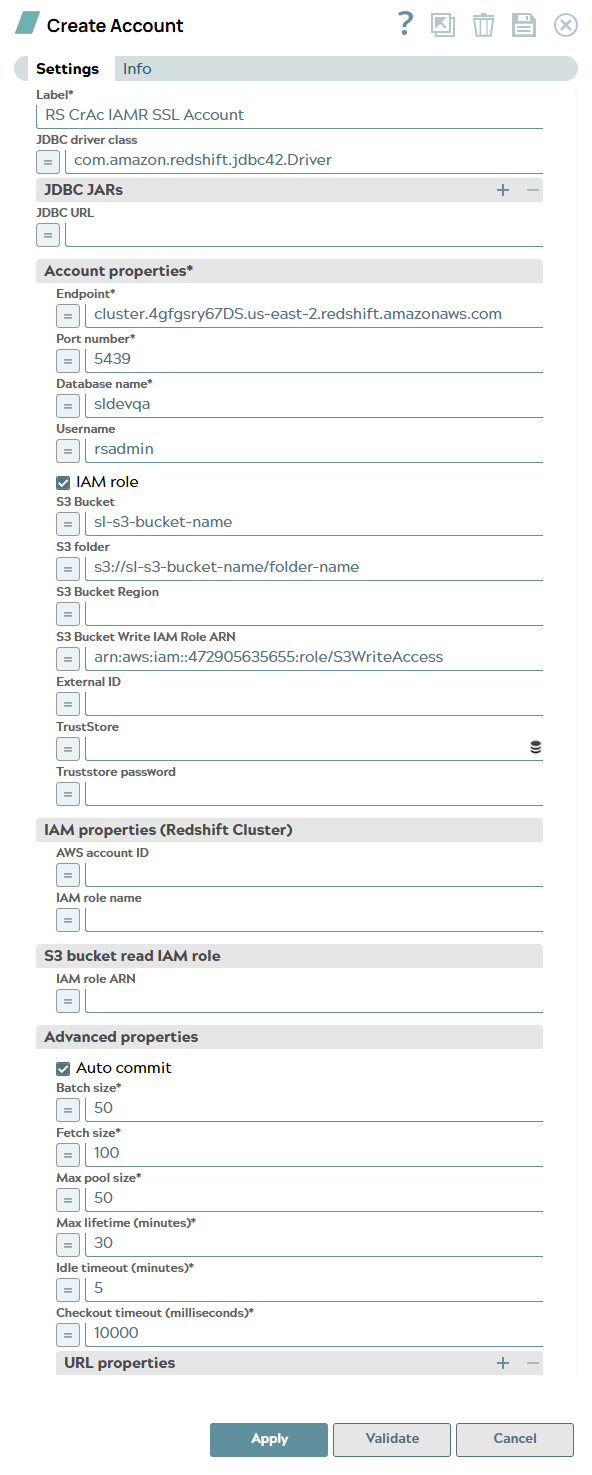
Account Settings
| Field/Field set | Description | ||
|---|---|---|---|
| Label
|
Required. Specify a unique label for the account. | ||
| JDBC driver class
|
Name of the JDBC driver class to use. By default,
the com.amazon.redshift.jdbc42.Driver class is bundled with the
Snap Pack. |
||
| JDBC JARs
|
Use this field set to add a list of JDBC JAR files to be loaded. By default, the Redshift account is bundled with the JDBC v2.1.0.29 driver. However, you can add a custom JAR file. Click + to add a new row for each JDBC JAR file. | ||
| JDBC driver
|
The Redshift Snap Pack is bundled with the default Redshift JDBC driver v2.1.0.29. Therefore, even if you do not provide a JDBC Driver, the account does not fail. | ||
| JDBC URL
|
Enter the URL of the JDBC database. | ||
| Account properties | |||
| Endpoint
|
Required. Enter the server's address to connect to. | ||
| Port number
|
Required. Enter the database server's port to connect. | ||
|
Database name
|
Required. Enter the database name to connect. | ||
| Username
|
Enter the username to connect to the database. Username will be used as the default username when retrieving connections. The username must be valid in order to set up the data source. | ||
| IAM role
|
Required. Select this checkbox to automatically generate
temporary credentials if your Groundplex is configured with IAM role to access the
Redshift instance. The Password field is not needed if you select this checkbox.
Default status: Deselected |
||
| Password
|
Enter the password to connect to the data source.
The password will be used as the default password when retrieving connections. The
password must be valid in order to set up the data source. You must provide a valid
password to set up the data source unless you select the IAM role checkbox. Example: p@$$20d* |
||
| S3 Bucket
|
Required. Enter the external S3 Bucket name residing in an
external AWS account, to use for staging data onto Redshift. Note: This field is
required when using Redshift Bulk Load, Redshift Bulk Upsert, Redshift S3 Upsert,
and Redshift Unload Snaps.
|
||
| S3 folder
|
Enter the relative path to a folder in S3 Bucket. This is used as a root folder for staging data onto Redshift. | ||
| S3 Bucket Region
|
Required. Enter the name of the region where the S3 bucket
belongs. Note: This field is required if the Redshift cluster and the S3 bucket are
in the different regions.
|
||
| S3 Bucket Write IAM Role ARN
|
Required. Enter the IAM role to write to the S3 bucket which
resides in either the same or different AWS account. Note: You need to have write
and delete permissions in this role. This field is required when using Bulk load
Snap (with input view data source), Bulk Upsert Snap, and Unload Snap.
|
||
| External ID
|
Required. Enter an optional external ID which is required by the role. This field is applicable only for streaming bulk load. | ||
| TrustStore
|
Enter the location of the trust store file. It can be located in SLDB or any other unauthenticated endpoint such as 'https://'. You can also browse for the location. | ||
| TrustStore Password
|
Enter the password for the truststore file. | ||
| IAM properties (Redshift Cluster) | |||
| AWS account ID
|
Required. Enter the ID of the Amazon Web Services account to
be used for performing bulk load operation. Note: This field is required when using
Redshift Bulk Load, Redshift Bulk Upsert, Redshift S3 Upsert, and Redshift Unload
Snaps if the IAM role checkbox is selected.
|
||
| IAM role name
|
Required. Enter the name of the IAM role that has been
assigned to the Redshift cluster to access the S3 bucket provided above. Note: This
field is required when using Redshift Bulk Load, Redshift Bulk Upsert, Redshift S3
Upsert, and Redshift Unload Snaps if the IAM role checkbox is selected.
|
||
| S3 bucket read IAM role | |||
| IAM Role ARN
|
Required. Enter the ARN of the IAM role set on the above S3
bucket. Note: This field is required only if the S3 bucket is in another AWS
account. If S3 bucket is in another AWS account, specify the Cross-Account IAM
role to read the S3 bucket. Else, leave this field blank and ensure the IAM role
assigned to the Redshift Cluster has permission to read from the S3 bucket. For
more information, see Setup
for Redshift Cross Account IAM Role.
|
||
| Advanced properties | |||
| Auto commit
|
Select this check box to enable the Snap to commit offsets automatically as messages are consumed and sent to the output view. | ||
| Batch size
|
Required. Enter the number of statements to execute at a
time. Select queries are not batched. Note: User-defined types are not supported if
a JDBC driver with a version other than 11.2.0.4.0 is set.
|
||
| Fetch size
|
Required. Enter the number of rows to fetch at a time when
executing a query. Note: User-defined types are not supported if a JDBC driver with
a version other than 11.2.0.4.0 is set.
|
||
| Max pool size
|
Required. Enter the maximum number of connections a pool will
maintain at a time. Note: Redshift Bulk Load/Bulk Upsert/S3 Upsert Snap requires a
minimum of 2 connections per Snap in a pipeline. For example, if a pipeline has a
Redshift Bulk Load Snap and an S3 Upsert Snap, then the pool size must be greater
than or equal to 4 for successful execution.
|
||
| Max lifetime (minutes)
|
Required. Enter the maximum lifetime of a connection in the pool. Ensure that the value you enter is a few seconds shorter than any database or infrastructure-imposed connection time limit. A value of 0 indicates an infinite lifetime, subject to the Idle Timeout value. An in-use connection is never retired. Connections are removed only after they are closed. | ||
| Idle Timeout (minutes)
|
Required. Enter the maximum amount of time a connection is allowed to sit idle in the pool. A value of 0 indicates that idle connections are never removed from the pool. | ||
| Checkout timeout (milliseconds)
|
Required. Enter the number of milliseconds to wait for a
connection to be available when the pool is exhausted. Note: If you provide 0, the
Snap waits infinitely until the connection is available. Therefore, we recommend
you not to specify 0 for Checkout Timeout.
|
||
| URL properties | |||
| URL property name
|
Enter the URL property name. | ||
| URL property value
|
Enter the URL property value. | ||