


ZipFile Write
Overview
You can use this Snap to read binary data passed as binary objects from its input view and create a .zip file at a specified file destination.
We plan to introduce additional S3 features exclusively in Amazon S3 Snaps, while Binary Snaps with S3 support will not contain these updates. Therefore, we recommend you to use the Amazon S3 Snap Pack for all your S3 operations within your pipelines. However, Binary Snaps will be retained as is to maintain backward compatibility, but be aware that we will no longer provide S3 support for the Binary Snaps.
Learn more: Migrate from Binary to S3 Snaps.
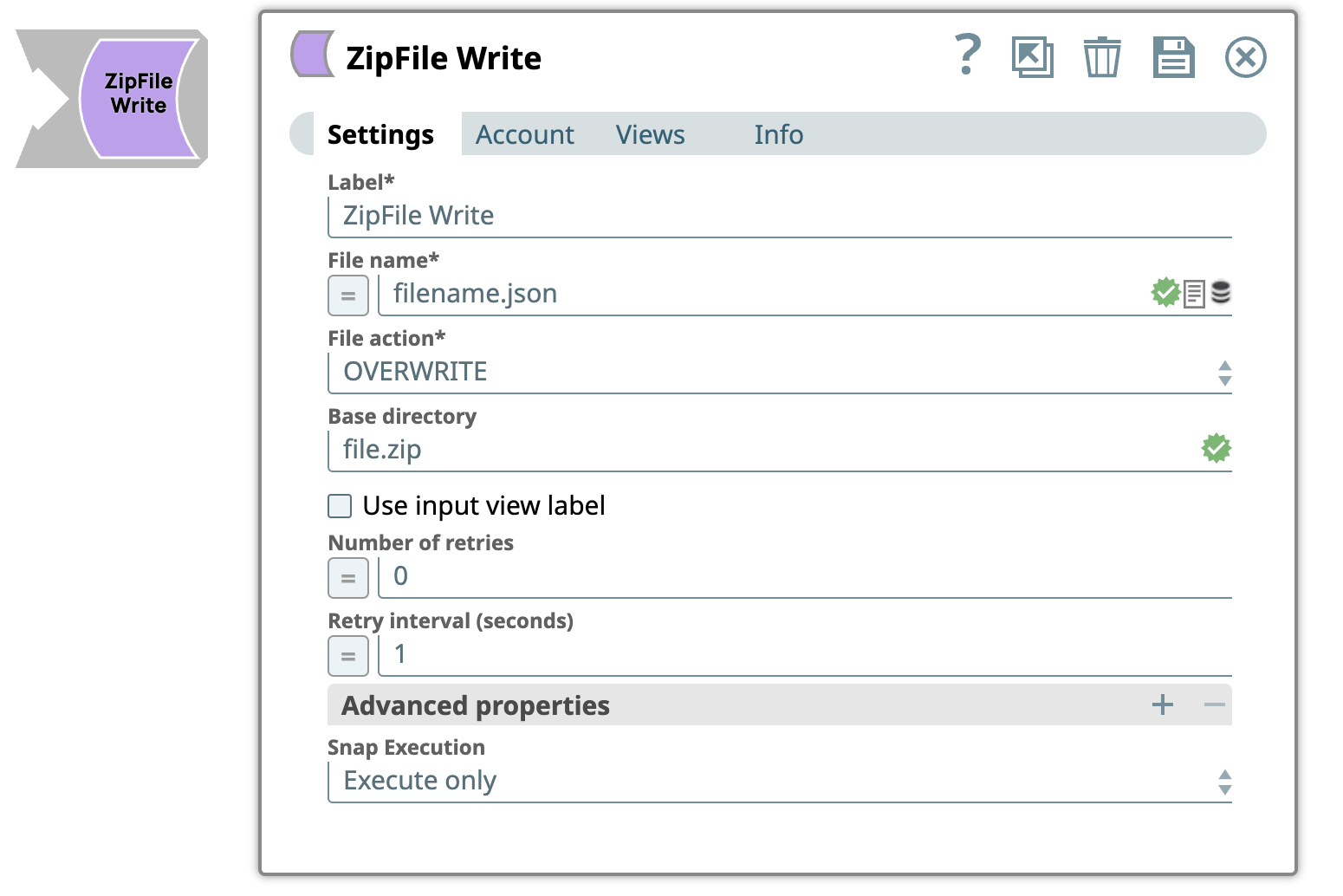
- This is a Write-type Snap.
 Does not support Ultra Tasks
Prerequisites
The 'IAM_CREDENTIAL_FOR_S3' feature is used to
access S3 files from EC2 Groundplex, without Access-key ID and Secret key in the AWS S3
account in the Snap. The IAM credential stored in the EC2 metadata is used to gain access
rights to the S3 buckets. To enable this feature, set the Global properties (Key-Value
parameters) and restart the JCC:jcc.jvm_options =
-DIAM_CREDENTIAL_FOR_S3=TRUE
This feature is supported in the EC2-type Groundplex only. Learn more.
For more information on IAM Roles, see IAM roles for Amazon EC2 - Amazon Elastic Compute Cloud
Limitations
This Snap does not create an output file when using the input from SAS Generator Snap configured with only the DELETE SAS permission. This is not the case when the target file exists.
Known issues
-
The Snap creates a zero-byte file when writing a file to FTPS server (FileZilla) using TLS v1.3 for FTPS (explicit FTP over TLS) and FTPIS (implicit mode) modes. Note that this is an intermittent issue. By default, the Snap uses TLS v1.3.
Workaround: To prevent the Snap from writing zero-byte files, use TLS v1.2. To use TLS v1.2, you must set the following jcc.jvm options in the Global properties of your Snaplex:
Key:
jcc.jvm_optionsValue:
-DFTPS_SSL_TLS_PROTOCOL=TLSv1.2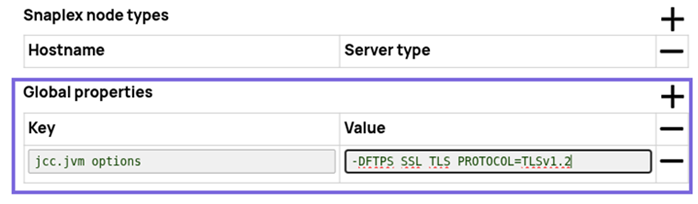
-
This Snap Pack no longer natively supports RSA-SHA1 authentication with the Secure File Transfer Protocol (SFTP). To enable support for RSA-SHA1 authentication, set the following property from the Node Properties section of Configuration Options:
-Djsch.server_host_key=ssh-rsa -Djsch.client_pubkey=ssh-rsa
With the 4.33 GA release of the
Binary Snap Pack
, support for some algorithms for SFTP
connection negotiation is removed for improved security and because we’ve updated the
library used to connect to SFTP sources. If you want to revert to the previous settings, you
can set the following jcc.jvm_options from the Node Properties section of
Configuration Options. To update Cloudplexes, contact SnapLogic
Support.
-Djsch.kex=ecdh-sha2-nistp256,ecdh-sha2-nistp384,ecdh-sha2-nistp521,diffie-hellman-group14-sha1,diffie-hellman-group-exchange-sha256,diffie-hellman-group-exchange-sha1,diffie-hellman-group1-sha1-Djsch.server_host_key=ssh-rsa,ssh-dss,ecdsa-sha2-nistp256,ecdsa-sha2-nistp384,ecdsa-sha2-nistp521-Djsch.client_pubkey=ssh-rsa,ssh-dss,ecdsa-sha2-nistp256,ecdsa-sha2-nistp384,ecdsa-sha2-nistp521-Djsch.cipher=aes128-ctr,aes128-cbc,3des-ctr,3des-cbc,blowfish-cbc,aes192-ctr,aes192-cbc,aes256-ctr,aes256-cbc-Djsch.check_ciphers=aes256-ctr,aes192-ctr,aes128-ctr,aes256-cbc,aes192-cbc,aes128-cbc,3des-ctr,arcfour,arcfour128,arcfour256-Djsch.check_kexes=diffie-hellman-group14-sha1,ecdh-sha2-nistp256,ecdh-sha2-nistp384,ecdh-sha2-nistp521-Djsch.check_signatures=ecdsa-sha2-nistp256,ecdsa-sha2-nistp384,ecdsa-sha2-nistp521
Account
This Snap uses account references created on the Accounts page of SnapLogic Manager to handle access to this endpoint. This Snap supports a Basic auth account, an AWS S3 auth account, SSH Auth account, SMB account, or no account. See Configuring Binary accounts for information on setting up accounts that work with this Snap.
| Protocol | Account types |
|---|---|
| sldb | no account |
| s3 | AWS S3 |
| ftp | Basic Auth |
| sftp | Basic Auth, SSH Auth |
| ftps | Basic Auth |
| hdfs | no account |
| http | no account |
| https | no account |
| smb | SMB |
| wasb | Azure Storage |
| wasbs | Azure Storage |
| gs | Google Storage |
Required settings for account types are as follows:
| Account Type | Settings |
|---|---|
| AWS S3 | Access-key ID, Secret key |
| SSH Auth | Username, Private key, Key Passphrase |
| SMB | Domain, Username, Password |
| Azure Storage | Account name, Primary access key |
| Google Storage |
Approval prompt, Application scope, Auto-refresh token (Read-only properties are Access token, Refresh token, Access token expiration, OAuth2 Endpoint, OAuth2 token and Access type.) |
Snap views
| Type | Description | Examples of upstream and downstream Snaps |
|---|---|---|
| Input | This Snap accepts binary data passed as binary objects. It reads from the source specified in the File property with header information about the binary stream. | |
| Output | When the snap successfully writes the zip file, it generates output containing:
|
|
| Learn more about Error handling. | ||
Snap settings
- Expression icon (
 ): Allows using
pipeline parameters to set field values dynamically (if enabled). SnapLogic Expressions
are not supported. If disabled, you can provide a static value.
): Allows using
pipeline parameters to set field values dynamically (if enabled). SnapLogic Expressions
are not supported. If disabled, you can provide a static value. - SnapGPT (
 ): Generates SnapLogic Expressions
based on natural language using SnapGPT. Learn
more.
): Generates SnapLogic Expressions
based on natural language using SnapGPT. Learn
more. - Suggestion icon (
 ): Populates a
list of values dynamically based on your Snap configuration. You can select only one
attribute at a time using the icon. Type into the field if it supports a comma-separated
list of values.
): Populates a
list of values dynamically based on your Snap configuration. You can select only one
attribute at a time using the icon. Type into the field if it supports a comma-separated
list of values. - Upload
 : Uploads files. Learn more.
| Field/Field set | Type | Description |
|---|---|---|
| Label*
|
String | Specify a unique name for the Snap. Modify this to be more appropriate, especially if more than one of the same Snaps is in the pipeline. Default value: ZipFile Write Example: ZipFile Write |
| File name | String/Expression | Required. Specifies the URL of the file where
the output binary data is written. The supported file protocols are:
Note: This Snap supports S3 Virtual Private Cloud (VPC) endpoint. For example,
s3://my-bucket@bucket.vpce-028b7814794578709-vu0vvauy.s3.us-west-2.vpce.amazonaws.com
This property works similar to the File name property of the File Writer Snap. For additional information refer the Settings section of the File Writer Snap. Tip: When using expressions to build a file name, ensure that the
resulting file name does not contain characters that are not supported by the
target platform. For example, a file name that contains the special character
":" is not supported in SMB.
Note:
Refer to : Acceptable File Paths Warning: Lint Warning The Snap displays a Lint Warning in your
Pipeline in the following scenarios:
Therefore, we recommend that you confirm to any of the acceptable
relative paths. Otherwise, use an absolute path—that is provide a file path that
belongs to the same org where you want to write the file, or use the File Upload
Default value: None. Example: contact.zip |
| File action | Dropdown list | The action to perform if the file already exists. The options available include:
Tip: Write files to Azure Blob Storage along with Content
Type
You can prevent the Snap from writing files always to Azure Blob Storage (WASB: or WASBS: file protocol) with the application/octet-stream content-type. To do so, configure a binary header property in an upstream Snap, such as JSON Formatter or Mapper, to match the file contents – application/zip, application/java-archive and so on; and pass it as the $content-type (case-sensitive) for the file.  Warning: For wasb:// and
wasbs:// file protocols, only the Overwrite file action is supported. Default value: Overwrite Example: Ignore |
| Base directory | String | Specify the root directory for all the files added to a .zip file. Default value: N/A Example: testFolder |
| Use input view label | Checkbox | Select this checkbox to use the input view label for all names of the files
added to the zip file. Otherwise, the input view ID is used when the input binary
stream does not have its content-location in its header. When this option is
selected, if there is more than one binary input stream in an input view, for the
second input stream and after, the file names will be the input view label appended
with '_n'. If the label is in the format of 'name.ext', '_n' will be append to the
'name', for example, name_2.ext for the second input stream. Note: If you select
this option, and if the Base directory is testFolder and the input view label is
test.csv, the file name for the first binary input stream in that input view will
be testFolder/test.csv, the second, testFolder/test_2.csv, the third,
testFolder/test_3.csv, and so on. Default status: Deselected |
| Number of retries | Integer/Expression |
Specify the maximum number of retry attempts to make when the Snap fails to
write. If the value is larger than 0, the Snap first stores the input data
in a temporary zip file before writing to the target file.
Note: Ensure that the
local drive has sufficient free disk space as large as the expected target file
size. Minimum value: 0 Default value: 0 Example: 3 |
| Retry interval (seconds) | Integer/Expression | Specify the minimum number of seconds for which the Snap must wait before
attempting recovery from a network failure. Minimum value: 1 Default value: 1 Example: 3 |
| AWS Canned ACL | Dropdown list | Choose the predefined ACL grants (from AWS) to use when writing a file to S3.
Choose a Canned ACL from the available options:
Watch the video for more information about AWS Canned ACL. Learn more about AWS Canned ACLs. Warning: This field appears only when your account type is set to AWS S3.
Default value: 1 Example: PublicRead |
| Advanced properties | Use this field set to define additional properties for the Snap. | |
| SAS URI | Dropdown list | Choose the URI of the Shared Access Storage (SAS) to access. Supported SAS
types are:
Warning: If you specify the SAS URI value in the Snap settings,
then the settings provided in the account (if any account is attached) are
ignored. |
| Values | String/Expression | Provide a value for the SAS URI. |
| Snap execution
|
Dropdown list |
Choose one of the three modes in
which the Snap executes. Available options are:
Default value: Execute only Example: Validate & Execute |
 icon to specify the File
path.
icon to specify the File
path.Acceptable File Paths
- Relative paths
filename.json: Saves the file in the project.../shared/filename.json: Saves the file in the Project Shared Space.../../shared/filename.json: Saves the files in the Org Shared project.
- Absolute path
-
/<org>/<projectSpace>/<project>/filename.json
-