


REST OAuth2 Account
Overview
You can use this account type to connect REST Snaps with data sources that use OAuth2 authentication. When choosing between different authentication options for a REST API, we recommend you use the REST OAuth2 account instead of the REST In-memory OAuth2 account because of the flexibility and security features OAuth2 offers.
Prerequisites
A valid Client ID, Client secret, OAuth2 endpoint, and OAuth2 token.

Account settings
- Expression icon (
 ): Allows using
JavaScript syntax to access SnapLogic Expressions to set field values dynamically (if
enabled). If disabled, you can provide a static value. Learn more.
): Allows using
JavaScript syntax to access SnapLogic Expressions to set field values dynamically (if
enabled). If disabled, you can provide a static value. Learn more. - SnapGPT (
 ): Generates SnapLogic Expressions
based on natural language using SnapGPT. Learn
more.
): Generates SnapLogic Expressions
based on natural language using SnapGPT. Learn
more. - Suggestion icon (
 ): Populates a
list of values dynamically based on your Snap configuration. You can select only one
attribute at a time using the icon. Type into the field if it supports a comma-separated
list of values.
): Populates a
list of values dynamically based on your Snap configuration. You can select only one
attribute at a time using the icon. Type into the field if it supports a comma-separated
list of values. - Upload
 : Uploads files. Learn more.
| Field/Field set | Type | Description |
|---|---|---|
| Label | String |
Required. Specify the name for the account. We
recommend updating the account name if there is more than one account of
the same type in your project. Default value: N/A Example: REST OAuth2 Account |
| Client ID | String |
Required. Specify the client ID associated with
your account. You can create the client ID as advised by your
application provider. Default value: N/A Example: p364e45x-953x-460p-9pb0-934xep16p693 |
| Client secret | String |
Required. Specify the client secret associated
with your account. You can create the client secret as advised by your
application provider. Default value: N/A Example: <Encrypted> |
| Access token | String | Auto-generated after authorization. Specify the token that SnapLogic
uses to make API requests on behalf of the user associated with the
client ID. Default value: N/A Example: <Encrypted> |
| Refresh token | String | Auto-generated after authorization. Specify the refresh token
associated with your account. If the refresh token is stored, then the
access token can be refreshed automatically before it expires. You
should retrieve the Refresh token when setting up the account for
the endpoint, where the OAuth2 flow is executed and the resulting
refresh token is stored in this field. If the refresh token is
stored, then the access token can be refreshed automatically before
it expires. Note: Users who run Pipelines with REST Snaps using
OAuth2 authentication should have read/write/execute
permissions. If the user has only Execute permissions, a refresh
of the OAuth2 token might prompt the user's credentials. For a
workaround, you can give the user running the pipeline Write
access to the Assets referenced in the pipeline. In
some REST endpoints, such as Google and Microsoft, the refresh token
is not returned by the default parameters/scopes. For example, in an
endpoint such as Google, to get the refresh token you need to set
Default value: N/A Example: <Encrypted> |
| Access token expiration | Integer | Auto-generated after authorization. Specify the access token
expiration value, in seconds.Default: Current Time + 3600
seconds Example: 10000s |
| Header authenticated | Checkbox | Select this checkbox to indicate that the endpoint uses bearer header authentication.Default value: Deselected |
| OAuth2 Endpoint | String | Specify the URL of the endpoint that authorizes the application. Default value: N/A Example: https://login.microsoftonline.com/common/oauth2/v2.0/authorize |
| OAuth2 Token endpoint | String | Specify the URL of the endpoint that retrieves the token for an
authenticated account. Note: If you are using a REST OAuth2 Account, access the account
token through
account.access_token explicitly.
The property must be marked as an expression. An example URL for
LinkedIn is:
Default value: N/A Example: https://login.microsoftonline.com/common/oauth2/token |
| Grant Type | Dropdown list |
Select one of the following methods for authorization:
Default value: Authorization Code Example: client_credentials |
| Token endpoint config | Use this field set to
provide custom properties for the OAuth2 token endpoint. Click the + or
- icons to add or remove configuration rows. This field set comprises
the following fields:
|
|
| Token endpoint parameter | String | Define an optional token endpoint parameter. Default value: N/A Example: N/A |
| Token endpoint parameter value | String | Enter the value associated with the optional endpoint parameter
defined above. Default value: N/A Example: N/A |
| Authorization endpoint config | Use this field set to
provide custom properties for the OAuth2 auth endpoint. Click the + or -
icons to add or remove configuration rows. This field set comprises
the following fields:
|
|
| Auth endpoint parameter | String | Define an optional token endpoint parameter. Default value: N/A Example: N/A |
| Auth endpoint value | String | Enter the value associated with the authorization endpoint parameter
defined above. Default value: N/A Example: N/A |
| Snaplex | String | Specify the Snaplex path to be used for OAuth2 operations. Note:
Default value: N/A Example: /snaplogic/shared/cloud |
| Auto-refresh token | Checkbox | Select this checkbox to refresh the token automatically using the
refresh token, if the property is enabled. If deselected, the token
expires and is not refreshed automatically. Default status: Deselected |
| Authorize | Button | Click this button to authorize the REST OAuth2 account using the credentials provided in the Client ID, Client Secret, OAuth2 Endpoint, and OAuth2 Token fields. |
| Send Client Data as Basic Auth Header | Checkbox | Select this checkbox to send the client information as a header to
the OAuth endpoint. Default status: Deselected |
https://<SnapLogic_POD_Name>/api/1/rest/admin/oauth2callback/restFor
example:
https://elastic.snaplogic.com/api/1/rest/admin/oauth2callback/rest
in the screenshot below:
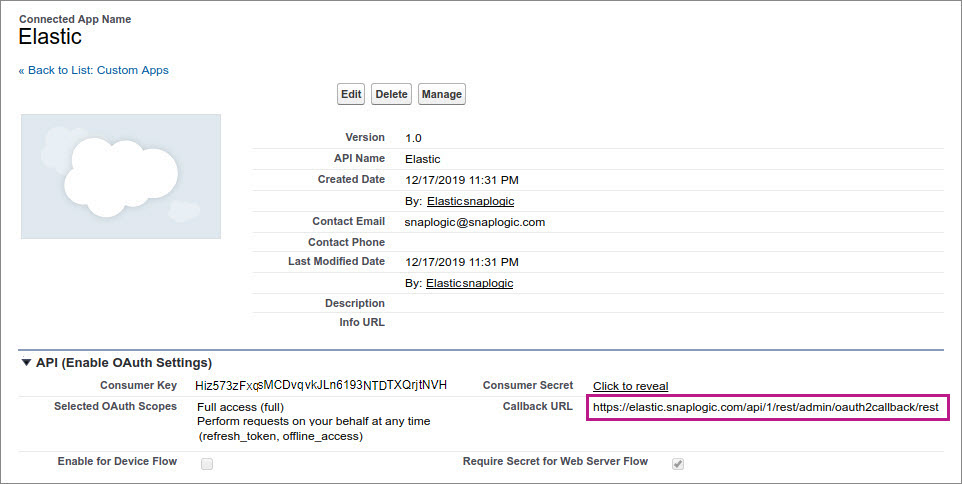
After you click Authorize, SnapLogic sends your account details to the OAuth2 endpoint specified and populates the Access token, Refresh token, and Access token expiration fields using the details received from that endpoint.
REST In-memory OAuth2 Account Vs. REST OAuth2 Account
| The REST In-memory OAuth2 Account supports only client_credentials Grant type. | The REST OAuth2 Account supports the following authorization
Grant types:
|
| The REST In-memory OAuth2 Account is suitable for scenarios where the access token expiration time is less than 30 minutes. This account type efficiently manages tokens within the pipeline and Snap, ensuring a more localized token handling approach. | The REST OAuth2 Account is suited for scenarios when access token expirations are 1 hour or longer. If the OAuth2 service supports refresh tokens, enabling the Auto Refresh token checkbox allows Snaplogic to pre-emptively refresh tokens automatically before their official expiration. |
Troubleshooting
One or more required field is blank
- Label
- Client ID
- Client secret
- Request Token Endpoint
- Access Token Endpoint
- Authorize Endpoint
- Label
- Client ID
- Client secret
- Request Token Endpoint
- Access Token Endpoint
- Authorize Endpoint
One or more required field is blank
- OAuth Token
- OAuth Token Secret
You still click Apply.
- Label
- Client ID
- Client secret
- Request Token Endpoint
- Access Token Endpoint
- Authorize Endpoint