


Review and Finalize
Reviewing and Undoing Changes
The Review summary tab lists all of your formatting and transformation changes and AutoPrep null handling suggestions. To review, undo, or edit a change.
- Click Review summary. Each modified field displays with
the description of modifications indented below it:
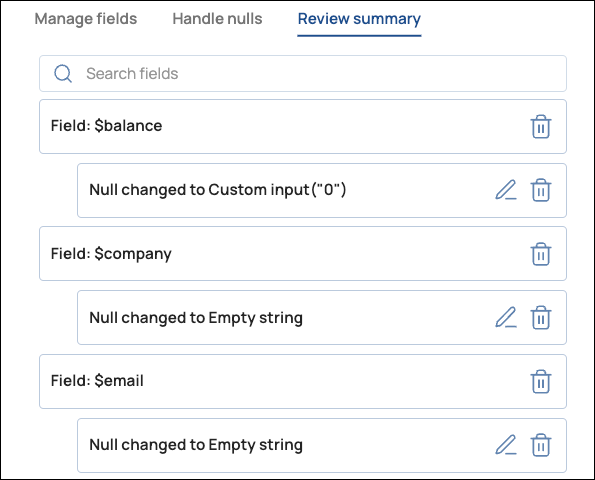
- Click the trash can to delete a change or click the pen to edit it.
Changing the AutoPrep Snap Name
You can use multiple AutoPrep Snaps in the same Pipeline. To distinguish them, change the default name:
- Open AutoPrep.
- Click the name and enter a new one.
- Exit the field.
Exit AutoPrep and Preview Changes
When you are ready to exit AutoPrep, click Done. If pipeline validation is not Pipeline Validation and Global User Settings and Designer Settings is enabled in user settings, you can preview how AutoPrep will prepare the data set at runtime. On the right side of the AutoPrep Snap, click Data Preview icon to display the Data preview from pipeline: