


IBM MQ Account
Overview
You can use this account type to connect JMS Snaps with data sources that use IBM MQ account.
Prerequisites
- Valid Username
- Valid Hostname, Port, and Queue manager name
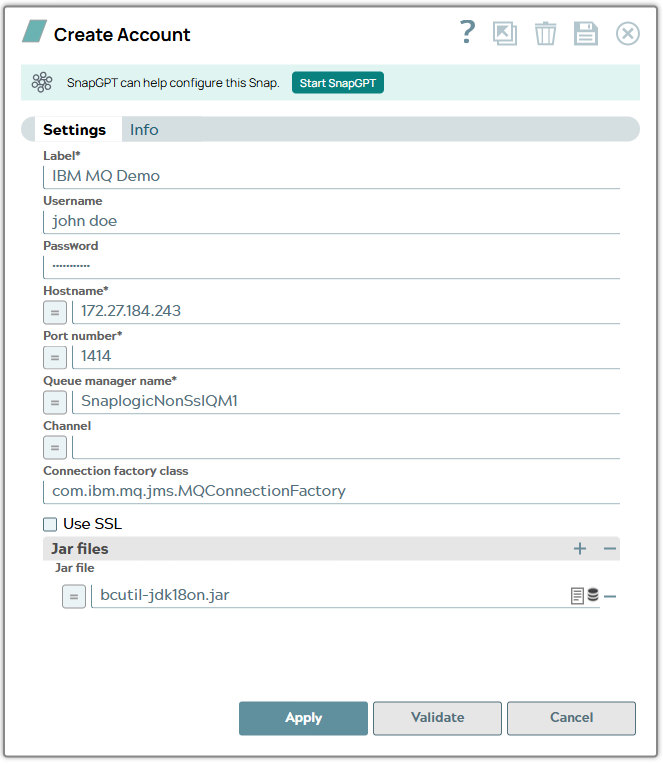
Account settings
| Field/Field set | Description |
|---|---|
Label*
String |
Specify a unique label for the account. Example: IBM MQ Account |
Username
String |
Specify a username necessary to create the connection to the JMS provider. Example: [email protected] |
Password
String |
Specify the password associated with the JMS username. Example: NAo93@$$! |
Hostname
String/Expression |
Specify the host name of the IBM MQ Queue Manager to which you need to connect. Default value: jmsibmmqssl2.snaplogic.nia.com Example: jmsibmmqssl2.snaplogic.nia.com |
Port number
Integer/Expression |
Specify the port number of the IBM MQ Queue Manager to which you must connect. Example: 1414 |
Queue manager name
String/Expression |
Specify the name of the IBM MQ Queue Manager to which you must connect. Example: snaplogic |
Channel
String/Expression |
Specify the channel name of the IBM MQ Queue Manager to which you must connect. Example: integration |
Connection factory class
String/Expression |
Specify the class name of the connection factory class to use for the connection to the IBM MQ Queue Manager. Default value: com.ibm.mq.jms.MQConnectionFactory Example: com.ibm.mq.jms.MQConnectionFactory |
SSL enabled
Checkbox |
Select this checkbox to connect to the IBM MQ Queue Manager via SSL. Default value: Not selected |
SSL cipher suite
String/Expression |
Specify the SSL cipher suite to use for connection to the IBM MQ Queue Manager. Example: TLS_RSA_WITH_AES_128_CBC_SHA256 |
Truststore
String/Expression |
Specify the path to the SSL trust store file containing the trusted CA certificates for the connection to the IBM MQ Queue Manager. The file can be located in SLDB, on the host machine that hosts the JCC, or at any other remote location. For a local file, click the Upload icon to select the appropriate file using the file browser icon. Example: client.jks |
Truststore password
String/Expression |
Specify the password for the SSL trust store file containing the trusted CA certificates for the connection to the IBM MQ Queue Manager. Example: <Encrypted> |
Keystore
String/Expression |
Specify the location of the keystore file. This field is required if SSH Auth Mode is KeyFile. The file can be located in SLDB, on the host machine that hosts the JCC, or at
any other remote location. For a local file, click the Upload icon to select the
appropriate file using the file browser. You can also upload the file using any
protocol such as |
Keystore password
String/Expression |
Specify the password for the SSL key store file containing the client certificate for the connection to the IBM MQ Queue Manager. This field is required if the SSH Auth Mode is KeyFile. Example: Xy9!aP3r$7LmQ2zT |
| JAR files |
List of JDBC JAR files to be loaded.
Note:
You must include all IBM MQ dependencies in this field set to avoid errors when the pipelines run. Typical JAR file locations are /opt/mqm/java/lib/ and /opt/mqm/java/lib64/. |
JAR file
String/Expression |
Specify the JAR files related to the JMS provider to produce and consume
messages. The JMS account supports only SLDB and
File protocols. If you do not provide a protocol, then the
account uses SLDB by default. Optional. Implementation of the JMS service. Example: Project Spaces/my_diagnostic_space/my_diagnostic /sqljdbc4-2.0.jar |