


GitHub Docs Read
Overview
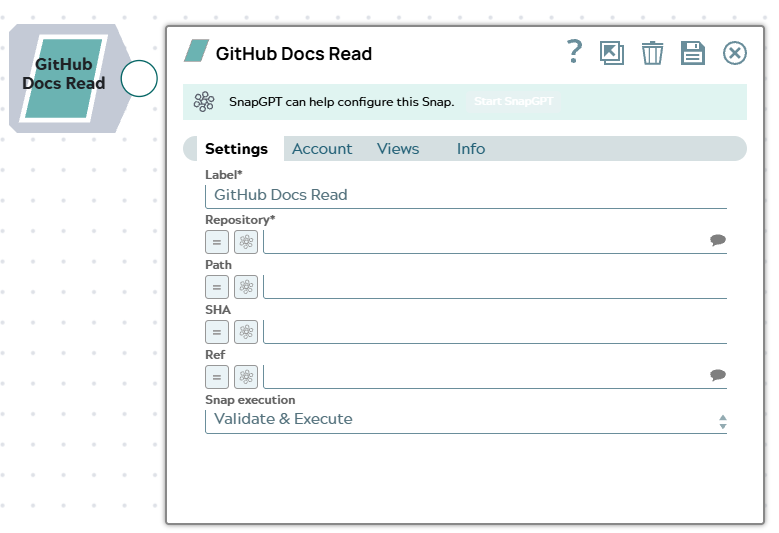
The GitHub Docs Read Snap fetches the text content of files from a GitHub repository, appending content and metadata to each incoming document.
Use Path to fetch a file by path and receive commit author and
timestamp metadata. Use SHA to fetch a file by its blob SHA
(typically $sha from GitHub File
List) for faster execution without commit metadata. The two fields are
mutually exclusive: selecting one hides the other. Non-textual binary files and files
larger than 10 MB are skipped with a warning logged. Incoming records with
change_type: removed are passed through without fetching.
- This is a Read-type Snap.
 Works in Ultra Tasks
Supported Accounts
Prerequisites
None.
Snap views
| Type | Description | Examples of upstream and downstream Snaps |
|---|---|---|
| Input |
This Snap has one document input view. Incoming documents are enriched with file content and metadata. Records
with |
|
| Output |
This Snap has one document output view. Each output document retains all incoming fields and appends:
|
|
| Learn more about Error handling. | ||
Snap settings
| Field/Field set | Description |
|---|---|
Label*
String |
Specify a unique name for the Snap. Modify this to be more appropriate, especially if more than one of the same Snaps is in the pipeline. Default value: GitHub Docs Read |
Repository*
String/Expression |
Enter the repository containing the file, in
Default value: None Example: |
Path
String/Expression |
Enter the path of the file to fetch, relative to the repository root. Fetching by path returns commit author and timestamp metadata. When a value is entered, the SHA field is hidden. This field is mutually exclusive with SHA. Enter either Path or SHA, not both. Default value: None Example: |
SHA
String/Expression |
Enter the blob SHA of the file to fetch. Fetching by SHA is faster than
fetching by path but does not return commit author or timestamp metadata.
When chaining from GitHub File List,
set this field to This field is mutually exclusive with Path. Enter either SHA or Path, not both. Default value: None Example: |
Ref
String/Expression |
Appears when Path is in use. Enter a branch name, tag, or commit SHA to fetch the file at a specific point in history. Leave blank to fetch from the repository's default branch. Default value: None Example: |
|
Snap execution Dropdown list
|
Choose one of the three modes in
which the Snap executes. Available options are:
Default value: Validate & execute |
Troubleshooting
| Error | Reason | Resolution |
|---|---|---|
| Enter either Path or SHA. | Both Path and SHA are empty. | Enter a value in either Path or
SHA. When chaining from GitHub File List, set
SHA to $sha with the expression
toggle enabled. |
| Invalid SHA: <value> | The value entered in SHA is not a valid Git blob SHA. | Verify that the SHA value is a full or abbreviated Git blob SHA. When
chaining from GitHub File List, use $sha in expression
mode. |
| 404 Not Found | The file path entered in Path does not exist in the repository at the specified branch or ref. | Verify the file path and branch or ref value, and run the pipeline again. |