


Transfer one level Teamcenter BOM based on data from Excel sheet using the Tc BOM Structure Synchronize Snap
This example pipeline demonstrates how to transfer a single-level BOM from an Excel sheet into Teamcenter, including the error handling branches.
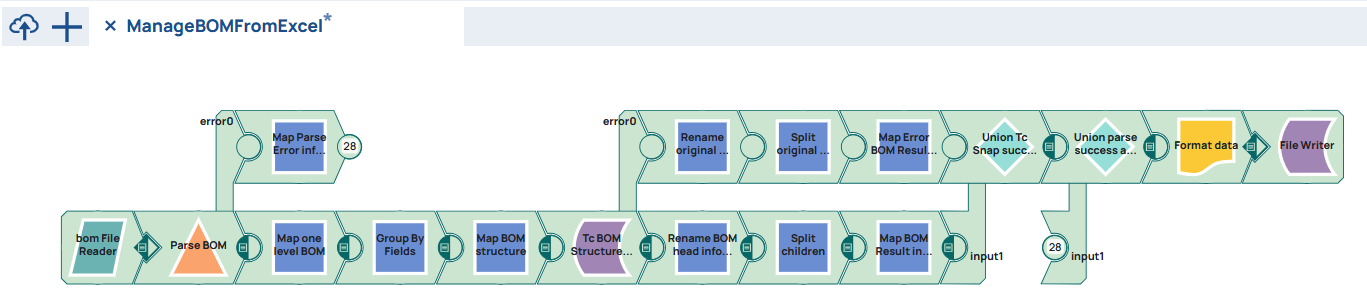
Steps
The example demonstrates how to create a BOM structure using source information. As source an excel file is choosen to be able to share it more easily. The implementation of BOM creation can be done in more then one way. This is the first approach described here. Other possible solutions will follow.
An Excel file contains pairs of Head and Child elements listed in rows to define BOM structure. Since creation of relation needs unique Teamcenter IDs (UID) to identify an existing object each head and child elements ID has to be given in excel. To keep the example simple only a One Level BOM is described. At the end uid information of BOM occurrence object shall be written to excel file.
UIDs in Teamcenter are as the name says UNIQUE. The UIDs in the excel file for this example only exist in our Teamcenter system as expected for our example. Generate your own objects e.g. with the Create Teamcenter elements based on data from Excel sheet and use the UIDs created there.
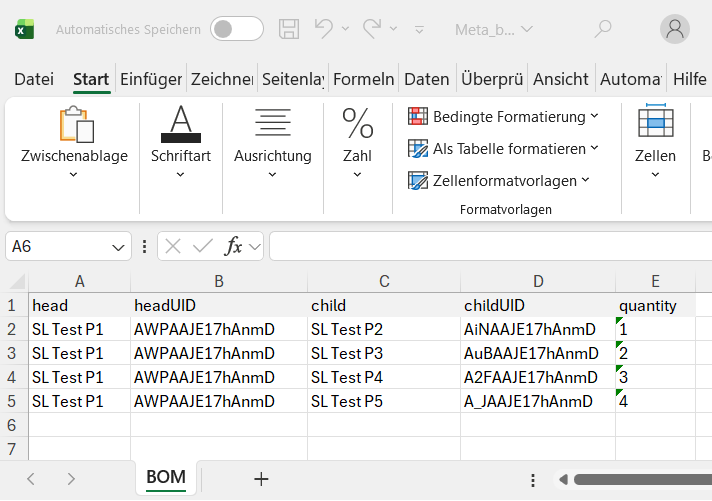
For the pipelines purpose this file will be uploaded and stored at SnapLogic.

As a first step a new pipeline has to be created.
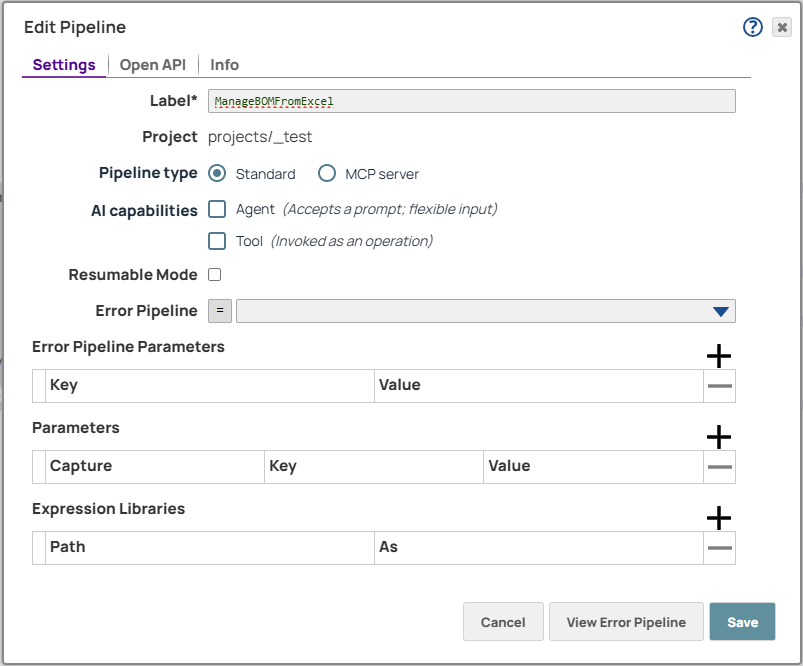
First step in the pipeline will the read operation of the file. Here we utilize the File Reader Snap.
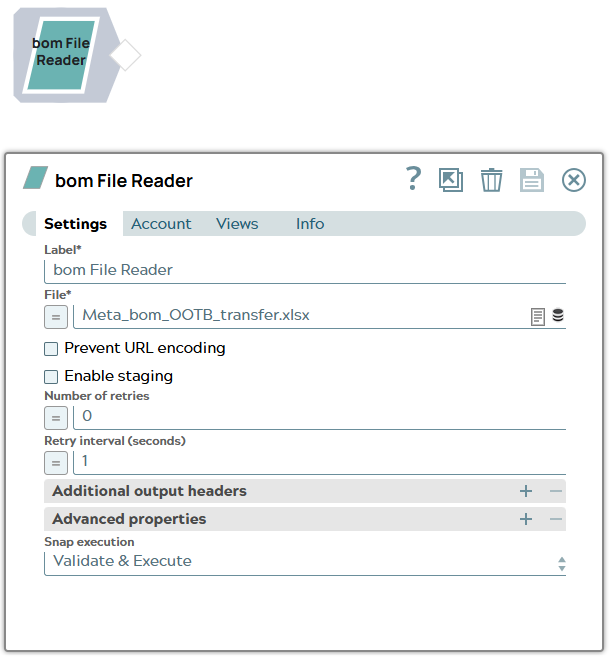
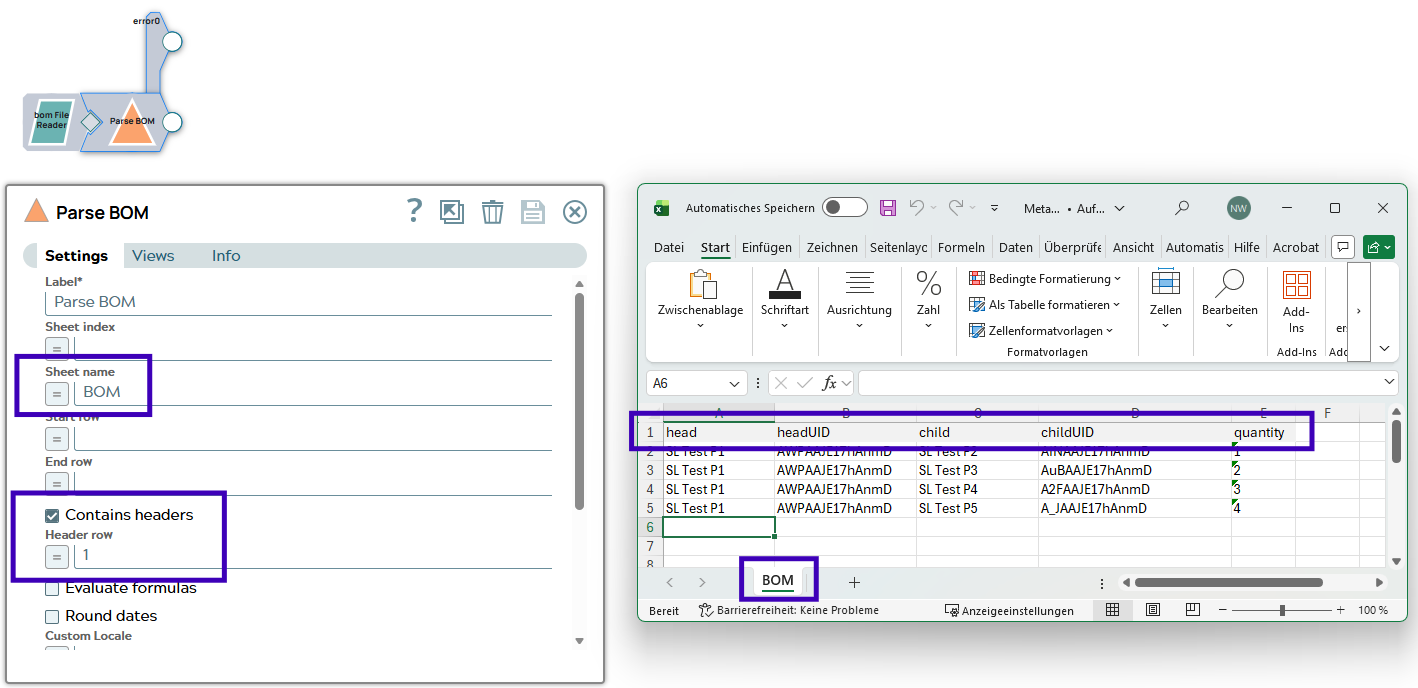
This Snap is creating a binary stream which is needed to be processed now. It will be read by an Excel Parser to create a JSON document stream in the pipeline. Since the Excel sheet has a header row and the sheet is named as 'BOM', the appropriate setting in the Snap is done.
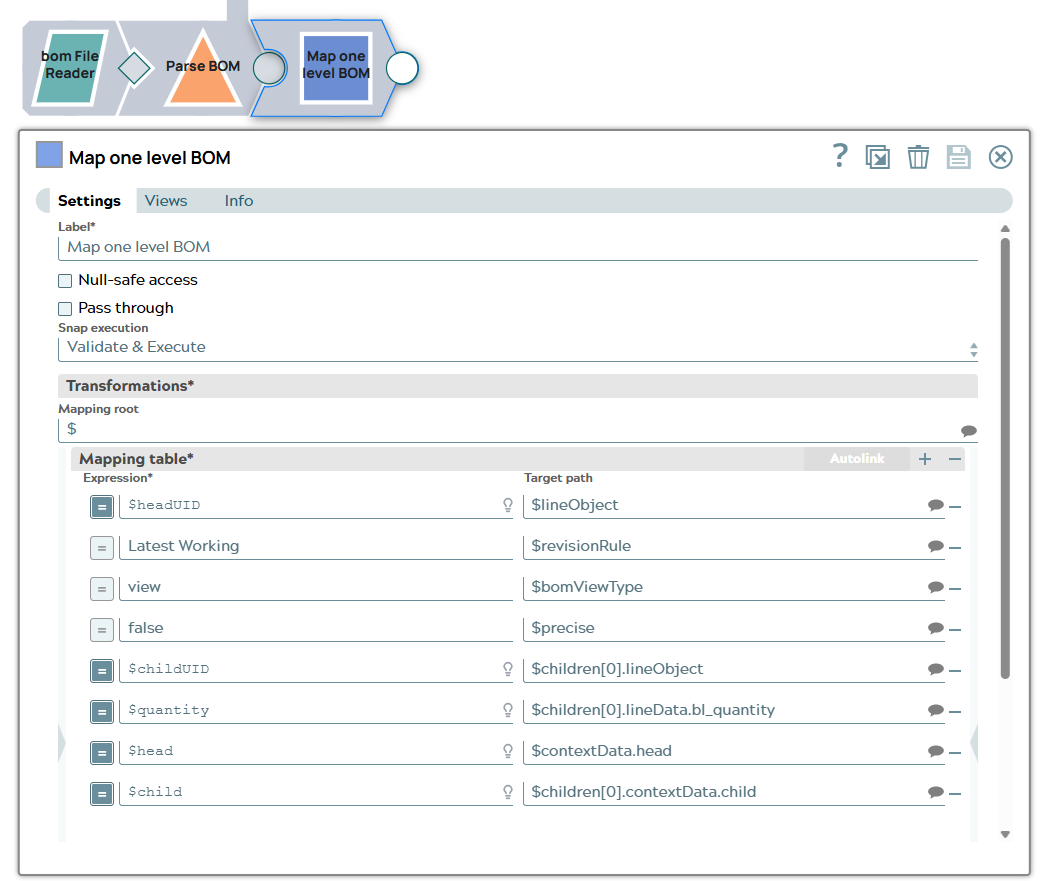
With the base information from excel (head UID, child UID) a BOM structure can be build in a format the Tc BOM Structure Synchronize Snap expects. The schema of the Snap input is described in documentation. Its minimal content is based on “lineObject” objects including a list object “children” which include itself a lineObject per BOM line and optional lineData for relation attributes. Additional some properties like “precise”, “bomViewType” and so on can be set.
{
    "lineObject": "", //place UID of head here
    "revisionRule": "Latest Working",
    "bomViewType": "view",
    "precise": false,
    "children": [
      {
        "lineObject": "",  //place UID of child here
        "lineData": {
          "bl_quantity": "1" //as example
        }
      }
    ]
}
First each row of excel is mapped to this schema in a Mapper Snap.
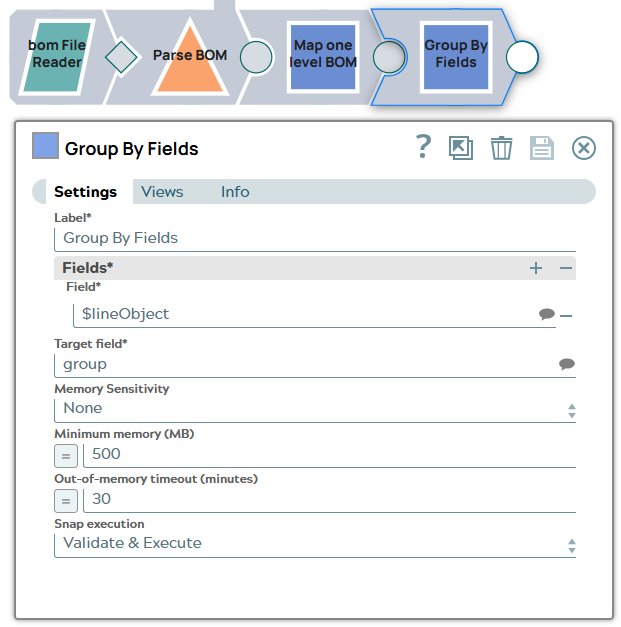
One head object can include n objects in children list. Currently we have n JSON documents each for one child as reflected in Excel file. To collect all children for one BOM head a Group By Fields Snap can be used.
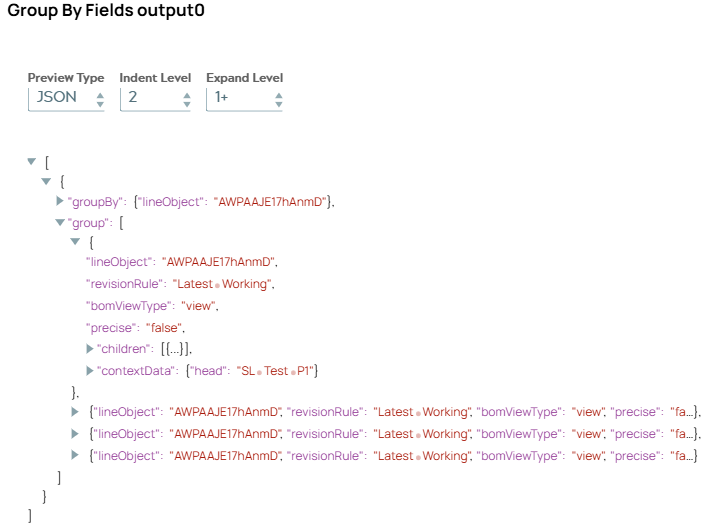
The output of the Snap is one groupBy lineObject since the example has only one BOM Head and a list of corresponding BOM rows for this BOM Head.
This can be mapped to the schema the Tc BOM Structure Synchronize Snap expects.
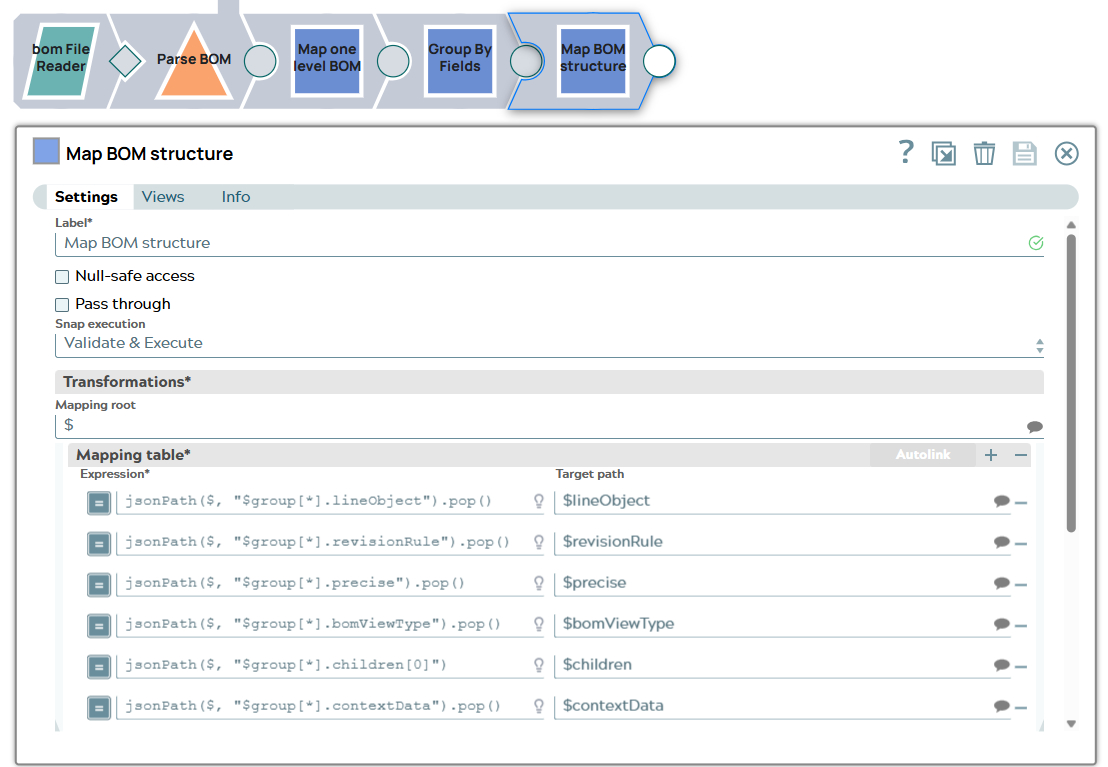
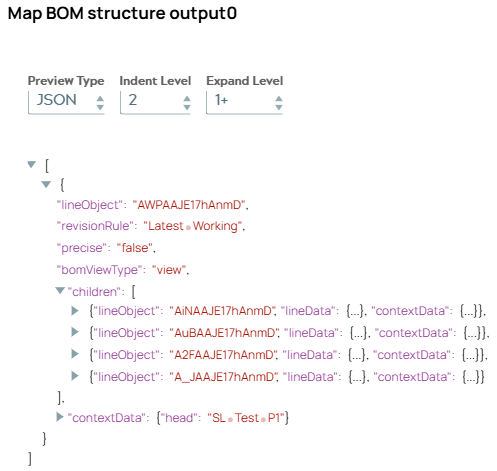
Output of Mapper Snap corresponds schema for Snap.
The document is send to Tc BOM Structure Synchronize Snap which can be configured like this. Expand attributes are set to minimize output content of Snap to only needed information. These attributes are:
- object_name
- object_string
- bl_quantity
- bl_occurrence
- bl_occurrence_uid

The output JSON can look like this.
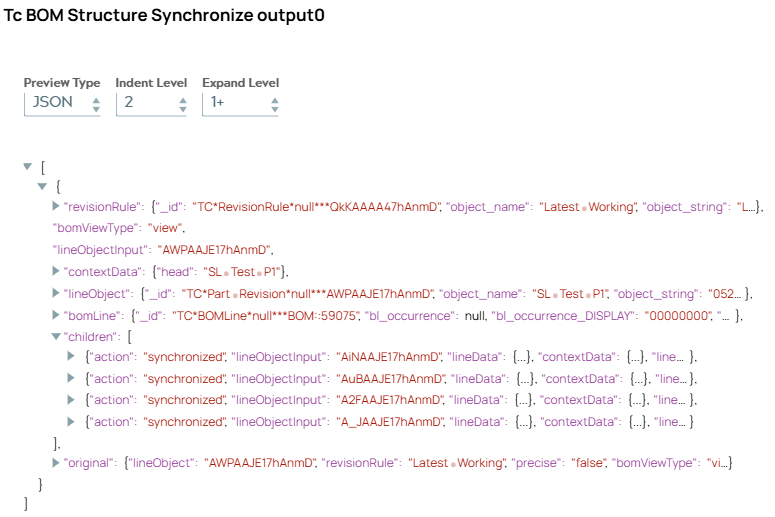
At the end the excel shall contain uid information of occurrences. JSON output of Tc BOM Structure Synchronize Snap will be transformed in two steps. First “lineObject” is renamed.
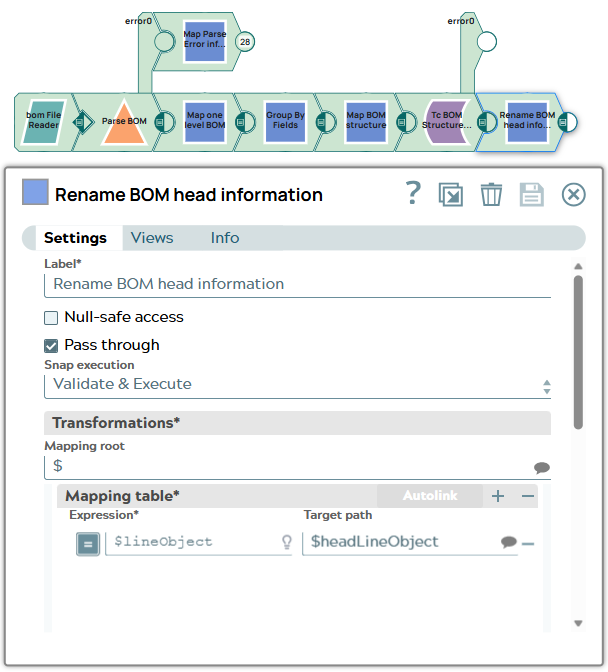
Currentlly we have one JSON document but we need as much documents as we have children in the BOM to write rows in the excel file at the end. Therefore a Splitter Snap is used now. It is important to copy the “headLineObject” in each document since head information is included there.

Each document represents one future row in excel file now and content can be mapped to column named fields.
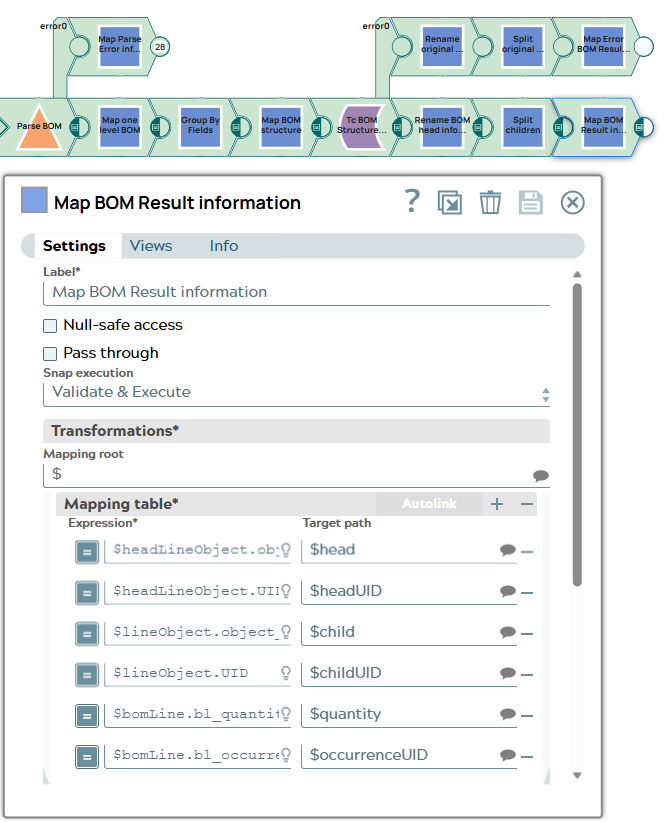
Two error cases are configured in this pipeline:
- parsing error in Parser Snap
- error while BOM synchronization in Tc BOM Structure Synchronize Snap
Therefore two Union Snaps follow to close pipeline branches.
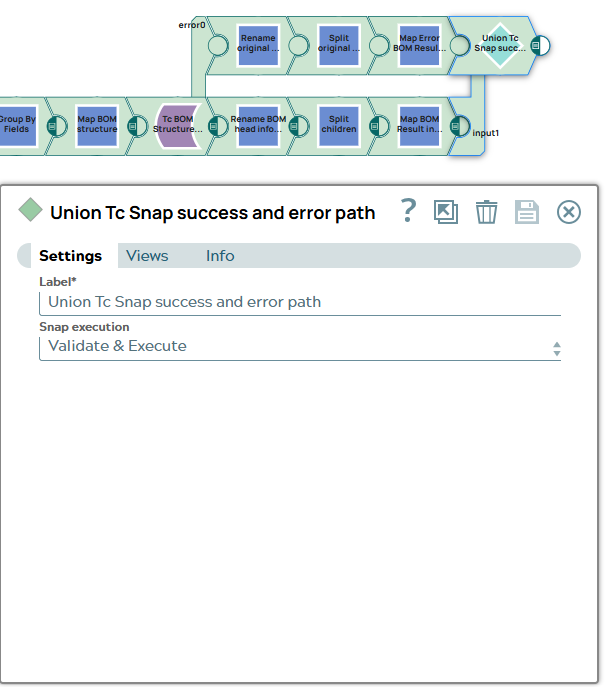
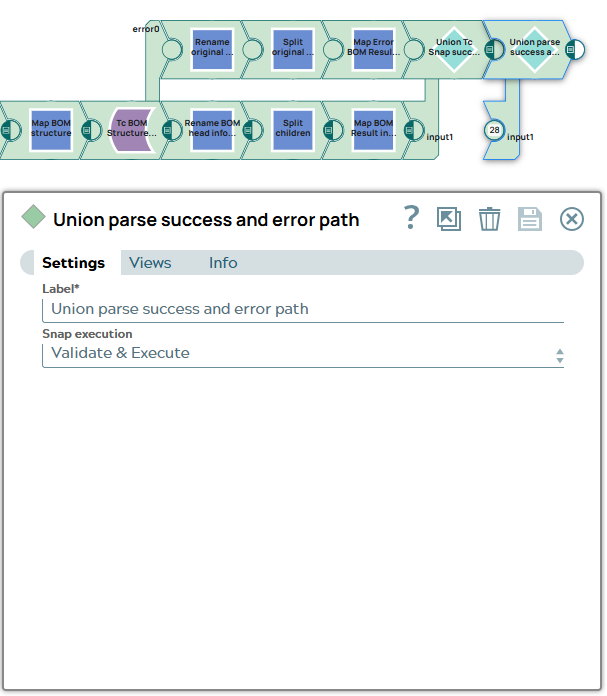
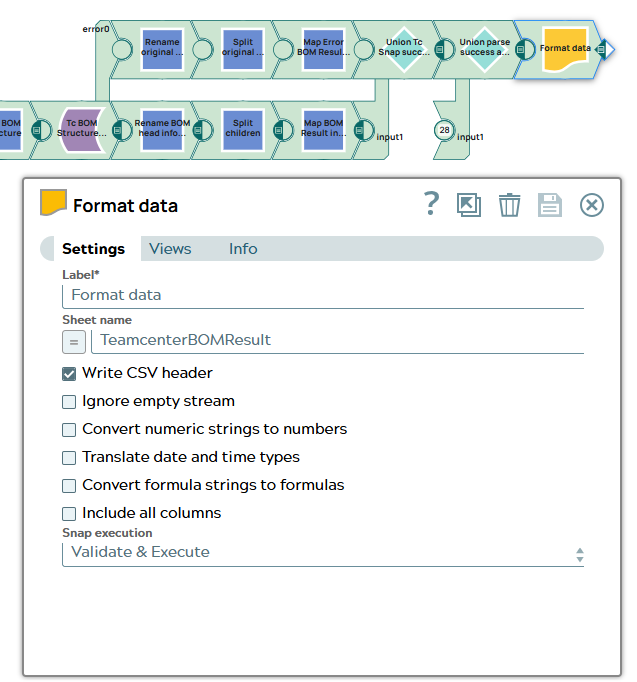
The input for next Snap which shall format JSON to excel format contains objects including information about each Bom Line.
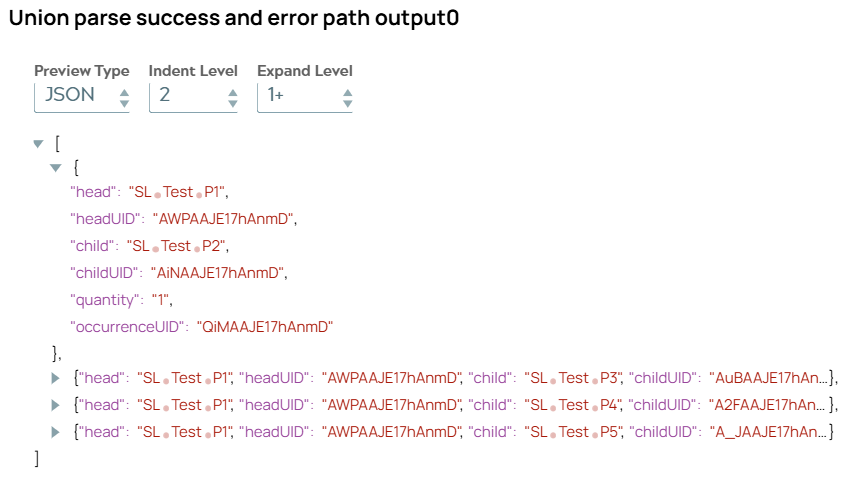
The Excel Formatter Snap reads the documents, converts the documents in XLSX format using a specified sheet and writes out binary data.
Last but not least the File Writer Snap is used to store the file “Result_bom_OOTB.xlsx” in directory.
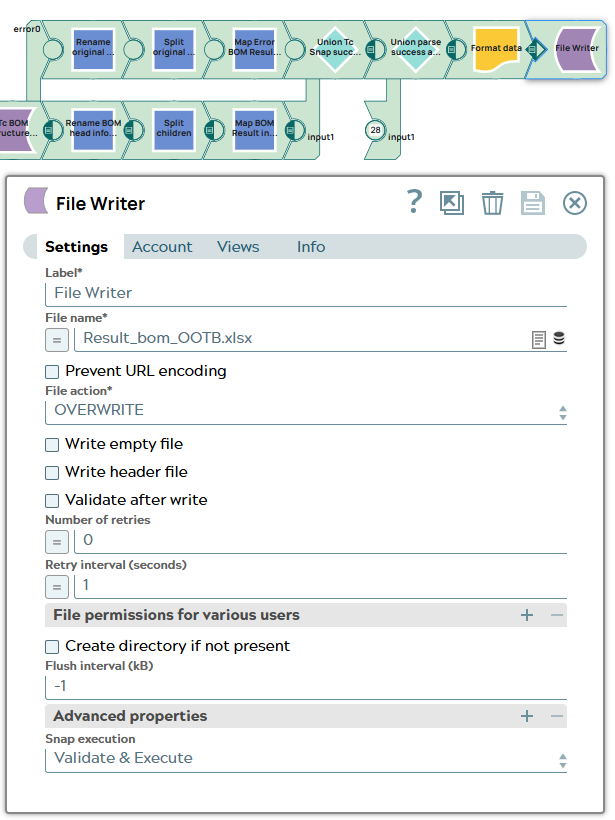
Whole pipeline is finished.
The file including result information is now stored at SnapLogic.
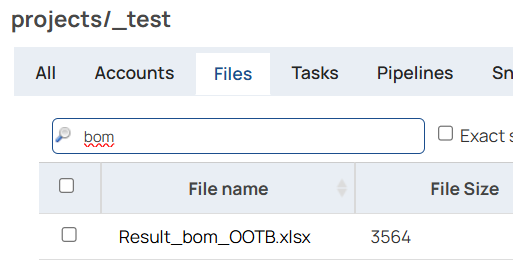
The Teamcenter data for the newly created relations is now visible in the stored file.

Error handling branches
Two error cases are configured in this pipeline:
- parsing error in Parser Snap
- error while BOM synchronization in Tc BOM Structure Synchronize Snap
Parsing error in Parser Snap
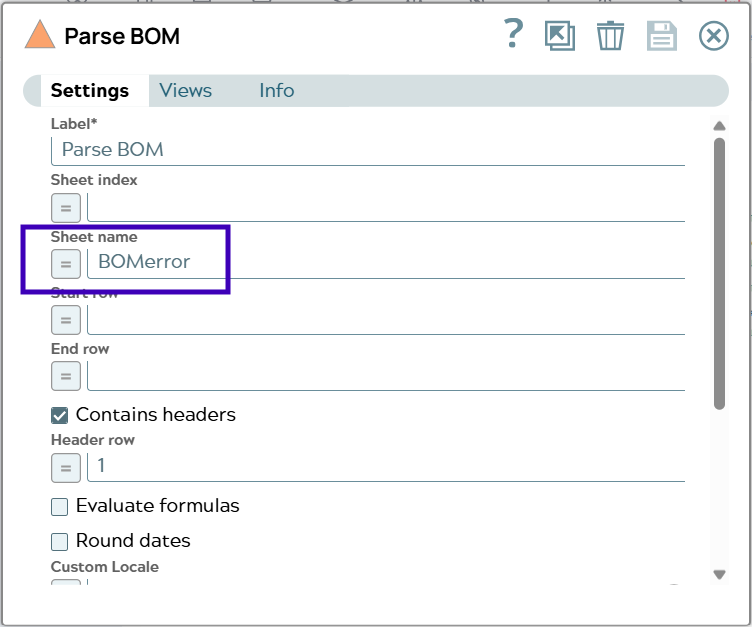
To provoke an Error in Parser Snap the setting of “Sheet name” is changed to a non existing sheet.
A Mapper Snap creates a document containing the error.
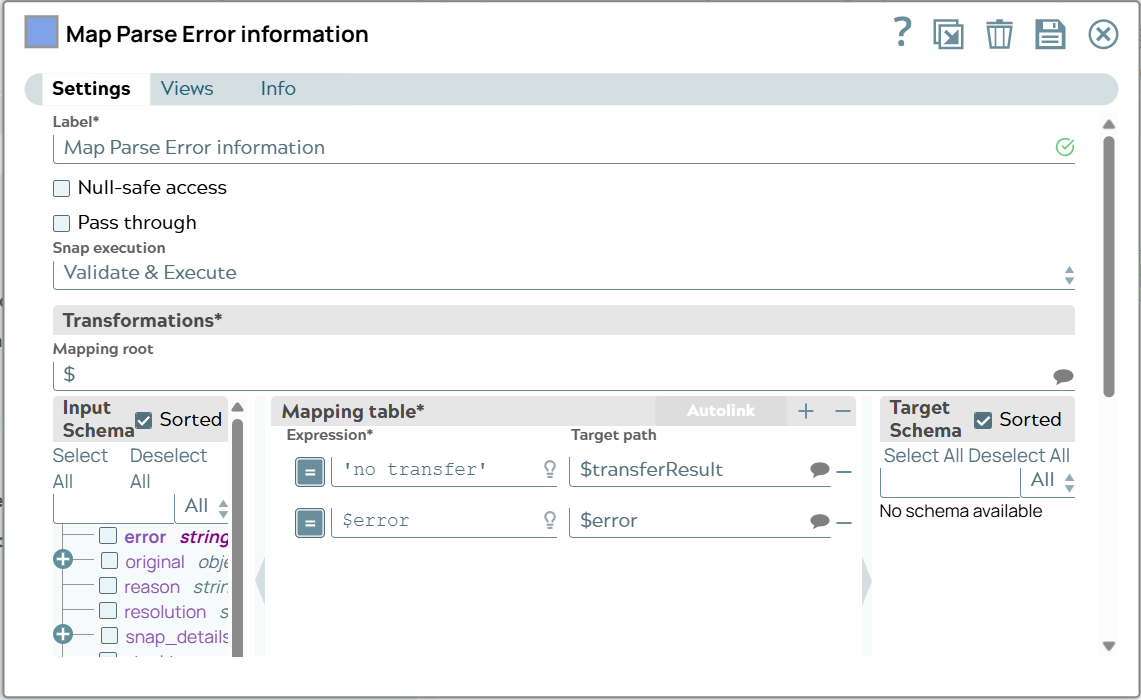
The output of the Mapper Snap is lead to the second Union Snap metioned before.

The error is stored in excel file to be analysed.
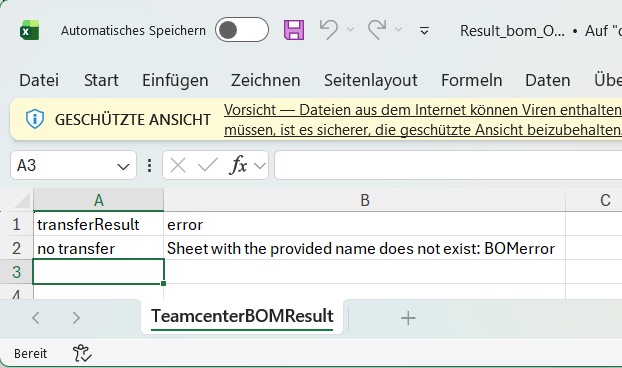
Error while BOM synchronization in Tc BOM Structure Synchronize Snap
To provoke an error in Tc BOM Structure Synchronize Snap UID of one BOM child is changed by removing last char.
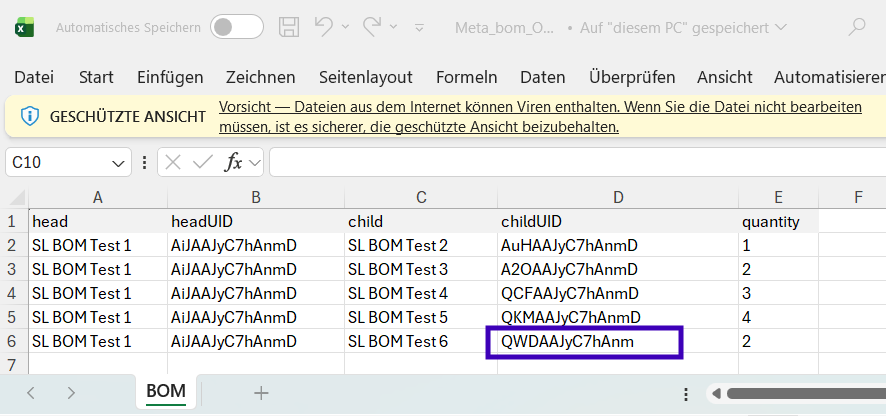
The error moves to error View of Snap.

At the end the excel shall contain error information and given head and child information. JSON output of Tc BOM Structure Synchronize Snap will be transformed in two steps. First “lineObject” is renamed.

To get as much lines in excel as there were BOM lines children list of original message is splitted. Head information and error message are to be included in every resulting JSON document.
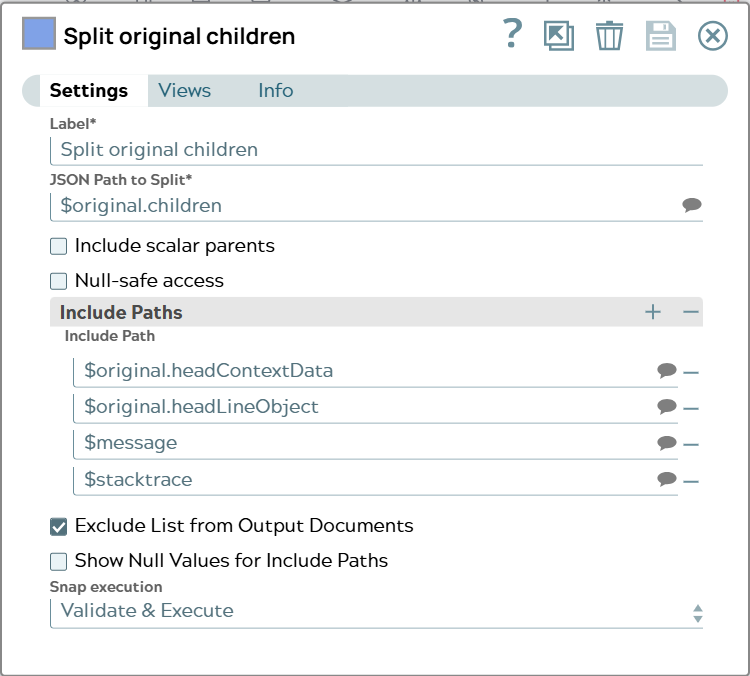
Each document represents one future row in excel file now and content can be mapped to column named fields. To former input information two columns are added for errorMessage and errorStacktrace.

The error is stored in excel file to be analysed.
