


NetSuite REST Call RESTlet
Overview
You can use this Snap to invoke a NetSuite RESTlet script and run the custom SuiteScript business logic that it deploys. Use this Snap for operations that the standard NetSuite REST record and query APIs do not cover, such as running saved searches or applying custom business rules.
The Snap supports the GET, DELETE, POST, and PUT methods, exchanges content as JSON, XML, or plain text, and can page through multi-page RESTlet responses. You can use either NetSuite REST Access Token Account or NetSuite REST M2M OAuth2 Account with this Snap, without modifying the account.
This Snap provides the NetSuite REST equivalent of the NetSuite Call RESTlet Snap in the NetSuite SOAP Snap Pack, so that you can migrate RESTlet integrations to the NetSuite REST Snap Pack.
- This is a Read-type Snap.
 Works in Ultra Tasks
Prerequisites
- A RESTlet script created and deployed in NetSuite, along with its script ID and deployment ID.
- A valid NetSuite account with permission to invoke the deployed RESTlet.
Limitations and known issues
- The application/xml MIME type is supported only when HTTP method is GET. This limitation is imposed by the NetSuite RESTlet framework.
- Query parameters apply only to the GET and DELETE methods. The POST and PUT methods send the data in the request body instead.
- Pagination through Has next and Query parameters for next is supported only for the GET method.
- The script and deploy query parameter keys are reserved. The Snap sets them from the Script ID and Deploy ID fields, and fails if you specify either key in a field set.
Snap views
| Type | Description | Examples of upstream and downstream Snaps |
|---|---|---|
| Input | This Snap has at the most one document input view. The input document is required when HTTP method is POST or PUT, because the Snap reads the request body from it using the Content path. For the GET and DELETE methods, the input document is optional and supplies the values for the expressions that you configure in the Snap. | |
| Output |
This Snap has at the most one document output view and displays the response that the RESTlet returns.
By default, each output document contains the method, url, and contentType of the call, along with the request and response objects.
If you select Display entity only, the Snap writes only the response entity.
When the RESTlet returns multiple pages, the Snap writes one document per page.
|
Mapper |
| Learn more about Error handling. | ||
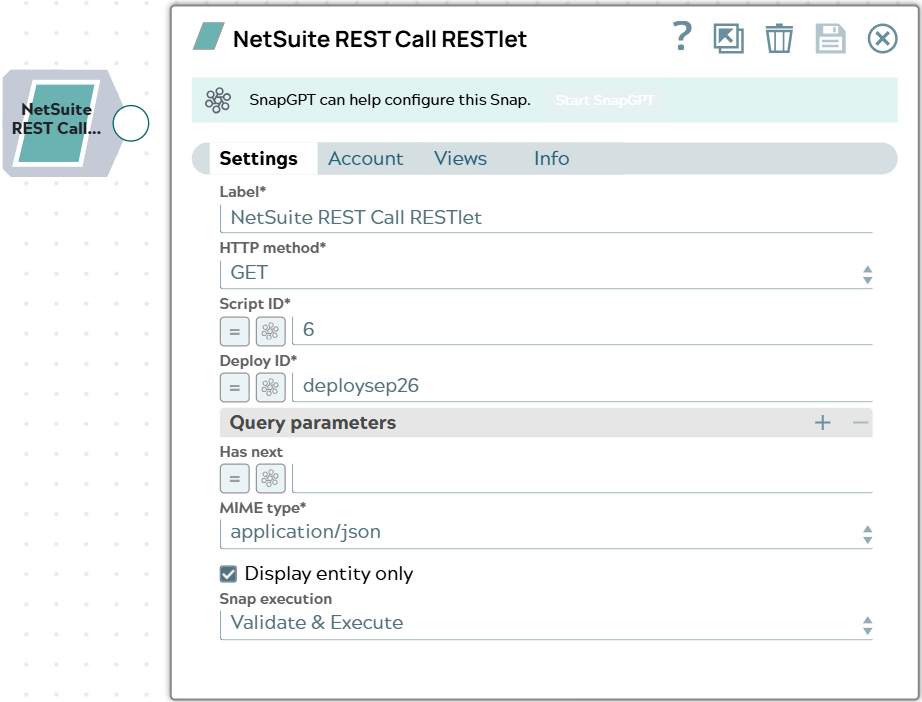
Snap settings
| Field/Field set | Description |
|---|---|
Label* String |
Specify a unique name for the Snap. Modify this to be more appropriate, especially if more than one of the same Snaps is in the pipeline. Default value: NetSuite REST Call RESTlet Example: Call echo RESTlet |
HTTP method*
Dropdown list |
Select the HTTP method that the Snap uses to call the RESTlet. The available options are:
Default value: GET Example: POST |
Script ID*
String/Expression |
Specify the ID of the RESTlet script to call. You can specify either the script ID, such as customscript8, or its internal ID, such as 8. You must create and deploy the RESTlet script in the NetSuite UI before you configure this field. Default value: N/A Example: customscript8 |
Deploy ID*
String/Expression |
Specify the ID of the RESTlet deployment to call. You can specify either the deployment ID, such as customdeploy2, or its internal ID, such as 2. Default value: N/A Example: customdeploy2 |
| Query parameters | Use this field set to add query parameters to the request URL. This field set is available only when HTTP method is GET or DELETE. Do not add the script and deploy parameters, because the Snap sets them from the Script ID and Deploy ID fields. This field set contains the following fields: |
Key
String/Expression |
Specify the query parameter key. Default value: N/A Example: city |
Value
String/Expression |
Specify the value for the corresponding query parameter key. Default value: N/A Example: Hyderabad |
Has next
String/Expression |
Specify a Boolean expression that the Snap evaluates against each output document to determine whether more pages are available. If the expression evaluates to true, the Snap requests the next page using the values in the Query parameters for next field set. This field is available only when HTTP method is GET. Do not disable the expression enabler for this field. If the expression cannot be evaluated against the output document, the Snap stops paginating and writes an error document to the error view. Default value: N/A Example: |
| Query parameters for next | Use this field set to specify the query parameters for the next page request. This field set is available only when HTTP method is GET and you provide an expression in Has next. When the Has next expression evaluates to true, the entries in this field set override the entries in the Query parameters field set before the Snap requests the next page. The Snap evaluates each value expression against the current output document. This field set contains the following fields: |
Key
String/Expression |
Specify the query parameter key. Default value: N/A Example: page |
Value
String/Expression |
Specify the value for the corresponding query parameter key. Default value: N/A Example: |
Content
String/Expression |
Specify the path to the content in the input document that the Snap sends as the body of the request. This field is available only when HTTP method is POST or PUT. When MIME type is text/plain, the Snap sends the entire input document as text and ignores this field. Default value: Example: |
MIME type*
Dropdown list |
Select the MIME type for the
The application/xml MIME type is supported only when HTTP method is GET. Default value: application/json Example: application/xml |
Display entity only
Checkbox |
Select this checkbox to write only the response entity to the output view. When you deselect this checkbox, the output document also includes the request details and the full response. Default status: Deselected |
|
Snap execution Dropdown list
|
Choose one of the three modes in
which the Snap executes. Available options are:
Default value: Validate & Execute Example: Execute only |
Troubleshooting
| Error | Reason | Resolution |
|---|---|---|
| MIME type can only be application/xml if HTTP method is GET. | The application/xml MIME type is supported only for the GET method. | Set MIME type to application/json or text/plain, or set HTTP method to GET. |
Invalid query parameter key: <key>. |
The script and deploy parameters are reserved, because the Snap sets them from the Script ID and Deploy ID fields. | Remove the reserved key from the Query parameters or Query parameters for next field set, and set the value in Script ID or Deploy ID instead. |
| No input provided. | The POST and PUT methods require an input document to build the request body, or the Content path is not valid for the input document. | Connect an upstream Snap that provides an input document, and verify that the Content path matches the structure of that document. |
Has next: <expression error> |
The Has next expression does not match the structure of the output document. For example, the expression refers to a field that the response does not contain, such as Has next: $hasMore is undefined., or the RESTlet returned text/plain content. |
Update the Has next expression and the Query parameters for next values to match the structure of the output document. |
<NetSuite error code>: <message>, for example, INVALID_SCRIPT_ID: script id 999 is invalid |
NetSuite or the RESTlet rejected the request. The error document shows the reason as Got response <code> - <status> from the endpoint. |
Correct the setting that the message reports, such as Script ID, Deploy ID, the query parameters, or the request content. |
Failed to prepare or send NetSuite request (<details>). |
The Snap could not send the request to NetSuite. | Review the details in the error message, and verify the account settings and the network connectivity from the Snaplex to NetSuite. |