


Salesforce Mutual Authentication Account
Overview
You can configure your accounts in SnapLogic using the Designer or Manager. You can use this account type to connect Salesforce Snaps with data sources that use Salesforce Mutual Authentication account. This account allows Salesforce Snaps to use Salesforce mutually authenticated transport layer security authentication providing an additional layer of security. Mutual Authentication is also known as two-way authentication, as both the client and the server authenticate and verify themselves using Client Certificate Authentication. Each time you connect to a Salesforce API, the server checks if the client's certificate is valid for the client's org, and also checks the validity of the session ID using the Username, Password, and the Security Token.
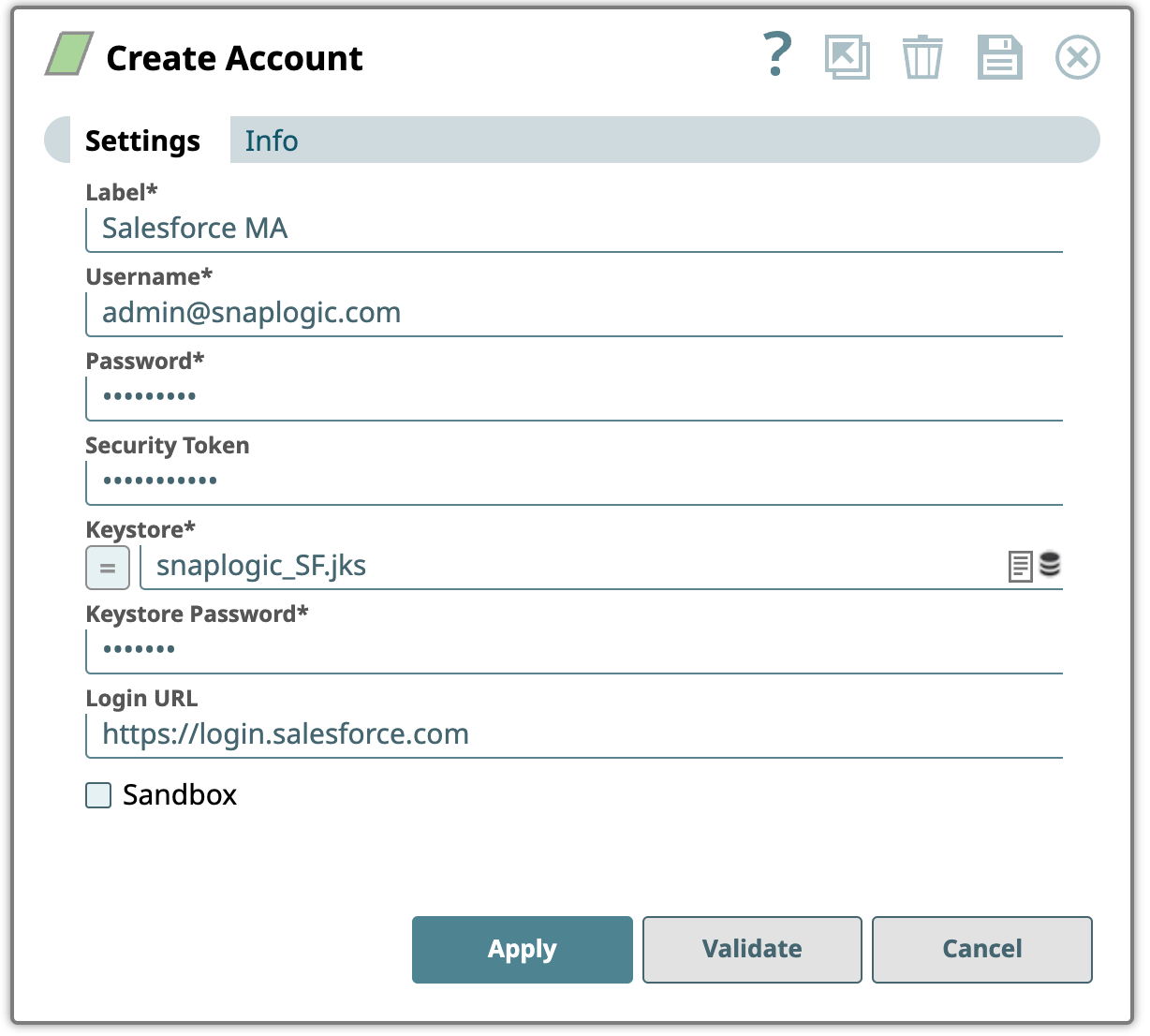
Prerequisites
- Valid CA signed certificate.
- KeyStore file with an intermediate certificate.
Limitations
- This account is not supported for Salesforce Subscriber and Salesforce Publisher Snaps.
- Mutual Authentication is intended for API use only and not for using any other services through the user interface (Salesforce.com).
Known issues
Salesforce Mutual Authentication account fails on validation when you create the account for the first time and save it. As a workaround, click Apply and then click Validate for successful validation of the account.
Account settings
- Expression icon (
 ): Allows using
JavaScript syntax to access SnapLogic Expressions to set field values dynamically (if
enabled). If disabled, you can provide a static value. Learn more.
): Allows using
JavaScript syntax to access SnapLogic Expressions to set field values dynamically (if
enabled). If disabled, you can provide a static value. Learn more. - SnapGPT (
 ): Generates SnapLogic Expressions
based on natural language using SnapGPT. Learn
more.
): Generates SnapLogic Expressions
based on natural language using SnapGPT. Learn
more. - Suggestion icon (
 ): Populates a
list of values dynamically based on your Snap configuration. You can select only one
attribute at a time using the icon. Type into the field if it supports a comma-separated
list of values.
): Populates a
list of values dynamically based on your Snap configuration. You can select only one
attribute at a time using the icon. Type into the field if it supports a comma-separated
list of values. - Upload
 : Uploads files. Learn more.
| Field/Field set | Description |
|---|---|
Label*
String |
Required. Specify a name for the account instance.
Default value: N/A Example: Salesforce account |
Username
String |
Required. Specify a username for this account.
Default value: N/A Example: [email protected] |
Password
String |
Required. Specify the password for the account.
Default value: N/A Example: ********@1 |
Security token
String |
Specify a security token. To create a security token, log into your account in Salesforce and navigate to .
Default value: N/A Example: 1234 |
Keystore
String |
Required. Enter the location of the KeyStore file that can be in your SLDB or any other unauthenticated endpoints. The Keystore value must include intermediate certificates; however, including root certificate is optional.
Note: If the file is in the same folder, you can enter only the filename. If not, you must enter the complete absolute path. For example, if the Keystore file
snaplogic_SF.jks is in the projects/shared project of QA org and the pipeline is not in the same project, then you should enter: sldb:///QA/projects/shared/snaplogic_SF.jksWarning: A relative path for Keystore file causes the account to fail if the pipeline is in global shared project and Keystore file is in another project. A relative path might not always work.
Default value: N/A Example: x590_certificate.jks |
Keystore Password
String |
Required. Enter the password for the KeyStore.
Default value: N/A Example: mykeystorepassword |
Login URL
String |
Enter your salesforce.com login URL if it is different from https://login.salesforce.com/. Usually it is not required, but if you are using CipherCloud for Salesforce, you should enter the login URL issued by CipherCloud with the Sandbox checkbox deselected.
Note: Prior to 436patches25192 version, the Salesforce Mutual Authentication Account supported default Login URLs such as
https://login.salesforce.com and https://test.salesforce.com. Starting from 436patches25192, this account no longer supports the default Login URLs—your existing pipelines using the Mutual Authentication Account with the default Login URLs might break. To prevent this breaking change, you must provide a valid Salesforce Login URL as part of your account configuration.Default value: N/A Example: https://login.salesforce.com/ |
Sandbox
Checkbox |
Select this option if the username is for a sandbox account or deselect if it is for a production account.
Default value: Deselected |
Troubleshooting
| Type | Description | Examples of upstream and downstream Snaps |
|---|---|---|
| Keystore error | The Salesforce Mutual Authentication account fails if the Keystore file and pipeline are in different projects. | If the file is in the same folder, you can enter only the filename. If not, you must enter the complete absolute path. |
| Error occurred while executing request to Salesforce.com | The input view document data is not a Map. | Ensure that the input view document data is a map. |
| Client certificate error: unable to get local issuer certificate. | The certificate chain is incomplete or missing. | You should get the intermediate certificate to attach to the pem. For more information about creating certificate chain, see Salesforce Mutual Authentication Setup. |
| Unable to load Private Key. | Expects Private Key. | Follow the instructions in the Stack Overflow link and update the encoded type of private key file using Notepad++. |
| Connection timeout | When you use the default Login URL and validate the Account, it encounters a connection timeout error. | Provide the complete host name of the Salesforce instance for the Mutual Authentication Account. |