


Google Service Account JSON
Configure a Google Service Account JSON account to authenticate with Google BigQuery using a JSON key file.
Overview
Use this SnapLogic Account type to connect Snaps to Google BigQuery with a Google service account using a JSON credentials file.
Prerequisites
-
A valid JSON key file from Google Cloud Console.
Account Settings
| Field/Field set | Description | ||
|---|---|---|---|
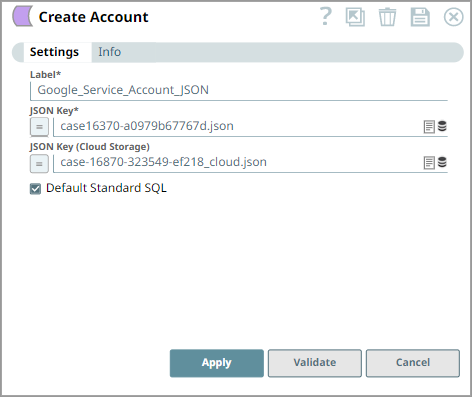
| Label
|
Required. Specify a unique label for
the account. Default value: N/A Example: BigQuery Service Account |
||
| JSON Key
|
Required. The content of the JSON
key file downloaded from Google Cloud Console. You can paste the
entire contents of the JSON key file into this field. The JSON key contains the private key and service account credentials needed to authenticate with Google BigQuery. Default value: N/A Example: |
||
| JSON Key Cloud Storage
|
Optional. Alternatively, specify the
Cloud Storage path to the JSON key file instead of pasting the
contents directly. Default value: N/A Example: |
||
| Default Standard SQL
|
Optional. Select this checkbox to
use Standard SQL dialect by default in all Snaps that support SQL
queries. If not selected, Legacy SQL will be used by default. Default status: Deselected |
||