Create Teamcenter elements based on data from Excel sheet

This example pipeline demonstrates how to read the metadata of Teamcenter elements from an Excel sheet and create those elements in Teamcenter.


The finalized pipeline including all necessarry snap.

Steps

1: An Excel file contains metadata from various Teamcenter elements. The Excel file is to be imported via a pipeline. The elements are to be created in Teamcenter using Teamcenter Snap (Create and Update). The Teamcenter data object_type, item_id, item_revision_id, and UID are to be written back to a file for the newly created elements.
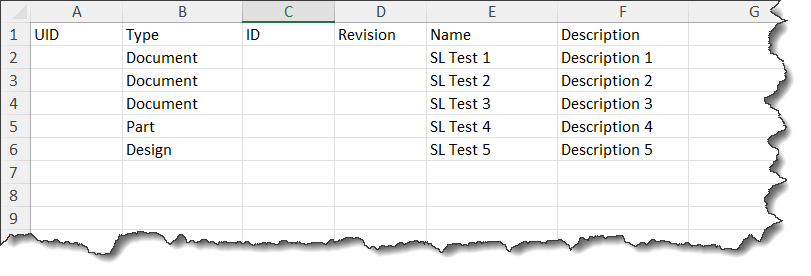

Excel sheet with one header and columns to specifiy the attribute values for to be created Teamcenter elements of different types.

For the pipelines purpose this file will be uploaded and stored at SnapLogic.
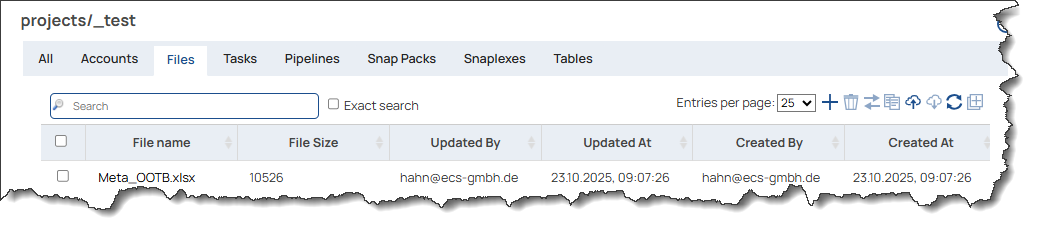

An Excel file element is listed on SnapLogic project below files category.

As a first step a new pipeline has to be created.
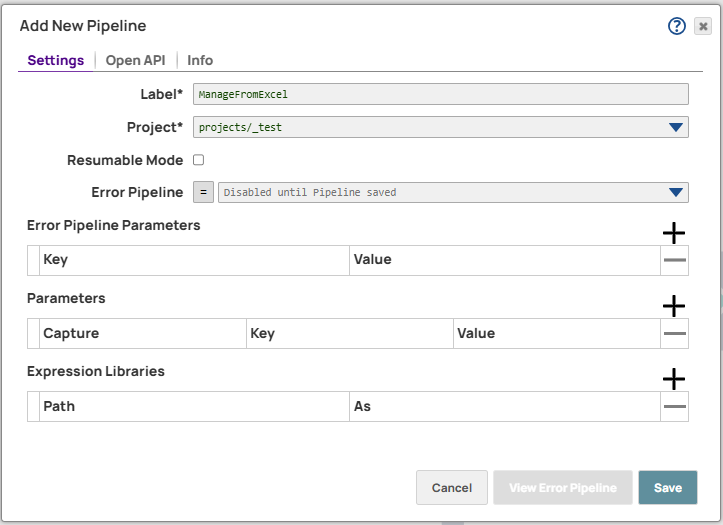

Create new pipeline dialog is shown with a given name.

2: First step in the pipeline will the read operation of the file. Here we utilize the File Reader Snap.
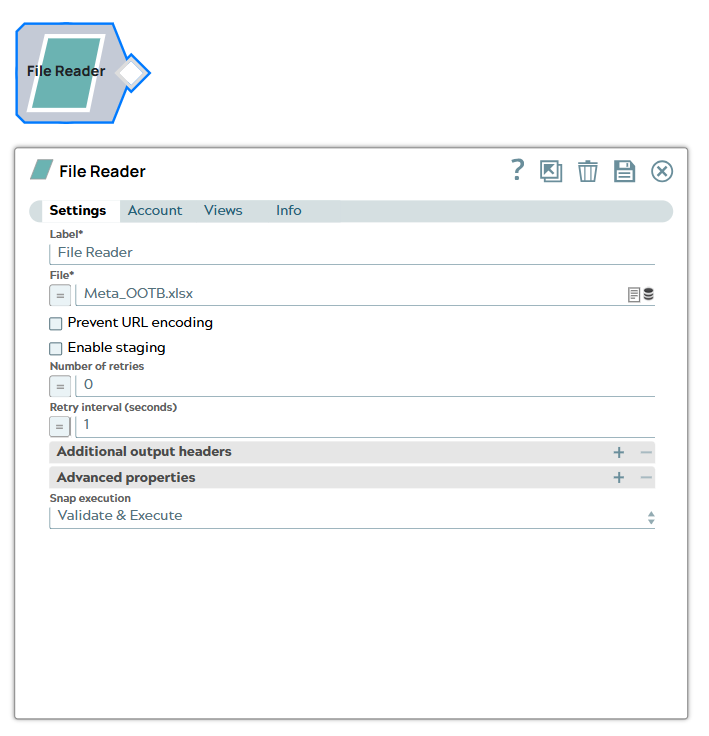

The file reader snap setting UI referes to theprior listed file

This Snap is creating a binary stream which is needed to be processed now.

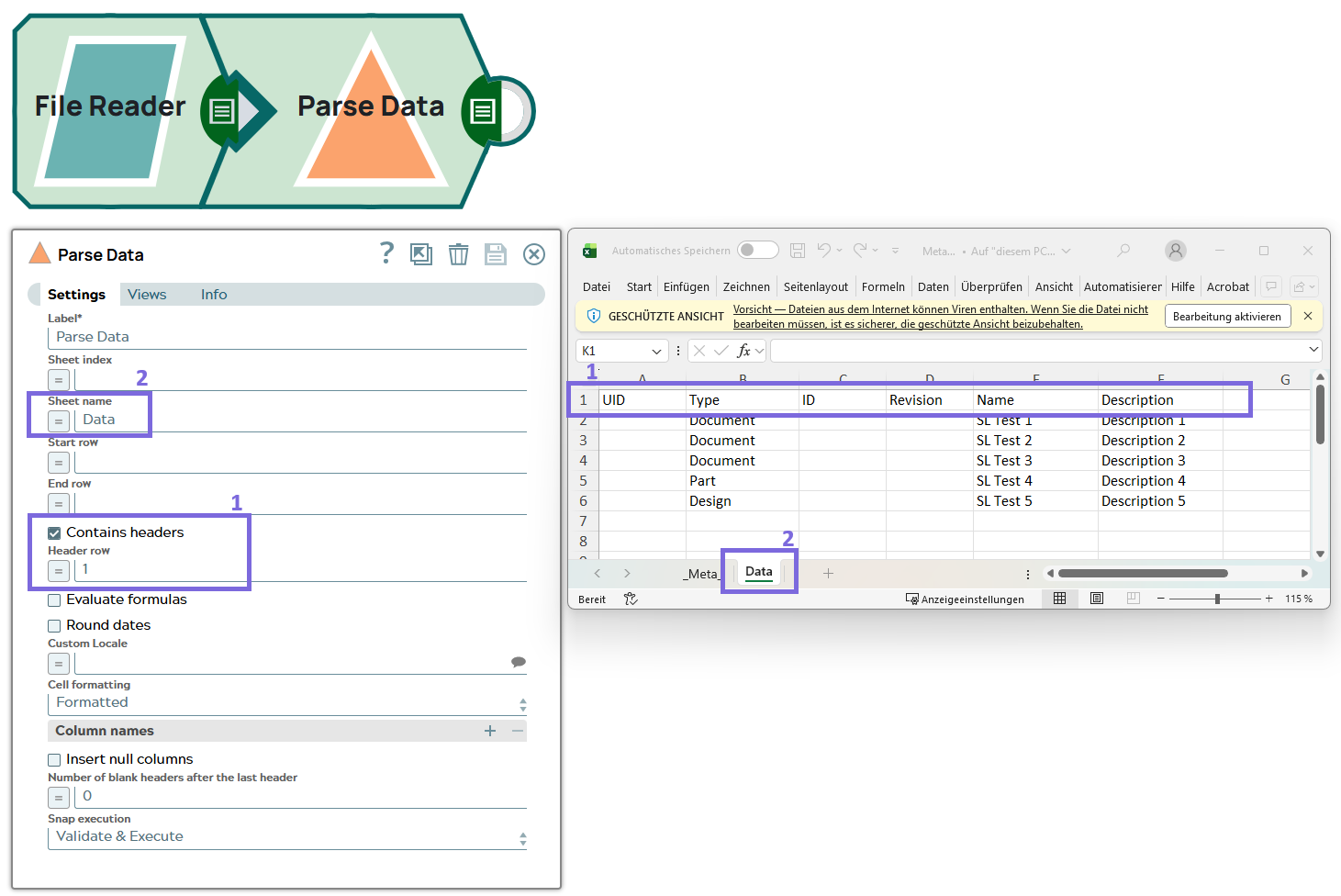
3: It will be read by an Excel Parser to create a JSON document stream in the pipeline. Since the Excel sheet has a header row and the sheet is named as 'Data', the appropriate setting in the Snap is done.

Snap configuration

Snap output


Parse data setting according to the Excel sheet with one header line and specified sheet name.

[
  {
    "Type": "Document",
    "Name": "SL Test 1",
    "Description": "Description 1"
  },
  {
    "Type": "Document",
    "Name": "SL Test 2",
    "Description": "Description 2"
  },
  {
    "Type": "Document",
    "Name": "SL Test 3",
    "Description": "Description 3"
  },
  {
    "Type": "Part",
    "Name": "SL Test 4",
    "Description": "Description 4"
  },
  {
    "Type": "Design",
    "Name": "SL Test 5",
    "Description": "Description 5"
  }
]

As a result we will get a JSON representation of the sheet content. In order to create elements in Teamcenter the Snap 'Tc Create and Update' can be used. This Snap is able to create all kind of Teamcenter elements derived from type Item. A specific feature of Teamcenter is that not all properties of an element can necessarily be handled with the Create function. Therefore, it may be necessary to perform an update after Create to ensure that the data is transferred completely. This snap has the smart feature of automatically executing the corresponding update function.

Exctract to explain Tc Snap: In addition, executing a Teamcenter Snap always requires the definition (setting) of an account.
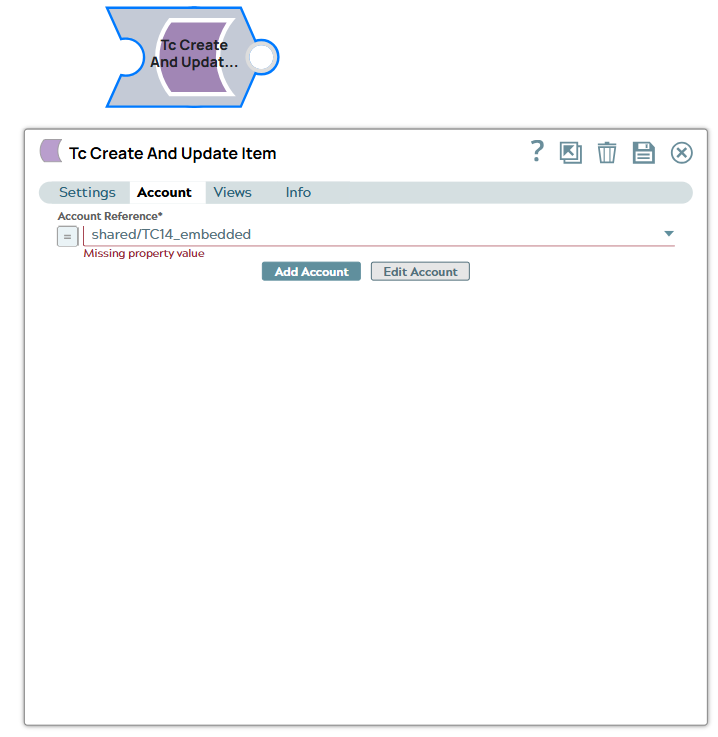

Account setting for the Teamcenter snap to be used here.

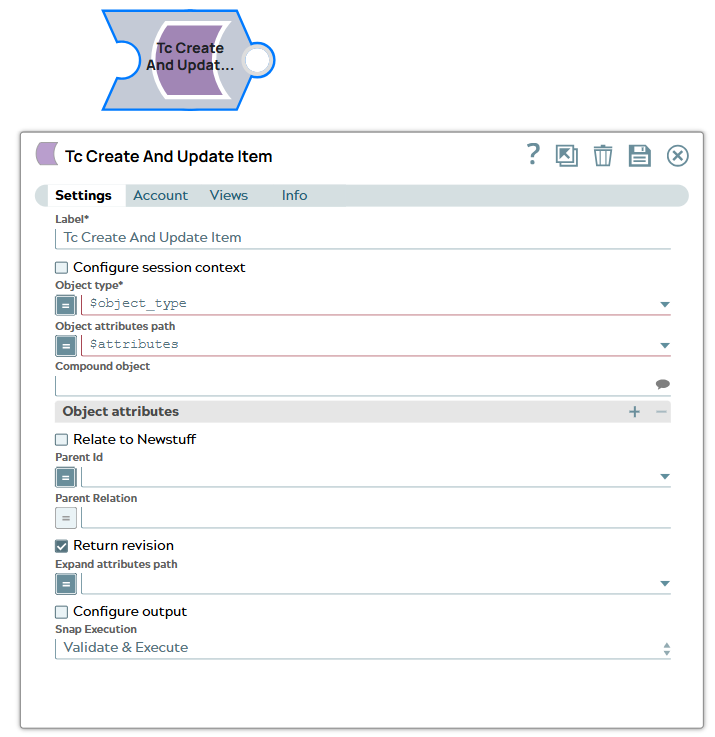
To create an element in Teamcenter, you must specify the type (1) of element (object_type) and the minimum values for all mandatory entries of that type. The corresponding fields in the snap must be provided with the inputs.
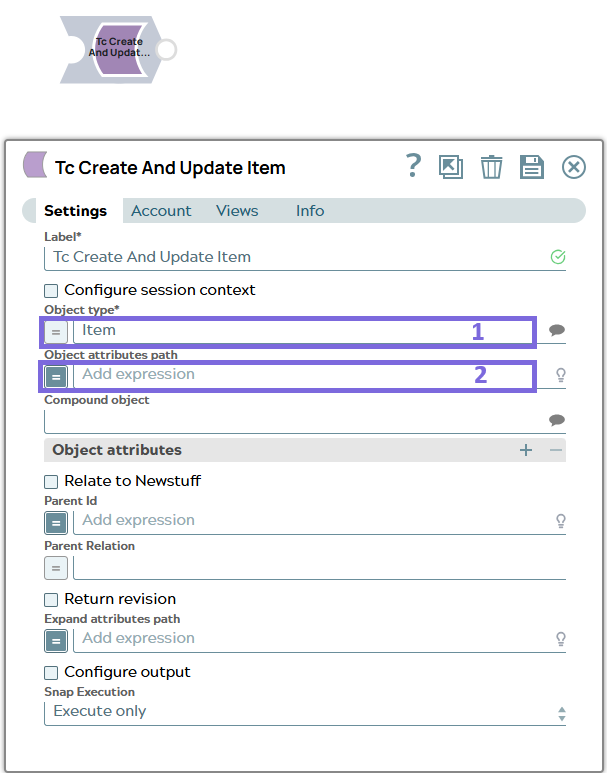

The setting of Teamcenter Snap 'Tc Create And Update Item'. Input fields for 'Object type' (1) and 'Object attributes path' (2) are marked.

The properties (object attributes) can be transferred as a document key or individually as rows in an attribute table. The more generic approach is to use a document key that then contains attributes and values (2).

In this case the expected JSON document shall have following keys:

key

purpose

example

object_type

A JSON string to specify the Teamcenter object_type value of the element to be created.

“object_type“: “Item“

attributes

A JSON document key, which will contain pairs of Teamcenter property name and values.

“attributes”:{ “object_name” : “the name“, “object_desc“ : “the_desc“ }

The snap setting is done like


To be settings of Tc Create and Update snap.

On field Object type the expression value $object_type is set. This will refer to the JSON key object_type in the JSON input document.

On field Object attributes path the expression value $attributes is set. This refers to the key attributes in the JSON input document.

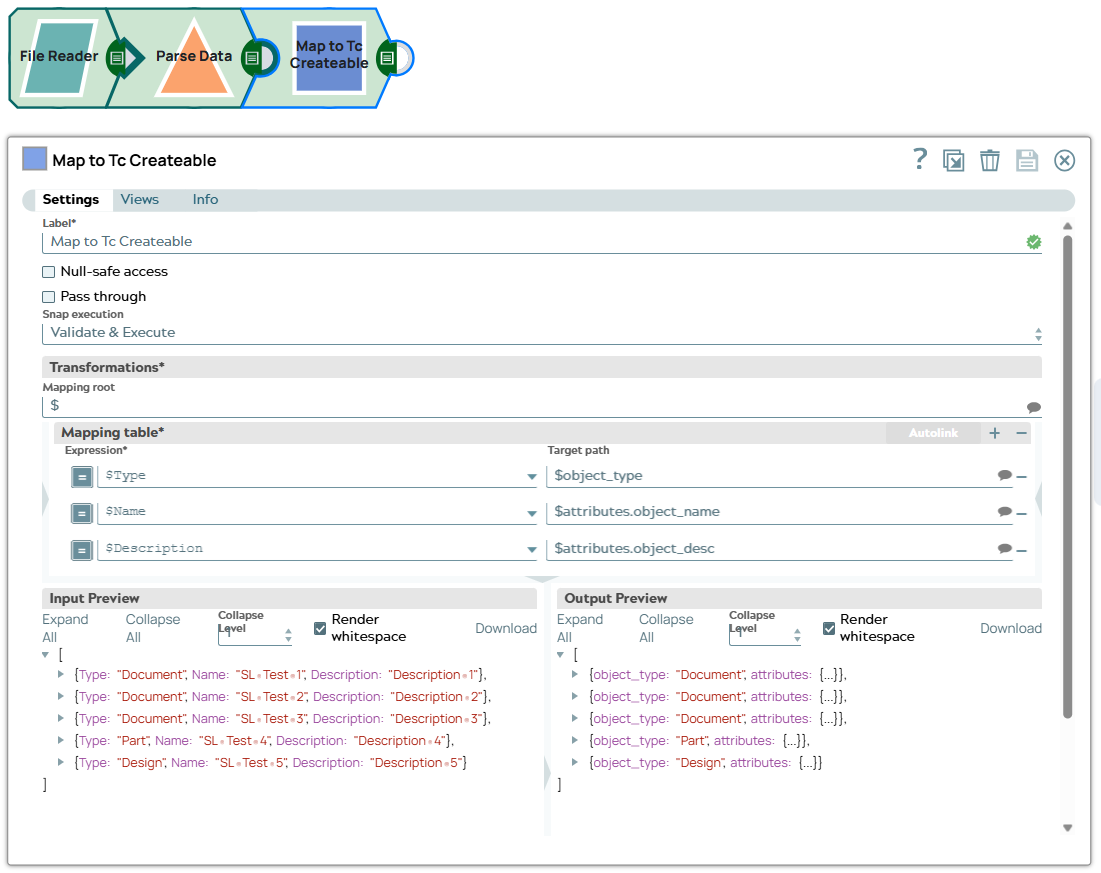
4: To generate the so-called createable JSON document, the JSON document of the Excel parser must be mapped to the necessary Teamcenter Create input. This is done using the Mapper Snap.

Snap configuration

Snap output


The mapping configuration between JSON from Excel sheet to JSON for Teamcenter Create.

[
  {
    "object_type": "Document",
    "attributes": {
      "object_name": "SL Test 1",
      "object_desc": "Description 1"
    }
  },
  {
    "object_type": "Document",
    "attributes": {
      "object_name": "SL Test 2",
      "object_desc": "Description 2"
    }
  },
  {
    "object_type": "Document",
    "attributes": {
      "object_name": "SL Test 3",
      "object_desc": "Description 3"
    }
  },
  {
    "object_type": "Part",
    "attributes": {
      "object_name": "SL Test 4",
      "object_desc": "Description 4"
    }
  },
  {
    "object_type": "Design",
    "attributes": {
      "object_name": "SL Test 5",
      "object_desc": "Description 5"
    }
  }
]

The values from Type column are to be mapped to key object_type.

The values from Name column are to be mapped to key attributes.object_name.

The values from Description column are to be mapped to key attributes.object_desc.

5: Last step is connecting the Teamcenter Create and Update Snap with the Mapping output.
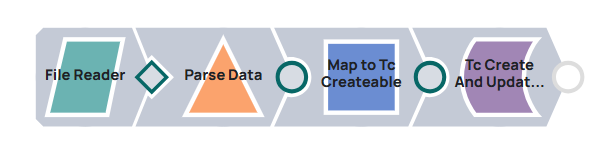

Pipline with four configured snaps.

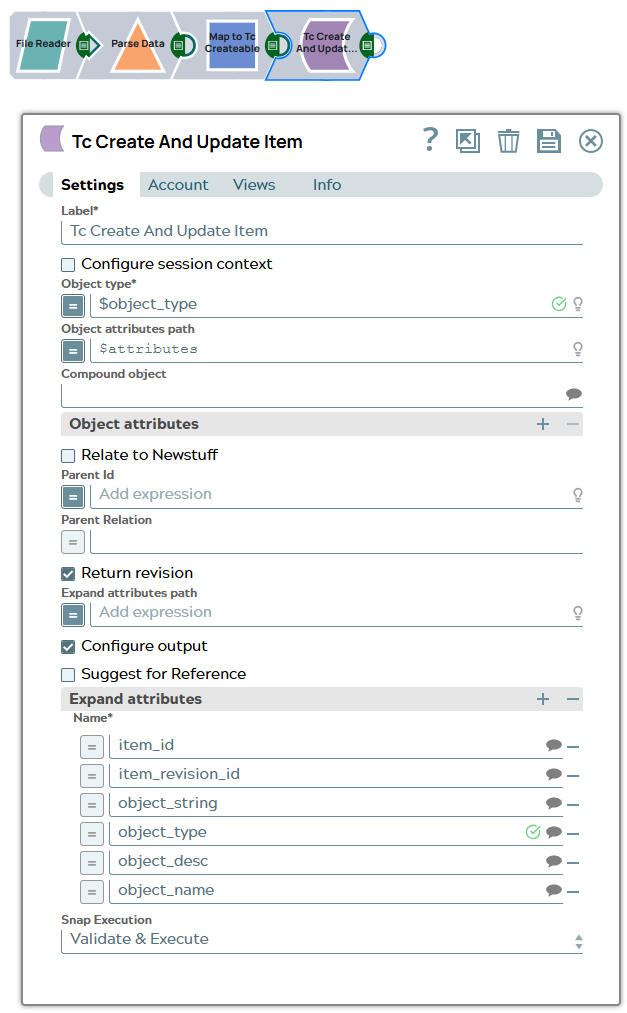
In order to specify the amount of data output provided by Teamcenter it is possible to utilize the 'Configure output' option of the Tc Snaps.

In this specific case the following list of Teamcenter properties shall be provided:

Property description

Value

The Id of the Teamcenter element which has been created.

item_id

The Revision Id of the Teamcenter element.

item_revision_id

The Teamcenter internal database Id of the created revision.

UID

The Display name of the element in teamcenter.

object_string

The type of the element in teamcenter.

object_type

The description of the element in teamcenter.

object_desc

The name of the element in teamcenter.

object_name

In the snap setting the option ‘Return revision' needs to be activated and the attribute values for the list of expand attributes needs to be set below active option for 'Configure output’.

Note:

The Teamcenter and Adapter internal unique key values, the _id and the UID are always part of the output, regardles of the configured values.

Snap configuration

Snap output


The Tc Create and Update setting with activated Return revision and list of configured expand attributes.

[
  {
    "_id": "TC*DocumentRevision*null***QWEAwsu_7hAnmD",
    "item_id": "052396",
    "item_revision_id": "A",
    "object_desc": "Description 1",
    "object_name": "SL Test 1",
    "object_string": "052396/A;1-SL Test 1",
    "object_type": "DocumentRevision",
    "object_type_DISPLAY": "Document Revision",
    "UID": "QWEAwsu_7hAnmD",
    "original": {
      "object_type": "Document",
      "attributes": {
        "object_name": "SL Test 1",
        "object_desc": "Description 1"
      }
    }
  },
  {
    "_id": "TC*DocumentRevision*null***QaMAwsu_7hAnmD",
    "item_id": "052397",
    "item_revision_id": "A",
    "object_desc": "Description 2",
    "object_name": "SL Test 2",
    "object_string": "052397/A;1-SL Test 2",
    "object_type": "DocumentRevision",
    "object_type_DISPLAY": "Document Revision",
    "UID": "QaMAwsu_7hAnmD",
    "original": {
      "object_type": "Document",
      "attributes": {
        "object_name": "SL Test 2",
        "object_desc": "Description 2"
      }
    }
  },
  {
    "_id": "TC*DocumentRevision*null***QiEAwsu_7hAnmD",
    "item_id": "052398",
    "item_revision_id": "A",
    "object_desc": "Description 3",
    "object_name": "SL Test 3",
    "object_string": "052398/A;1-SL Test 3",
    "object_type": "DocumentRevision",
    "object_type_DISPLAY": "Document Revision",
    "UID": "QiEAwsu_7hAnmD",
    "original": {
      "object_type": "Document",
      "attributes": {
        "object_name": "SL Test 3",
        "object_desc": "Description 3"
      }
    }
  },
  {
    "_id": "TC*Part Revision*null***QmMAwsu_7hAnmD",
    "item_id": "052399",
    "item_revision_id": "A",
    "object_desc": "Description 4",
    "object_name": "SL Test 4",
    "object_string": "052399/A;1-SL Test 4",
    "object_type": "Part Revision",
    "object_type_DISPLAY": "Part Revision",
    "UID": "QmMAwsu_7hAnmD",
    "original": {
      "object_type": "Part",
      "attributes": {
        "object_name": "SL Test 4",
        "object_desc": "Description 4"
      }
    }
  },
  {
    "_id": "TC*Design Revision*null***QyDAwsu_7hAnmD",
    "item_id": "052400",
    "item_revision_id": "A",
    "object_desc": "Description 5",
    "object_name": "SL Test 5",
    "object_string": "052400/A;1-SL Test 5",
    "object_type": "Design Revision",
    "object_type_DISPLAY": "Design Revision",
    "UID": "QyDAwsu_7hAnmD",
    "original": {
      "object_type": "Design",
      "attributes": {
        "object_name": "SL Test 5",
        "object_desc": "Description 5"
      }
    }
  }
]

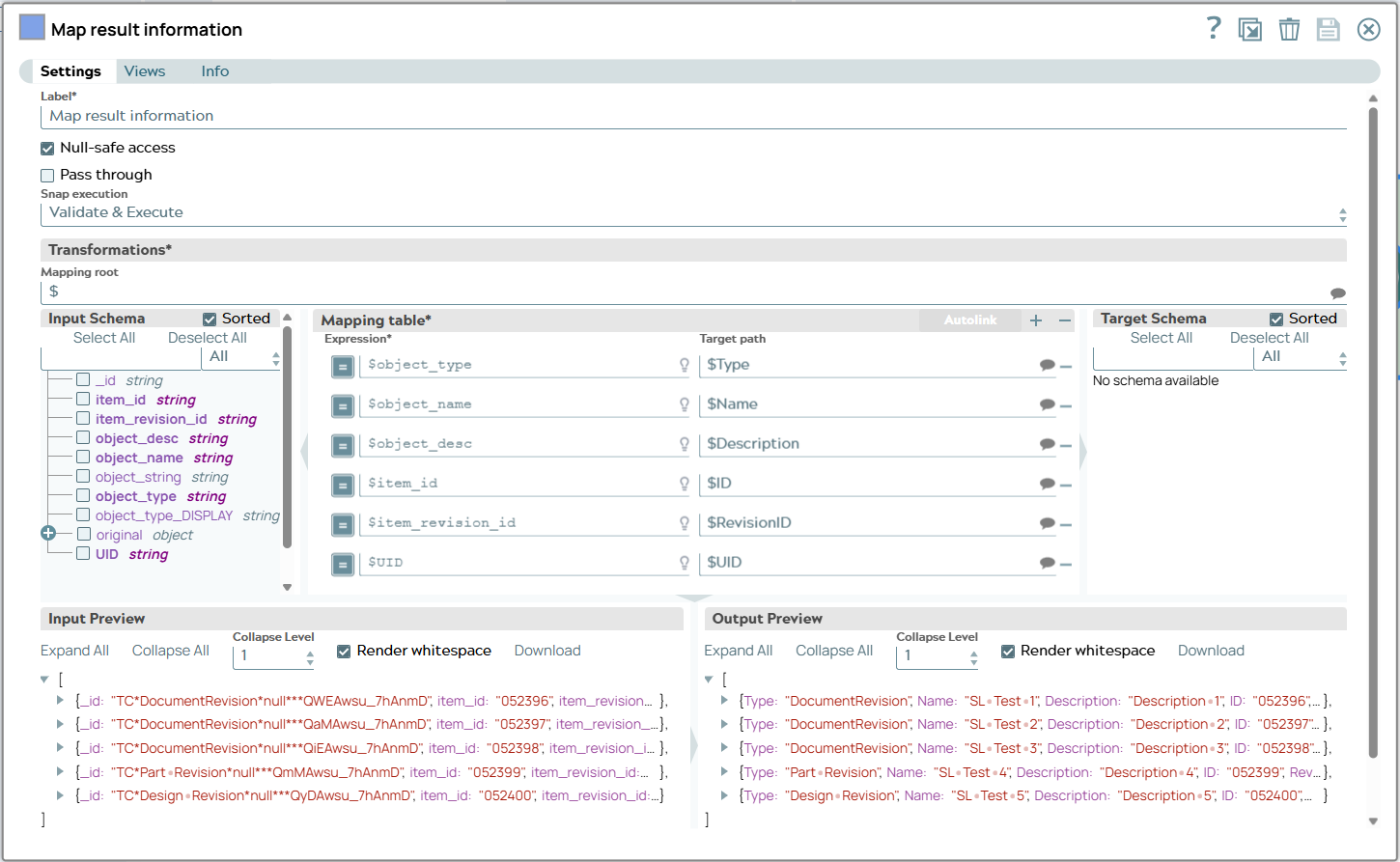
6: To be able to write an excel file including the Temcenter information this data has to be transformed. Again this is done using the Mapper Snap.

The values from object_type are to be mapped to Type property.

The values from object_name are to be mapped to Name property.

The values from object_desc are to be mapped to Description property.

The values from item_id are to be mapped to ID property.

The values from item_revision_id are to be mapped to RevisionID property.

The values from UID are to be mapped to UID property.

Last step is connecting the Teamcenter Create and Update Snap output to the Mapping input.


The pipeline Snaps including Mapper snap 'Map result information' now.

Snap configuration

Snap output


The mapping configuration between JSON from Teamcenter Create Snap output to JSON for Excel sheet .

[
  {
    "Type": "DocumentRevision",
    "Name": "SL Test 1",
    "Description": "Description 1",
    "ID": "052396",
    "RevisionID": "A",
    "UID": "QWEAwsu_7hAnmD"
  },
  {
    "Type": "DocumentRevision",
    "Name": "SL Test 2",
    "Description": "Description 2",
    "ID": "052397",
    "RevisionID": "A",
    "UID": "QaMAwsu_7hAnmD"
  },
  {
    "Type": "DocumentRevision",
    "Name": "SL Test 3",
    "Description": "Description 3",
    "ID": "052398",
    "RevisionID": "A",
    "UID": "QiEAwsu_7hAnmD"
  },
  {
    "Type": "Part Revision",
    "Name": "SL Test 4",
    "Description": "Description 4",
    "ID": "052399",
    "RevisionID": "A",
    "UID": "QmMAwsu_7hAnmD"
  },
  {
    "Type": "Design Revision",
    "Name": "SL Test 5",
    "Description": "Description 5",
    "ID": "052400",
    "RevisionID": "A",
    "UID": "QyDAwsu_7hAnmD"
  }
]

7: To write a file the JSON document output of the Mapper Snap needs to be formatted to a binary stream. The JSON document will be read by an Excel Formatter to create the binary stream in the pipeline. Since the Excel sheet shall have a header row and the sheets name shall be 'TeamcenterResult', the appropriate setting in the Snap is done.

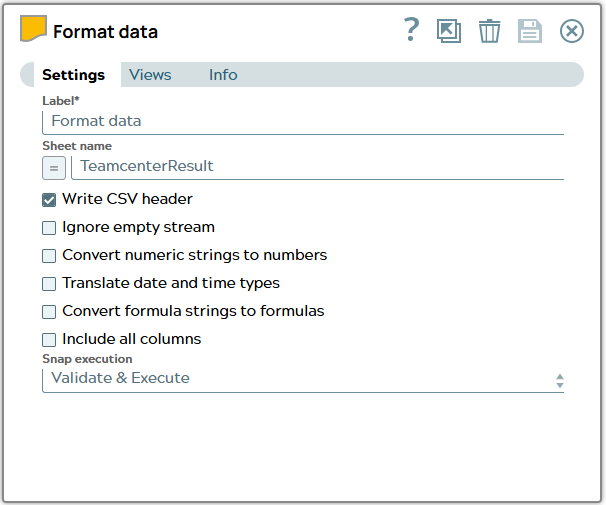
The pipeline Snaps including Formatter snap 'Format data' at the end.


Setting of the Excel Formatter Snap including sheet name and 'Write CSV header' checkbox ON.

8: Last but not least the File Writer Snap is used to store the file ‘Result_OOTB.xlsx’ in directory.
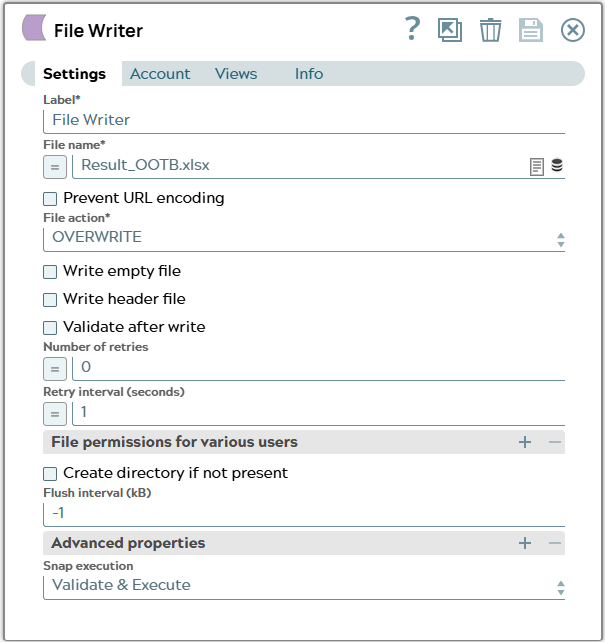

The finalized pipeline including all necessarry snap.


Settings of File Writer Snap. Mandatory field 'File name' is set.

The file including result information is now stored at SnapLogic.
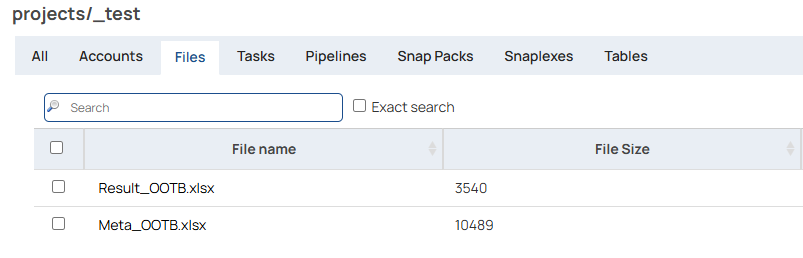

Saved Excel file element is listed on SnapLogic project below files category.

The Teamcenter data for the newly created elements is now visible in the stored file.
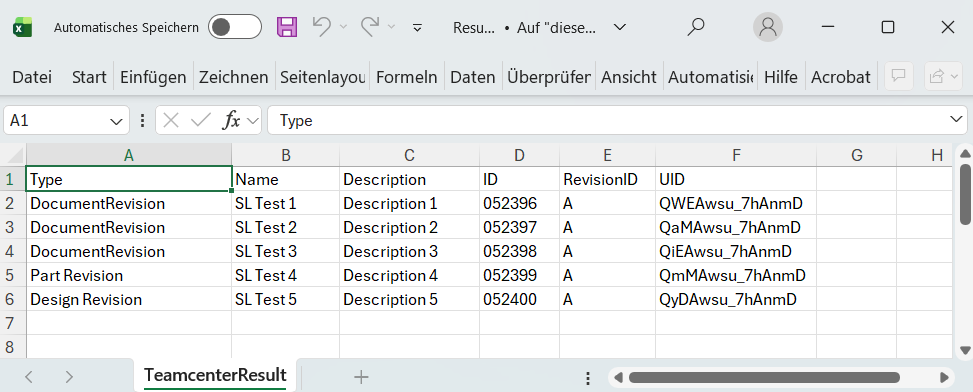

Excel sheet with one header and columns including ID and attribute information of the newly created objects from Teamcenter.