


Read Community Posts
Overview
The Read Community Posts Snap retrieves community post records from your Zendesk instance, with filtering options by topic or post ID, and optional comment sideloading.
Each community post is emitted as a separate document on the output view. You can optionally filter posts by status using the Include filter by option, and sort results by various fields. Use the Max results field to limit the number of documents emitted.
- This is a Read-type Snap.
 Works in Ultra Tasks
Supported Accounts
Prerequisites
None.
Snap views
| Type | Description | Examples of upstream and downstream Snaps |
|---|---|---|
| Input |
This Snap has at most one document input view. When connected, field values from the incoming document can be referenced
in expression-enabled fields using the |
|
| Output |
This Snap has one document output view. Each community post is emitted as a separate document. When Include comments is selected, comment records for each post are included in the output document. |
|
| Learn more about Error handling. | ||
Snap settings
| Field/Field set | Description |
|---|---|
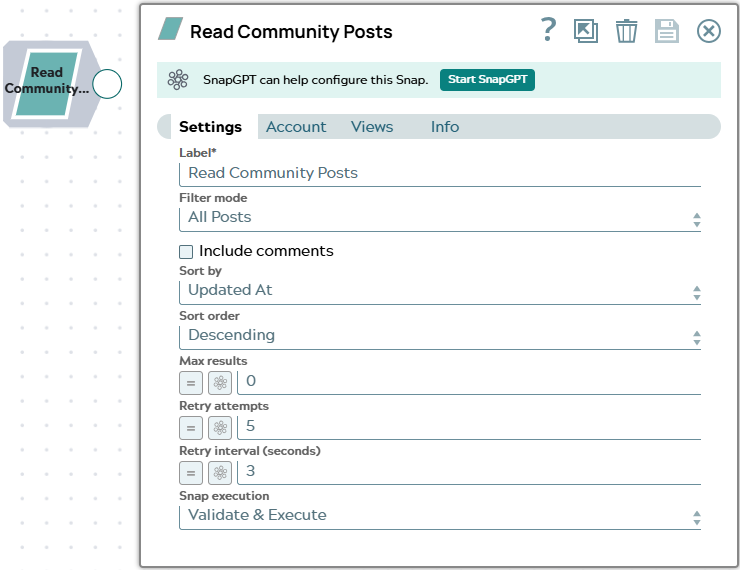
Label* String |
Specify a unique name for the Snap. Modify this to be more appropriate, especially if more than one of the same Snaps is in the pipeline. Default value: Read Community Posts |
Filter mode
Dropdown list |
Select the strategy for filtering the community posts to retrieve.
Default value: All Posts Example: By Topic |
Post ID*
String/Expression |
Appears when Filter mode is By Post ID. Enter the numeric Zendesk community post ID of the post to retrieve. Default value: None Example: |
Topics*
String/Expression/ Suggestion |
Appears when Filter mode is By Topic. Specify the community topic to filter posts by. Suggestions are populated from your Zendesk instance when the account is configured. Default value: None Example: |
Include comments
Checkbox |
When selected, the Snap retrieves and includes comment records for each community post in the output document. Default value: Not selected |
Include filter by
Checkbox |
Appears when Filter mode is By Topic. When selected, the Filter by field appears, allowing you to restrict posts by their status. Default value: Not selected |
Filter by
Dropdown list |
Appears when Include filter by is selected. Select a status to filter posts by their current status. Valid values:
Default value: completed Example: answered |
Sort by
Dropdown list |
Select the field to sort results by. Valid
values:
Default value: Updated At Example: Created At |
Sort order
Dropdown list |
Select the direction in which to sort results.
Default value: Descending Example: Ascending |
Max results
Integer/Expression |
Specify the maximum number of community post
records to emit per execution. Enter Default value: 0 Example: |
Retry attempts
Integer/Expression |
Enter the number of times the Snap should
retry the API call on connection errors or 5xx responses. On a 429 response,
the Snap automatically retries after the interval specified in the server's
Default value: 5 Example: |
Retry interval (seconds)
Integer/Expression |
Enter the number of seconds to wait between retry attempts. Default value: 3 Example: |
|
Snap execution Dropdown list
|
Choose one of the three modes in
which the Snap executes. Available options are:
Default value: Validate & execute |