


Bulk load data using Google Cloud Storage
This example pipeline demonstrates how to bulk load data into a Google BigQuery table by uploading incoming documents through a temporary file in Google Cloud Storage.
Download this pipeline.
-
Configure the
CSV Generator
Snap to provide input data.
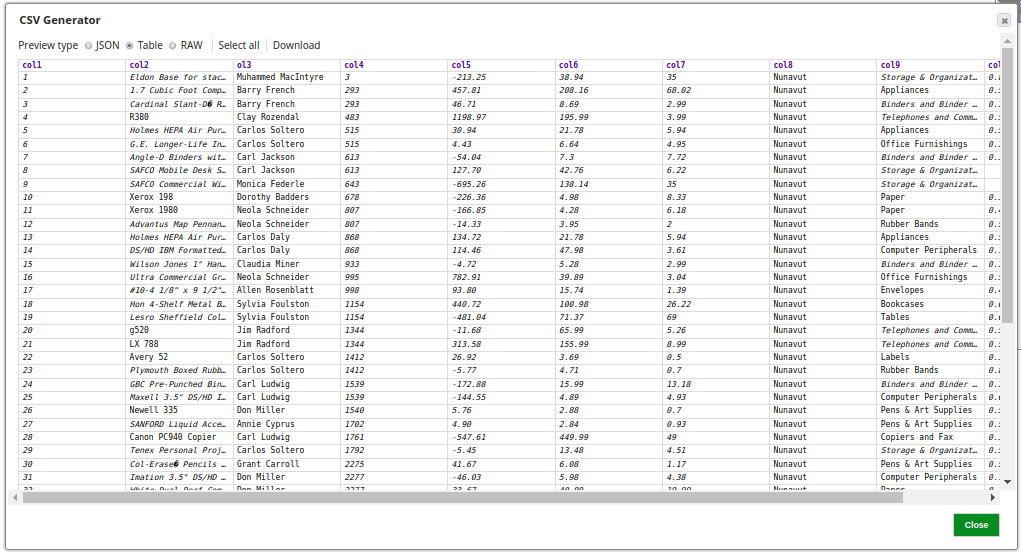
The Snap generates sample CSV data to be loaded into BigQuery.
On validation, the Snap displays the sample data from the incoming document.
-
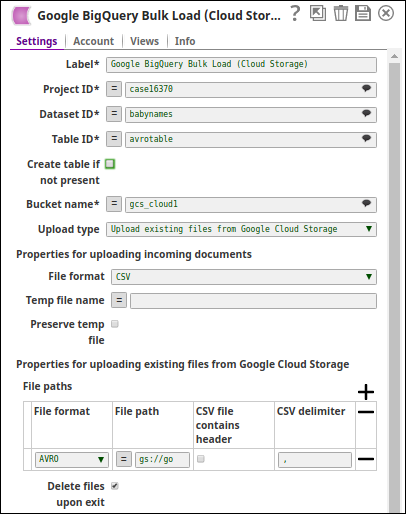
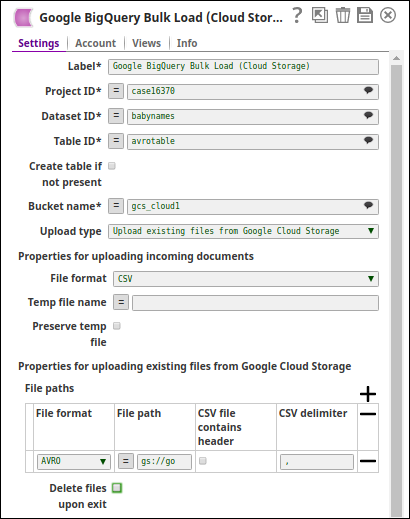
Configure the BigQuery Bulk Load - Cloud Storage Snap to load the data through Google Cloud Storage.
Configure the following settings:
- Specify the Project ID, Dataset ID, and Table ID for the destination table.
- Select Upload type as Upload incoming documents.
- Choose the File format for the temporary file (CSV, JSON, or AVRO).
- Optionally specify a Temp file name or let the system generate one.
- Select Preserve temp file if you want to retain the temporary file after the Snap completes.
On validation, the records from the incoming CSV file are loaded into the temporary file in the Google Cloud Storage bucket. From there, the data is loaded into the destination table.
BigQuery Bulk Load - Cloud Storage Snap configuration BigQuery Bulk Load - Cloud Storage Snap output 
- Download and import the pipeline into SnapLogic.
- Configure Snap accounts as applicable.
- Provide pipeline parameters as applicable.