


Dropbox List
Supported Accounts
- This is a Read-type Snap.
 Works in Ultra Tasks
Prerequisites
None.
Limitations and known issues
None.
Snap views
| Type | Description | Examples of upstream and downstream Snaps |
|---|---|---|
| Input |
This Snap has at most one document input view. If an input view is defined, the Snap reads the folder path from the incoming document. If no input view is connected, the folder path must be specified in the Snap settings. |
|
| Output |
This Snap has exactly one document output view. The Snap outputs one document for each file or folder found in the specified path. |
|
| Learn more about Error handling. | ||
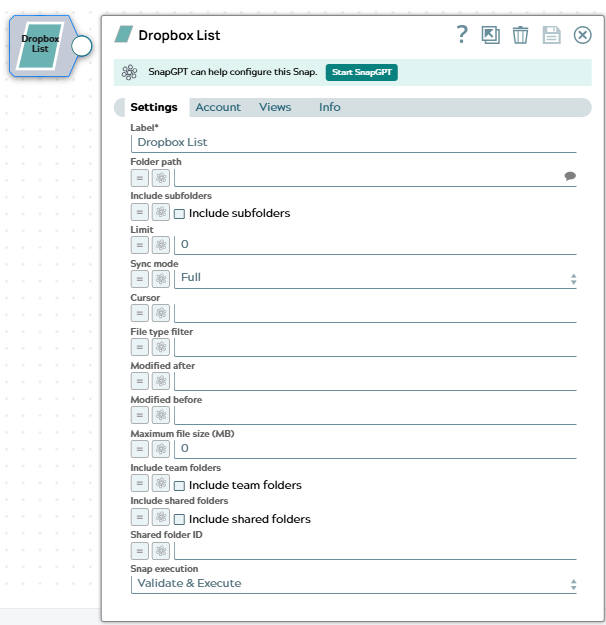
Snap settings
| Field/Field set | Description |
|---|---|
|
Label
|
Specify a unique name for the Snap. Modify this to
be more appropriate, especially if there are more than one of the same Snap in the
pipeline.
Default value: Dropbox List |
| Folder path*
|
The path to the folder in Dropbox to list. Use an empty string or "/" to list the root folder.
Example: Default value: None |
| Include subfolders
|
Select this checkbox to recursively list all files and folders in subdirectories.
Default value: Deselected |
| Limit
|
Specify the maximum number of files and folders to return. Set to 0 for no limit.
Example: Default value: 0 |
| Sync mode
|
Select the synchronization mode for listing files:
Default value: Full |
| Cursor
|
Specify the cursor value for incremental sync mode. This cursor tracks the position in the folder listing.
Example: Default value: None |
| File type filter
|
Specify a filter to include only specific file types. Use file extensions separated by commas.
Example: Default value: None |
| Modified after
|
Specify a date/time to list only files modified after this timestamp.
Example: Default value: None |
| Modified before
|
Specify a date/time to list only files modified before this timestamp.
Example: Default value: None |
| Maximum file size (MB)
|
Specify the maximum file size in megabytes to include in the results. Set to 0 for no limit.
Example: Default value: 0 |
| Include team folders
|
Select this checkbox to include team folders in the results when using a Dropbox Business account.
Default value: Deselected |
| Include shared folders
|
Select this checkbox to include shared folders in the results.
Default value: Deselected |
| Include mounted folders
|
Select this checkbox to include folders that are mounted from another user's Dropbox in the results. Mounted folders are shared folders that you have added to your own Dropbox.
Default value: Deselected |
| Shared folder ID
|
Specify the shared folder ID to list files from a specific shared folder.
Example: Default value: None |
| Include property groups
|
Select this checkbox to include the custom property groups associated with each file or folder in the output. Use the Property group template IDs field to specify which templates to return.
Default value: Deselected |
| Property group template IDs
|
Specify the property group template IDs to filter the property groups returned in the output. Separate multiple template IDs with commas. This field applies only when you select Include property groups.
Example: Default value: None |
| Snap execution
|
Choose one of the three modes in
which the Snap executes. Available options are:
Default value: Validate & Execute |