


Vertica - Select
Overview
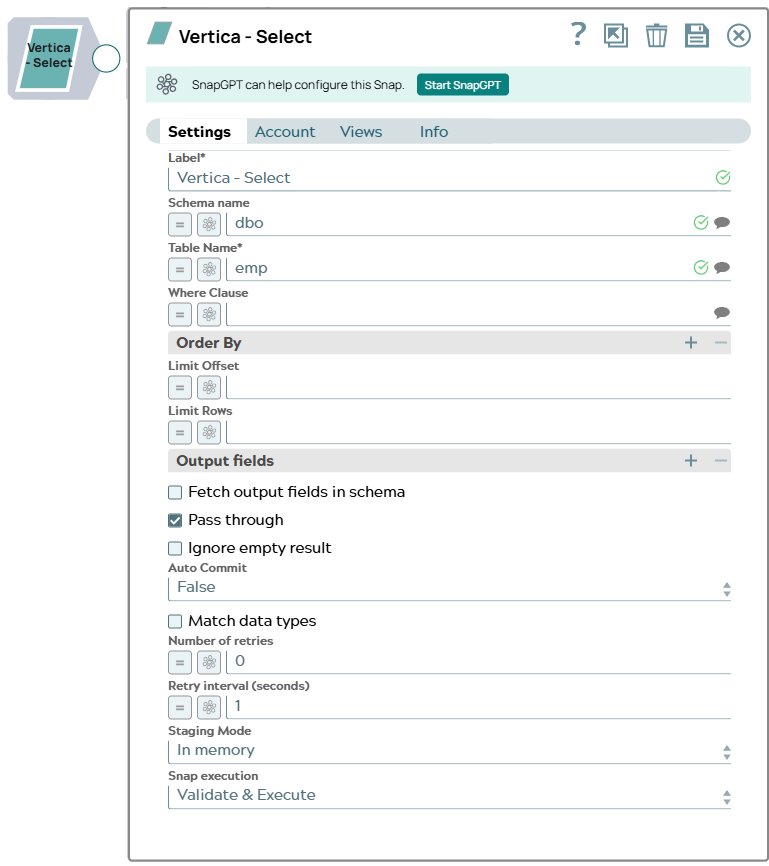
The Vertica - Select Snap enables you to fetch data from a database by providing a table name and configuring the connection.
JSON paths can be used in a query and will have values from an incoming document substituted into the query. However, documents missing values for a given JSON path will be written to the Snap's error view. After a query is executed, the query's results are merged into the incoming document, overwriting any existing keys' values. The original document is output if there are no results from the query.
Queries produced by the Snap have the format:
SELECT * FROM [table] WHERE [where clause] ORDER BY [ordering] LIMIT [limit] OFFSET [offset]If more powerful functionality is desired, then the Vertica - Execute Snap should be used.
- This is a Read-type Snap.
 Works in Ultra Tasks
Prerequisites
None.
Supported Accounts
Snap views
| Type | Description | Examples of upstream and downstream Snaps |
|---|---|---|
| Input |
This Snap has exactly one document input view. |
|
| Output |
This Snap has at most one document output view. |
|
| Learn more about Error handling. | ||
Snap settings
- Expression icon (
 ): Allows using
pipeline parameters to set field values dynamically (if enabled). SnapLogic Expressions
are not supported. If disabled, you can provide a static value.
): Allows using
pipeline parameters to set field values dynamically (if enabled). SnapLogic Expressions
are not supported. If disabled, you can provide a static value. - SnapGPT (
 ): Generates SnapLogic Expressions
based on natural language using SnapGPT. Learn
more.
): Generates SnapLogic Expressions
based on natural language using SnapGPT. Learn
more. - Suggestion icon (
 ): Populates a
list of values dynamically based on your Snap configuration. You can select only one
attribute at a time using the icon. Type into the field if it supports a comma-separated
list of values.
): Populates a
list of values dynamically based on your Snap configuration. You can select only one
attribute at a time using the icon. Type into the field if it supports a comma-separated
list of values. - Upload
 : Uploads files. Learn more.
| Field/Field set | Description |
|---|---|
| Label
|
Specify a unique name for the Snap. Modify this to be more appropriate, especially if more than one of the same Snaps is in the pipeline. Default value: Vertica Select Example: Vertica Select |
| Schema name
|
Specify the database schema name. Selecting a schema filters the Table name list to show only those tables within the selected schema. The property is suggestible and retrieves available database schemas during suggest values. Note: The values can be passed using the pipeline parameters but not the upstream parameter. Default value: N/A Example: public |
| Table name
|
Required. Specify the table on which to execute the select operation. Note: The values can be passed using the pipeline parameters but not the upstream parameter. Default value: N/A Example: employees |
| Output fields
|
Specify the output columns to select from the table. If not specified, all columns will be selected (SELECT *). Default value: N/A Example: first_name, last_name, email |
| Where clause
|
Specify the SQL WHERE clause to filter records. Do not include the WHERE keyword. Default value: N/A Example: status = 'active' AND created_date > '2020-01-01' |
| Order by
|
Specify the ORDER BY clause for sorting results. Do not include the ORDER BY keyword. Default value: N/A Example: last_name ASC, first_name ASC |
| Limit rows
|
Specify the maximum number of rows to return (LIMIT clause). Default value: N/A Example: 100 |
| Limit offset
|
Specify the number of rows to skip before returning results (OFFSET clause). Default value: 0 Example: 50 |
| Number of retries
|
Specify the maximum number of times that the process must be retried before displaying an error. Default value: 0 Example: 2 |
| Retry interval (seconds)
|
Specify the maximum resting time in seconds between subsequent retries. Default value: 1 Example: 2 |
| Auto commit
|
Select one of the options for this property to override the state of the Auto commit property on the account. The Auto commit at the Snap level has three values: True, False, and Use account setting.
Default value: Use account setting |
| Snap Execution
|
Choose one of the three modes in which the Snap executes. The available options are: Validate & Execute: Performs limited execution of the Snap and generates a data preview during pipeline validation. Subsequently, performs full execution of the Snap (unlimited records) during pipeline runtime. Execute only: Performs full execution of the Snap during pipeline execution without generating preview data. Disabled: Disables the Snap and all Snaps that are downstream from it. Default value: Execute only Example: Validate & Execute |