


JMS Producer
Overview
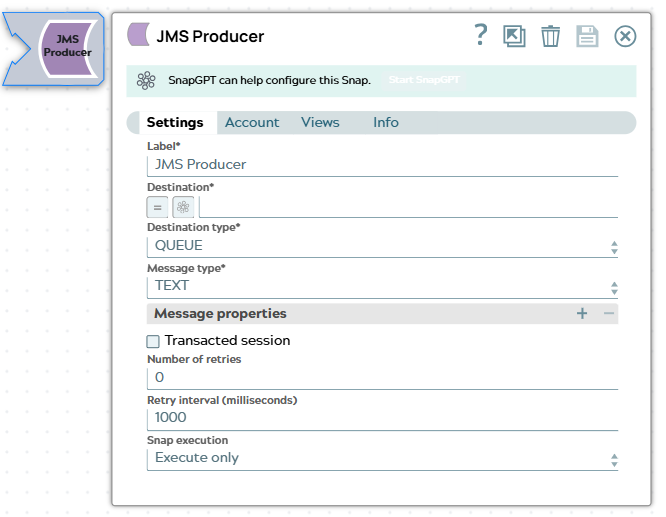
This Snap creates JMS messages from incoming JSON documents and puts them into a JMS destination.
If you are planning to use Delay and Schedule Message Delivery feature in Apache ActiveMQ (http://activemq.apache.org/delay-and-schedule-message-delivery.html), you must set the schedulerSupport attribute to true in broker configuration, which can be found in $ACTIVEMQ_HOME/conf/activemq.xml.
Supported Accounts
Examples
- This is a Write-type Snap.
 Works in Ultra Tasks
Prerequisites
- A valid account with the required permissions.
Limitations
Typically, in all message streaming applications, when a message is put in a nonexisting queue or topic, the JMS Producer Snap creates a queue in the destination. However, in the IBM MQ application, Snap checks for the queue in the destination, and then puts the message; if a queue does not exist, Snap displays an error. Therefore, you must create a queue in IBM MQ before putting a message.
Snap views
| Type | Description | Examples of upstream and downstream Snaps |
|---|---|---|
| Input (binary) |
This Snap has exactly one binary input view. If the upstream Snap generates a
document in its output you must use corresponding formatting Snaps to convert the
input data into a binary format.
|
|
| Output |
This Snap has at most one document output view. The output includes the original
metadata, JMSCorrelationID, and JMSMessageID along with any other parameters
specified in the Message properties field.
|
|
| Learn more about Error handling. | ||
Snap settings
| Field/Field set | Description |
|---|---|
Label*
String |
Specify a unique name for the Snap. Default value: JMS Producer Example: JMS Producer |
Destination*
String/Expression |
The queue or topic to which the message is to be sent. Note:
Example:
|
Destination type*
Dropdown list |
The Type of JMS destination based on how the Destination property was configured. Valid options are:
Default value: QUEUE |
Message type*
Dropdown list |
Type of JMS message to be transmitted. Valid options are:
Default value: TEXT |
| Message properties |
Optional. Properties to be set in JMS messages (For details about these properties, see the section Message Properties at http://docs.oracle.com/javaee/6/api/javax/jms/Message.html) You can add the following message properties:
|
Transacted session
Checkbox |
Optional. Select this option to use a transacted session to produce the message. The TransactionID is added to the output. Note: Transaction ID is applicable to the ActiveMQ only.
Default value: Not selected |
Number of retries
Integer |
Optional. The maximum number of attempts the Snap must make to send JMS messages when there is a network failure. Default value: 0 Example: 3 |
Retry interval (milliseconds)
Integer |
Optional. The minimum time in milliseconds for which the Snap must wait before attempting recovery from a network failure. Default value: 1000 Example: 1500 |
Snap execution
Dropdown list |
Choose one of the three modes in
which the Snap executes. Available options are:
|
Temporary files
During execution, data processing on Snaplex nodes occurs principally in-memory as streaming and is unencrypted. When processing larger datasets that exceed the available compute memory, the Snap writes unencrypted pipeline data to local storage to optimize the performance. These temporary files are deleted when the pipeline execution completes. You can configure the temporary data's location in the Global properties table of the Snaplex node properties, which can also help avoid pipeline errors because of the unavailability of space. Learn more about Temporary Folder in Configuration Options.