


Proxy Endpoint Details
View and edit the settings of a Proxy endpoint.
Important: This page describes Classic APIM. For APIM 3.0,
refer to API Management 3.0.
Viewing the Proxy Endpoint Settings
To view the settings of a Proxy endpoint:
- In the API Manager, open a proxy for editing, then go to the Proxy
Endpoints tab.
- In SnapLogic Project Manager, go to API Management > API Manager.
- In the API Manager, go to the APIs & Proxies tab.
- Set Filter by Type to Proxy and click Search.
- Click the Proxy's name in the list.
- Go to the Proxy Endpoints tab.
- Click the endpoint's name in the list.
The Proxy Endpoint Details tab displays the details of the selected Proxy.
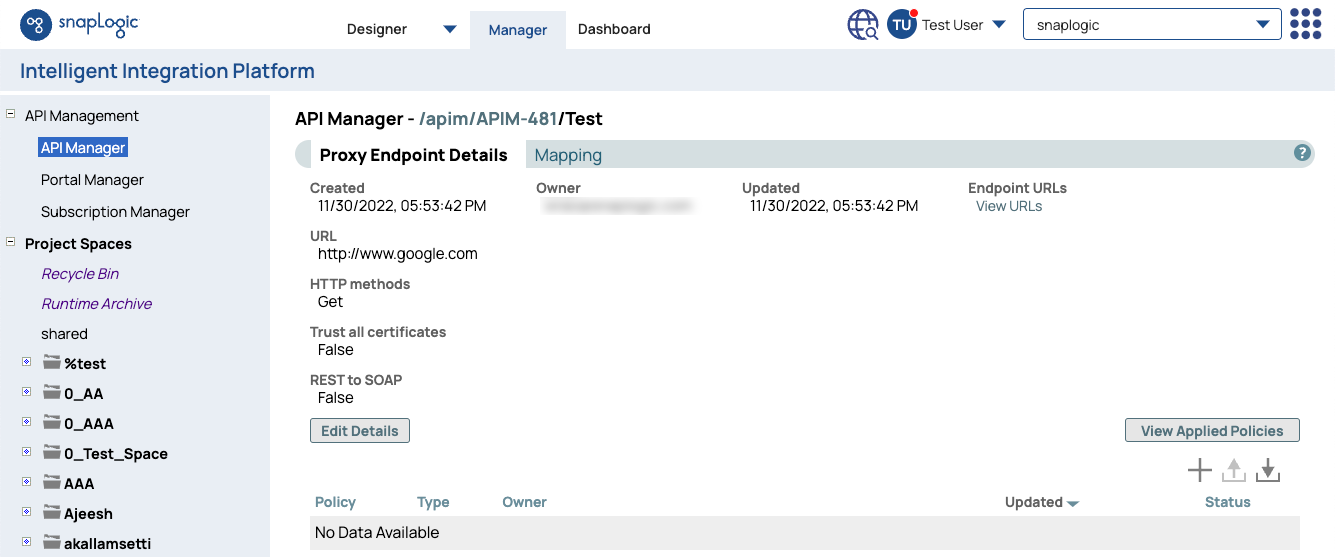
Editing the Proxy Endpoint Settings
To edit the URL and HTTP Method(s) of the endpoint:
- In the Proxy Endpoint Details tab, click Edit
Details.
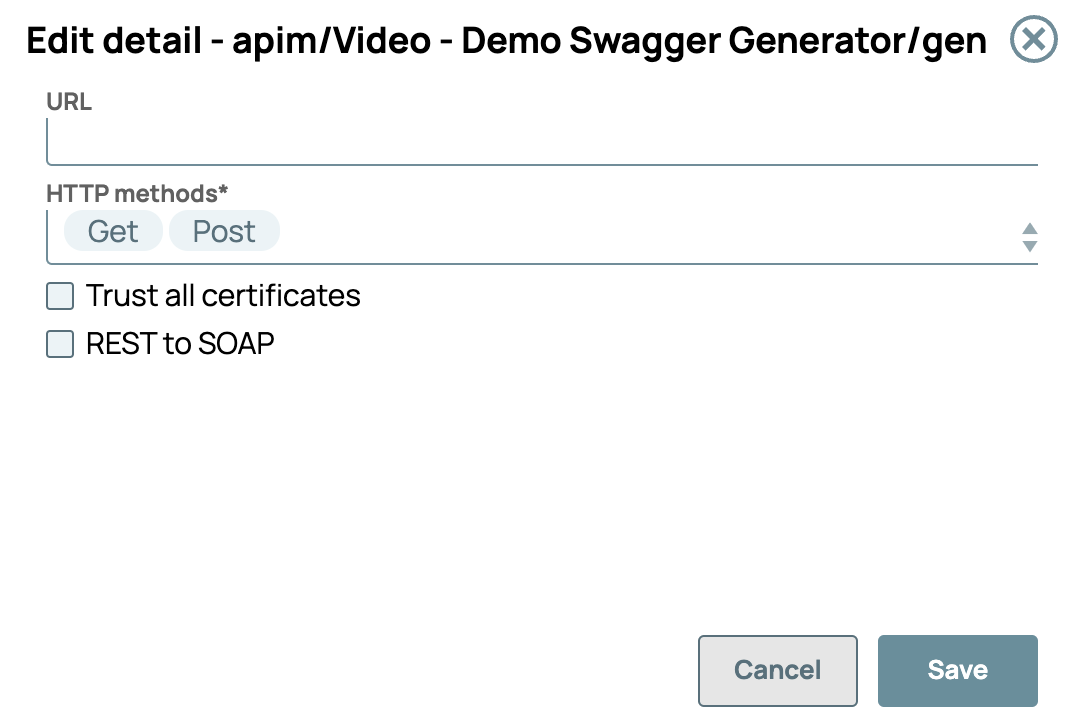
- Update the Proxy Endpoint settings, and click Save.
| Field | Description |
|---|---|
| Trust all Certificates | Select this checkbox to run the API calls regardless of the certificate status. If you leave this checkbox deselected (default setting), any endpoint with an expired or unsigned certificate will fail the API call. |
| REST to SOAP |
Select this checkbox to enable a SOAP payload as a REST HTTP call. When selected, the SOAP payload field appears. The default setting is unselected. Note: The REST to SOAP checkbox only supports incoming GET requests by default. The
HTTP method cannot be modified and will always call the SOAP endpoint with a
POST.
|
Note: Note: You can update only the URL and HTTP
Method(s) of the endpoint.