


SQL Server Authentication
Overview
In the Account Settings, provide the Username and Password as defined for the user on the SQL Server instance. This SQL Server account must have the required privileges to run the operations seamlessly defined for the Snaps in this Snap Pack.
sa account for SQL Server Authentication. Learn more about how to choose between SQL Server Authentication and Windows Authentication: Choose an Authentication ModeWindows Based Authentication
Service Account Authentication
Service Account authentication implies that the active AD user session on the Snaplex is leveraged to obtain access to the SQL Server instance. Therefore, you need not provide Username and Password.
For Service account authentication, follow these steps:
- Ensure that Snaplex is running on Windows and an AD user with required access privileges has logged into the Snaplex.
- To use the default JAR bundled with the Snap Pack, place the version of
sqljdbc_auth.dllthat matches the default driver in$SL_ROOT/ldlib (c:\opt\Snaplogic\ldlib). You do not have to add the custom JAR file to the account. The DLL must be version-matched with the bundled driver; you can find the matching DLL on the Microsoft SQL Server JDBC Driver website. SnapLogic recommends using the default JAR. You can download the latest JAR file from here.Note: If you upload custom JDBC JARs to the directory, the following error might occur:java.lang.UnsatisfiedLinkError: Native Library C:\\opt\\snaplogic\\ldlib\\sqljdbc_auth.dll already loaded in another classloaderTo fix this issue, remove all JDBC jars from the SQL Server Account and restart the JCC node.
- Do not specify a port number.
- Configure the following properties for JDBC under URL properties:
URL property name URL property value domainYour domain name
Note: Domain name must be added as a URL property and not along with the user name.integratedSecuritytrue
Connecting to an MSSQL Instance
You can connect to a specific instance of MSSQL by using the instance name along with the server name (<server_name>/<instance_name>) in the Hostname field.
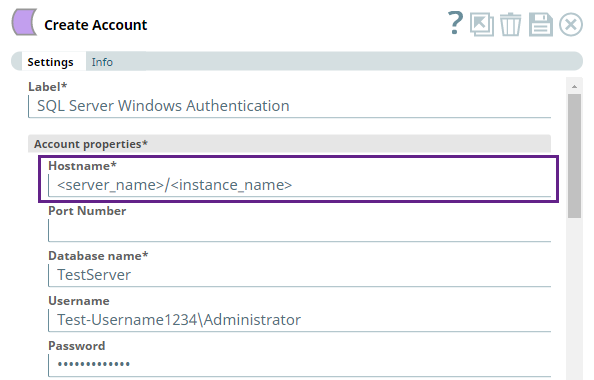
Alternatively, you can define the instance name by using the URL property name, instanceName.
If the Snap fails to connect to the database, it retries three more times.
You can Validate an account connection when creating an SQL Database Account but not when creating an SQL Server Dynamic Account because the account properties of a dynamic account are provided dynamically as pipeline parameters.
User Impersonation
SnapLogic supports Active Directory authentication for SQL Server using the User impersonation method. However, in addition to providing the account properties such as Hostname, Database name, Username, and Password, ensure that the following configuration is done for Active Directory Kerberos or NTLM Protocol (as the case may be) to implement User Impersonation with the SQL Server instance.
Authentication Using Active Directory Kerberos
Prerequisites
- Set up Active Directory and SQL Server in the same domain and verify that you are able to perform Windows authentication using SQL Server Management Studio.
- On the Active Directory Server, set the Service Principal Name (SPN) for the SQL Server. Learn more.
- Install the correct JAR file. Any version of the JAR files available in Microsoft Java and JDBC Support page later than the versions mentioned here can be used.
Supported versions
mssql-jdbc-12.10.2.jre11.jar driver JAR version for Java 11. Refer to Microsoft JDBC Driver for SQL Server for details.
Configuration
To authenticate Windows SQL Server connection with Active Directory authentication, follow these steps:
| Steps | Configuration |
|---|---|
| 1. |
Enter your Active Directory Username and Password. In the account settings, enter your Active Directory Username and Password. |
| 2. |
Configure the JDBC-related settings.
|
| 3. |
Add URL-related properties.
|
Authentication Using NTLM Protocol
The SQL Server Snap Pack supports this mode of authentication on both Groundplexes and Cloudplexes. Authentication of SQL Server Account using NTLM Protocol is limited to Windows Snaplexes.
Configuration
To authenticate Windows SQL Server connection with the NTLM protocol, follow these steps:
| Steps | Configuration |
|---|---|
| 1. |
Configure the JDBC-related settings.
|
| 2. |
Add the URL-related properties
Note: After adding the domain name as an Url property (as mentioned above), do not include it again when providing the SQL Server username.
|
| 3. |
Click Validate and select the Snaplex when prompted. The "Account validation successful" message is displayed. |
| 4. |
Click Apply to complete the setting up of NTLM-based authentication. |
Linux Based Authentication
The SQL Server Account supports Linux-based authentication in Groundplexes. The setup instructions must be configured on the Groundplex to align with the Kerberos configuration, and then updating the connection settings provides an integrated authentication. Refer to Microsoft documentation for more information: Using Kerberos integrated authentication to connect to SQL Server - JDBC Driver for SQL Server