Retrieve your MCP Server URL and connect AI agents or MCP clients to invoke your tools.
Before connecting a client, ensure you have:
- An MCP Server registered and enabled (see Register MCP Server)
- An MCP client (such as, Claude Desktop, custom application, or API testing tool)
- Appropriate credentials if authentication is configured
Open the MCP Details Page
-
In SnapLogic Manager, navigate to your project.
-
Locate your MCP Server in the assets list.
-
Click the MCP Server name to open the details page.
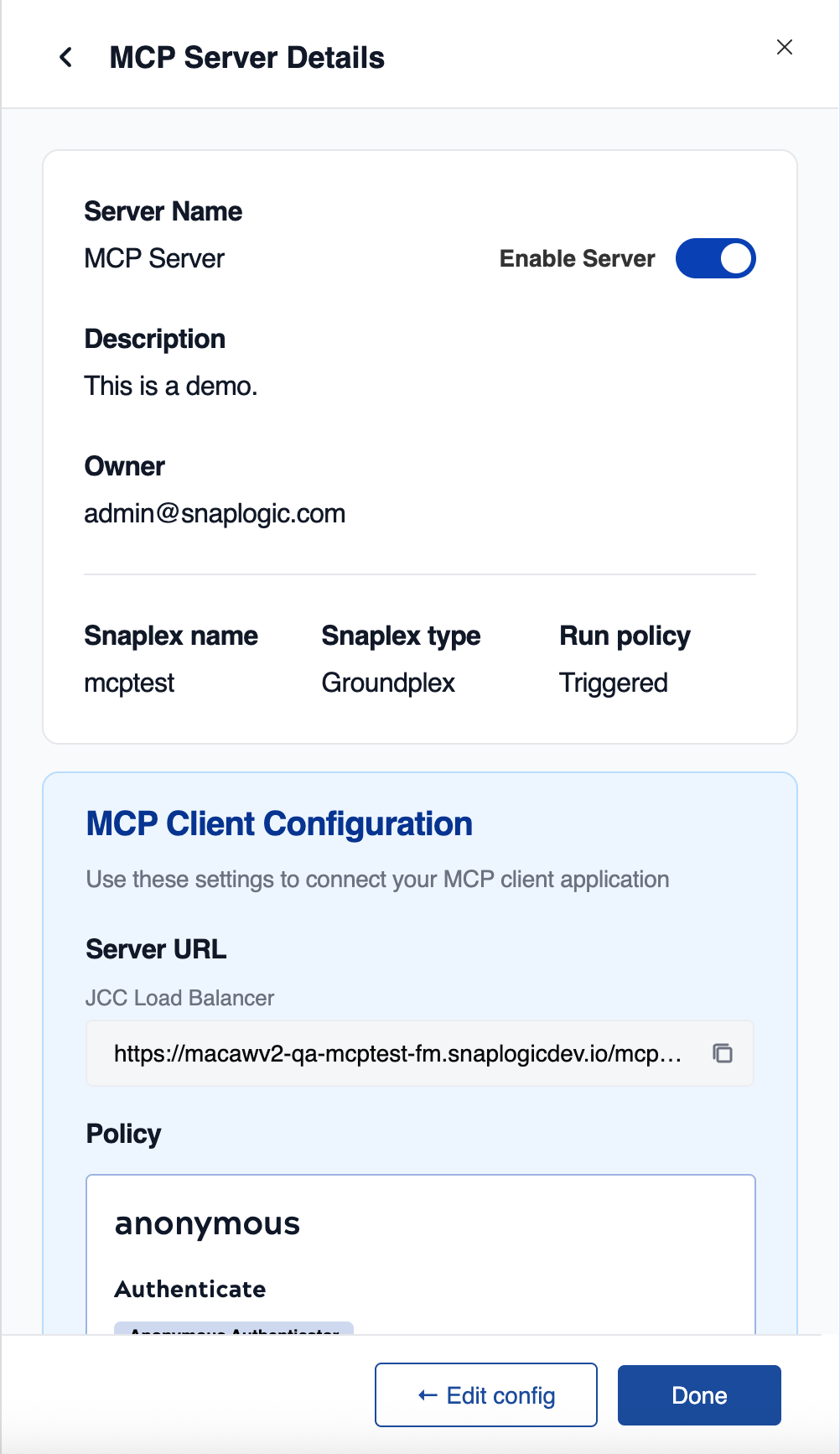
The MCP Server details page displays the server configuration and URLs.
Select and Copy URL
-
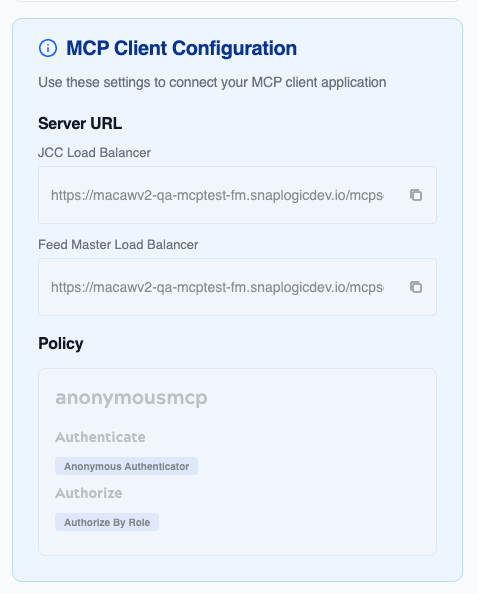
Locate the Server URLs section in the details page.
Two URLs are available:
- Streamable HTTP:
https://{host}/mcp/mcpserver/{serverId}/mcp
- Stateless, recommended for production
-
Click the Copy button next to the URL you plan to use.
Choose based on your client's capabilities:
- Use Streamable HTTP for most clients and production.
If the Details page does not display any URLs, make sure:
- You selected a Snaplex for your MCP Server.
- A load balancer is configured for your Snaplex.
-
To validate the Server URLs, call each endpoint using a tool such as Postman, cURL, or
a custom API endpoint testing application.
-
Configure the request to the MCP Server URL:
-
Set the URL to the copied MCP Server URL.
-
Set the HTTP method based on transport:
- Streamable HTTP: Use POST
-
Add authentication headers if required:
- OAuth2:
Authorization: Bearer {access_token}
- API Key:
X-API-Key: {your_api_key} (or configured header name)
- API Key:
Authorization: Bearer {your_api_key} by default
-
Set Content-Type header:
Content-Type: application/json
-
Send a
tools/list request to discover available tools. You need to
define the variables.
Example syntax for Claude code:
claude mcp add --transport http snaplogic https://{host}/mcpserver/{serverId}/mcp
Example with Bearer token
claude mcp add --transport http snaplogic https://{host}/mcpserver/{serverId}/mcp\
--header Authorization: Bearer your-token
The response includes an array of available tools with their schemas.
- Connect Claude Desktop (Example)
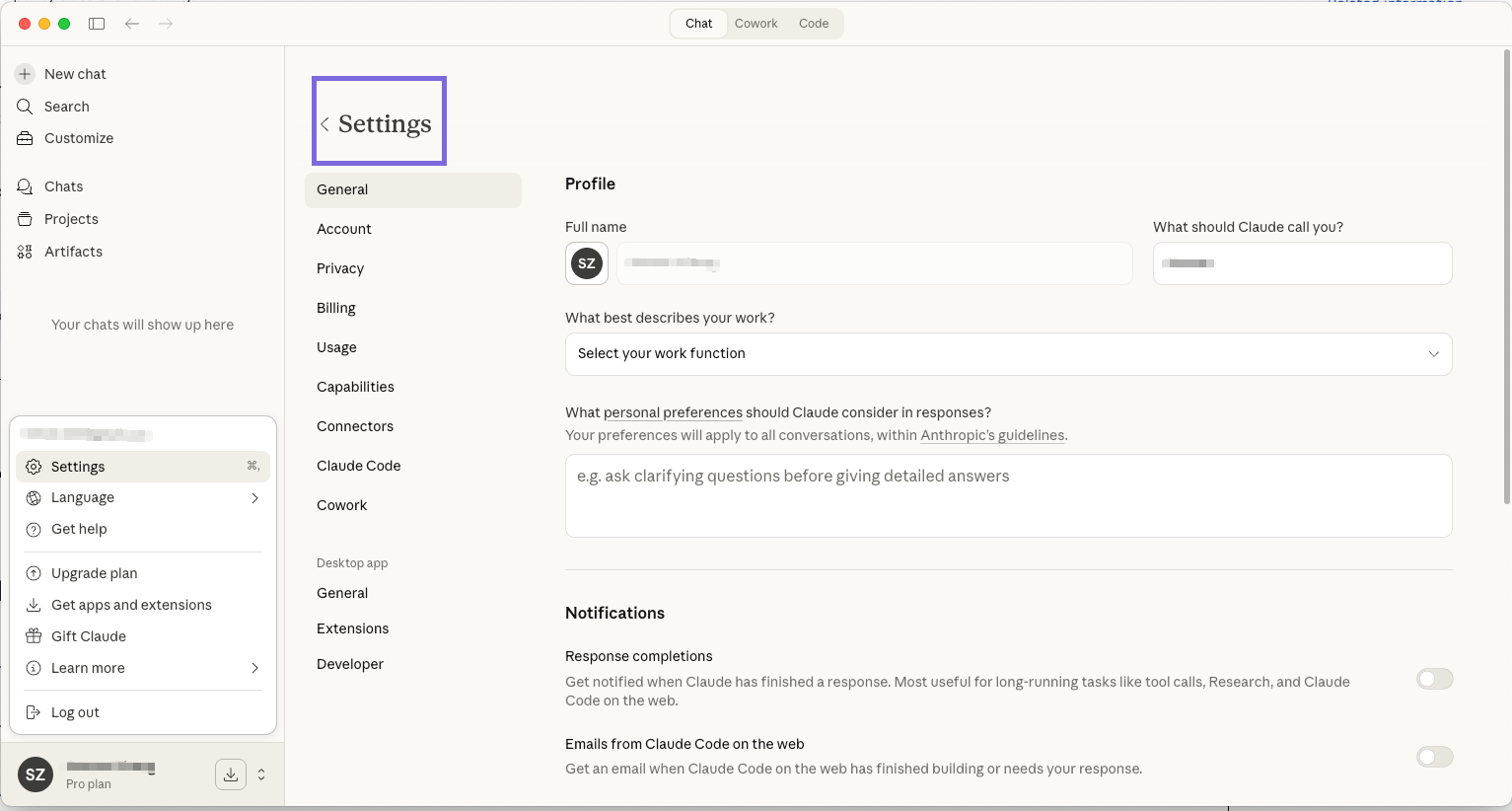
- In the Claude Desktop interface, click Settings.
- Click .
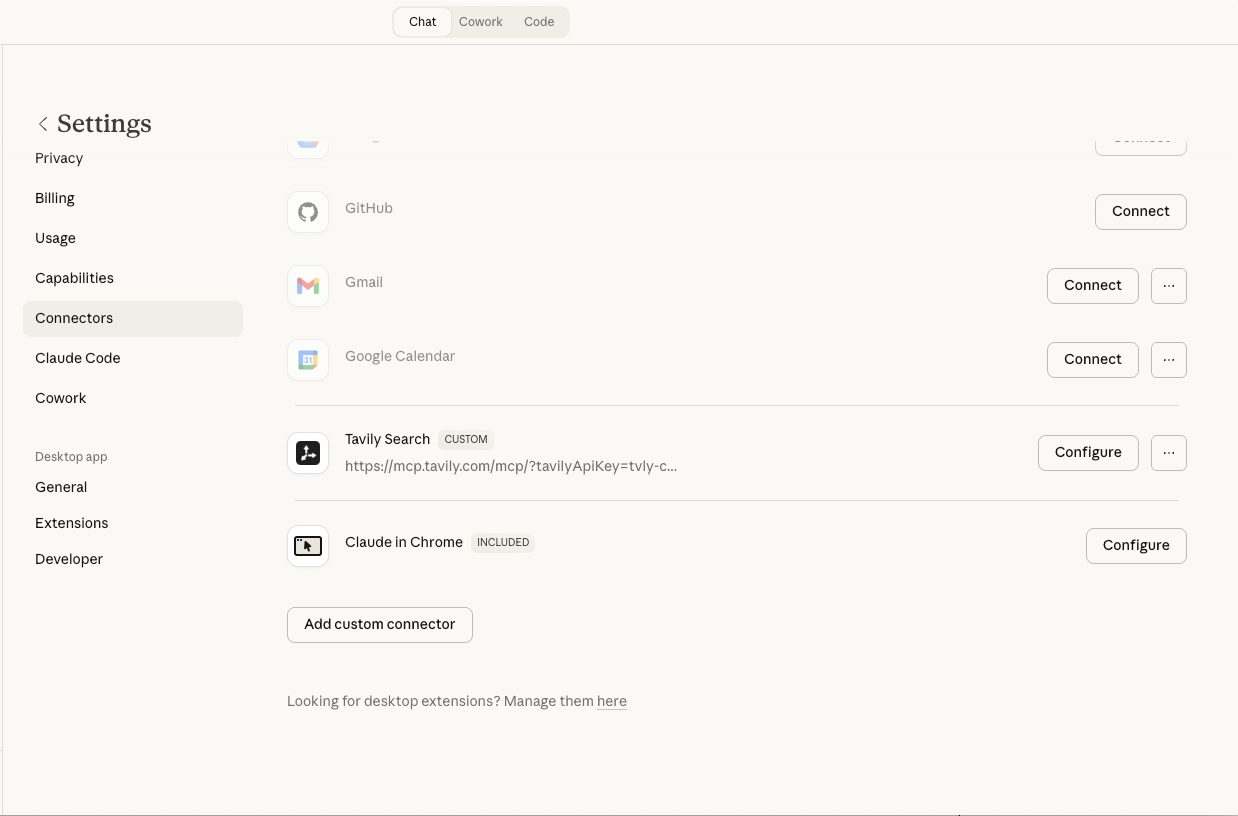
- Enter the name and the URL.
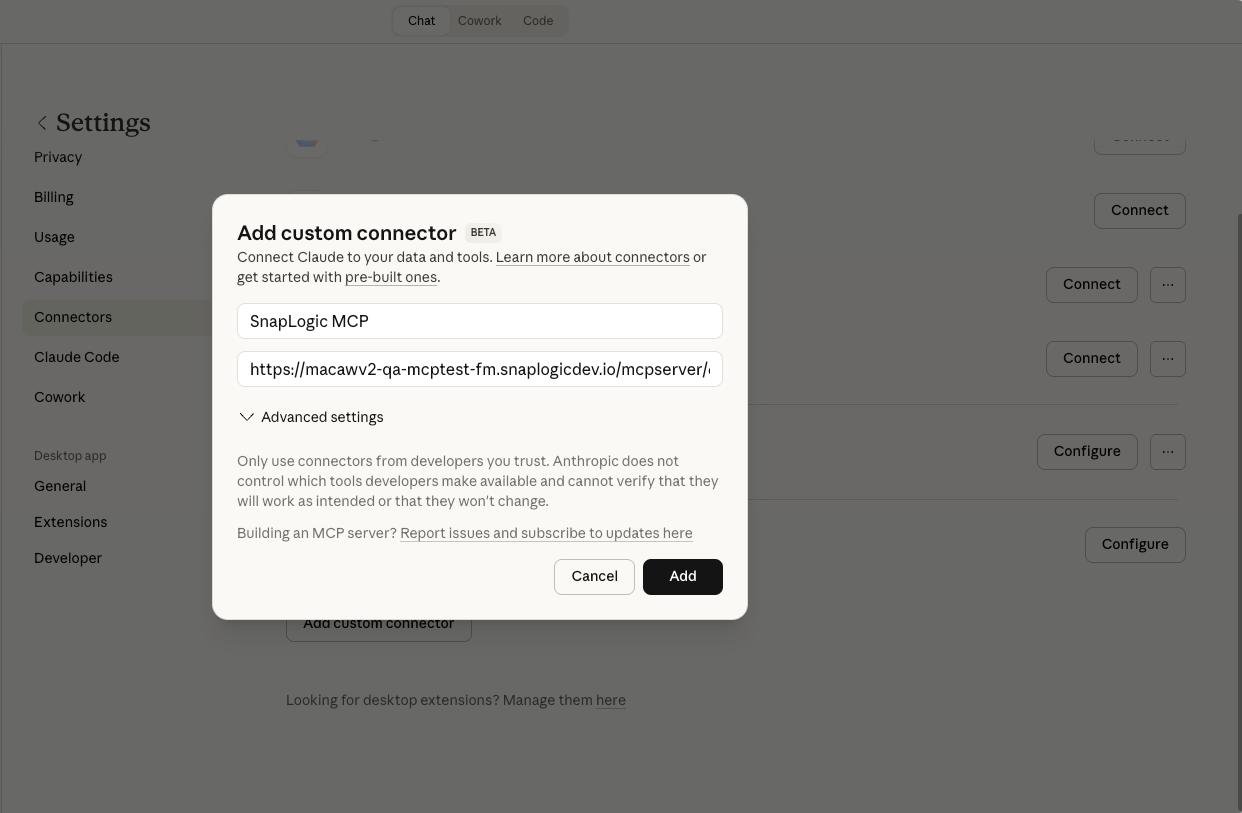
- Verify the connection is added.
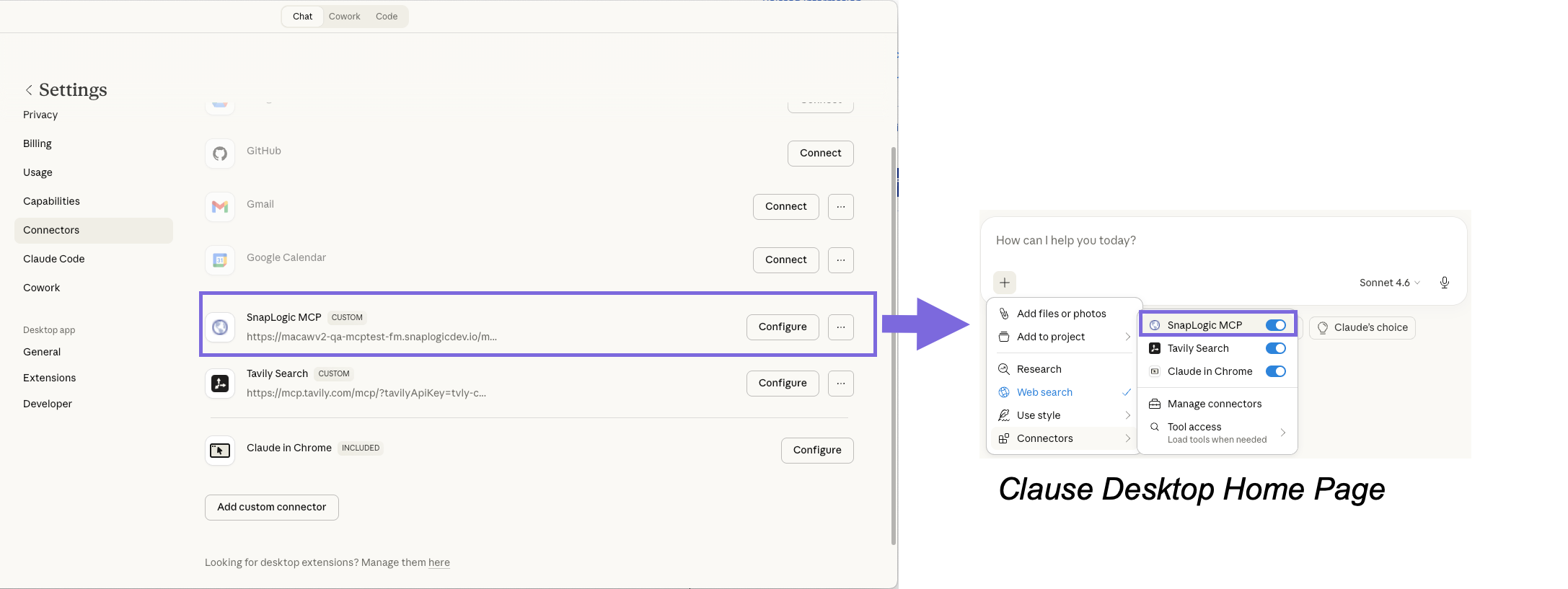
You can also find the list of tools in the connector management page.
Your MCP client is now connected to your SnapLogic MCP Server. AI agents can discover and
invoke your pipeline tools through the MCP protocol.
See Troubleshooting MCP Server Errors to diagnose and resolve common errors.