


Create Contact
Overview
The Create Contact Snap creates a personal contact.
- This is a Write-type Snap.
 Works in Ultra Tasks when the Batch size is set to 1.
Supported Accounts
Prerequisites
- Valid Exchange Online tenant.
- Valid OAuth2 application in Azure Active Directory with all the required API permissions.
Snap views
| Type | Description | Examples of upstream and downstream Snaps |
|---|---|---|
| Input |
This Snap has at most one document input view. A document containing your email id with folder name and the contact name, to be added, with optional details to create a contact. |
|
| Output |
This Snap has at most one document output view. A document containing confirmation of the created personal contact with specified details. |
|
| Learn more about Error handling. | ||
Snap settings
| Field/Field set | Description |
|---|---|
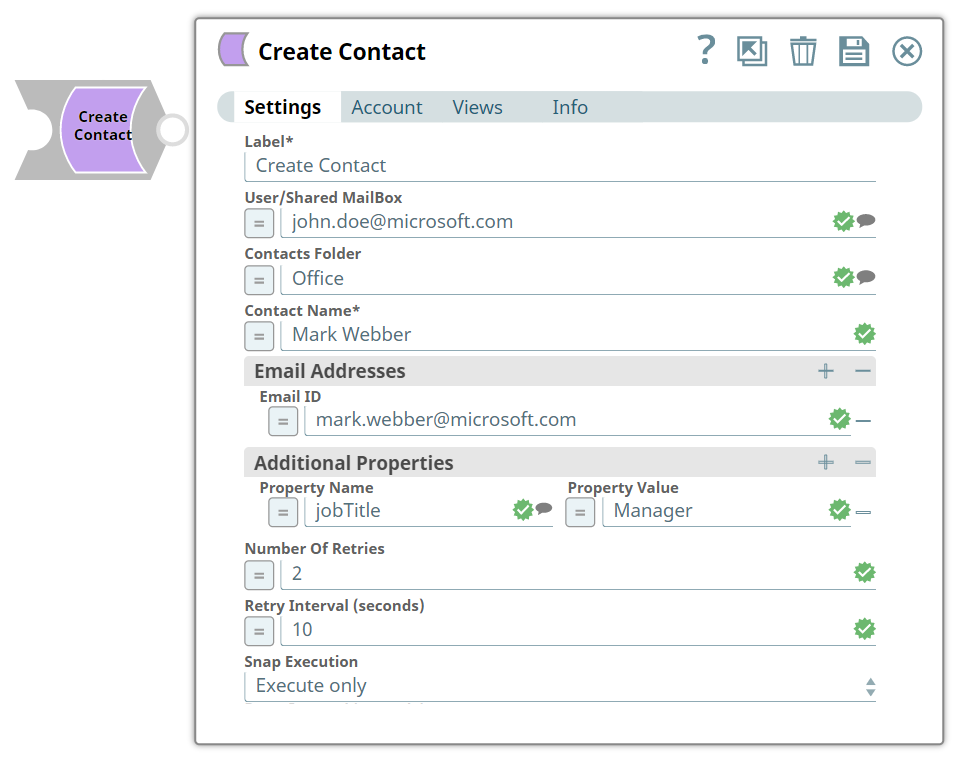
Label* String |
Specify a unique name for the Snap. Modify this to be more appropriate, especially if more than one of the same Snaps is in the pipeline. Default value: Create Contact |
User/Shared MailBox String/Expression |
Enter the mailbox from which you want to create contact. If not provided, then the mailbox specified in the account settings is used. Default value: N/A Example: [email protected] |
Contacts Folder String/Expression |
Enter the name of the contact folder where you want to create a contact. Default value: N/A Example: Office |
Contact Name* String/Expression |
Enter the name of the contact. Default value: N/A Example: Adam |
| Email Addresses |
Use this fieldset to specify the email addresses to the contact you have created. Click + to add a row. |
Email ID String/Expression |
Specify an email id to attach with the contact. Default value: N/A Example: [email protected] |
| Additional Properties |
Use this fieldset to specify the list of additional properties to attach with the contact. Click + to add a row. |
Property Name String/Expression |
Specify the property name which you want to choose as an additional detail. Available options are:
Default value: N/A Example: Company Name |
Property Value String/Expression |
Specify the value for the Property Name you choose. You can leverage the schema that is built in upstream snap for building these additional properties. Default value: N/A Example: Google |
Number Of Retries Integer/Expression |
Specify the maximum number of attempts to be made to receive a response. The request is terminated if the attempts do not result in a response. Default value: 0 Example: 3 |
Retry Interval (seconds) Integer/Expression |
Specify the time interval between two successive retry requests. A retry happens only when the previous attempt resulted in an exception. Default value: 1 Example: 6 |
Snap execution Dropdown list |
Choose one of the three modes in
which the Snap executes. Available options are:
|
Troubleshooting
| Error | Cause | Resolution |
|---|---|---|
| Make sure select the property from provided list. | Selected Property is Not Supported currently. | Select a property which is present in the listed properties. |