


Delete Ticket
Overview
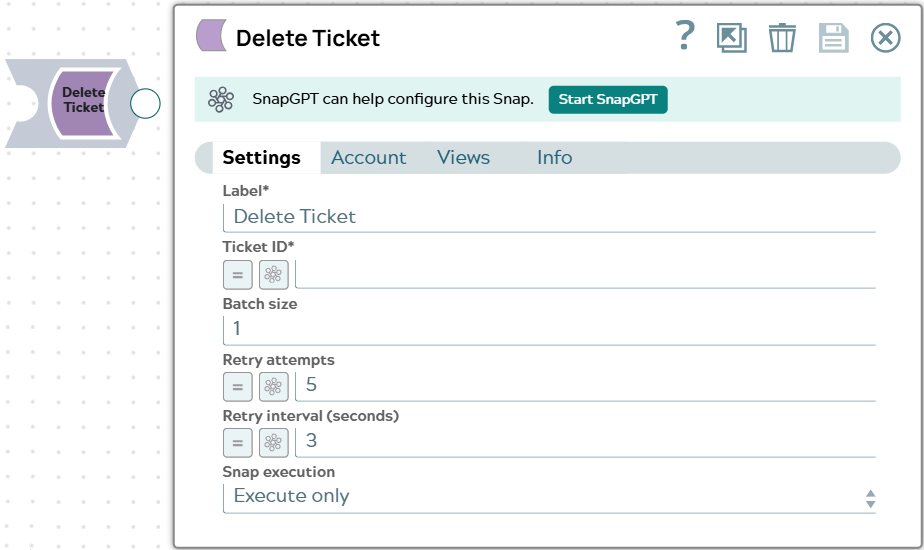
The Delete Ticket Snap deletes one or more tickets in your Zendesk instance, and can optionally purge them permanently.
The Snap reads the ID of the ticket to delete from the Ticket ID field for each input document. By default, deleted tickets move to the Zendesk deleted tickets queue. When you select Permanently delete, the Snap also purges each deleted ticket from that queue, which cannot be undone.
With a Batch size of 1, the Snap deletes each ticket with its own request. With a larger batch size, the Snap accumulates ticket IDs and deletes each batch with a single request, which Zendesk processes as a background job. The Snap waits for each job to complete, then writes one output document for each ticket the job deleted and one error document for each ticket it could not delete.
- This is a Write-type Snap.
 Works in Ultra Tasks
Supported Accounts
Prerequisites
None.
Snap views
| Type | Description | Examples of upstream and downstream Snaps |
|---|---|---|
| Input |
This Snap has exactly one document input view. Each input document identifies one ticket to delete. Reference the ticket ID
in Ticket ID using the |
|
| Output |
This Snap has at most one document output view. With a Batch size of 1, each
output document contains the ticket's |
|
| Learn more about Error handling. | ||
Snap settings
| Field/Field set | Description |
|---|---|
Label* String |
Specify a unique name for the Snap. Modify this to be more appropriate, especially if more than one of the same Snaps is in the pipeline. Default value: Delete Ticket Example: Delete spam tickets |
Ticket ID*
Integer/Expression |
Enter the numeric Zendesk ID of the ticket to delete. Default value: None Example: $id |
Batch size
Integer |
Enter the number of ticket IDs to accumulate before sending a single delete request, from 1 through 100. With 1, the Snap deletes each ticket with its own request. With a larger value, the Snap deletes each batch with one request, which Zendesk processes as a background job. Default value: 1 Example: 50 |
Permanently delete
Checkbox |
When selected, the Snap first deletes each ticket, then permanently purges it from the deleted tickets queue. Purged tickets cannot be recovered. Default value: Not selected Example: Selected |
Retry attempts
Integer/Expression |
Enter the number of times the Snap should retry the API call on connection
errors or 5xx responses. On a 429 response, the Snap automatically retries
after the interval specified in the server's Default value: 5 Example: 3 |
Retry interval (seconds)
Integer/Expression |
Enter the number of seconds to wait between retry attempts. The Snap also waits this long between checks on a background job's status, and checks up to 100 times. Default value: 3 Example: 5 |
|
Snap execution Dropdown list
|
Choose one of the three modes in
which the Snap executes. Available options are:
Default value: Execute only Example: Validate & execute |
Troubleshooting
| Error | Reason | Resolution |
|---|---|---|
| Unable to connect to Zendesk: <details> | The Snap could not connect to your Zendesk instance with the selected account, because of an authentication or network problem. | Verify the subdomain and credentials in the account, and that the Snaplex can reach your Zendesk instance. Then run the pipeline again. |
| Authentication failed. | Zendesk rejected the account credentials with HTTP 401 (Unauthorized). | Verify the credentials in the account, then run the pipeline again. |
| Invalid request. | Zendesk rejected the request with HTTP 400 (Bad Request) or HTTP 422
(Unprocessable Entity). The reason field in the error document
shows which. |
Review the Snap settings and the values in the input document, correct any value that Zendesk does not accept, and run the pipeline again. |
| Access denied. | Zendesk returned HTTP 403 (Forbidden). The Zendesk user behind the account does not have permission for the requested resource. | Use an account whose Zendesk user has at least the Agent role, or the permissions the operation requires. |
| Resource not found. | Zendesk returned HTTP 404 (Not Found). The ID in the Snap settings or input document does not exist in your Zendesk instance, or the record was deleted. | Verify the ID, and make sure the record still exists in Zendesk. |
| Rate limit exceeded. | Zendesk returned HTTP 429 (Too Many Requests), and the rate limit was still exceeded after the Snap's automatic retries. | Reduce the volume of requests, for example by retrieving fewer records per run, or schedule the pipeline outside peak hours. |
| Zendesk server error. | Zendesk returned HTTP 500, 502, 503, or 504, and the error persisted after the configured retries. | Wait a few minutes and run the pipeline again. If the error recurs, increase Retry attempts or Retry interval (seconds). |
| Network error while calling Zendesk. | The Snap could not reach Zendesk, for example because of a connection timeout or a DNS failure. | Verify that the Snaplex can reach your Zendesk instance, then run the pipeline again. |
| The <field> provided is not valid | An ID field, such as User ID or Ticket ID, received a value that is not a whole number. Zendesk ID fields accept integer values only. | Enter the numeric Zendesk ID, or fix the expression so that it evaluates to one. |
| Ticket ID is required. | Ticket ID is empty, or evaluates to 0, for the input document. | Enter the ID of the ticket to delete, or fix the expression so that it evaluates to one. The resolution text in the error mentions Apply same data to multiple tickets, which does not apply to this Snap. |
| Soft delete completed, but an error occurred while permanently deleting the ticket | Permanently delete is selected. The ticket was
deleted and is in the deleted tickets queue, but the purge failed. The
reason field shows the cause. |
Address the cause in reason, then purge the ticket from the
deleted tickets queue in Zendesk. |
An error document whose error field holds a Zendesk error
code, with the cause in the details field. |
A background job finished, but Zendesk could not delete one of the tickets in the batch. | Correct the ticket ID that details identifies, then
resubmit it. The other tickets in the batch were deleted. |
| Zendesk bulk job <job ID> did not complete successfully. | Zendesk reported the background job as failed. The
reason field shows the job status and Zendesk's
message. |
Correct the input that the message identifies, then run the pipeline again. |
| Timed out waiting for Zendesk bulk job <job ID> to complete. | The background job did not finish within 100 status checks. | Check the job's status in Zendesk before you rerun the pipeline, because the job may still complete and delete the tickets. To wait longer, increase Retry interval (seconds). |