


Create a part and classify it
Classification has to exist in Teamcenter. Demonstratet classification “Cuboid” is not ootb Teamcenter.
This example pipeline demonstrates how to create a part and classify it in Teamcenter.
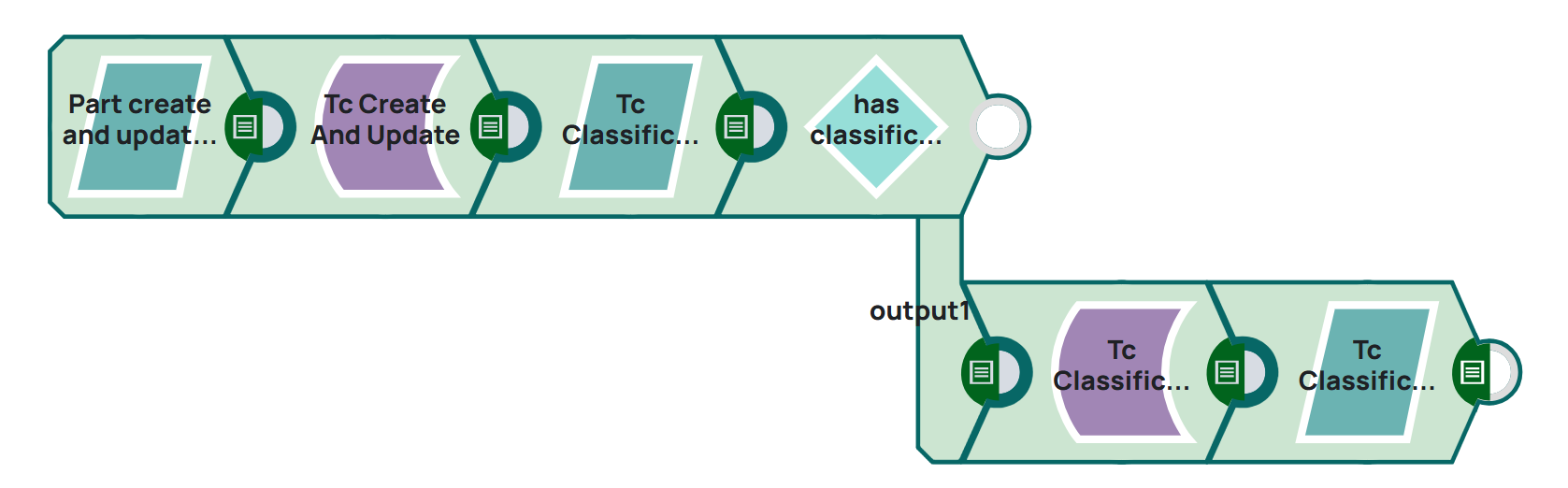
Classification has to exist in Teamcenter.
Steps
1: Create a JSON document which contains type and attribute of the part. The JSON Generator is a placeholder for external system which could send a JSON message to Snaplogic. On validation, the Snap displays the json in output.
[
  {
    "object_type": "Part",
    "attributes": {
      "object_desc": "Test Create with Snap",
      "object_name": "Classification_Test",
      "fnd0CurrentLocationCode": "55"
    },
    "expandAttributes": [
      "object_type",
      "object_name",
      "object_desc",
      "item_id",
      "item_revision_id",
      "uom_tag",
      "creation_date",
      "fnd0IcsClassNames",
      "is_modifiable",
      "ics_classified",
      "owning_user",
      "fnd0CurrentLocationCode",
      "checked_out"
    ]
  }
]
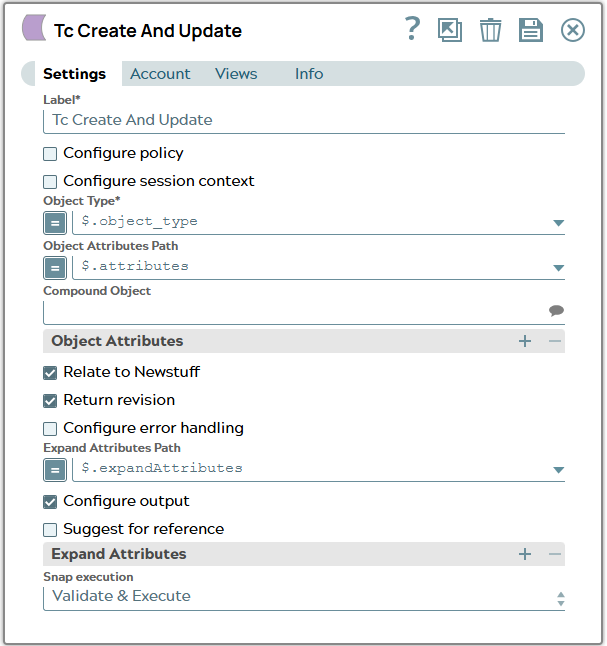
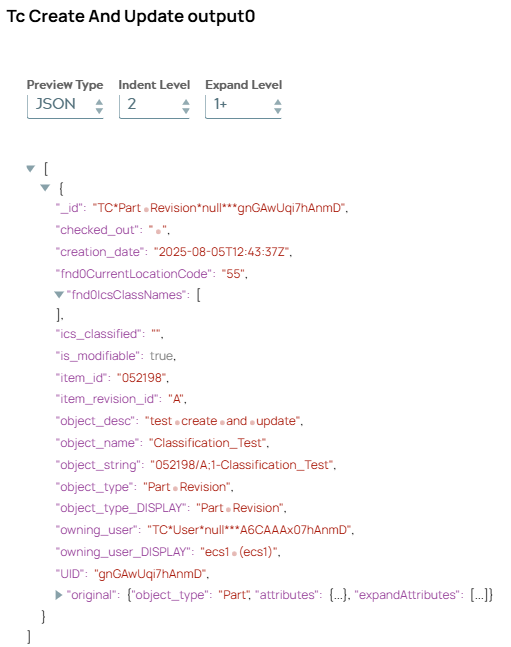
2: Configure the Tc Create and Update Snap to pass the data. On validation, the Snap displays the part revision created for the input.
Snap configuration | Snap output |
|---|---|
 |  |
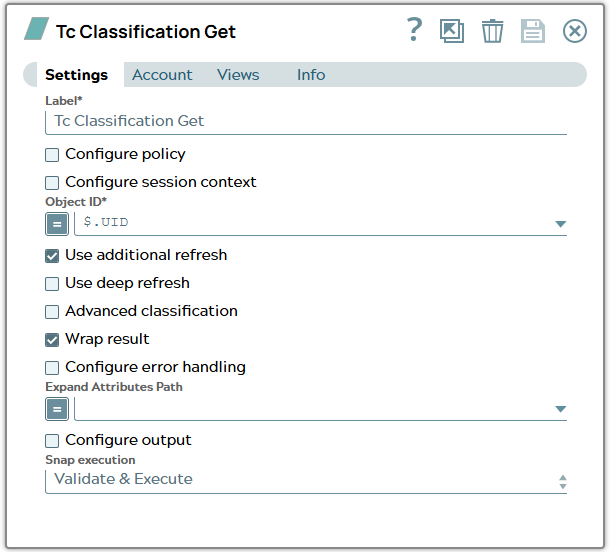
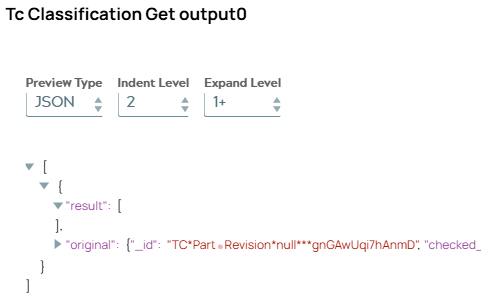
3: Configure the Tc Classification Get Snap to read classification of the part revision. On validation, the Snap displays the classification information.
Snap configuration | Snap output |
|---|---|
 |  |
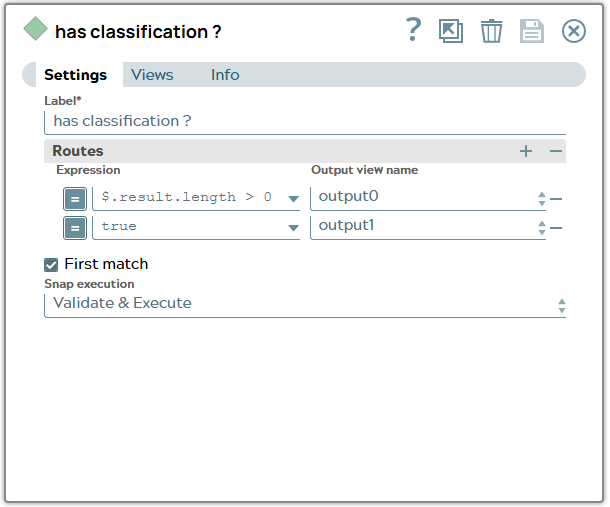
4: Configure a router to route message to Tc Classification Create Snap in case no classification exists.
Snap configuration | |
|---|---|
 |
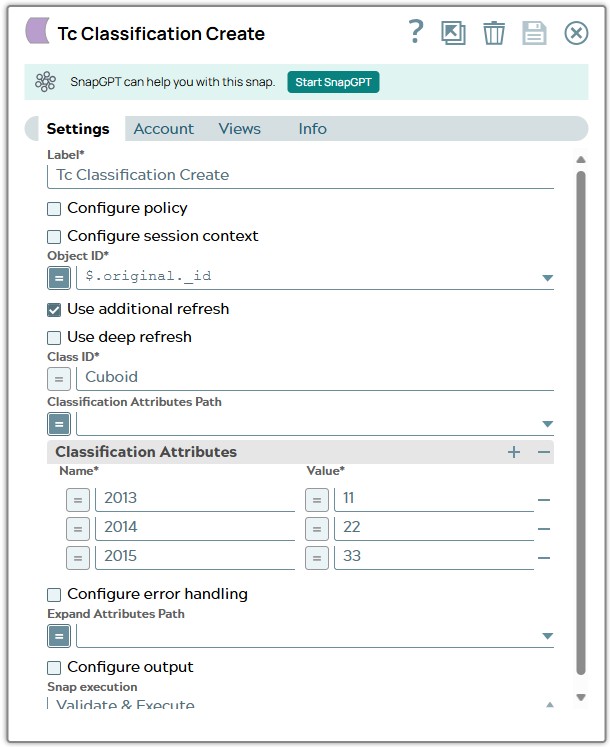
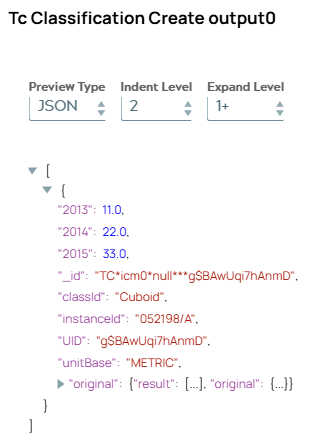
5: Configure the Tc Classification Create Snap to create classification infomraiton and add it to the part revision. On validation, the Snap displays the newly created classificiation information.
Snap configuration | Snap output |
|---|---|
 |  |
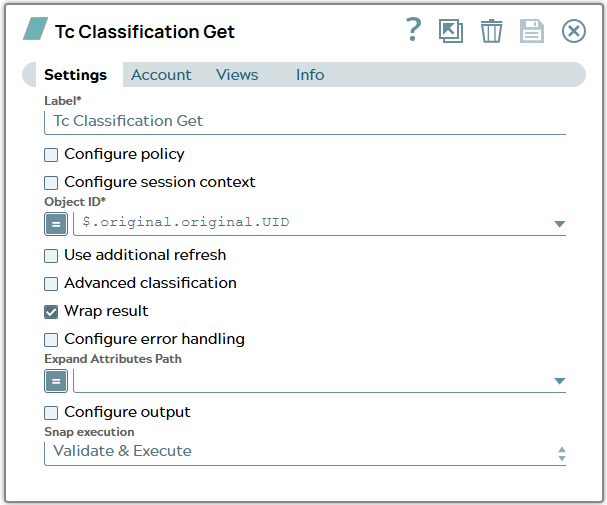
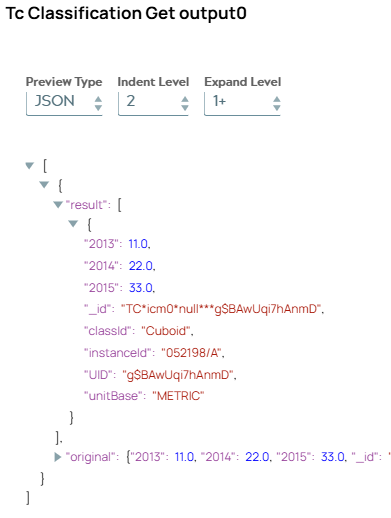
6: Configure again a Tc Classification Get Snap to read classification of the part revision. On validation, the Snap displays the classification information as object in a result list.
Snap configuration | Snap output |
|---|---|
 |  |