


Create Authentication Policy
Configure an MCP policy to secure your MCP Server with authentication and authorization.
Enable the Policies Snap Pack
MCP policies are available in your Org when you subscribe to the APIM feature and the Policies Snap Pack. Despite its name, the Policies Snap Pack does not contain Snaps, but it functions like other Snap Packs. You can configure the Snap Pack to use one of the following two distributions:
- Stable: Contains policies that have been available for a few releases. This distribution is updated on the quarterly release.
- Latest: Contains the newest policies and policy features. This distribution is typically updated every month.
The distributions are determined by the Snaplex version updates, which coincide with the monthly and quarterly releases. For more information, see:
MCP Servers use policies for authentication. MCP uses the same policy builder that APIM 3.0 does. The policy builder contains a suite of authentication, authorization, validation, traffic shaping, and transformation rules. These rules compose the policy. You can use existing rules or policies created for APIM Services or create new ones specifically for MCP. This topic covers creating policies for MCP Server authentication.
Available authentication methods for MCP:
- MCP OAuth2 Client Credentials Policy: For application-to-application authentication
- MCP OAuth2 JWT Validator Policy: For validating JWT tokens from identity providers
- API Key Authenticator: Simple token-based authentication
- Anonymous Authenticator: No authentication (development only)
- MCP Token Exchange rule: Exchanges the caller's inbound bearer token for a per-tool scoped token via RFC 8693 OAuth 2.0 Token Exchange. Applied under the Transform tab after authentication. Use this to scope credentials to each tool's target system without building token-exchange logic into individual tool pipelines.
-
Open the Policy Catalog.
-
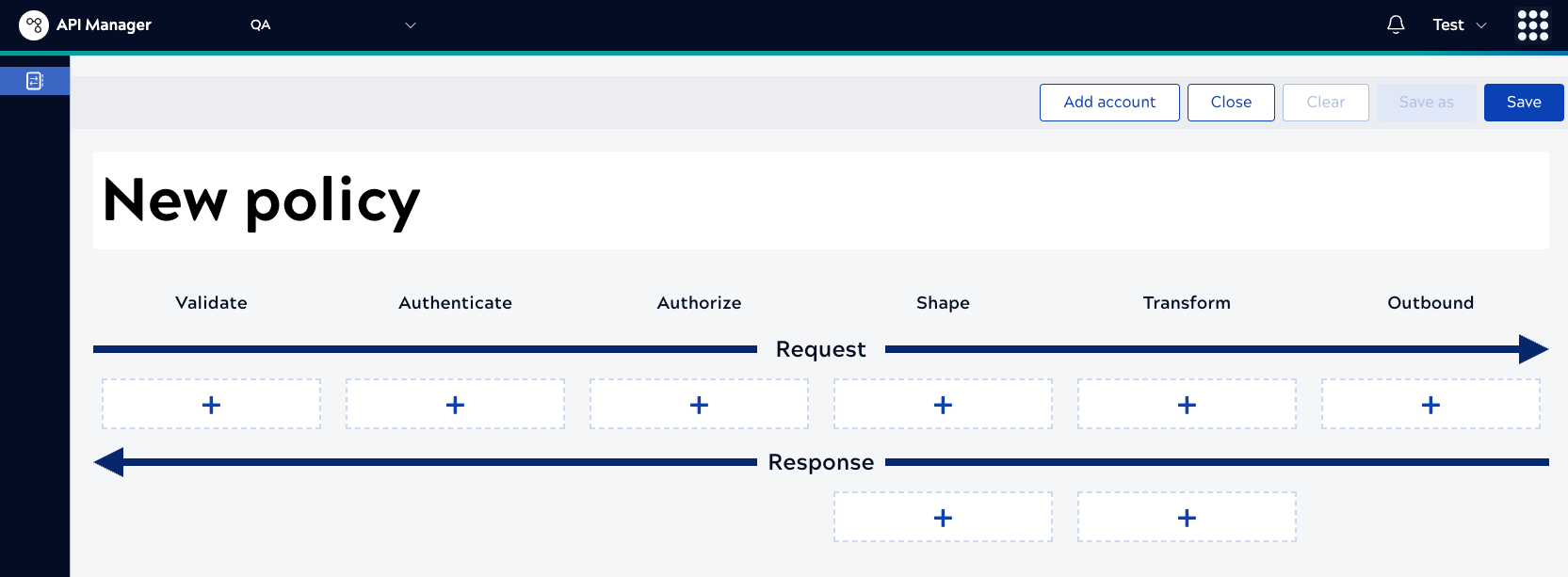
Click Create Policy to create a new policy.
-
Click Create Policy to create a new policy.
-
Add Rules.
-
Add additional rules as needed:
Common rules for MCP Servers:
- IP Restriction: Limit access to specific IP addresses or ranges
- Client Throttling: Rate limit requests per client
- Request Size Limit: Limit the size of incoming requests
- CORS Restriction: Configure cross-origin resource sharing
-
Add additional rules as needed:
-
Configure MCP Policy using OAuth2 Client Credentials
-
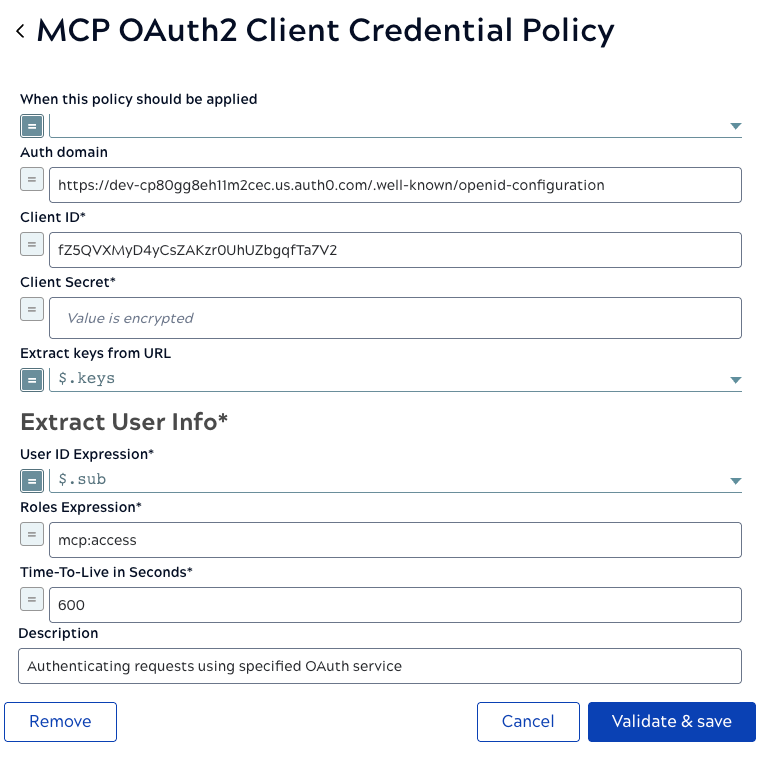
In the MCP OAuth2 Client Credentials rule, configure the following fields:
- Token Endpoint URL: Your authorization server's token endpoint
- Client ID: The OAuth2 client identifier
- Client Secret: The OAuth2 client secret
- Scope: Required OAuth2 scopes
- Auth Domain: The domain URL for fetching authorization endpoint URLs
- Extract Keys from URL: URL to dynamically fetch signing keys for token validation
- Extract User Info:
- User ID Expression: Expression that returns the user ID from the token claims
- Roles Expression: Expression that returns the roles from the token claims
-
For the Authorize by Role rule, add the following Roles and Conditions:
Role Condition mcp:access true read:data true write:data true 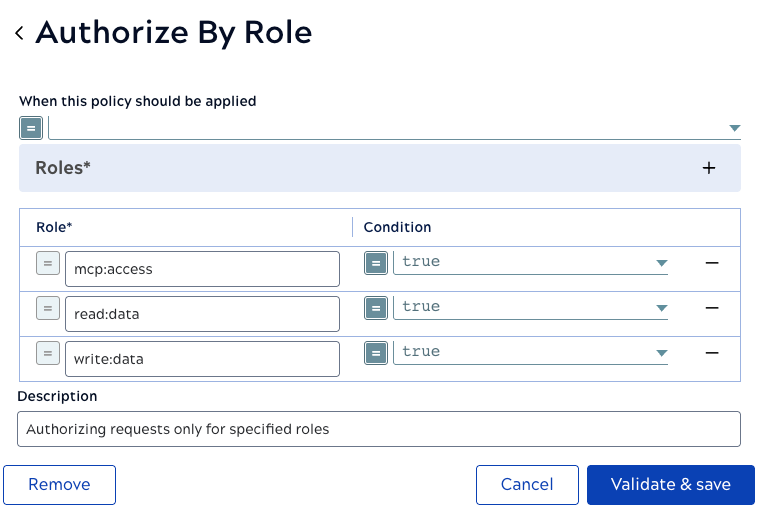
-
In the MCP OAuth2 Client Credentials rule, configure the following fields:
-
Configure an MCP Policy to generate a JSON Web Token for Authentication
-
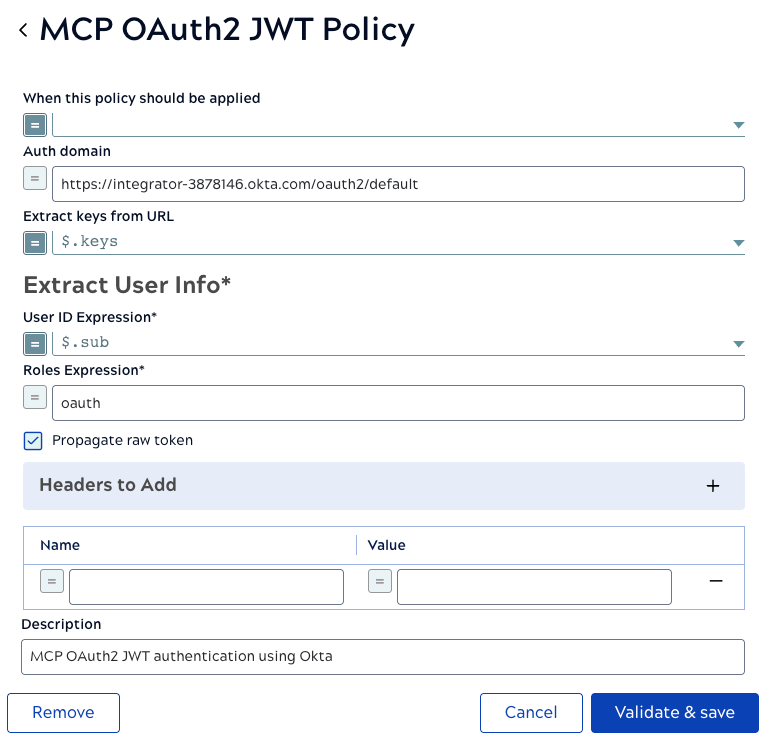
In the MCP OAuth2 JWT Validator rule, configure the following fields:
- Auth Domain: The domain URL for fetching authorization endpoint URLs
- Extract Keys from URL: URL to dynamically fetch signing keys for token validation
- Extract User Info:
- User ID Expression: Expression that returns the user ID from the JWT token claims
- Roles Expression: Expression that returns the roles from the JWT token claims
-
For the Authorize by Role rule, add the following Roles and
Conditions:
Role Condition oauth 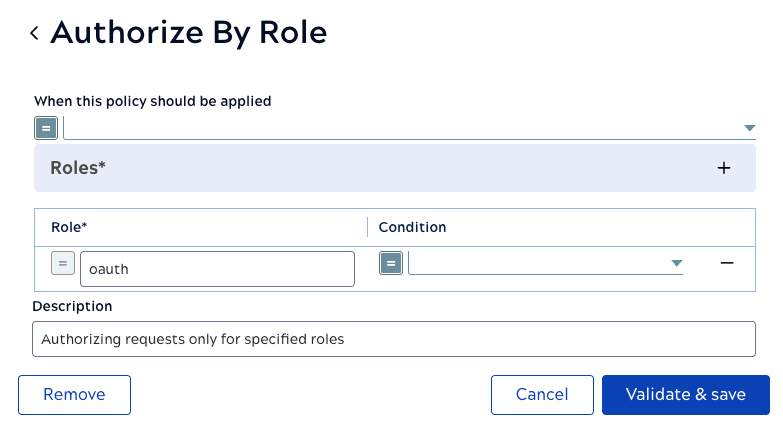
-
In the MCP OAuth2 JWT Validator rule, configure the following fields:
-
Configure an MCP Policy for Anonymous Authentication
-
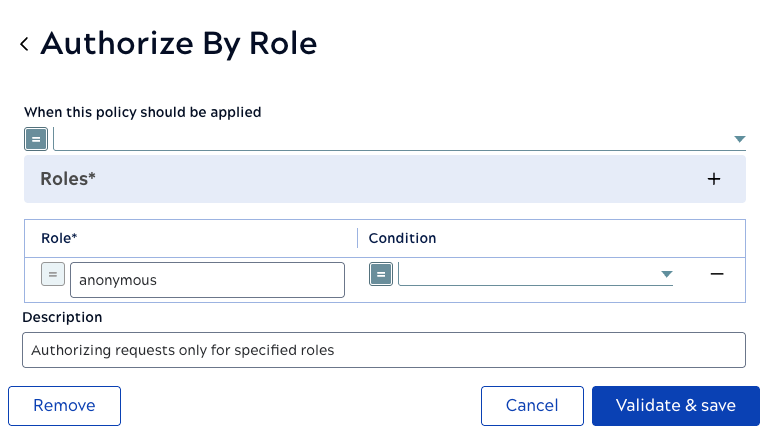
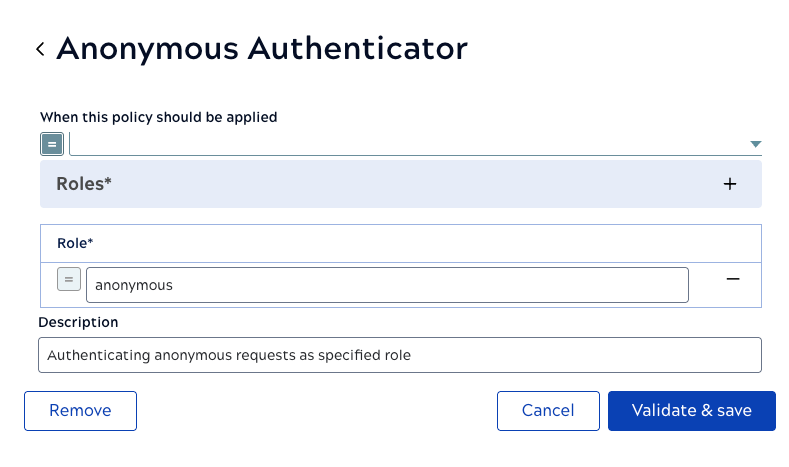
For Anonymous Authenticator, in the Role field, add anonymous.
-
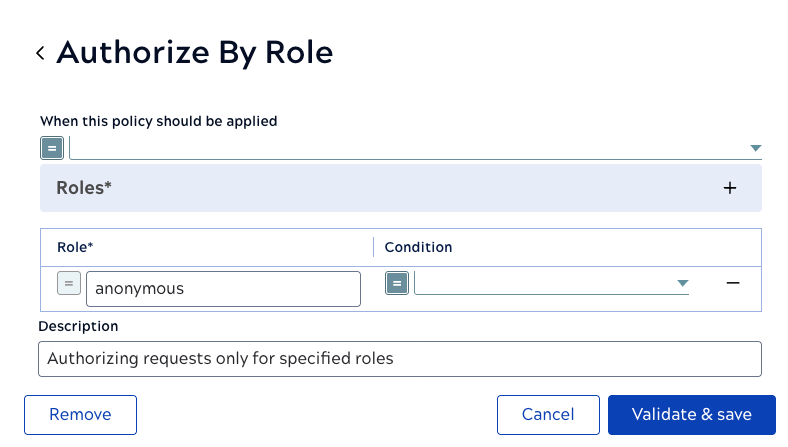
For Authorize by Role, configure the following fields.
- Role: The role for the authorized user. For anonymous authenticator, add anonymous.
- Condition: Add a condition, if any, as an expression.
-
For Anonymous Authenticator, in the Role field, add anonymous.
Your authentication policy is now created and can be selected when configuring MCP Servers.
After creating the policy, return to Register MCP Server to select this policy for your MCP Server.