


Manage the Developer Portal
For environments with an APIM 3.0 subscription, SnapLogic hosts APIM 3.0 Developer Portal, a website where consumers can browse and subscribe to published Services. The following image shows an example Developer Portal:
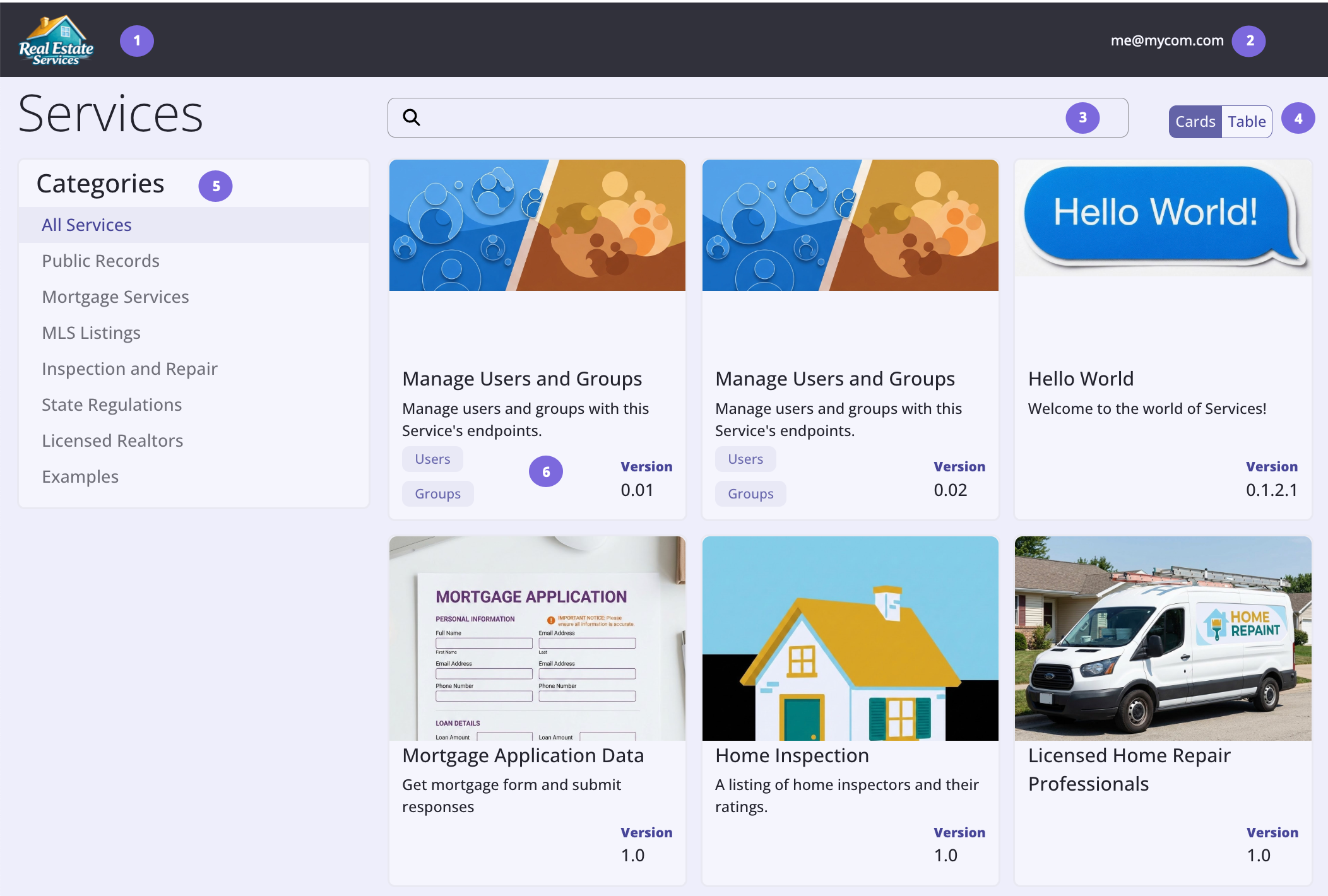
The numbered callouts correspond to:
- The logo that Environment admins can customize in Admin Manager. Configure Developer Portal settings describes how.
- The username. Click the link to access the profile menu:
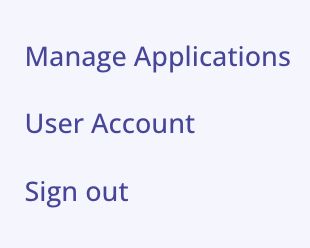
- From the Manage Applications option, create or delete Applications that hold subscriptions and allow you to generate tokens and keys.
- From the User Account option, change your display name (for the SnapLogic interface) or reset your password.
- Search by Service name, version, or tag.
- Switch between the card and table view.
- The Categories filter makes it easier to find Services of interest. Set up Service categories describes how to set up categories and apply them to a Service.
- The Service card displays the Service description, version number, any tags, and an image (if one has been uploaded).
Service categories
You can add Service categories to improve the organization and discoverability of Services in the APIM 3.0 Developer Portal. A Service can belong to multiple categories or none. Defined categories display in the APIM 3.0 Developer Portal and Service consumers can use them to browse Services by functional area, business domain, team, or any organizational structure defined by the API publisher. For example, categories such as "Finance", "Customer Management", "Orders", or "Internal APIs" can group related Services together. Service categories don't grant or restrict access to Services.
Developer Portal users
Those in the following roles interact with Developer Portal:
- Environment admins: Configure Developer Portal in Admin Manager, manage user accounts, manage subscriptions, and set up Service categories. Like Service developers they can also publish Services.
- Service developers: Create and test Services. With an environment configured for full access, all developers can publish Services for which they have write and execute permission. Without full access, only Environment admins can publish.
- Service consumers: Find, try out, and subscribe to Services. Service consumers can be internal,
from the organization that owns the environment, or external. For a Portal configured to require login:
- Internal consumers log in to the APIM 3.0 Developer Portal with their SnapLogic username and password.
- External consumers can request an account, which requires approval by an Environment Admin.
Accessing the published site
Each environment has one APIM 3.0 Developer Portal site. Organizations with separate environments for development and production have the option of using the development environment Portal for internal testing. Users with a SnapLogic account can access the site from the waffle menu link: APIM 3.0 Developer Portal.
By default, the Developer Portal site URL is:
https://control-plane/devhub/content/env-name/.
For example, the Developer Portal URL for an environment named
my-prod on the global control plane is:
https://elastic.snaplogic.com/devhub/content/my-prod/. Environment admins can
change env-name to any unique custom string in Admin Manager. Each environment must have a unique URL.
Environment Admins can also upload a custom logo. A change to the logo or the name triggers a rebuild of the site. Refer to Configure Developer Portal settings more information on Portal configuration.
The following describe how to: