


Checkout a Bitbucket repository to SnapLogic project space
- A Bitbucket repository to associate the SnapLogic Workspace.
- Configure the Git Repository Checkout settings.
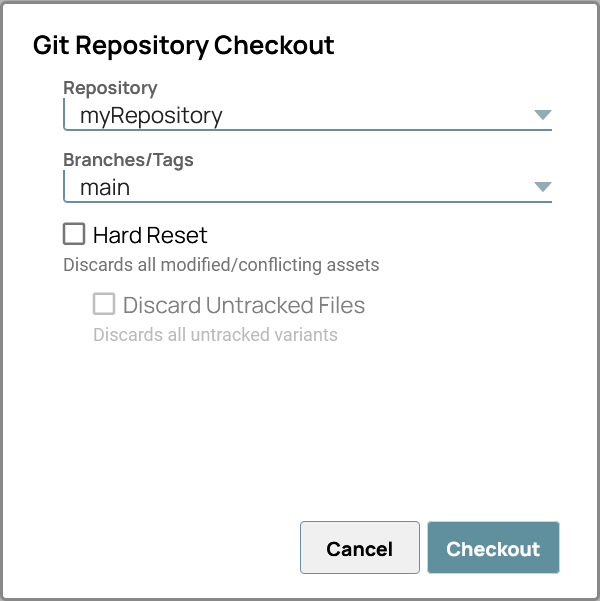
- Repository: Select the repository to checkout from.
- Branches/Tags: Select the branch or tag to checkout. You can filter the list by typing the first letters of the branch or tag name.
- Hard Reset: Replaces all assets in the project or project space with those in the Git repository. Discards all uncommitted changes (modified or conflicting assets) and assets with an Added, Tracked, or Removed status.
- Discard Untracked Files: With Hard Reset selected, deletes all untracked files from the project or project space during checkout.
Important: You can select Hard Reset and leave Discard Untracked Files unchecked if you want to retain a set of assets and not track them.
The Git Integration associates the project space with the branch or tag and checks out any existing assets.