


Read shapefiles and load the data in Snowflake
This example pipeline demonstrates how to read shapefiles from the File Reader Snap, map the content type, parse the input, map the data to a Snowflake table, and then load the data to Snowflake.
Download this Pipeline-
Configure File Reader Snap to read shapefiles
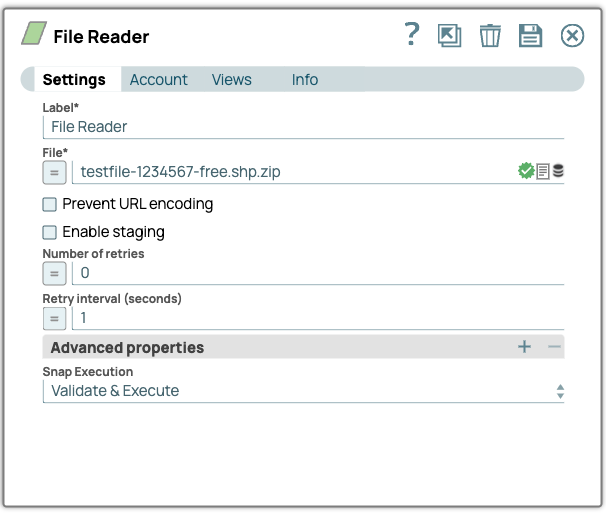
First, we configure the File Reader Snap to read shapefiles from a ZIP file.
-
Map content type using Mapper Snap (if file is in SLDB)
Next, we add a Mapper Snap to map the content type because the input file resides in SLDB. This step is only needed for input files that reside in SLDB.
In this example, we’ve mapped the content type to
application/zipbecause our input is a ZIP file of shapefiles.If your input is a GML file, you must update the content type as
application/gml+xml; charset=utf-8.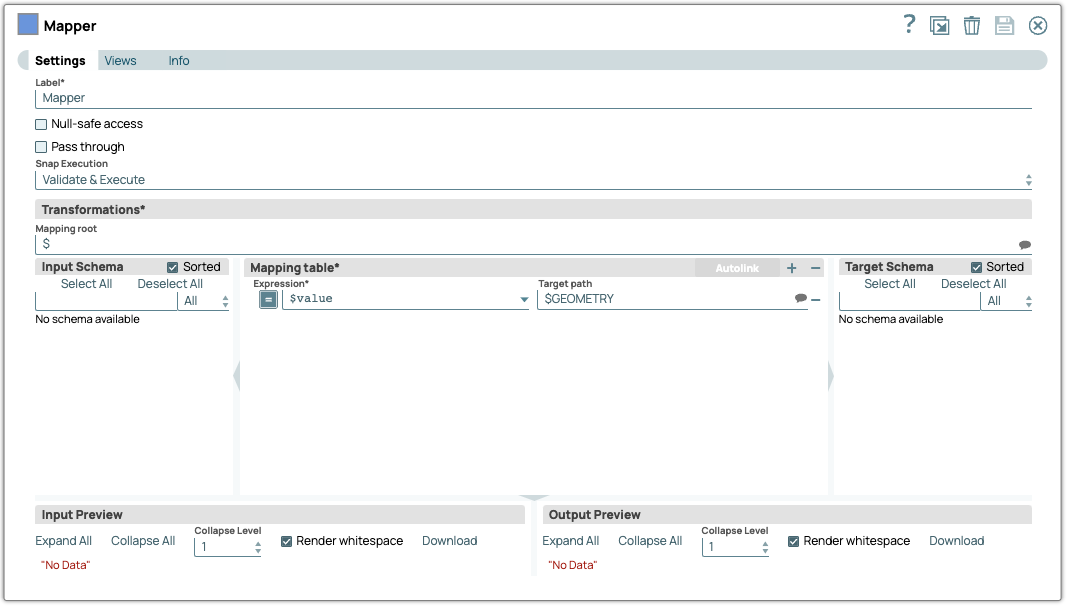
-
Parse input using WKT Parser Snap
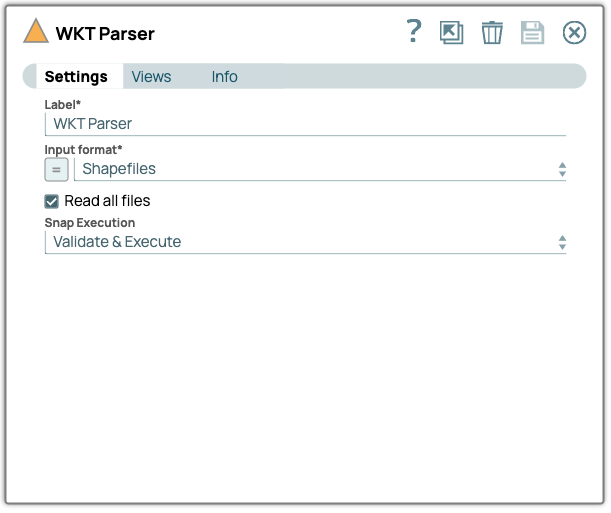
Upon validation, the output from the Mapper Snap is sent to the WKT Parser Snap, which parses the shapefiles.
-
Map parsed data using Mapper Snap
Next, the output from this is sent to the Mapper Snap, where we have mapped the data.
In this example, we’ve mapped the output document to the
GEOMETRYcolumn in our Snowflake table.
-
Configure Snowflake Snap for data load
Finally, we configure the Snowflake Snap with our SnapLogic Snowflake Account credentials and specify the Snowflake target schema and table in the
Schema NameandTable Namefields.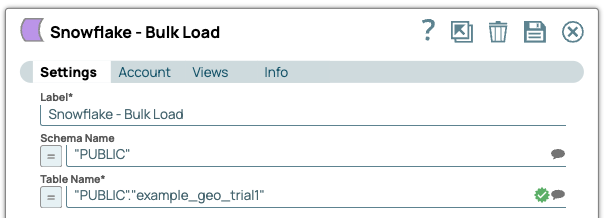
- Ensure the input ZIP file contains valid shapefiles (.shp).
- If the input file is in SLDB, map the content type using a Mapper Snap.
- Validate the WKT Parser output and map the data correctly to your Snowflake schema.