


Eloqua Create
Overview
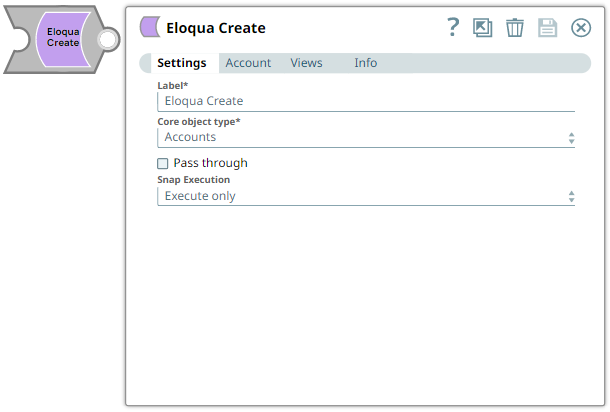
You can use this Snap to create an Eloqua object of a specified type by invoking an Eloqua REST API Create endpoint.
- This is a Write-type Snap.
 Works in Ultra Tasks
Snap views
| Type | Description | Examples of upstream and downstream Snaps |
|---|---|---|
| Input | The Snap invokes the Eloqua endpoint for the given object type once for each input document, using the document as the content sent to the endpoint. Check the Eloqua API documentation to understand the required and supported fields specific to the object type. Note that the Eloqua documentation is not very complete/accurate in this respect. | |
| Output | The Snap produces one document in the view for each successful call to the Eloqua endpoint. | |
| Learn more about Error handling. | ||
Snap settings
- Expression icon (
 ): Allows using
JavaScript syntax to access SnapLogic Expressions to set field values dynamically (if
enabled). If disabled, you can provide a static value. Learn more.
): Allows using
JavaScript syntax to access SnapLogic Expressions to set field values dynamically (if
enabled). If disabled, you can provide a static value. Learn more. - SnapGPT (
 ): Generates SnapLogic Expressions
based on natural language using SnapGPT. Learn
more.
): Generates SnapLogic Expressions
based on natural language using SnapGPT. Learn
more. - Suggestion icon (
 ): Populates a
list of values dynamically based on your Snap configuration. You can select only one
attribute at a time using the icon. Type into the field if it supports a comma-separated
list of values.
): Populates a
list of values dynamically based on your Snap configuration. You can select only one
attribute at a time using the icon. Type into the field if it supports a comma-separated
list of values. - Upload
 : Uploads files. Learn more.
| Field/Field set | Type | Description |
|---|---|---|
| Label
|
Required. Specify a unique name for the Snap. Modify this to be more appropriate, especially if more than one of the same Snaps is in the pipeline. Default value: Eloqua Create Example: Create Accounts |
|
| Core object type
|
Required. The type of core object to create. Options include Accounts, Contacts, Campaigns, Contact Lists, Custom Objects, Emails, Forms, Landing Pages, and more (version 1.0 and 2.0). Default value: Accounts Example: Contacts |
|
| Custom Object Metadata ID
|
Specify the ID of the metadata that must be associated with the Custom Object Data. Appears when Custom Object Data is selected in Core object type dropdown. Default value: None Example: 7 |
|
| Pass through
|
Select this checkbox to enable the Snap to pass the input document to the output view under the key Default value: Deselected |
|
| Snap execution
|
Choose one of the three modes in which the Snap
executes. Available options are:
Default value: Execute only Example: Validate & Execute |
|