


Workday Write
Overview
The Workday Write Snap writes objects into Workday based on the input document field values that match the Workday object schema field names as defined by the Workday Web Service Definition Language (WSDL).
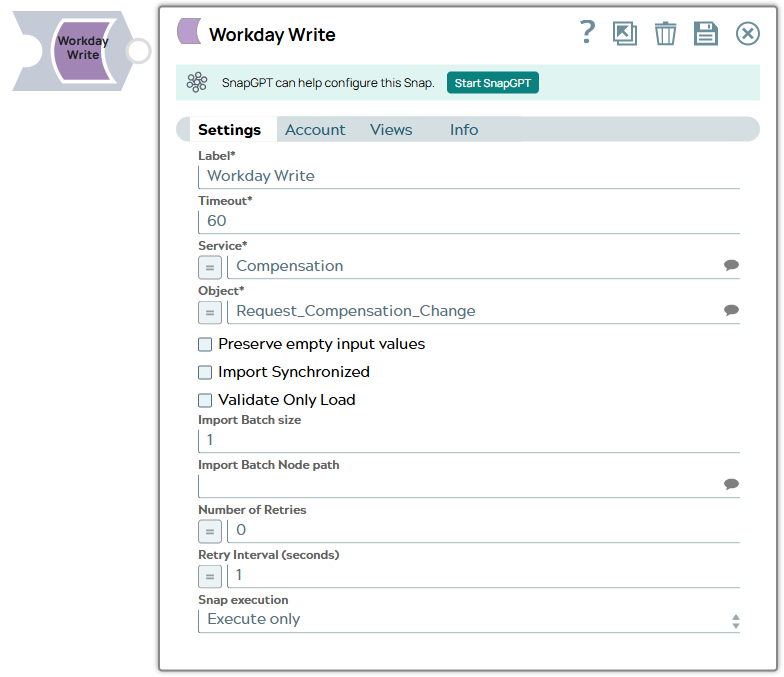
- The Snap collects user account information, Workday service information, and object input for the Workday server to process.
- The Snap transforms the input document data, matching the Workday input schema, to create and submit a SOAP request.
- On a successful Workday server response, the Snap converts the returned SOAP XML response into JSON for the output view.
- If there is an exception, the Snap writes an error to the output view.
- This is a Write-type Snap.
 Works in Ultra Tasks
Prerequisites
- You must have a Workday Account, data to query, and Workday security access to the objects. Contact your organization's Workday Security Administrator for proper access.
- Workday recommends using an Integration System User (commonly known as ISU) for use with APIs.
- A valid account with the required permissions.
Snap views
| Type | Format | Number of Views | Examples of Upstream and Downstream Snaps | Description |
|---|---|---|---|---|
| Input | Document |
Min: 1 Max: 1 |
This Snap has exactly one document input view. The fields that can be set on the object are provided in the input view of the Snap and can be mapped using an upstream Mapper Snap. |
|
| Output | Document |
Min: 1 Max: 1 |
This Snap has exactly one document output view. The output document represents the record structure of the retrieved Workday service object. |
|
| Learn more about Error handling. | ||||
Snap settings
- Expression icon (
 ): Allows using
pipeline parameters to set field values dynamically (if enabled). SnapLogic Expressions
are not supported. If disabled, you can provide a static value.
): Allows using
pipeline parameters to set field values dynamically (if enabled). SnapLogic Expressions
are not supported. If disabled, you can provide a static value. - SnapGPT (
 ): Generates SnapLogic Expressions
based on natural language using SnapGPT. Learn
more.
): Generates SnapLogic Expressions
based on natural language using SnapGPT. Learn
more. - Suggestion icon (
 ): Populates a
list of values dynamically based on your Snap configuration. You can select only one
attribute at a time using the icon. Type into the field if it supports a comma-separated
list of values.
): Populates a
list of values dynamically based on your Snap configuration. You can select only one
attribute at a time using the icon. Type into the field if it supports a comma-separated
list of values. - Upload
 : Uploads files. Learn more.
| Field/Field set | Description |
|---|---|
Label
String |
Specify a unique name for the Snap. Modify this to be more appropriate, especially if more than one of the same Snaps is in the pipeline. Default value: Workday Write Example: Workday Write |
Timeout
Integer |
Defines the timeout value for each Workday SOAP request. A value of 0 means no timeout.
Default value: 60 Example: 0 |
Service
String/Expression |
The service to be used. Though all available services are selectable, only Resource_Management, Revenue_Management, Financial_Management, Integrations, Cash_Management may have objects that provide cancellations.
Default value: N/A Example: Revenue_Management |
Object
String/Expression |
Required. The object to write. The field is suggestible once the account is defined. The objects will be suggested based on the selected service, such as selecting the service Payroll will retrieve all objects for Payroll that are retrievable from Workday.
Default value: N/A Example: Put_Alternate_Customer_Contract |
Preserve empty input values
Checkbox |
Select this checkbox to preserve empty input values when writing to Workday.
Default value: Deselected |
Import Synchronized
Checkbox |
Select this checkbox to use synchronous import. In a synchronized import, the current import request must complete before the next request can be initiated. In an asynchronous import, the next import request can be initiated immediately upon current request submission.
Default value: Deselected |
Validate Only
Checkbox |
Select this check box while working with import objects. This enables the Snap to upload processed data for validation without importing it into the endpoint. Once an authorized user review and validates the uploaded data, deselect this check box and execute the Pipeline to update the actual records in the endpoint.
Note: Select this check box only when working with import objects.
Default value: Deselected |
Import Batch size
Integer |
The number of documents to be batched together as a single request. This also requires the Import Batch Node path property.
Note: This is only for Import_ objects and does not affect other objects.
Default value: 1 Example: 5 |
Import Batch Node path
String/Expression/ Suggestion |
The node path of the soap message under which the documents need to be batched. The suggested option accesses schema on its input view or through an upstream reference.
Note: This is applicable to Import objects only and does not affect the other objects.
Default value: N/A |
Number of Retries
Integer/Expression |
Enter the integer value to specify the number of attempts the snap should make to perform the selected operation in case of connection failure or timeout.
Minimum value: 0 Default value: 0 Example: 3 |
Retry Intervals (seconds)
Integer/Expression |
Enter the time interval in seconds between retry attempts.
Minimum value: 1 Default value: 1 Example: 3 |
Snap execution
Dropdown list |
Choose one of the three modes in
which the Snap executes. Available options are:
|
Typical Snap Configurations
The key configuration of the Snap lies in how the statements are passed to write the Workday objects. As it applies in SnapLogic, the statements can be passed in the following manner:
Without Expression
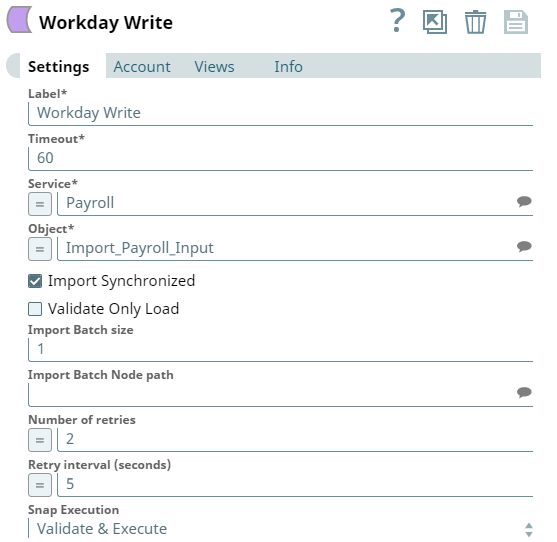
In this pipeline, the Workday Write Snap writes the objects from a specified Object.
With Expression
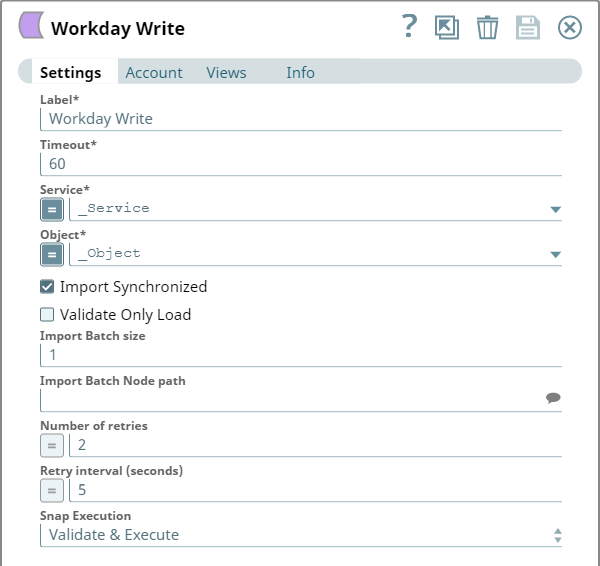
- Pipeline Parameters: In the below pipeline, the Workday Write Snap uses the values as set in the pipeline parameters.
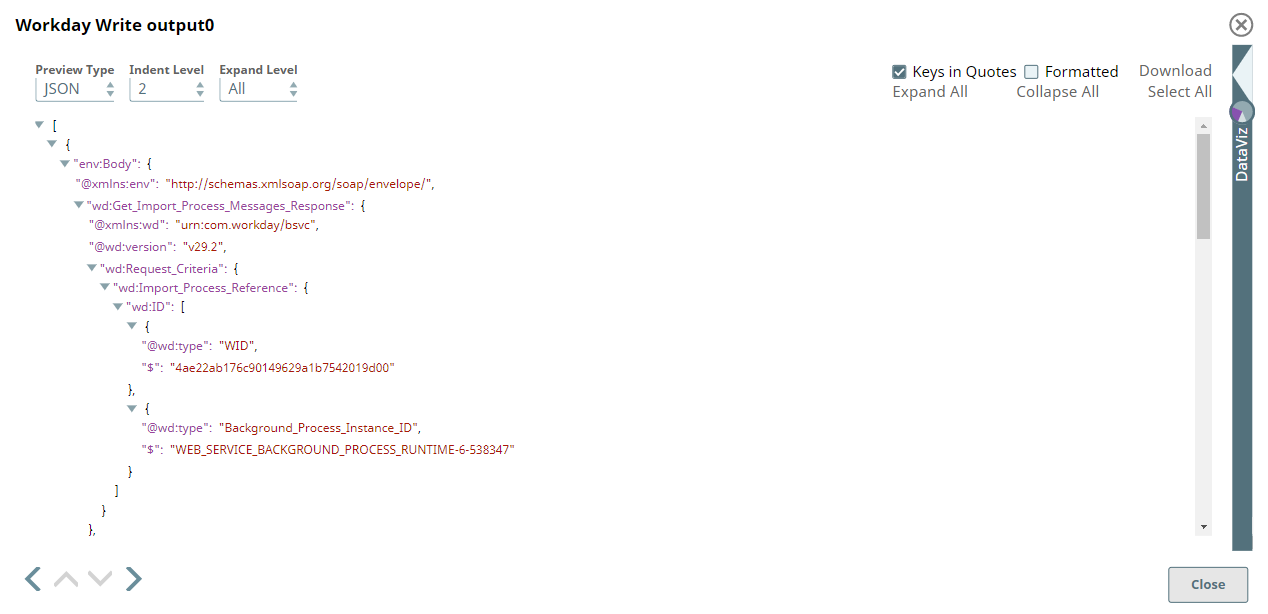
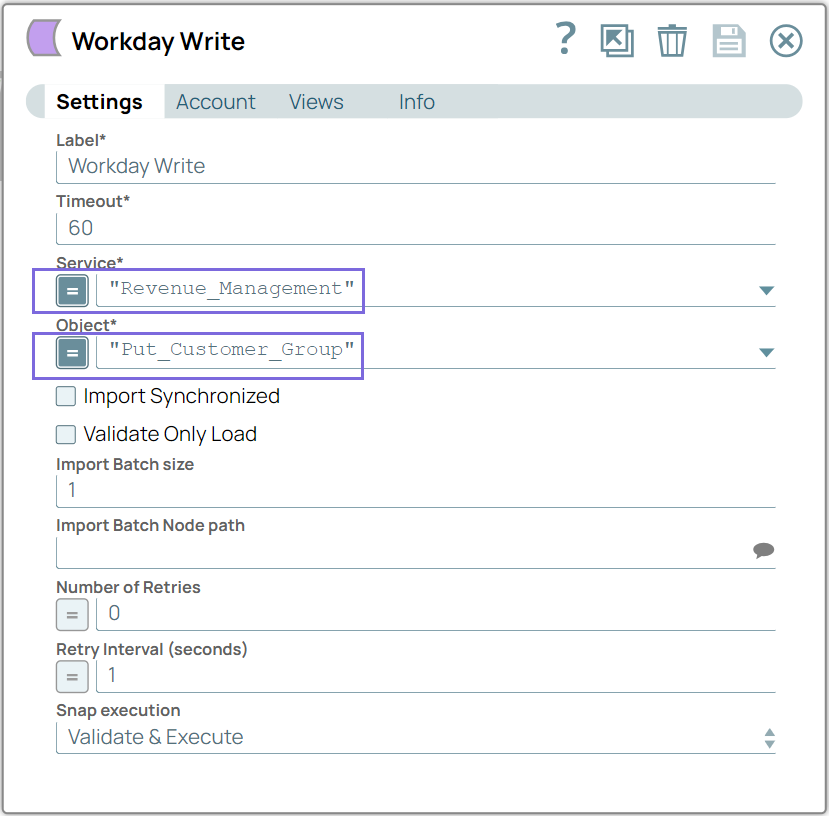
- With specific Parameters in Settings: In the below pipeline, the Workday Write Snap uses the values you provide in Settings in quotes.
Troubleshooting
Ensure that the capitalization of the keys in the input document matches the capitalization of the WSDL elements. If the upstream source does not use the same case for some reason, a Mapper can be used to handle the conversion as a workaround.
| Error | Cause | Resolution |
|---|---|---|
| HTTP/1.1 407 Proxy Authentication required. | The Snap is unable to tunnel through proxy. | Add the following key-value pair values to your Groundplex configuration and restart the plex to reflect the changes.
Key: Value: |