


Salesforce SOSL
Overview
The Salesforce SOSL Snap searches Salesforce objects and fields by defining search statements in Salesforce Object Search Language (SOSL).
You can use this Snap to search Salesforce objects and fields from Salesforce by defining the search statement in the SOSL. The Snap uses the REST API to perform the search. See Introduction to SOQL and SOSL for more information.
- This is a Read-type Snap.
 Works in Ultra Tasks
Supported Accounts
Snap views
| Type | Description | Examples of upstream and downstream Snaps |
|---|---|---|
| Input |
This Snap has at most one document input view. SOSL statement. |
|
| Output |
This Snap has exactly one document output view. Salesforce records in Salesforce Object Search results (SOSL). |
|
| Learn more about Error handling. | ||
Snap settings
- Expression icon (
 ): Allows using
pipeline parameters to set field values dynamically (if enabled). SnapLogic Expressions
are not supported. If disabled, you can provide a static value.
): Allows using
pipeline parameters to set field values dynamically (if enabled). SnapLogic Expressions
are not supported. If disabled, you can provide a static value. - SnapGPT (
 ): Generates SnapLogic Expressions
based on natural language using SnapGPT. Learn
more.
): Generates SnapLogic Expressions
based on natural language using SnapGPT. Learn
more. - Suggestion icon (
 ): Populates a
list of values dynamically based on your Snap configuration. You can select only one
attribute at a time using the icon. Type into the field if it supports a comma-separated
list of values.
): Populates a
list of values dynamically based on your Snap configuration. You can select only one
attribute at a time using the icon. Type into the field if it supports a comma-separated
list of values. - Upload
 : Uploads files. Learn more.
| Field/Field set | Description |
|---|---|
Label
String |
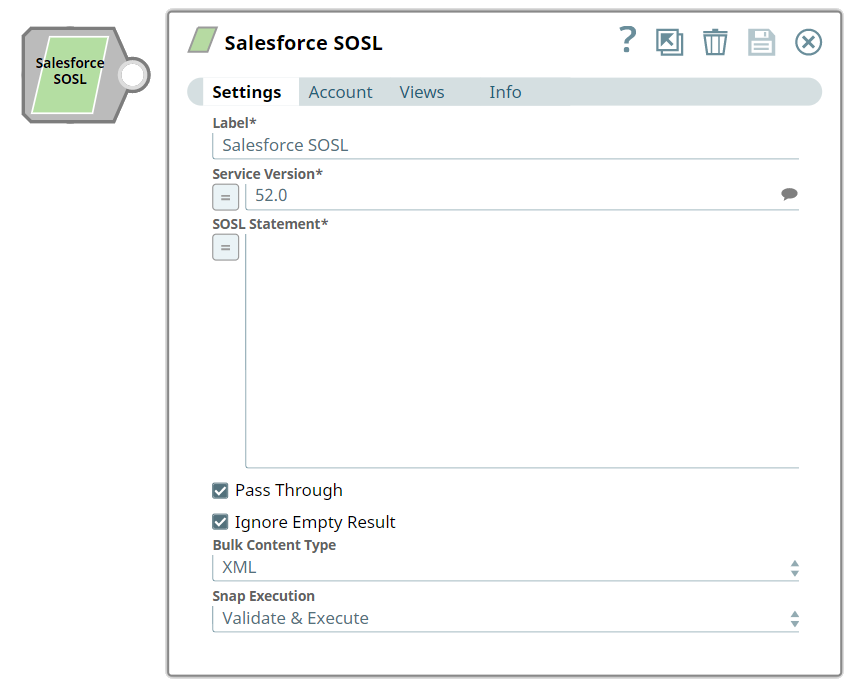
Required. The name for the Snap. You can modify this to be more specific, especially if you have more than one of the same Snap in your pipeline. Default value: Salesforce SOSL Example: Salesforce SOSL |
Service version
String/Expression/ Suggestion |
Required. Specify the version number associated with the Salesforce service that you want to connect to. Alternatively, click the Suggestion icon to view the list of versions associated with your account and select a version. Default value: 34.0 Example: 34.0 |
SOSL statement
String/Expression |
Required. Enables you to specify the following for source objects:
Refer to the SOSL Queries documentation for more information on SOSL. Default value: N/A Example: FIND {map*} IN ALL FIELDS RETURNING Account (Id, Name), Contact, Opportunity, Lead |
Pass through
Checkbox |
Select this checkbox to include the entire input data in the Snap's output. The Snap includes this data within the If you deselect this checkbox, the input document will not be passed and there is no Default value: Selected |
Ignore empty result
Checkbox |
If selected, no document will be written to the output view when the operation does not produce any result. If this property is not selected and Pass through is selected, the input document will be passed through to the output view. Default value: Selected |
Bulk content type
Dropdown list |
Select the content type for Bulk API: JSON or XML. Note: The numeric type field values will be read as numbers in JSON content type, and as strings in XML content type, in the output documents. JSON content type for Bulk API is available in Salesforce API version 36.0 or higher. In preview mode, the Snap always executes in REST API, and this property value will have no effect. In REST API, number-type field values will always be read as numbers. If the Bulk API has been selected along with 100,000/ 250,000 as batch size value, the content-type will always be CSV regardless of the value set in this property.
Default value: XML Example: JSON |
Snap execution
Dropdown list |
Choose one of the three modes in
which the Snap executes. Available options are:
|