


Google Sheets Reader
Overview
The Google Sheets Reader Snap reads a worksheet from the specified spreadsheet.
- This is a Read-type Snap.
 Works in Ultra Tasks
Prerequisites
- A valid account with the required permissions.
Limitations
- If the spreadsheet or worksheet that you want to read contains one or more leading or trailing spaces, the Google Sheets Reader Snap displays an error. Workaround: Enclose the names of the spreadsheet and worksheet in quotes (") and enable expressions for both Spreadsheet and Worksheet fields. For example,
"Sheet 1". - If you select Preserve Data Types and name the worksheet similar to the Google spreadsheet column-row range (for example, AB123), then you may receive a bad request error.
- When you provide a Spreadsheet ID to fetch data, and if a Spreadsheet with the same ID already exists as the Spreadsheet name, then the Google Sheets Reader Snap fails to fetch the data of the specified Spreadsheet ID. The Snap fails with an error:
Failed to read the worksheet '<spreadsheetID>' in the spreadsheet.Hence, if you want to fetch data of the specified Spreadsheet ID, ensure that you specify a uniqueSpreadsheetNameorSpreadsheetNamewithSpreadsheet ID. - Inputs without any format restrictions are accepted when the expression toggle is enabled and a Pipeline parameter is provided for the following fields:
- Number of Retries
- Retry Interval
- Read timeout in seconds
- Connection timeout in seconds
Known issues
A long-standing bug in the Google Sheets endpoint does not allow the use of a colon ':' in the worksheet names; hence, these inputs are not supported.
Snap views
| Type | Description | Examples of upstream and downstream Snaps |
|---|---|---|
| Input |
This Snap has at most one document input view. The name of the worksheet to be read, including the base folder and spreadsheet information. |
|
| Output |
This Snap has exactly one document output view. The data of the specified worksheet. |
|
| Learn more about Error handling. | ||
Snap settings
- Expression icon (
 ): Allows using
pipeline parameters to set field values dynamically (if enabled). SnapLogic Expressions
are not supported. If disabled, you can provide a static value.
): Allows using
pipeline parameters to set field values dynamically (if enabled). SnapLogic Expressions
are not supported. If disabled, you can provide a static value. - SnapGPT (
 ): Generates SnapLogic Expressions
based on natural language using SnapGPT. Learn
more.
): Generates SnapLogic Expressions
based on natural language using SnapGPT. Learn
more. - Suggestion icon (
 ): Populates a
list of values dynamically based on your Snap configuration. You can select only one
attribute at a time using the icon. Type into the field if it supports a comma-separated
list of values.
): Populates a
list of values dynamically based on your Snap configuration. You can select only one
attribute at a time using the icon. Type into the field if it supports a comma-separated
list of values. - Upload
 : Uploads files. Learn more.
| Field/Field set | Description |
|---|---|
Label
String |
Specify a unique name for the Snap. Modify this to be more appropriate, especially if more than one of the same Snaps is in the pipeline. Default value: Google Sheets Reader Example: Read Sheet1 |
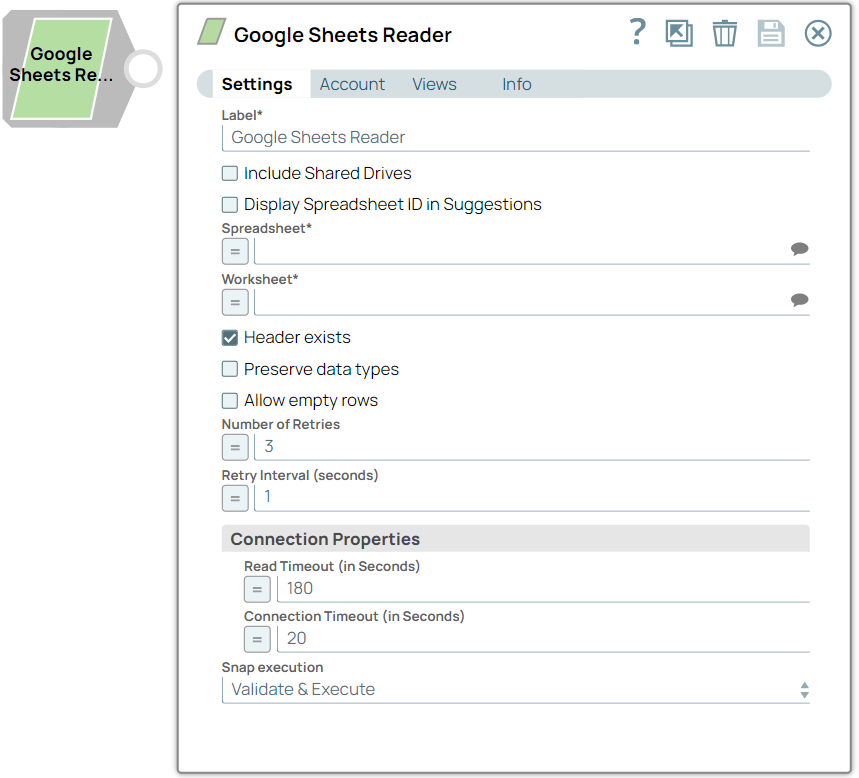
Include Shared Drives
Checkbox |
Select this checkbox to read files from the shared drive. Deselect this checkbox if you do not want the Snap to read files from the shared drive.
Default value: Deselected Example: Selected |
Display Spreadsheet ID in Suggestions
Checkbox |
Select this checkbox to display the Spreadsheet ID along with the Spreadsheet name in the Spreadsheets Suggestions list.
Default value: Deselected Example: Selected |
Spreadsheet*
String/Expression/ Suggestion |
Required. Specify the name of the spreadsheet containing the worksheet to be read. Alternatively, click the Suggestion icon to populate the list of spreadsheets associated to the account and select the required spreadsheet.
Default value: N/A Example: My Google Sheet |
Worksheet*
String/Expression/ Suggestion |
Required. Specify the name of the worksheet to be read. Alternatively, click the Suggestion icon to populate the list of worksheets associated to the account and select the required worksheet.
Note:
Default value: N/A Example: Sheet 1 |
Header exists
Checkbox |
Select this checkbox if the worksheet's first row is a header.
Default value: Selected Example: Deselected |
Preserve data types
Checkbox |
This Snap converts all input data types to strings. Select this check box to preserve the data type of the data coming into this Snap.
Note: We recommend that you deselect this checkbox if the file to be read is large (more than 50K rows in one sheet), as it makes the Snap read the data faster.
Default value: Deselected Example: Selected |
Allow empty rows
Checkbox |
Google Sheets Reader Snap fetches only those rows that have data and ignores the empty rows. Select this checkbox to fetch empty rows between the rows that contain data.
Default value: Deselected Example: Selected |
Number of Retries
Integer/Expression |
Specify the maximum number of retry attempts that the Snap must make to read the worksheet.
Default value: 3 Example: 3 |
Retry Interval (seconds)
Integer/Expression |
Specify the time interval in seconds for each retry attempt.
Default value: 1 Example: 1 |
| Connection properties | Settings for connection timeouts. |
Read timeout in seconds
Integer/Expression |
Specify the time in seconds. In the event of a connection failure, the Snap stops trying to read the data after the specified time.
Default value: 180 Example: 100 |
Connection timeout in seconds
Integer/Expression |
Specify the time in seconds. In the event of a connection failure, the Snap stops a connection attempt after the specified time. For example, if the HTTP timeout is set to 30 seconds, and the Snap fails to establish a connection until 30 seconds, the pipeline logs a timeout exception and aborts execution.
Default value: 20 Example: 10 |
Snap execution
Dropdown list |
Choose one of the three modes in
which the Snap executes. Available options are:
|