


View and navigate broadcast notices
Read broadcast messages from the notification bell, and open the Notification Center that holds them.
The notification bell next to your user name lists the broadcast notices created by Environment
admins. A count on the bell shows the total of unread notices:
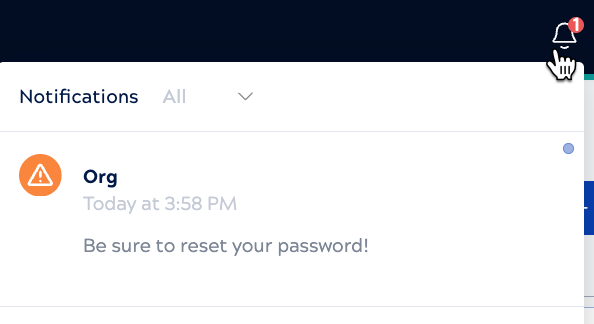
Each notification shows the message and how long ago it arrived. Click a message to mark it as read. By default, the list shows All messages. To hide the ones you've marked as read, select Unread from the filter. To open the Notification Center for the environment you're working in, click View all in Notification Center at the end of the list.
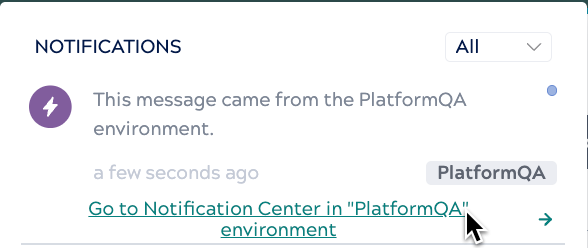
A message from another environment carries a badge naming that environment, and its own link to the
Notification Center there:
To follow the link on a message from another environment:
To follow the link on a message from another environment:
- Click the link on the message, for example Go to Notification Center in "PlatformQA" environment.
- Confirm the switch in the Change environment dialog:
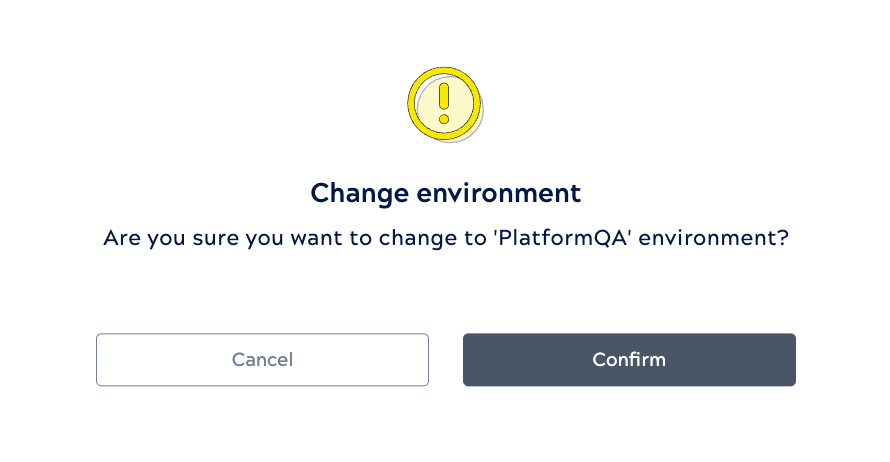
Click Confirm, and that environment's Notification Center opens in a new browser tab, which leaves the original environment open in the tab you were using. Click Cancel to stay where you are.