


HDFS ZipFile Writer
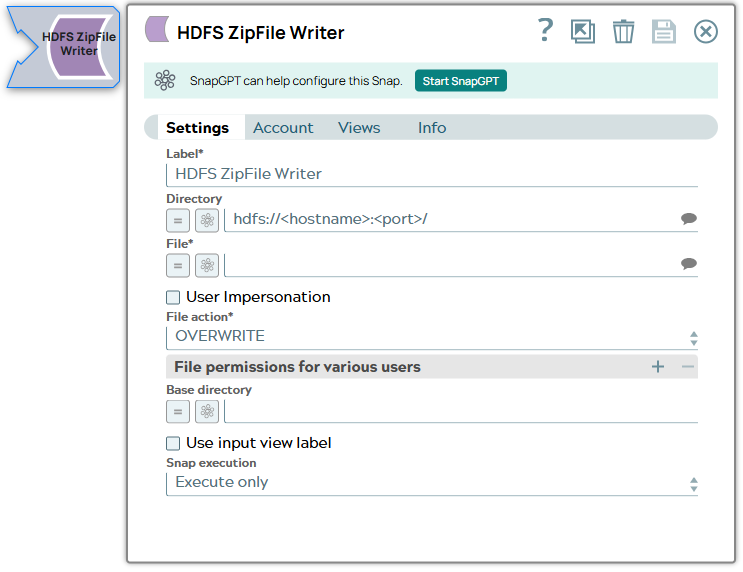
The HDFS ZipFile Writer Snap reads in-coming data and writes it to a ZIP file in an HDFS directory.
Overview
Use the HDFS ZipFile Writer Snap to read in-coming data and write it to a ZIP file in an HDFS directory. This Snap also enables you to specify file access permissions for the new ZIP file. You can also configure how the Snap handles the new ZIP file if the destination directory already has another ZIP file with the same name.
For the HDFS protocol, use a SnapLogic on-premises Groundplex and ensure that its instance is within the Hadoop cluster and that SSH authentication is established.
Prerequisites
The user executing the Snap must have Write permissions on the concerned directory.
Supported Accounts
Snap views
| Type | Format | Number of Views | Examples of Upstream and Downstream Snaps | Description |
|---|---|---|---|---|
| Input | Binary | Min: 1 Max: 1 |
|
Binary data stream containing documents to be written to a ZIP file. |
| Output | Document | Min: 0 Max: 1 |
|
Zipped file containing the incoming documents. |
| Error | Error handling is a generic way to
handle errors without losing data or failing the Snap execution. You
can handle the errors that the Snap might encounter while running
the Pipeline by choosing one of the following options from the
When errors occur list under the Views tab:
Learn more about Error handling in Pipelines. |
|||
Modes
- Ultra Pipelines: Works in Ultra Pipelines.
Snap settings
| Field/Field set | Description |
|---|---|
| Label
|
Specify a unique name for the Snap. Modify this to be more appropriate, especially if more than one of the same Snaps is in the pipeline. Default value: HDFS ZipFile Writer Example: HDFS ZipFile Writer |
| Directory
|
The URL for the data source (directory). The Snap supports both HDFS and ABFS(S) protocols. Syntax for a typical HDFS URL: Syntax for a typical ABFS and an ABFSS URL: When you use the ABFS protocol to connect to an endpoint, the account name and endpoint details provided in the URL override the corresponding values in the Account Settings fields. Note: With the ABFS protocol, SnapLogic creates a temporary file to
store the incoming data. Therefore, the hard drive where the JCC
is running should have enough space to temporarily store all the
account data coming in from ABFS.
Default value: [None] |
| File
|
The relative path and name of the file that must be created post execution.
Example: Default value: [None] |
| User Impersonation
|
Select this check box to enable user impersonation. Note: For encryption zones, use user impersonation.
Default value: Not selected |
| File Action
|
Required. Use this field to specify what you want the Snap to do if the file you want it to create already exists. Available options are: Overwrite, Ignore, and Error.
Default value: Overwrite |
| File Permissions |
File permission sets to be assigned to the file. To assign file permissions:
|
| Base directory
|
Enter here the name of the root directory in the ZIP file. |
| Use input view label
|
If selected, the input view label is used for all names of the files added to the zip file. Otherwise, the input view ID is used instead, when input the binary stream does not have its content-location in its header. When this option is selected, if there are more than one binary input streams in an input view, for the second input stream and after, the file names will be the input view label appended with '_n'. If the label is in the format of 'name.ext', '_n' will be append to the 'name', e.g. name_2.ext for the second input stream. Example: If this option is selected, if Base directory is testFolder and the input view label is test.csv, the file name for the first binary input stream in that input view will be testFolder/test.csv, and the second, testFolder/test_2.csv, and the third, testFolder/test_3.csv, and so on. Default value: Not selected |
| Snap Execution
|
Choose one of the three modes in
which the Snap executes. Available options are:
Default value: Execute only Example: Validate & Execute |
Troubleshooting
Writing to S3 files with HDFS version CDH 5.8 or later
When running HDFS version later than CDH 5.8, the Hadoop Snap Pack may fail to write to S3 files. To overcome this, make the following changes in the Cloudera manager:
- Go to HDFS configuration.
- In Cluster-wide Advanced Configuration Snippet (Safety Valve) for
core-site.xml, add an entry with the following details:
- Name: fs.s3a.threads.max
- Value: 15
- Click Save.
- Restart all the nodes.
- Under Restart Stale Services, select Re-deploy client configuration.
- Click Restart Now.