


Azure Synapse SQL Entra Account
Overview
You can use this account type to connect Azure Synapse SQL Snaps with data sources that use Azure Synapse SQL Entra account.
Prerequisites
None.
Limitations
None.
Known issues
None.
Account settings
- Expression icon (
 ): Allows using
JavaScript syntax to access SnapLogic Expressions to set field values dynamically (if
enabled). If disabled, you can provide a static value. Learn more.
): Allows using
JavaScript syntax to access SnapLogic Expressions to set field values dynamically (if
enabled). If disabled, you can provide a static value. Learn more. - SnapGPT (
 ): Generates SnapLogic Expressions
based on natural language using SnapGPT. Learn
more.
): Generates SnapLogic Expressions
based on natural language using SnapGPT. Learn
more. - Suggestion icon (
 ): Populates a
list of values dynamically based on your Snap configuration. You can select only one
attribute at a time using the icon. Type into the field if it supports a comma-separated
list of values.
): Populates a
list of values dynamically based on your Snap configuration. You can select only one
attribute at a time using the icon. Type into the field if it supports a comma-separated
list of values. - Upload
 : Uploads files. Learn more.
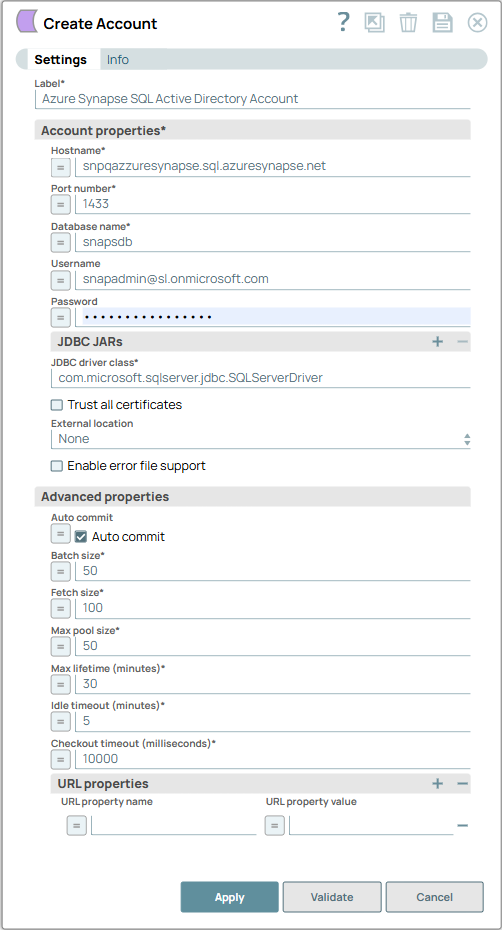
This account type provides authentication using Azure Active Directory (now known as Microsoft Entra ID) for connecting to Azure Synapse SQL databases.
| Field/Field set | Description |
|---|---|
Label*
String |
Specify a unique label for the account. Default value: None. Example: Azure Synapse SQL Entra Account |
Account properties*
Fieldset |
|
Hostname*
String/Expression |
Specify the server's address to which you must connect. Default value: N/A Example: sl-synapse.sql.azuresynapse.net |
Port number*
Integer/Expression |
Specify the port number of the database server to which you must connect. Default value: N/A Example: 1433 |
Database name*
String/Expression |
Specify the name of the database to which you must connect. Default value: N/A Example: Synapse SQL |
JDBC JARs
Fieldset |
|
JDBC driver
String |
Specify the driver to use for your application. By default, the latest JDBC driver 12.2.0.jre11 is bundled with the Azure Synapse SQL Account. However, you can manually upload a custom JAR file. Default value: N/A Example: mssql-jdbc-11.2.0.jre11.jar |
JDBC driver class*
String |
Specify the fully qualified name of the driver class to be used for connecting to the server. Default value: com.microsoft.sqlserver.jdbc.SQLServerDriver Example: com.microsoft.sqlserver.jdbc.SQLServerDriver |
Trust all certificates
Checkbox |
Select this checkbox if all SSL certificates are to be accepted for connecting to the database. Default value: Deselected |
External location
Dropdown list |
Select one of the following options to set the external location for staging data:
Default value: None Example: Blob Storage |
External storage endpoint
String/Expression |
Appears on selecting Blob Storage or Azure Data Lake Gen2 for External location. Specify the endpoint path for the selected external location. Default value: N/A Example: blob.core.windows.net (for Blob Storage) or dfs.core.windows.net (for ADLS Gen2) |
Storage Account
String/Expression |
Appears on selecting Blob Storage or Azure Data Lake Gen2 for External location. Specify your Account name to access the selected Azure external storage location. Default value: N/A Example: adlsgen2v02 |
Azure container
String/Expression |
Appears on selecting Blob Storage or Azure Data Lake Gen2 for External location. Specify the name of the container in the Azure storage account. Default value: N/A Example: hrdepartment |
Azure folder
String/Expression |
Appears on selecting Blob Storage or Azure Data Lake Gen2 for External location. Specify the relative path for the folder within the container specified above. Leave this field blank to use all the folders in the specified container. Default value: N/A Example: salaries |
Azure auth type
Dropdown list |
Appears on selecting Blob Storage or Azure Data Lake Gen2 for External location. Select the authentication type to use for accessing the selected Azure external storage location. Then, provide the values for Azure Identify and Azure Secret fields or the selected authentication type. Available options are:
Learn more about authentication types: COPY INTO (Transact-SQL) in Microsoft Docs. Default value: Access Key Example: Shared Access Signature |
Azure identity
String/Expression |
Appears on selecting Blob Storage or Azure Data Lake Gen2 for External location. Specify the Azure Identity to access the selected external storage location. If the Azure Auth Type is:
The minimum RBAC roles required are Storage blob data contributor or Storage blob data owner for the AAD registered SQL Database server. Default value: N/A Example: Storage Account Key |
Azure secret
String/Expression |
Appears on selecting Blob Storage or Azure Data Lake Gen2 for External location. Specify the Azure Secret corresponding to the selected authentication type. If the Azure Auth Type is:
Learn more about the expected values for this field: COPY INTO (Transact-SQL) in Microsoft Docs. Default value: N/A Example: UvhVF65Bukk9hVF65BuUvhVF |
Enable error file support
Checkbox |
Select this checkbox to specify the directory within the COPY statement where the rejected rows and the corresponding error file should be written. The error file only applies to CSV file formats. Default value: Deselected |
Error file Azure folder
String/Expression |
Appears when you select Enable error file support. Specify a valid path to a folder in the Azure container. You can specify the full path from the storage account or specify the path relative to the container. Default value: N/A |
Use new Azure account for error file
Checkbox |
Appears when you select Enable error file support. Select this checkbox if you need to configure a new account. Deselect this checkbox if the error file is in the same Azure storage account as configured. Default value: Deselected |
Error file external location
Dropdown list |
Appears when you select Use new Azure account for error file. Choose either of the following external locations where the files containing the data is staged:
Default value: Blob Storage Example: Azure Data Lake Gen2 |
External storage endpoint
String/Expression |
Appears when you select Use new Azure account for error file. Specify the endpoint in your external location path. Default value: N/A Example: blob.core.windows.net or dfs.core.windows.net |
Error file storage account
String/Expression |
Appears when you select Use new Azure account for error file. Specify a valid Azure Storage Account. Default value: N/A Example: snaps_strg_account |
Error file Azure container
String/Expression |
Appears when you select Use new Azure account for error file. Specify a valid Azure Container to use for staging data. Default value: N/A Example: snaps_container |
Error file Azure auth type
Dropdown list |
Appears when you select Use new Azure account for error file. Choose the authorization type to access the error file in Azure Synapse:
Default value: Access Key Example: Managed Identity |
Error file Azure identity
String/Expression |
Appears when you select Use new Azure account for error file. Specify the Azure Identity that is part of the credential that specifies the authentication mechanism to access the external storage account. Default value: N/A Example: <Encrypted> |
Error file Azure secret
String/Expression |
Appears when you select Use new Azure account for error file. Secret is part of the credential that specifies the authentication mechanism to access the external storage account. Default value: N/A Example: <Encrypted> |
Advanced properties
Fieldset |
|
Auto commit
Checkbox/Expression |
Select this checkbox to commit each batch immediately after it is executed. If the Snap fails, only the batch being executed at that moment is rolled back. Deselect this checkbox to commit the execution output only after the execution of all batches is complete. If the Snap fails, the entire transaction is rolled back, unless the Snap finds invalid input data before it sends the insert request to the server, and routes the error documents to the Error view. Default value: Selected |
Batch size*
Integer/Expression |
Specify the number of statements to execute at a time. Select queries are not batched. Using a large batch size could use up the JDBC placeholder limit of 2100. Default value: 50 Example: 60 |
Fetch size*
Integer/Expression |
Specify the number of rows to fetch at a time when executing a query. Large values could cause the server to run out of memory. Default value: 100 Example: 80 |
Max pool size*
Integer/Expression |
Specify the maximum number of connections a pool must maintain at a time. Default value: 50 Example: 60 |
Max lifetime (minutes)*
Integer/Expression |
Specify the maximum lifetime (in minutes) of a connection in the pool. Ensure that the value you enter is a few seconds shorter than any database or infrastructure-imposed connection time limit. A value of 0 indicates an infinite lifetime, subject to the Idle Timeout value. An in-use connection is never retired. Connections are removed only after they are closed. Default value: 30 Example: 50 |
Idle timeout (minutes)*
Integer/Expression |
Specify the maximum time period (in minutes) a connection is allowed to sit idle in the pool. A value of 0 indicates that idle connections are never removed from the pool. Default value: 5 Example: 8 |
Checkout timeout (milliseconds)*
Integer/Expression |
Specify the timeout (in milliseconds) to wait for a connection to be available when the pool is exhausted. A value of zero waits infinitely—an exception is thrown after the wait time has expired. Default value: 10000 Example: 8000 |
URL properties
Fieldset |
|
URL property name
String/Expression |
Specify a name for the URL property if any. Default value: N/A |
URL property value
String/Expression |
Specify the value for the URL property. Default value: N/A |