You need a supported MCP client already installed (Claude Code, Cursor, or VS Code).
This procedure opens a server's detail page from the catalog and copies a ready-to-use connection
configuration into your client. This is the fastest path to connecting a client to a
server published in Discovery Hub. If you already have a server's URL from SnapLogic
Manager and want to configure a client manually instead, see Get Server URL and Connect Client.
-
In the catalog, click View details on a server's card or row to
open its detail page.
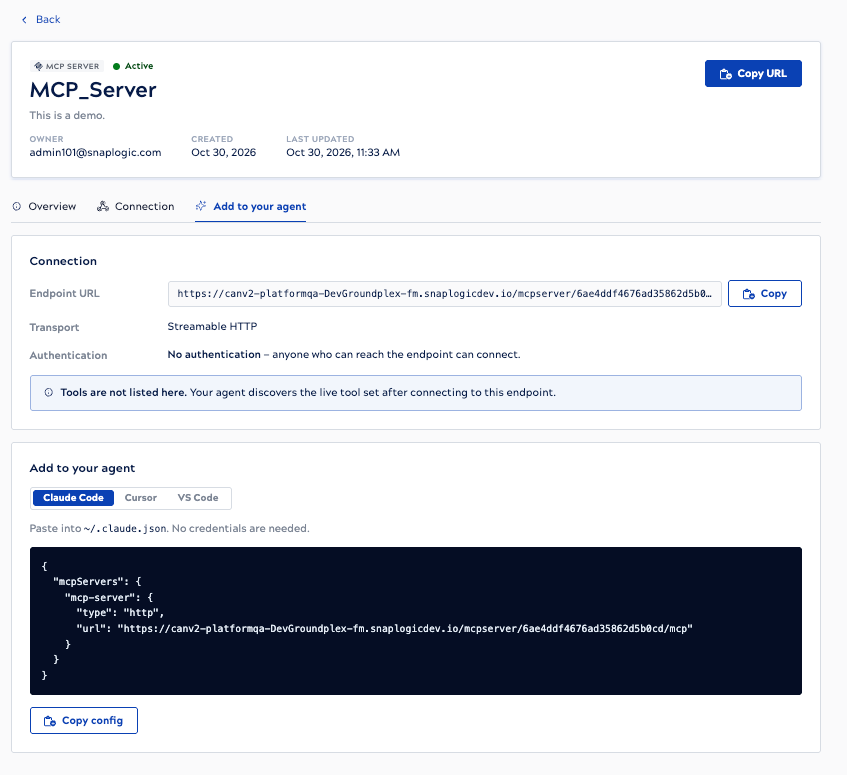
The header shows the server's type, status, name, description, owner, and creation
and last-updated timestamps, plus a Copy URL button. Below the
header, the page is organized into three sections: Overview,
Connection, and Add to your agent.
-
Review the Overview section.
Shows the same description, owner, and timestamp details as the header.
-
Review the Connection section.
Shows the Endpoint URL (with its own
Copy button), Transport (
Streamable HTTP), and Authentication —
the method configured for this server:
- OAuth 2.1: Your client completes OAuth authorization on its first
connection to the server.
- API token: You supply a token when you configure your client.
- No authentication: Anyone who can reach the endpoint can connect — no
credentials are needed.
Authentication is negotiated directly between your client and the server — Discovery
Hub itself never holds your credentials.
A note on this section reminds you that tools aren't listed here: your agent
discovers the live tool set after it connects to the endpoint.
-
Open the Add to your agent section and select your client:
Claude Code, Cursor, or VS
Code.
The paste instructions and configuration shown are specific to the selected client and
to this server's authentication method — for example, a server with no authentication
configured shows a config block with no credential fields to fill in.
-
Click Copy config.
Copies a client-specific configuration block preloaded with this server's connection
details. The top-level wrapper differs by client:
Claude Code and Cursor use mcpServers:
{
  "mcpServers": {
    "<server-name>": {
      "type": "http",
      "url": "<server-endpoint-url>"
    }
  }
}
VS Code uses servers instead:
{
  "servers": {
    "<server-name>": {
      "type": "http",
      "url": "<server-endpoint-url>"
    }
  }
}
Paste the block Discovery Hub generates for your selected client as-is — don't reuse
the Claude Code or Cursor wrapper for a VS Code configuration, or the server won't
register.
-
Paste the copied configuration into your client's configuration file.
- Claude Code: ~/.claude.json
- Cursor: ~/.cursor/mcp.json
- VS Code: .vscode/mcp.json
-
If the server uses an API token, add the token to the pasted configuration before
connecting.
Discovery Hub doesn't store or supply credentials, so the copied configuration has no
token filled in. Obtain the token from the server's owner, then add it in the location
your client expects (for example, a header or an environment variable in the client
configuration). The client can't authenticate until the token is in place.
For OAuth 2.1 and no-authentication servers, the client completes the connection as soon
as you start it — OAuth authorization happens automatically on first connection, and no
credentials are needed otherwise. For an API-token server, the client connects once the
token you added is valid. Once connected, the client discovers available tools
automatically by calling tools/list — Discovery Hub doesn't list
individual tools on the detail page.