


MongoDB Find
This Snap executes a MongoDB find command and outputs the results as documents.
Overview
This Snap executes a MongoDB find command and outputs the results as documents.
Supported Accounts
- This is a Read-type Snap.
Prerequisites
None.
Limitations and known issues
None.
Snap views
| Type | Description | Examples of upstream and downstream Snaps |
|---|---|---|
| Input | Optional. This Snap has at most one document input view. If the input view is defined, then values will be used to evaluate the expression in the query condition. | |
| Output | This Snap has exactly one document output view. | |
| Learn more about Error handling. | ||
Snap settings
| Field/Field set | Description |
|---|---|
Label String |
Specify a unique name for the Snap. Modify this to
be more appropriate, especially if there are more than one of the same Snap in the
pipeline.
Default value: MongoDB - Find Example: Find Customer Records |
Database name String/Expression/ Suggestion |
The database that the collection is defined in. If not specified, then the MongoDB account database will be used. Default value: N/A Example: assets |
Collection name String/Expression/ Suggestion |
Required. The MongoDB collection name to execute the find on. Default value: N/A Example: users |
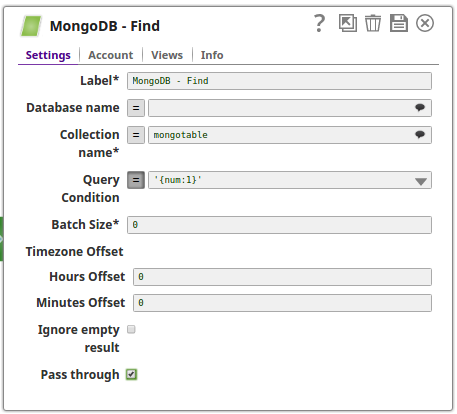
Query Condition String/Expression |
The query condition represents the find query parameter. It is an expression that evaluates to an object or JSON string. If no query condition is defined, then all records of the collection will be retrieved. When the expression evaluates to an object, only strict mode is supported. When the expression evaluates to a JSON string, both strict mode and mongo shell mode are supported. More information about MongoDB Extended JSON can be found here. Example: (with '=' button pressed/expression enabled) $id represents an integer in this example.
or
Note:
To support date/time strings and to correctly parse dates, the current version of the MongoDB requires a timezone. Example: 2013-08-29T17:56:44.161<Z>, where "Z" is the time offset. Default value: N/A |
Projection Condition String/Expression |
Specifies which fields must be returned in the matching documents. You can include or exclude fields. You can use the following values:
Note: A Projection Condition cannot contain both include and exclude specifications.
Default value: N/A Example: {age:0, status:0} |
Sort Condition String/Expression |
Orders the documents in the result set. To use multiple sort orders, enter comma-separated sort conditions. Default value: N/A Example: {age: -1} |
Batch Size Integer |
Required. This property limits the number of documents returned in a batch. More can be read here. The definition of this property is different from the same property in other DB Snaps. Assume Batch size is n,
In MongoDB 3.4, the batch buffer size is 16MB. In previous versions, the batch buffer size is 4MB. The initial batch will always return a maximum of 101 documents. More can be read here. Default value: 0 Example: 0 |
Offset Integer |
The starting document for the query. The result set starts from this document. Default value: N/A Example: 100 |
Limit Integer |
The number of documents the query must return. Default value: N/A Example: 20 |
| Timezone Offset | Use the field set to configure the timezone to apply to date fields. The default value is to read the date in UTC (00:00 offset). |
Hours Offset Integer |
The hours to offset for timezone. MongoDB returns dates in the UTC timezone. If another timezone is desired, an hour's offset can be used. If a negative value is used for the hours, then the timezone offset will be in the format -7:00. Default value: 0 Example: -7 |
Minutes Offset Integer |
The minutes to use for the time zone offset in the date returned by MongoDB. Default value: 0 Example: 1 |
Group result Checkbox |
If selected, the output result is grouped in a single array. Note: When Group result is selected, the documents will now be grouped inside an array instead of individual documents.
Default status: Deselected |
Pass through Checkbox |
If selected, the input document will be passed through to the output view under the key 'original'. Default status: Selected |
Number of retries Integer/Expression |
Specify the maximum number of attempts to be made to receive a response. The request is terminated if the attempts do not result in a response. Note:
Default value: 0 Example: 4 |
Retry interval (seconds) Integer/Expression |
Specify the time interval between two retry requests. Default value: 1 Example: 5 |
Ignore empty result Checkbox |
If selected, no document will be written to the output view when the FIND operation does not produce any result. If this property is not selected and the Pass through property is selected, the input document will be passed through to the output view. Default status: Deselected |
|
Snap execution Dropdown list
|
Choose one of the three modes in
which the Snap executes. Available options are:
Default value: Validate & Execute Example: Execute only |
Temporary files
During execution, data processing on Snaplex nodes occurs principally in-memory as streaming and is unencrypted. When processing larger datasets that exceed the available compute memory, the Snap writes unencrypted pipeline data to local storage to optimize the performance. These temporary files are deleted when the pipeline execution completes. You can configure the temporary data's location in the Global properties table of the Snaplex node properties, which can also help avoid pipeline errors because of the unavailability of space. Learn more about Temporary Folder in Configuration Options.
Troubleshooting
| Error | Reason | Resolution |
|---|---|---|
| Queries with UUIDs fail | The current version of the MongoDB driver for Java does not correctly handle queries with UUIDs. |
To run a query using UUIDs, perform the following:
|
Examples
In this example, we shall search the documents from a collection using the MongoDB Find Snap and write them to a binary input view using the JSON Formatter Snap and the File Writer Snap respectively.
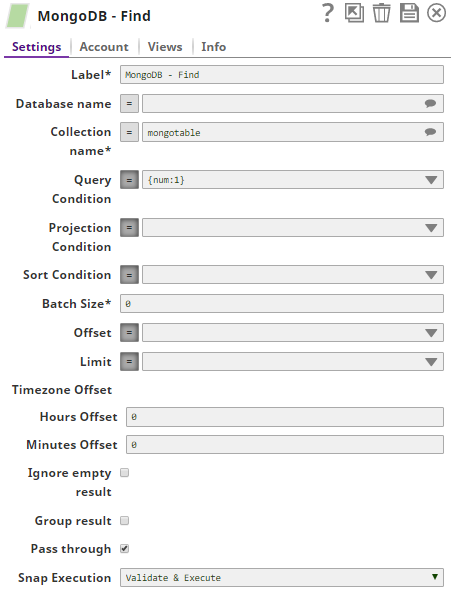
Step 1: The MongoDB Find Snap searches the documents from the Collection Name, mongotable with the Query Condition as '{num:1}' and a default Batch Size 0. This will retrieve all the documents satisfying the query conditions.
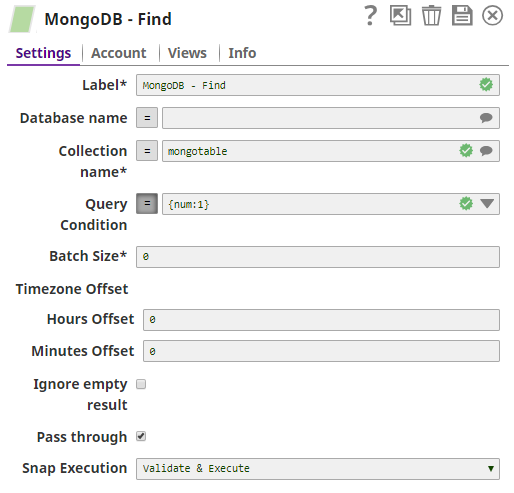
Step 2: The output preview from the MongoDB Find Snap retrieves all the documents.
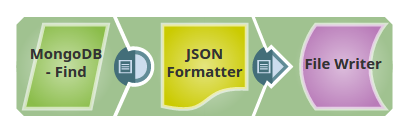
Step 3: Write the documents to a binary output view using the JSON Formatter and File Writer Snaps respectively.
Successful execution of the pipeline displays the output preview showing all retrieved documents.