


MCP Server Pipeline Builder
Generate a complete MCP Server Pipeline by selecting tool sources in the MCP Server Pipeline Builder, without manual Snap configuration.
Overview
The MCP Server Pipeline Builder is the quickest way to create an MCP Server Pipeline. Accessible from the Create MCP Server dialog, the MCP Server Pipeline Builder generates a complete, ready-to-run pipeline based on the tool sources you configure.
The MCP Server Pipeline Builder supports three tool source types:
- Multi Pipeline Function Generator: Expose existing SnapLogic pipelines as MCP tools
- OpenAPI Function Generator: Convert an OpenAPI specification into MCP tools
- APIM Function Generator: Expose an API Management service as MCP tools
How to access the MCP Server Pipeline Builder
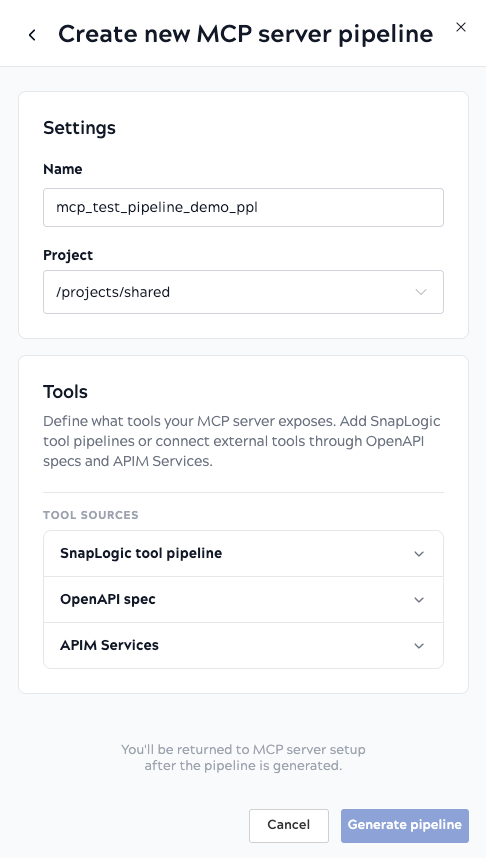
The MCP Server Pipeline Builder opens from within the Create MCP Server dialog. In the Pipeline field, click Create new pipeline. It opens as a panel with two sections: Settings and Tools.
Steps
-
In the Settings section, configure the pipeline name and project.
- Name: A name for the generated pipeline.
Default value: If the MCP Server has a name configured, the MCP Server Pipeline Builder uses that name and appends
_ppl(for example,my_server_ppl). If no name is configured, the default ismcp_server_ppl. - Project: The project where the pipeline will be saved.
- Name: A name for the generated pipeline.
-
In the Tools section, expand one or more tool source accordions and configure the tools your MCP server exposes.
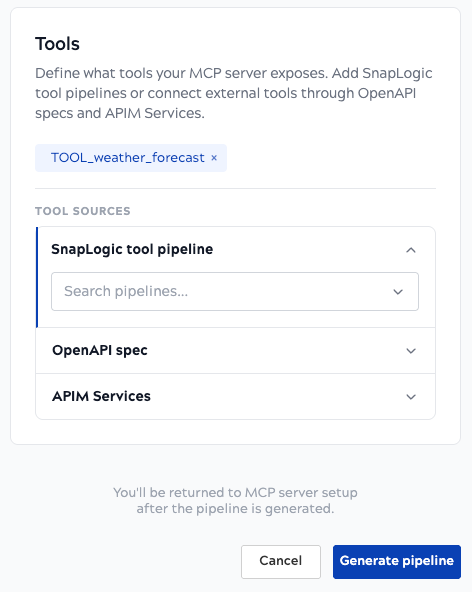
Each tool source you add appears as a chip above the accordion.
SnapLogic tool pipeline
Search for and select existing SnapLogic pipelines to expose as tools. Each pipeline must be tagged as a Tool in its pipeline properties. Selected pipelines appear as chips above the accordion.
OpenAPI spec
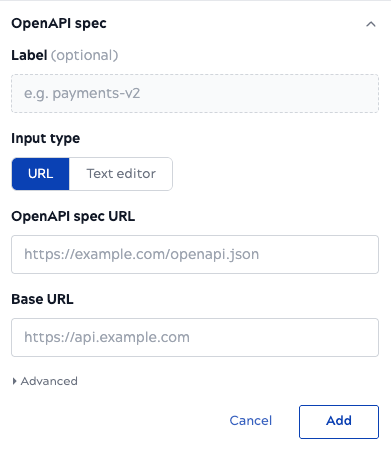
Convert an OpenAPI specification into MCP tools. Configure the following fields:
- Label: Optional. An identifier for this tool source.
- Input type: Choose URL to reference a hosted spec, or Text editor to paste the spec inline.
- OpenAPI spec URL: The URL of your OpenAPI/Swagger spec (JSON or YAML).
- Base URL: Specify the base URL for the OpenAPI
specification.
Note: In URL mode, the Base URL cannot be auto-extracted from the spec and must be entered manually.
Optional. Expand Advanced options to override the pipeline and account used for API execution. See Advanced options.
Click Add to add this tool source.
APIM Services
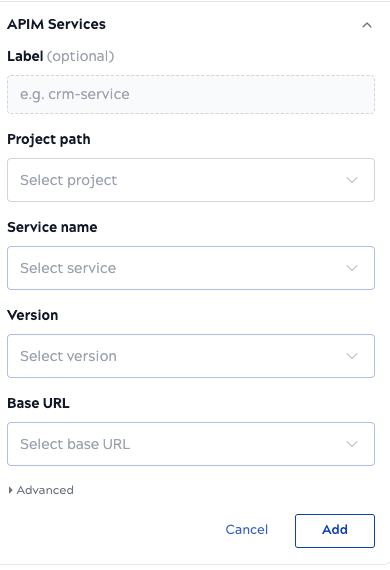
Expose an API Management service as MCP tools. Configure the following fields:
- Label: Optional. An identifier for this tool source.
- Project path: The SnapLogic project containing the APIM service.
- Service name: Select the APIM service from the project.
- Version: Select the service version.
- Base URL: The APIM gateway URL for the service.
Optional. Expand Advanced options to override the pipeline and account used for API execution. See Advanced options.
Click Add to add this tool source.
-
After configuring at least one tool source, click Generate pipeline.
The pipeline is created and you are returned to the MCP Server setup with the generated pipeline automatically selected in the Pipeline field.
Advanced options
The Advanced options subsection is available within the OpenAPI spec and APIM Services tool sources. Expand it to override the execution pipeline and account for a given tool source. Values set here take precedence over those defined in the OpenAPI specification or APIM Service.
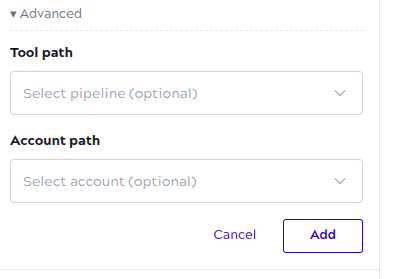
- Tool path: Optional. Select a pipeline to handle API execution for this tool source. Overrides the tool pipeline defined in the OpenAPI specification or APIM Service.
- Account path: Optional. Select an account for authenticated API calls. Overrides the account defined in the OpenAPI specification or APIM Service.
Limitations
- The generated pipeline is not validated or executed after creation. Verify it runs correctly in Designer before registering it with a production MCP Server.
- You cannot edit or regenerate an existing generated pipeline through the MCP Server Pipeline Builder. To modify it, open the pipeline in Designer and edit it manually.
- In URL input mode, spec validity is not verified server-side. Malformed OpenAPI specs may produce unusable tool generators.
- If pipeline creation fails (for example, due to a permission error on the project), no partial rollback or retry is available. Correct the issue and run the MCP Server Pipeline Builder again.