


Retrieving Refresh Schedules for Specific Datasets
This example demonstrates how to use the Power BI Read Snap to retrieve the refresh schedules for the SalesMarketing dataset from the My Workspace workspace. This example assumes that you have configured and authorized a valid Power BI OAuth2 account (see Configure Microsoft Power BI Accounts).
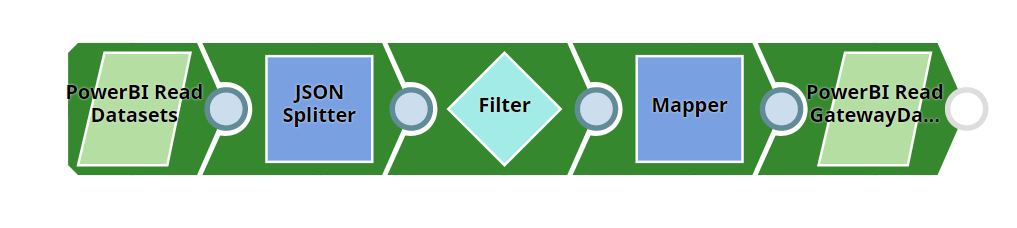
Download this pipeline.
-
Configure the first Power BI Read Snap to
retrieve all datasets from the My Workspace workspace.
Leave the Entity ID field empty so that the Snap retrieves all datasets from the workspace.
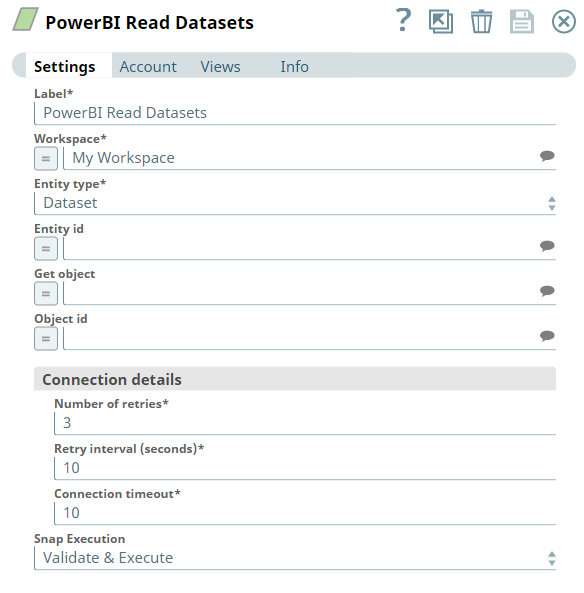
The Snap outputs the details of every dataset in the workspace.

-
Add the JSON
Splitter Snap to split each
record from the Power BI Read Snap's output into a separate document, then configure the
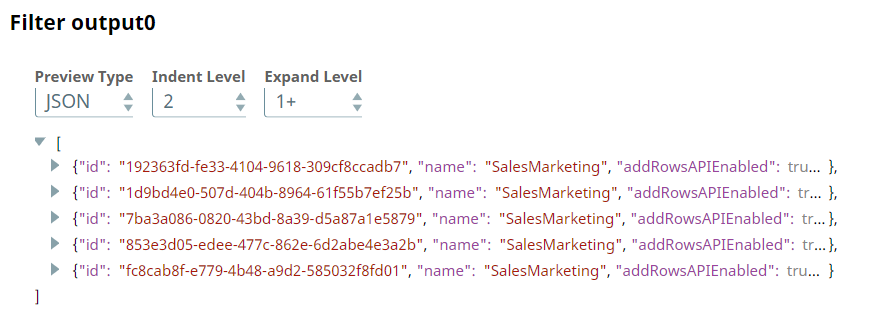
Filter
Snap to pass only the records whose
$namefield is SalesMarketing.
The Filter Snap's output preview shows that only the SalesMarketing records are passed downstream.
-
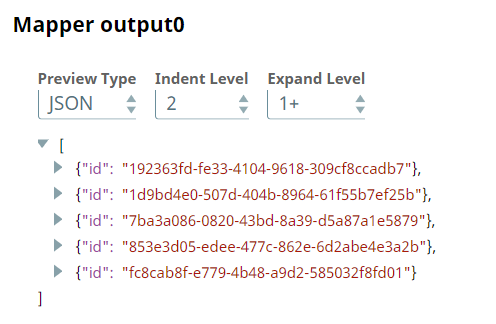
Configure the Mapper Snap to pass only the
$idfield downstream.Retrieving refresh schedules for specific entities requires the entity IDs of the target data sources.
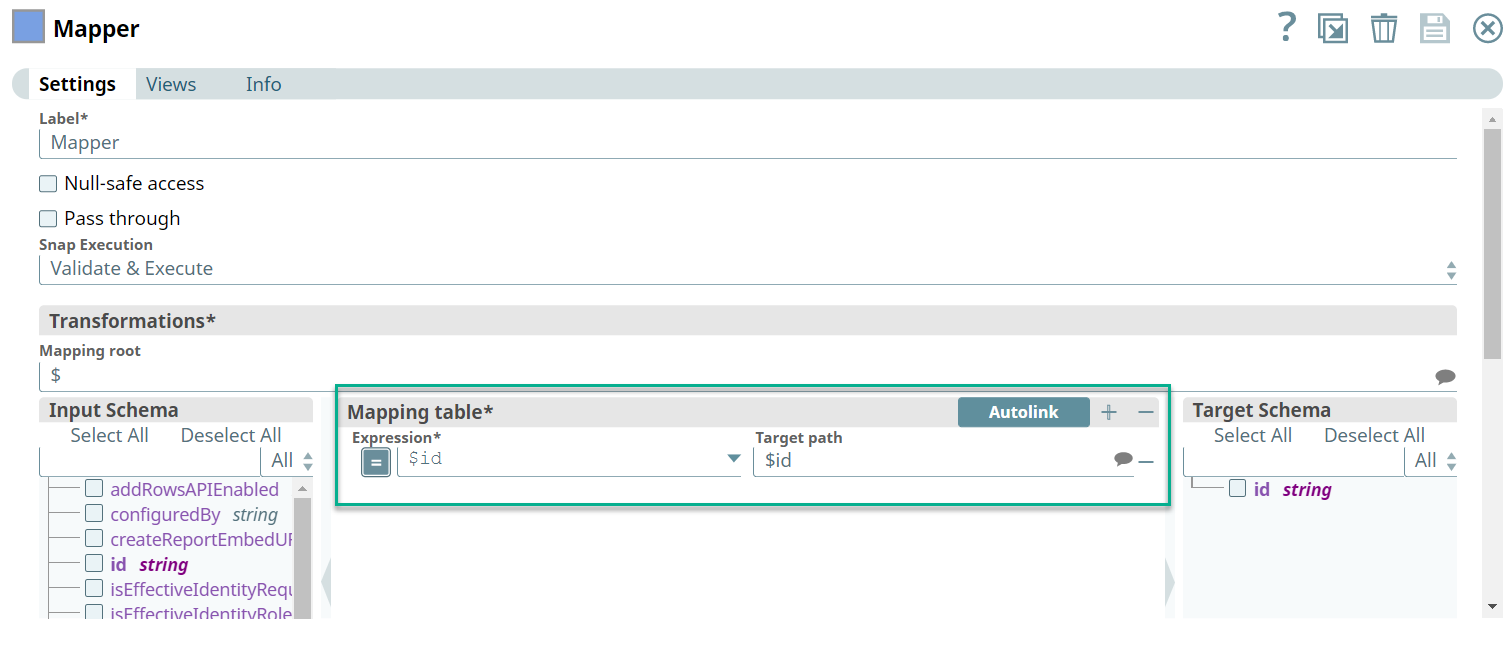
The Mapper Snap outputs only the entity IDs.
-
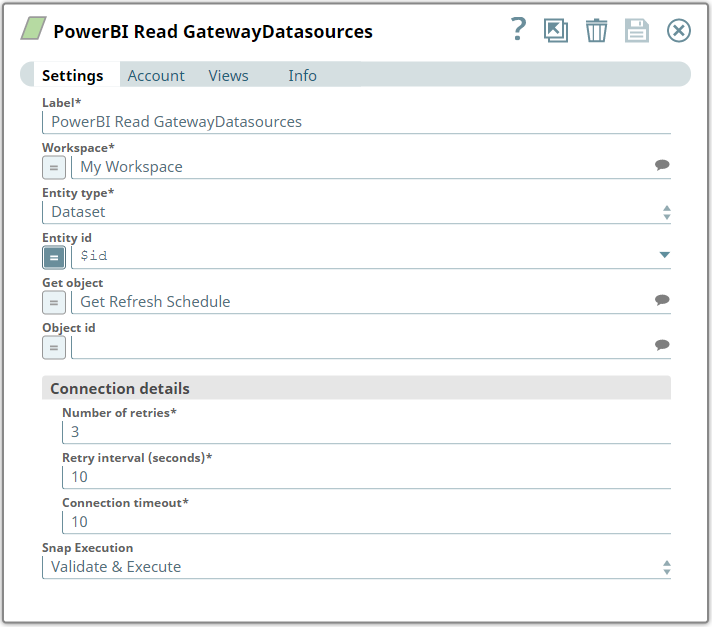
Configure the second Power BI Read Snap to
use the entity IDs passed by the Mapper Snap and to retrieve refresh schedules.
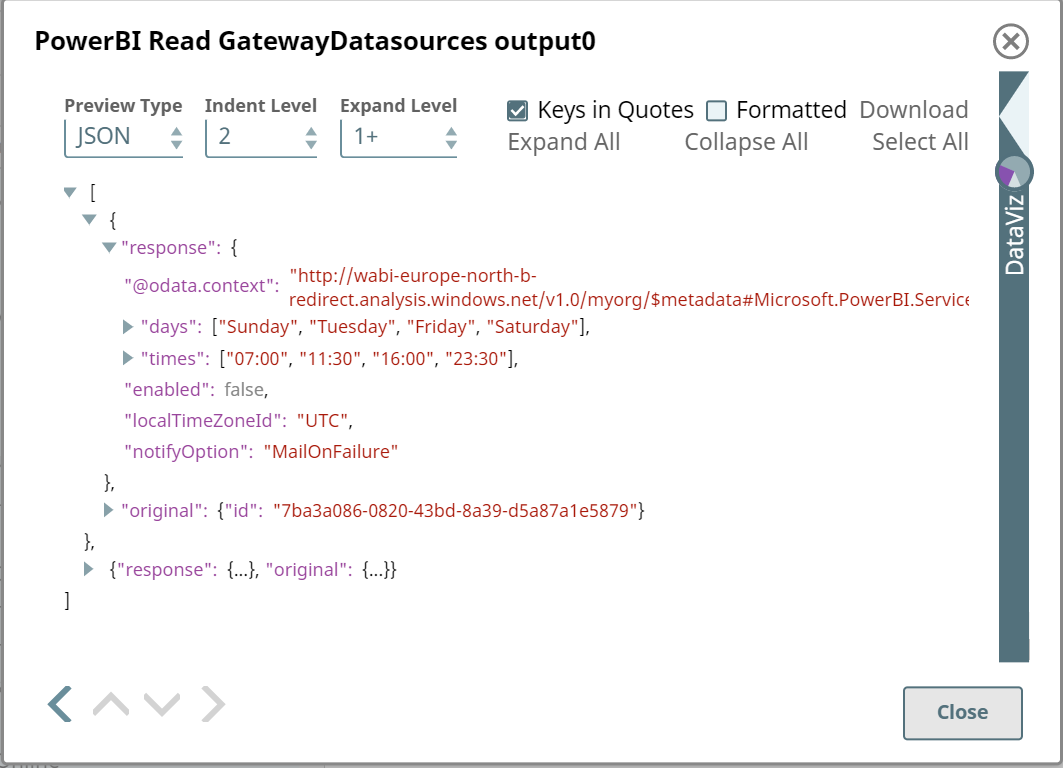
- Validate the Snap to view the results.
To reuse this pipeline in your environment:
- Download and import the pipeline into SnapLogic.
- Configure Snap accounts as applicable.
- Provide pipeline parameters as applicable.