


Send Email
Overview
The Send Email Snap configures and sends emails to the specified email address.
- This is a Write-type Snap.
 Works in Ultra Tasks when the Batch size is set to 1.
Supported Accounts
Prerequisites
- Valid Exchange Online tenant.
- Valid OAuth2 application in Azure Active Directory with all the required Application Configuration in Azure Portal for OAuth2 Account to use in Exchange.
Limitations
- The size of the attachment has a limitation of supporting file size of 35MB.
- For file attachment, the supported protocols are SLDB or Local files.
Known issues
The Send Email Snap configured with more than 3MB attachment might fail because of a 429 error response from the Graph API endpoint.
Snap views
| Type | Description | Examples of upstream and downstream Snaps |
|---|---|---|
| Input |
This Snap has at most one document input view. Requires the Email Body Type and the Email Content to deliver the message. |
|
| Output |
This Snap has at most one document output view. The output is a confirmation that the email was sent successfully. |
|
| Learn more about Error handling. | ||
Snap settings
| Field/Field set | Description |
|---|---|
Label*
String |
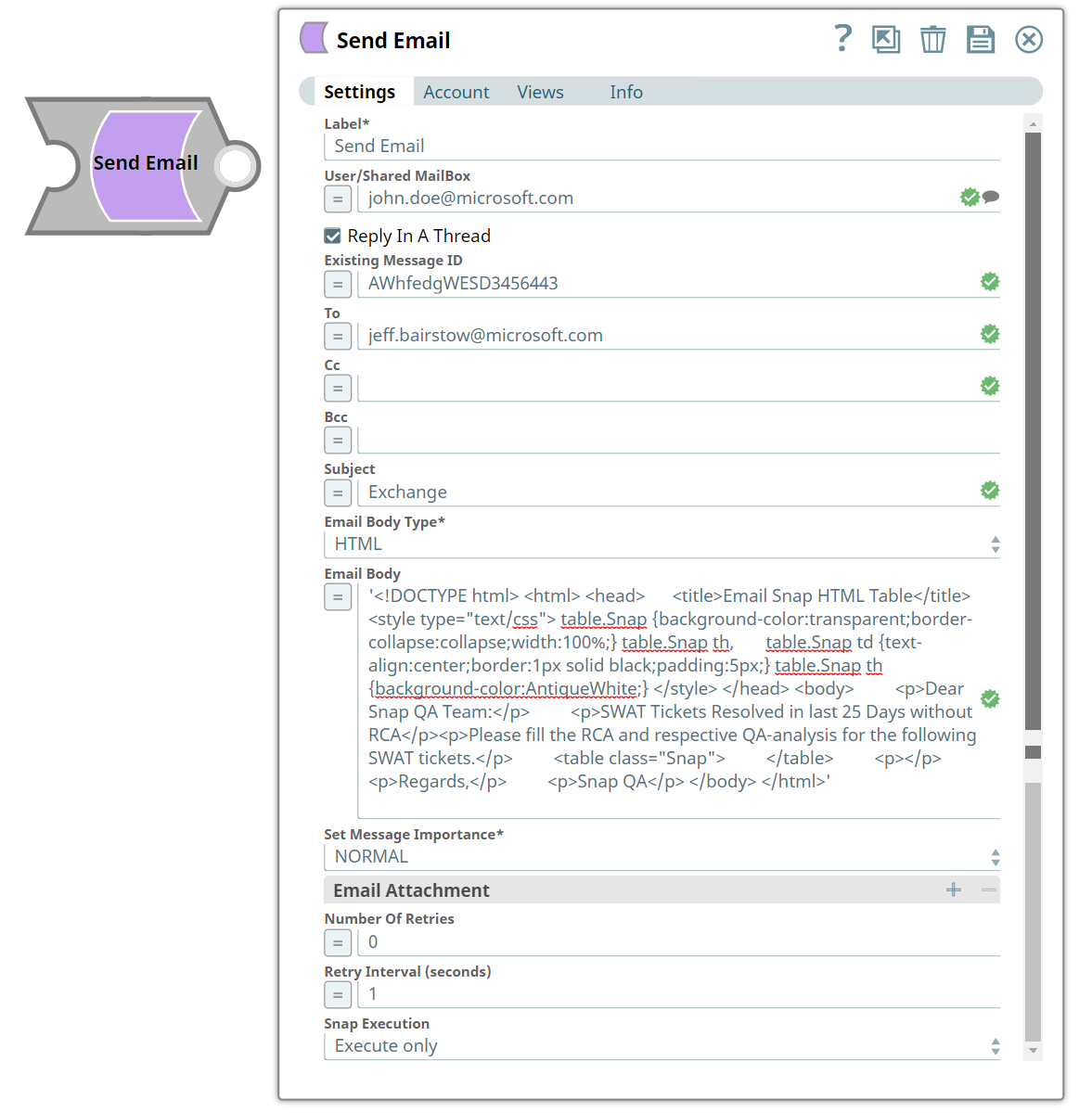
Specify a unique name for the Snap. Modify this to be more appropriate, especially if more than one of the same Snaps is in the pipeline. Default value: Send Email |
User/Shared MailBox
String/Expression |
Specify the mailbox from which you want to send the email. Alternatively, click the Suggestion icon to select the email folder in the mailbox. If you do not provide a user/shared mailbox, the mailbox associated with the user account of the OAuth2 User account (signed in user) is considered. However, if you use an OAuth2 Application account, you must select a User/Shared Mailbox to send emails. Example: [email protected] |
Reply In A Thread
Checkbox |
Select to respond to an email under a thread carrying previous emails. On selecting this option, you will see a new field following, Existing Message Id. Default value: Deselected |
Existing Message ID
String/Expression |
Specify the ID of an existing message which will allow you to respond to an existing email. This field is enabled only if you opt to select Reply In A Thread. Example: weqsvhwbshbw2e22 |
To
String/Expression |
Specify the recipient’s email address. Example: [email protected] |
Cc
String/Expression |
Specify the carbon copy email address. When you Cc people on an email, the Cc list is visible to all other recipients. Example: [email protected] |
Bcc
String/Expression |
Specify the blind carbon copy address. Unlike with Cc, no one but the sender can see the list of Bcc recipients. Example: [email protected] |
Subject
String/Expression |
Specify the subject of the email. Example: Exchange-RCA |
Email Body Type*
Dropdown list |
Select the email body type from the dropdown list:
Default value: TEXT |
Email Body
String/Expression |
Specify the content you want to send in your email. This field supports both HTML and Plaintext format, however, you need to enter the content on the basis of your selection in Email Body Type field. |
Set Message Importance*
Dropdown list |
Select one of the options to set the priority for your emails:
Default value: NORMAL |
| Email Attachment |
Use this fieldset to send an attachment along with your message. |
URL
String/Expression |
Specify the URL of the file to attach. Example: 1.csv |
Table Data Path
String |
Specify the JSON path to map the data which corresponds to a row in the HTML table. If it references an array of map data, such as When you use "$" in this field, the Snap creates an HTML table, wherein the Template Body has the HTML table tags ( Example: $.Customers |
Batch size
Integer |
Specify the batch size to use only for the HTML TABLE Email Body Type. The unit of the value is in the number of rows of the HTML table. If the number of documents the Snap receives from the input view reaches the specified batch size, the Snap composes an email message with an HTML table and sends it to the server. Multiple emails are generated, if needed, to send out all documents. The Snap sends the last message at the end of the Pipeline execution if any unsent table rows remain. Default value: 100 |
Number Of Retries
Integer/Expression |
Specify the maximum number of attempts to be made to receive a response. The request is terminated if the attempts do not result in a response. Default value: 0 |
Retry Intervals (seconds)
Integer/Expression |
Specify the time interval between two successive retry requests. A retry happens only when the previous attempt resulted in an exception. Default value: 1 |
Snap execution
Dropdown list |
Choose one of the three modes in
which the Snap executes. Available options are:
|
Troubleshooting
| Error | Cause | Resolution |
|---|---|---|
| Message ID is required field for sending an email in thread | You have either not entered a message ID or provided an invalid one. | Enter the Existing Message ID and ensure it is a valid one. |
| Check whether the file path is correct. | You have entered an invalid/incorrect URL for the email’s attachment. | Verify and enter a valid URL for attachments. |
| Chunk Upload interrupted | The Snap could not upload the attachments. | Avoid multiple uploading of attachments and retry the process. |
| Table Data path is not found. | The Snap could not find a JSON path for the table data. | Provide a valid path for the Table Data. |
| The Table Data Path field does not reference a map or an array of maps. | The Snap is unable to map the Table Data path to the HTML table row data. | Verify that the Table Data Path references a map or an array of maps. |