


Transform HL7 messages read from a file
This example pipeline reads an HL7 v2.5 ADT^A08 (Update
Patient Information) message from a file, parses it into a JSON document, conditionally
updates the patient's given name, and formats the result back into an HL7 message. Because
the HL7 Parser and HL7 Formatter Snaps are complementary, you can round-trip a
message through JSON, apply a transformation with a Mapper Snap, and emit a valid HL7 message without
editing the pipe-delimited text by hand.

Prerequisites
- A valid HL7 v2.5 message file that is accessible to the Snaplex, such as
valid_adt_a08.hl7.
-
Configure the HL7 Parser Snap to convert the binary
HL7 message into a JSON document. Set Character encoding to
UTF-8and HL7 version toHL7 2.5.On validation, the Snap outputs one JSON document per message, with a top-level object for each segment in the message. Each field is named for its HL7 position and description, such as
MSH.3 - Sending ApplicationandPID.3 - Patient Identifier List.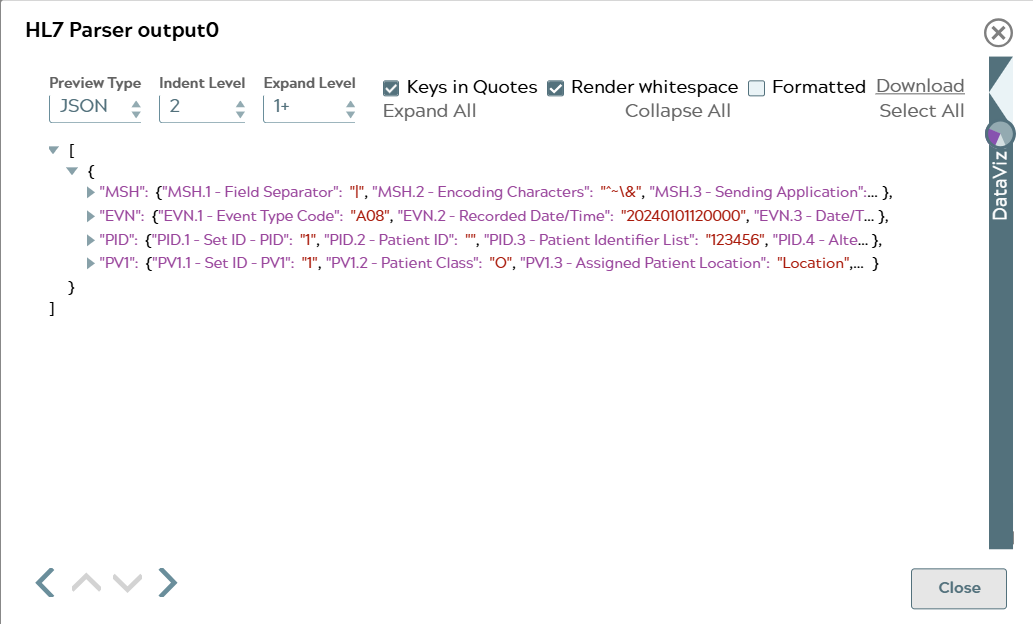
-
Configure the HL7 Formatter Snap to serialize the
parsed document back into an HL7 message. Set Character encoding to
UTF-8, Segment terminator to\r (Carriage Return), and Validation mode toNone.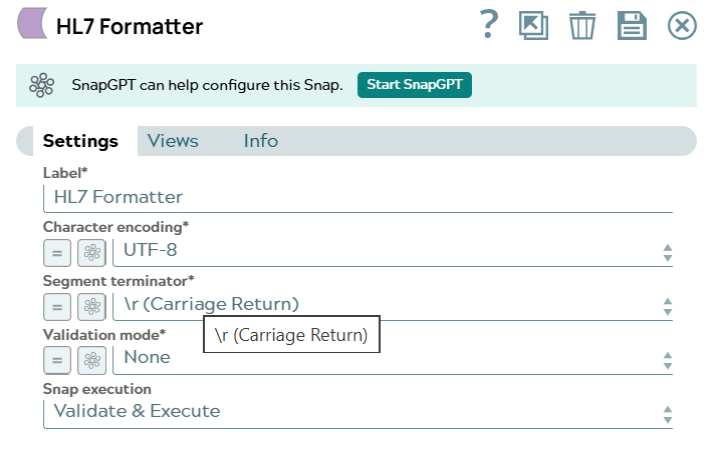
This step confirms that the parser output is complete enough to reproduce the original message.
-
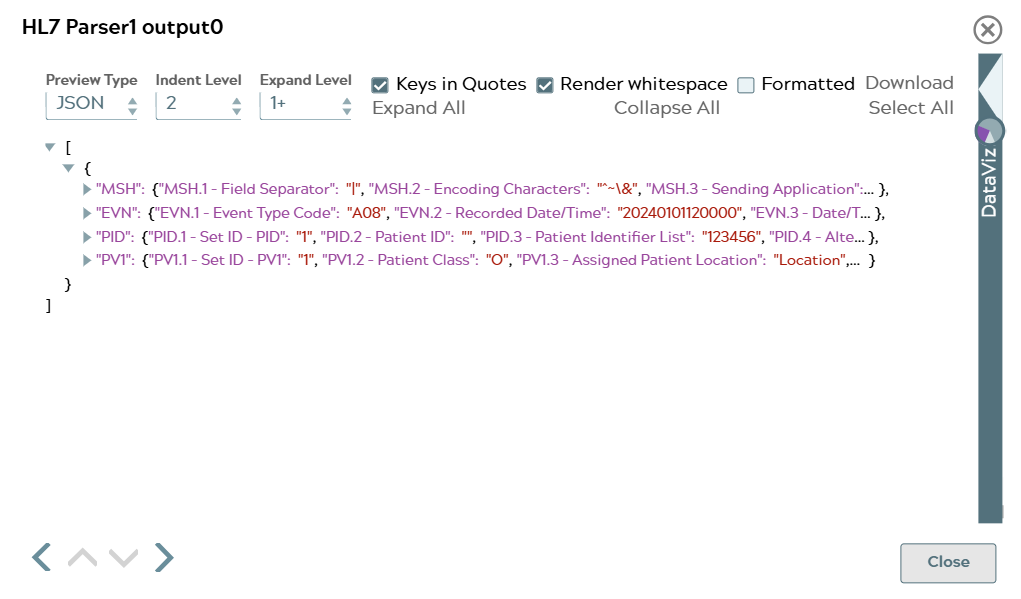
Add a second HL7 Parser Snap, HL7 Parser1, with
the same settings as the first parser to convert the reformatted message back into
JSON.
The Mapper Snap requires a document input, so the message must be parsed again before you can transform it. On validation, the output matches the output of the first parser, which confirms that the round-trip through the formatter preserved the message.
-
Configure the Mapper Snap to conditionally
update the patient's given name in the
PIDsegment.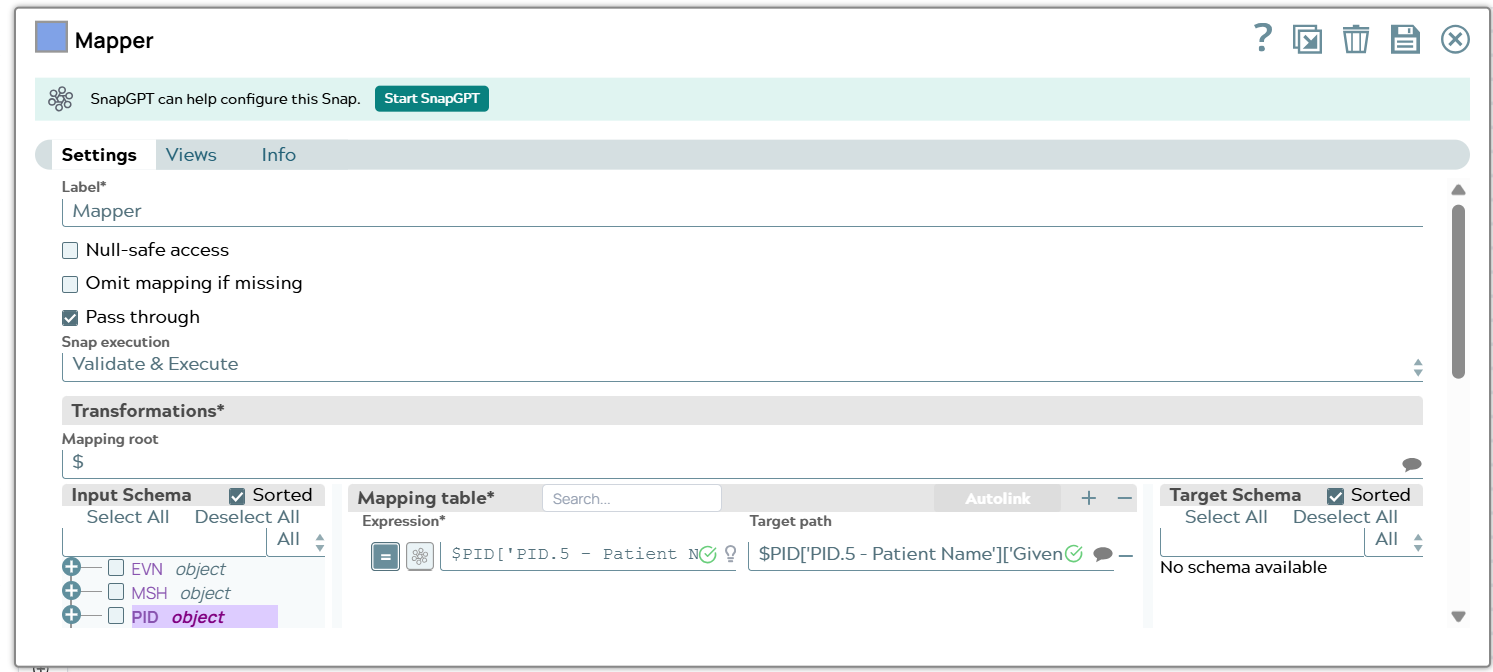
Map the given name to an expression that replaces
BARRYwithSTEVEand passes any other value through unchanged, and set the target path to the same field:$PID['PID.5 - Patient Name']['Given Name'] == 'BARRY' ? 'STEVE' : $PID['PID.5 - Patient Name']['Given Name']Select Pass through so that the Snap forwards the remaining segments unchanged. Because the expression returns the original value when the condition is not met, the pipeline is safe to run against messages for other patients.
-
Configure the final HL7 Formatter Snap, HL7
Formatter1, with the same settings as the first formatter to write the transformed
document back into HL7 format.
On validation, the Snap writes a valid HL7 v2.5 message. The given name in this sample message is
Johnrather thanBARRY, so the mapping expression retains the original value and the output matches the source message: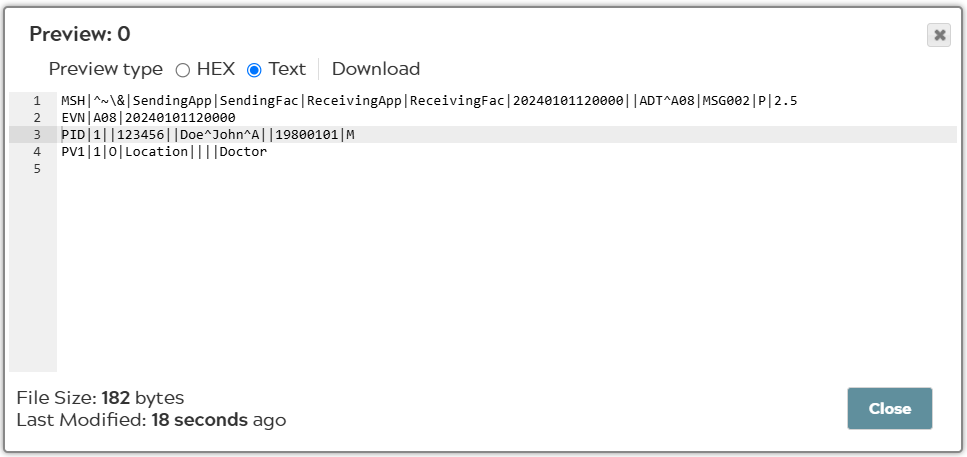
The pipeline writes a valid HL7 v2.5 ADT^A08 message. To see the mapping
replace a value, run the pipeline against a message whose PID.5 given name is
BARRY; the output then contains Doe^STEVE^A.
To emit segments that are terminated with a carriage return and a line feed instead, set
Segment terminator to \r\n (Carriage Return + Line Feed) on the
formatter. If the source message might deviate from the HL7 v2.5 structure, for example
because optional segments are missing, set Validation mode to Lenient
so that the Snap validates the output without failing on those deviations.
- Download and import the SLP file into your Environment.
- Configure Snap accounts.
- Provide Pipeline parameters, if any.