


Tc File Test Fsc Access
This Snap test file server access to your Teamcenter. This Snap is for testing purpose to help find reasons in case of file transfer errors. It has NOT the purpose to be used in transfer pipelines.
Supported Accounts
- This is a Read-type Snap.
 Works in Ultra Tasks. However, we recommend that you do not use this Snap in an Ultra Pipeline.
Prerequisites
- A valid Teamcenter account with the required permissions.
Snap views
| Type | Description | Examples of upstream and downstream Snaps |
|---|---|---|
| Input |
Optional.This Snap has at the most one document input view. There is no required input. |
|
| Output |
This Snap has exactly one document output view. The output of the snap are informations of configuration and settings related to filetransfer in Teamcenter. |
|
| Learn more about Error handling. | ||
Examples
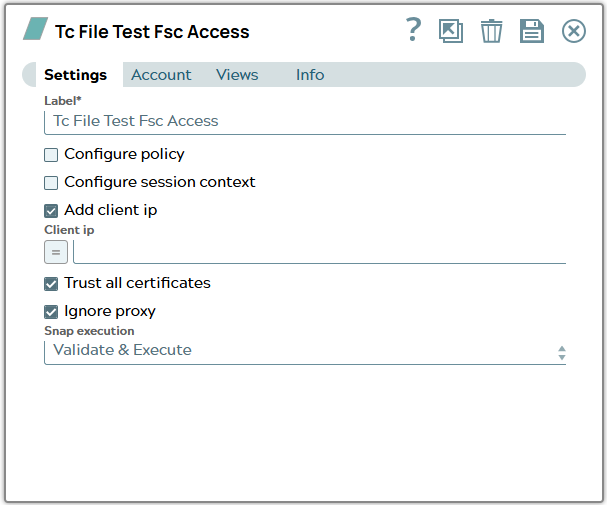
Tc File Test Fsc Access: Simple output exampleSnap settings
| Field/Field set | Description |
|---|---|
Label
String |
Specify a unique name for the Snap. Modify this to
be more appropriate, especially if there are more than one of the same Snap in the
pipeline.
Default value: Tc File Test Fsc Access |
Configure policy
Checkbox |
Select this checkbox to run the Snap with a specific named Teamcenter policy. A policy determines the set of object properties that Teamcenter returns. Learn more: Configure policy. Default status: Deselected |
Configure session context
Checkbox |
Select this checkbox to run the Snap with a group, role, or project other than the one configured in the account. Learn more: Configure session context. Default status: Deselected |
Add client ip
Checkbox |
Activate in case client ip shall be configured. Default value: Unselected Example: Selected |
Client ip
String/Expression |
Appears when Add client ip is selected. Specify the ip of the client. |
Trust all certificates
Checkbox |
Select this checkbox to trust all certificates, such as self-signed certificates. Default value: Unselected Example: Selected |
Ignore proxy
Checkbox |
ON: Configuration of proxies of groundplex node is ignored and no proxy is used. Default value: Unselected Example: Selected |
Snap execution
Dropdown list |
Choose one of the three modes in
which the Snap executes. Available options are:
|