


Power BI Post
Overview
The Power BI Post Snap creates, clones, and rebinds data resources in a Power BI workspace.
- This is a Write-type Snap.
 Works in Ultra Tasks
Snap views
| Type | Description | Examples of upstream and downstream Snaps |
|---|---|---|
| Input |
This Snap has exactly one document input view. A document containing the data to post into the workspace. |
|
| Output |
This Snap has at most one document output view. A document containing success/failure confirmation along with the newly-posted data's details. |
|
| Learn more about Error handling. | ||
Snap settings
| Field/Field set | Description |
|---|---|
|
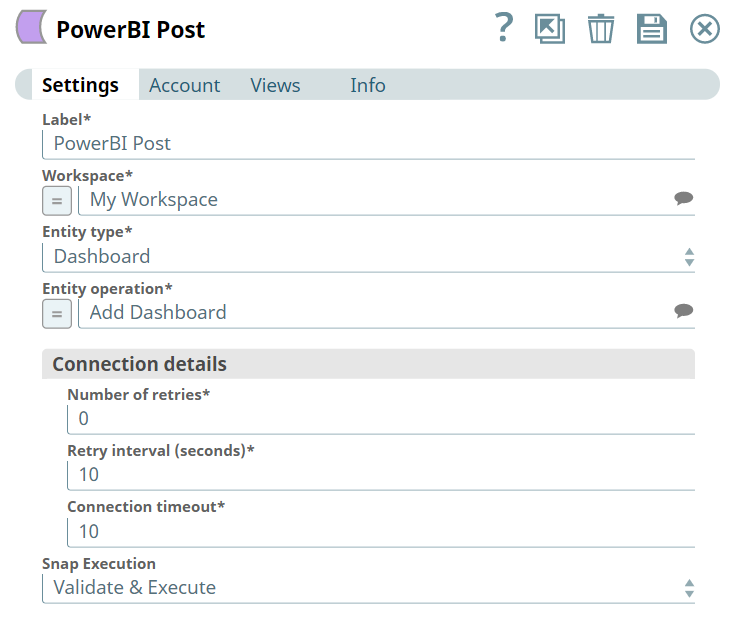
Label String
|
Specify a unique name for the Snap. Modify this to
be more appropriate, especially if there are more than one of the same Snap in the
pipeline.
Default value: Power BI Post Example: Create Sales Dashboard |
|
Workspace String
|
Required. Enter the workspace in which to post the resource. Alternatively, click the Suggestion icon to fetch a list of workspaces associated with the Power BI account and select the workspace.
Default value: My Workspace Example: Employee Records |
|
Entity type String
|
Required. Select the entity type to post.
Available options are:
Default value: Dashboard Example: Report |
|
Entity operation String
|
Select the post-operation to perform. The available options vary upon your configuration of the Entity type field. Alternatively, you can also enter the operation's name manually.
Available options are:
Default value: N/A Example: Add Dashboard |
| Connection details | Use this field set to configure the network connection parameters.
This field set contains the following fields:
|
|
Connection timeout Integer
|
Required. Specify the connection timeout duration in seconds.
Default value: 0 Example: 30 |
|
Number of retries Integer
|
Required. Specify the maximum number of re-connections if the connection fails or is timed-out.
Default value: 10 Example: 4 |
|
Retry interval (seconds) Integer
|
Required. Specify the interval in seconds between reconnections.
Default value: 10 Example: 30 |
|
Snap execution Dropdown list
|
Choose one of the three modes in
which the Snap executes. Available options are:
Default value: Execute only |
Troubleshooting
| Error | Cause | Resolution |
|---|---|---|
| HTTP Response Exception:400 | Invalid OAuth endpoint/token URL. | Verify the values of the OAuth2 endpoint or token URLs in the account settings. |
| HTTP Response Exception:401 | Invalid refresh token or access token. | Verify the values of the refresh or access tokens in the account settings. |