Advanced settings of PLM Teamcenter Snaps
Overview
Every Snap in the PLM Teamcenter Snap Pack offers the same set of advanced configuration options.
Most Snaps in the PLM Teamcenter Snap Pack share four advanced field sets: Configure policy, Configure session context, Configure error handling, and Configure output. This topic describes the fields in each field set and explains how the output configuration varies between Snaps. The Snap Settings of each Snap list the checkbox that opens each field set and link to the matching section here.
Configure policy
| Field/Field set | Description |
|---|---|
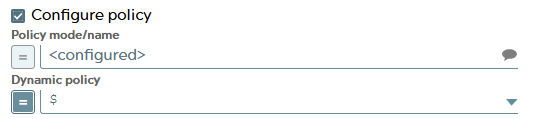
Configure policy
Checkbox |
Select this checkbox to run the Snap with a specific named Teamcenter policy. A policy determines the set of object properties that Teamcenter returns. Default status: Deselected |
Policy mode/name
String/Expression/ Suggestion |
Appears when Configure policy is selected. Specify a policy by name, or select <dynamic> to take the policy from the input document or from a Pipeline parameter. Default value: N/A Example: <dynamic> |
Dynamic policy
String/Expression |
Appears when <dynamic> is selected in Policy mode/name. Specify the policy to apply, taken from the input document or from a Pipeline parameter. Default value: N/A |
Configure session context
| Field/Field set | Description |
|---|---|
Configure session context
Checkbox |
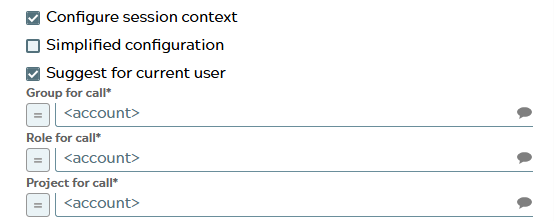
Select this checkbox to run the Snap with a group, role, or project other than the one configured in the account. Default status: Deselected |
Simplified configuration
Checkbox |
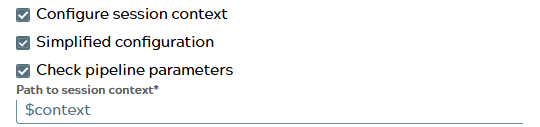
Appears when Configure session context is selected. Select this checkbox to read the session context values (group, role, and project)
from the input document at the path given in Path to session
context, or from the Pipeline parameters
Default status: Deselected |
Check pipeline parameters
Checkbox |
Appears when Simplified configuration is selected. Select this checkbox to read the Default status: Selected |
Path to session context*
Expression |
Appears when Simplified configuration is selected. Specify the path to the session context settings in the document that the Snap is processing. Default value: $context Example: $context_setting |
Suggest for current user
Checkbox |
Appears when Configure session context is selected and Simplified configuration is deselected. Select this checkbox to restrict the suggestions in Group for call and Role for call to the groups and roles available to the user configured in the account. Default status: Selected |
Group for call
String/Expression/ Suggestion |
Appears when Configure session context is selected and Simplified configuration is deselected. Specify the Teamcenter group that the Snap must use to run the command, instead of the group configured in the account. Default value: <account> Example: Engineering |
Role for call
String/Expression/ Suggestion |
Appears when Configure session context is selected and Simplified configuration is deselected. Specify the Teamcenter role that the Snap must use to run the command, instead of the role configured in the account. Default value: <account> Example: Designer |
Configure error handling
To use this feature, you must enable the corresponding setting in the teamcenter_snappack.properties file.
| Field/Field set | Description |
|---|---|
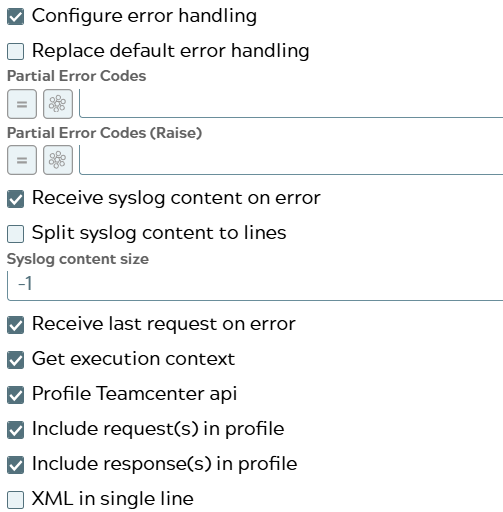
Configure error handling
Checkbox |
Select this checkbox to define how the Snap behaves when Teamcenter returns an error. Use these settings for analysis and debugging. Default status: Deselected |
Replace default error handling
Checkbox |
Appears when Configure error handling is selected. Select this checkbox to make the Snap honor only the error codes configured on the Snap and ignore the default error handling of the Snap Pack. Default status: Deselected |
Partial Error Codes
String/Expression |
Appears when Configure error handling is selected. Specify the Teamcenter error codes that the Snap must ignore during processing. This field applies only when Replace default error handling is selected. Default value: N/A Example: 33123/3 |
Partial Error Codes (Raise)
String/Expression |
Appears when Configure error handling is selected. Specify the Teamcenter error codes that must raise an exception. This field applies only when Replace default error handling is selected. Default value: N/A Example: 33123/3 |
Receive syslog content on error
Checkbox |
Appears when Configure error handling is selected. Select this checkbox to add the Teamcenter syslog entry to the response. To use this feature, you must enable the corresponding setting in the teamcenter_snappack.properties file. Default status: Deselected |
Split syslog content to lines
Checkbox |
Appears when Receive syslog content on error is selected. Select this checkbox to split the syslog content into individual lines for better readability. Default status: Deselected |
Syslog content size
String |
Appears when Receive syslog content on error is selected. Specify the size of the syslog content to include in the response. A value of -1 includes the full content. Default value: -1 Example: 200 |
Receive last request on error
Checkbox |
Appears when Configure error handling is selected. Select this checkbox to include the request that the Teamcenter server received in the response. To use this feature, you must enable the corresponding setting in the teamcenter_snappack.properties file. Default status: Deselected |
Get execution context
Checkbox |
Appears when Configure error handling is selected. Select this checkbox to include information about the execution context of the
called services in the output. The Snap adds an
Default status: Deselected |
Profile Teamcenter api
Checkbox |
Appears when Configure error handling is selected. Select this checkbox to add Teamcenter API profiling information—response times and the size of each request and response—to the response. Default status: Deselected |
Include request(s) in profile
Checkbox |
Appears when Profile Teamcenter api is selected. Select this checkbox to add the request data at the Teamcenter SOA level to the response document. To use this feature, you must enable the corresponding setting in the teamcenter_snappack.properties file. Default status: Deselected |
Include response(s) in profile
Checkbox |
Appears when Profile Teamcenter api is selected. Select this checkbox to add the response data at the Teamcenter SOA level to the response document. To use this feature, you must enable the corresponding setting in the teamcenter_snappack.properties file. Default status: Deselected |
XML in single line
Checkbox |
Appears when Include request(s) in profile or Include response(s) in profile is selected. Select this checkbox to write the XML content of the request or response on a single line. When deselected, the Snap formats the XML content for readability. Default status: Deselected |
Configure output
For most Snaps output document contains one or a list of objects with attributes. So not all information is valuable and only increase size of document. Next to the object information the object “original” is given back. It contains the content of the input document.
Tc Snaps offer settings to configure the content of the output document namely the attributes to be written out. Dependent on the function of the Snap some settings are not offered because they are not serviceable or duplicated by another field. Currently there are 7 variants of output configuration settings. In most times differences are only relevant for configuration comfortability by guiding result of suggestions.
| Field/Field set | Description |
|---|---|
Simplified expand
Checkbox |
Select this checkbox to make the Snap look for the name given in
Expand Attributes Path in the input document (for example,
When deselected, configure Expand Attributes Path as a string or an expression. Default status: Deselected |
Expand Attributes Path
String/Expression |
Specify the JSON path to the expand attributes in the input document. Expand attributes are the list of attributes that the Teamcenter response must contain. Each name must be the technical name of a valid property in the Teamcenter data model for the expected objects. For example: Learn more: Configuring Expand Attributes. Default value: N/A Example: $.expandAttributes |
Build reference/lov documents
Dropdown list/Expression |
Select how the Snap represents references and lists of values (LOVs) that
Teamcenter returns. The Snap can return them as nested JSON objects instead of
flattened IDs and internal values with additional
The available options are:
Default value: Use Default Example: Yes |
Configure output
Checkbox |
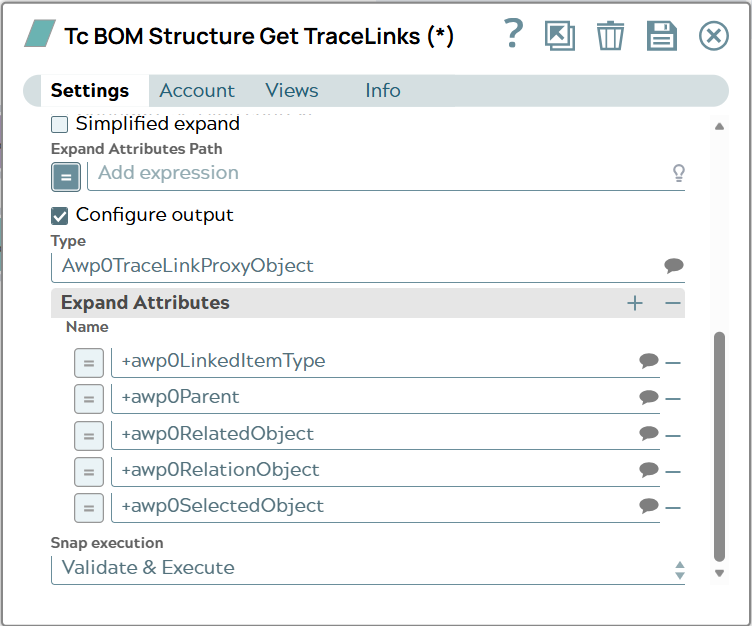
Select this checkbox to specify the Teamcenter properties that the Snap includes in the output. Default status: Deselected |
Type
String/Suggestion |
Appears when Configure output is selected. Specify the Teamcenter data model type whose attributes the Snap suggests in Expand Attributes. Default value: N/A Example: ItemRevision |
Suggest for reference
Checkbox |
Appears when Configure output is selected. Select this checkbox to make the Snap offer suggestions for Reference Property. Default status: Deselected |
Reference Property
String/Suggestion |
Appears when Suggest for reference is selected. Specify the name of a property of the selected Type whose value is a reference. The Snap uses this name to refine the suggestions in Reference Type and Expand Attributes. Default value: N/A |
Reference Type
String/Suggestion |
Appears when Reference Property has a value. Specify the Teamcenter class that Reference Property references. When Reference Property and Reference Type hold matching values, Expand Attributes suggests the attributes of this class. Default value: N/A |
| Expand Attributes |
Specify the attributes that the Snap must fetch from Teamcenter. Add each
attribute in a separate row. Click When Expand Attributes Path also supplies attributes from the input document, the Snap uses these attributes in addition to those. Learn more: Configuring Expand Attributes. |
Name*
String/Expression/ Suggestion |
Appears when Configure output is selected. Specify the name of the attribute. Default value: N/A Example: object_type |

Basic settings
Every version offers the basic settings which are “Simplified expand”, “Expand Attributes Path”, “Build reference/lov documents“, checkbox “Configure output” and the table “Expand Attributes”.
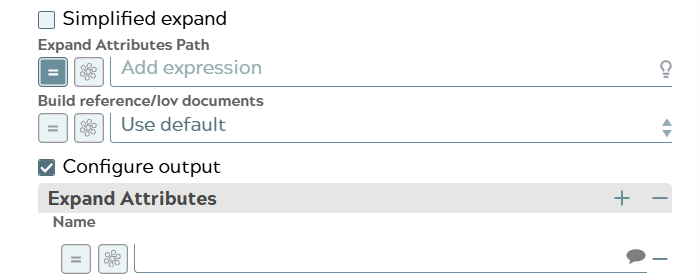
Variant: type field in configuration settings
Most Snaps offer a field “Type” to lead suggestion for attribute names in “Expand Attributes” table to a filtered list of attributes dedicated to this type.
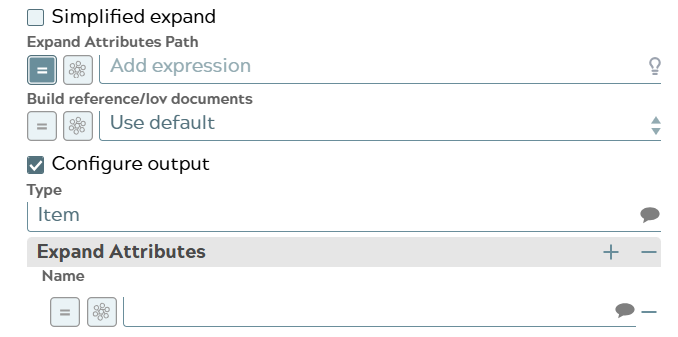
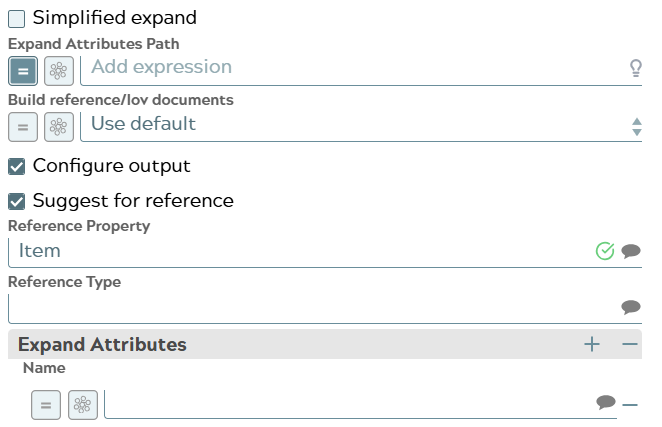
Variant: type and reference related fields for suggestion
Many Snaps offer additionally fields to give input for reference property and type to suggestion.
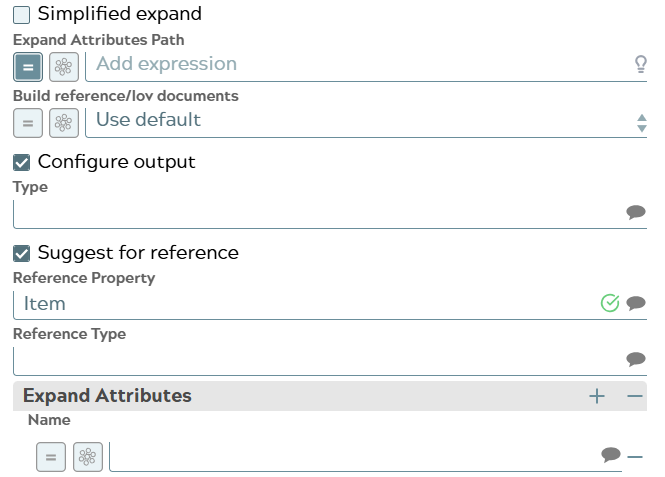
Variant: reference related fields for suggestion
If the Snap itself has already the field “Object Type” then the type field in output configuration is not necessary. In this case only the additional fields for reference property and type are available to lead suggestion.
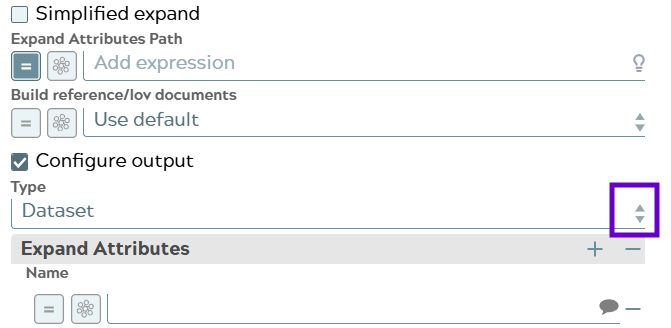
Variant: type field as value list
Most Snaps are generic in the way that any object type can be queried, created or expanded for a relation. Everything is defined by configuration itself. But for a small set of functions the resulting object types have limited options. E.g. File upload can only have objects of type Dataset and File in result.
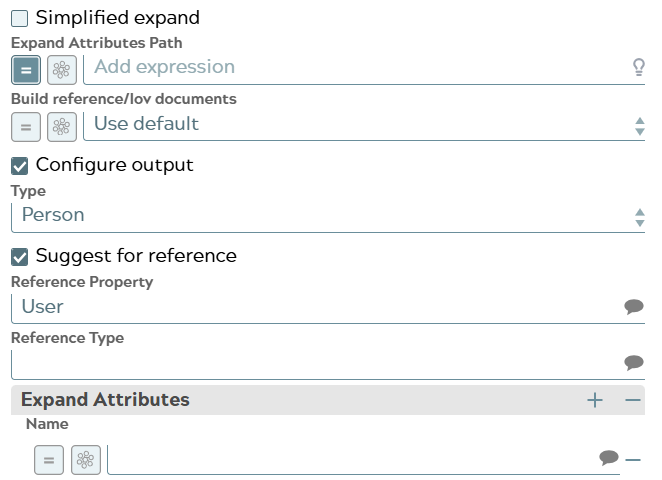
Variant: type field as value list and reference related fields for suggestion
In this small set of functions with limited object type result options described before is a subset which offer again additionally fields to give input for reference property and type to suggestion. E.g. the Snaps “Tc Get User Group Members“ and “Tc Get User Projects“ have this kind of settings.
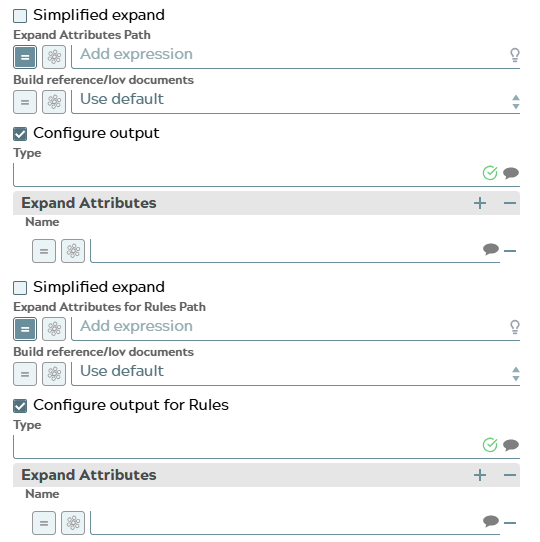
Variant: doubled output configuration
Currently only one Snap “Tc Product Configurator Structure Get” offers a doubled output configuration. One for the structure to be expanded. And one for the rules used to expand the structure.
Configure Expand Attributes
Why using expand attributes? To minimize the response content to the information which is needed. The following five cases for configuring Expand Attributes are described here:
- No configuration.
- Configuration of the attributes to be expanded.
- Configuration of the attributes to be excluded.
- Configuration to show everything.
- Configuration to show the attributes of the policy and the configured ones.
Independent of defined or not defined expand attributes each object in result will contain two properties:
- “_id” which is the adapter id of the adapter in Tc Snap Pack
- “UID” which is the UID of the object in Teamcenter
Snap selected for demonstration is Tc Query Snap. First fields of snap are configured with the same information for each case. It is the search for one Part.
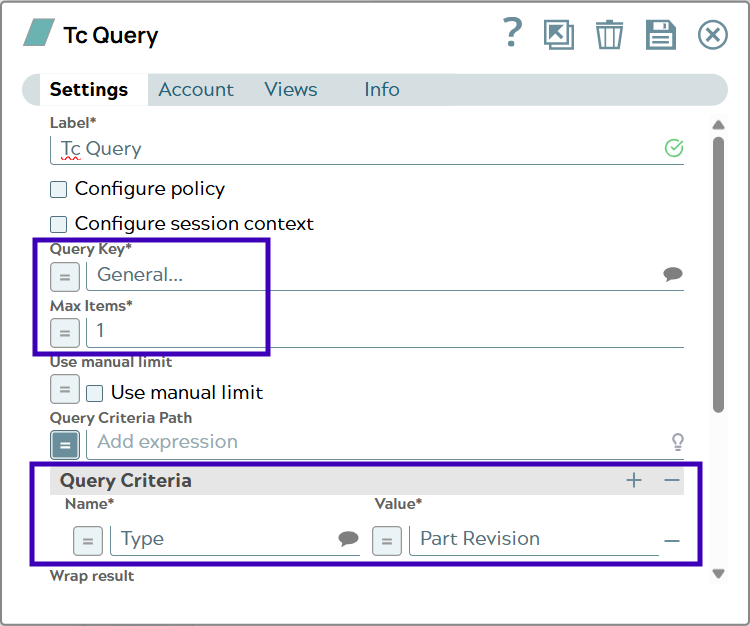
Case no configuration
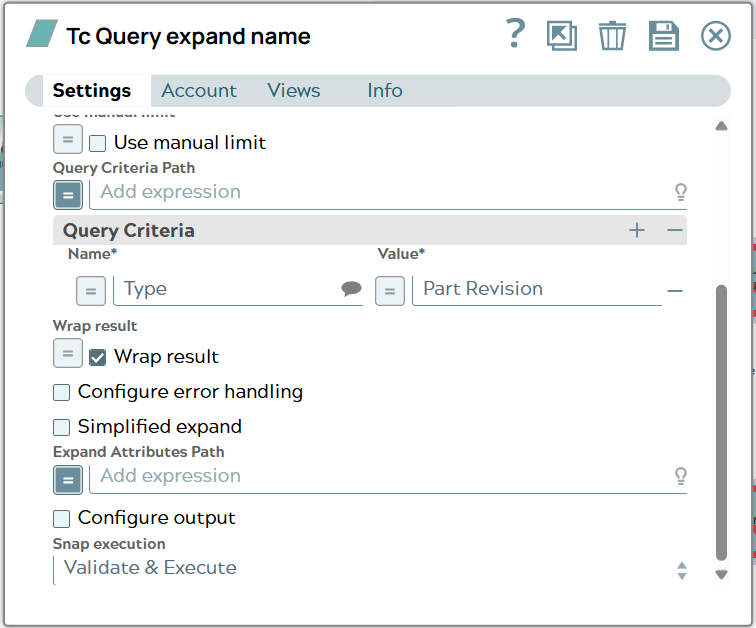
If there are no expand attributes configured neither by Expand Attributes Path nor by Expand Attributes settings table the Snap will give back attributes received by Teamcenter. The names of attributes to be found are defined in profile file in Teamcenter. Settings in Snap for Expand configuration is empty.
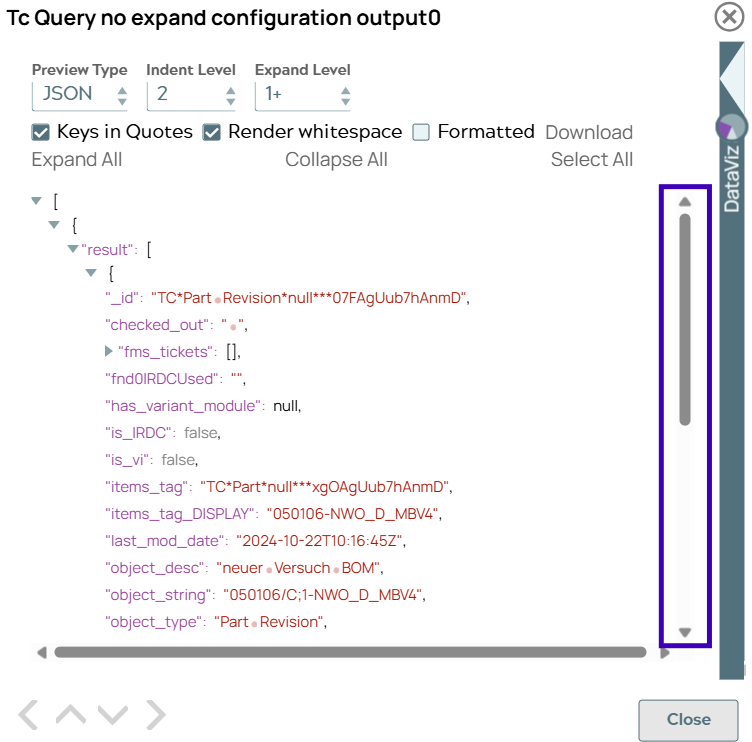
A possible output shows a moderate amount of attributes.
Case configuration of attributes to be expanded
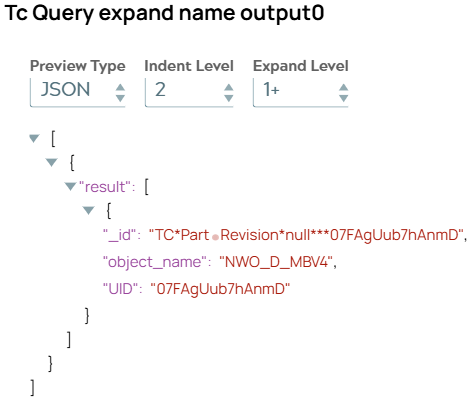
To limit the amount of attributes a list of attributes can be given to Snap. This is done by using the Expand Attributes Path where a path is given to find attributes in input JSON document. Alternatively, a pipeline parameter can be used as value where attribute names are listed separated by comma in the pipeline parameters. Last but not least Snap settings offer a table to define attributes. E.g. only “object_name” is needed to be processed in next steps of pipeline. Settings for Expand Attributes are then:
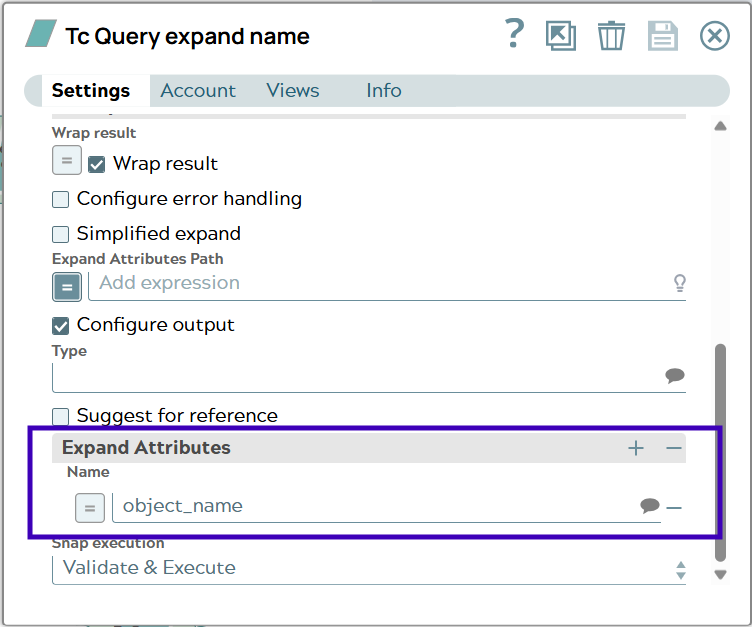
And output document contains a corresponding amount of attributes.
Case configuration of attributes which shall be excluded
On the other hand a use case is possible where a defined attribute shall not be received. For this case configuration of expanded attributes can use the sign “-”. To exclude the attribute “object_name” settings are:
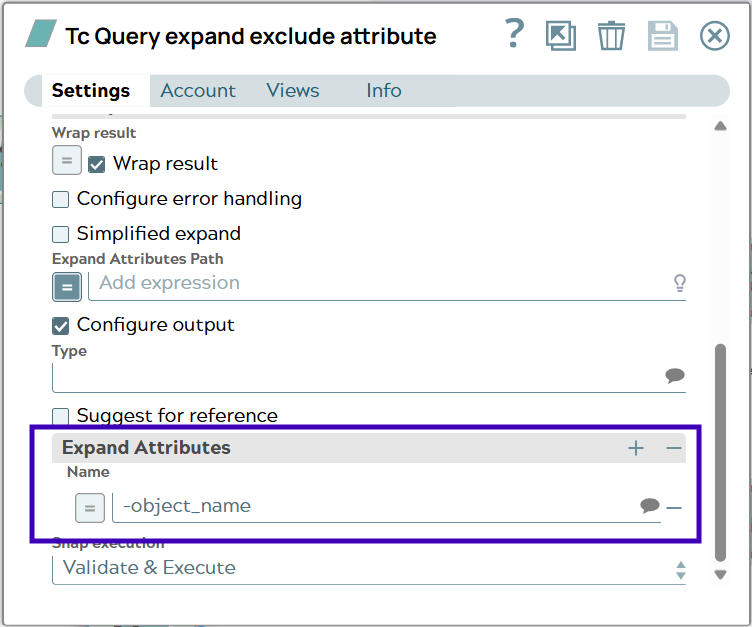
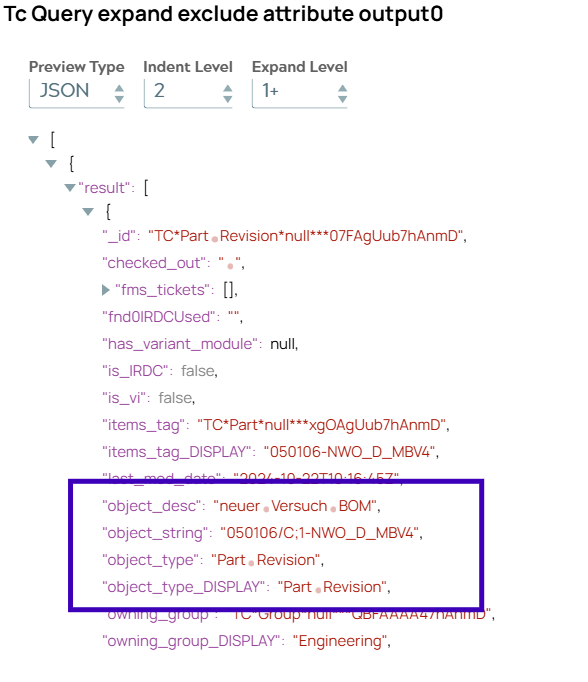
And output document contains attributes in alphabetical order and no attribute with name “object_name”.
Case configuration to show everything
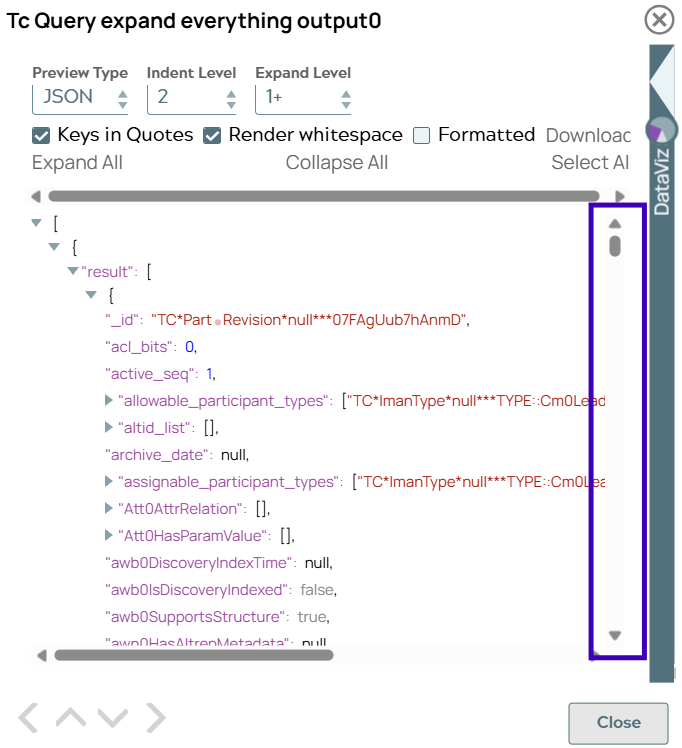
Maybe not at runtime but for design time it can be useful to get all possible attributes of an object. Therefore the settings of Expand Attributes can use the sign “*”.
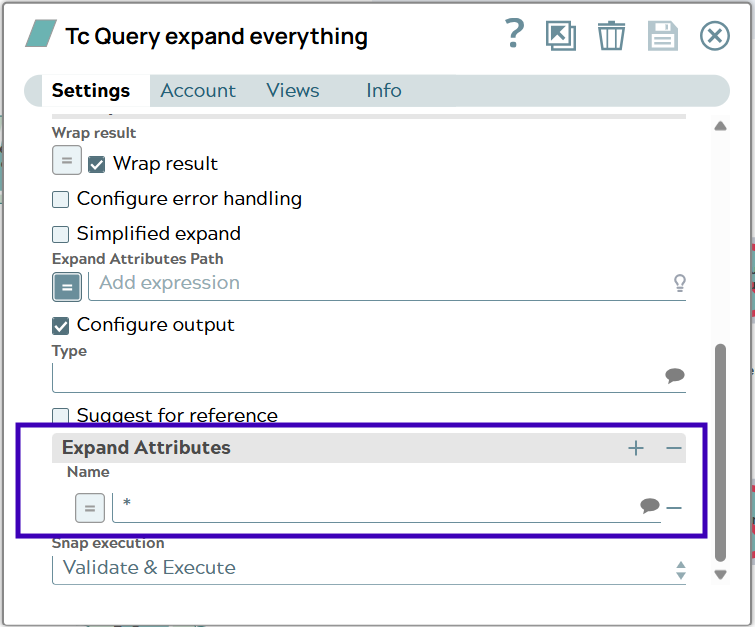
A possible output shows a huge amount of attributes.
Case configuration to show attributes of policy AND some more
If attributes are defined in JSON document or Expand Attributes table as described in Case configuration of attributes to be expanded, only those attributes are in result. For the case response shall include policy attributes AND some defined additional attributes another signal sign is available. In this case the settings of Expand Attributes can use the sign “+”. In the “Tc BOM Structure Get TraceLinks (*)” Snap an example is preconfigured.